Connectivity training beyond Z-scores
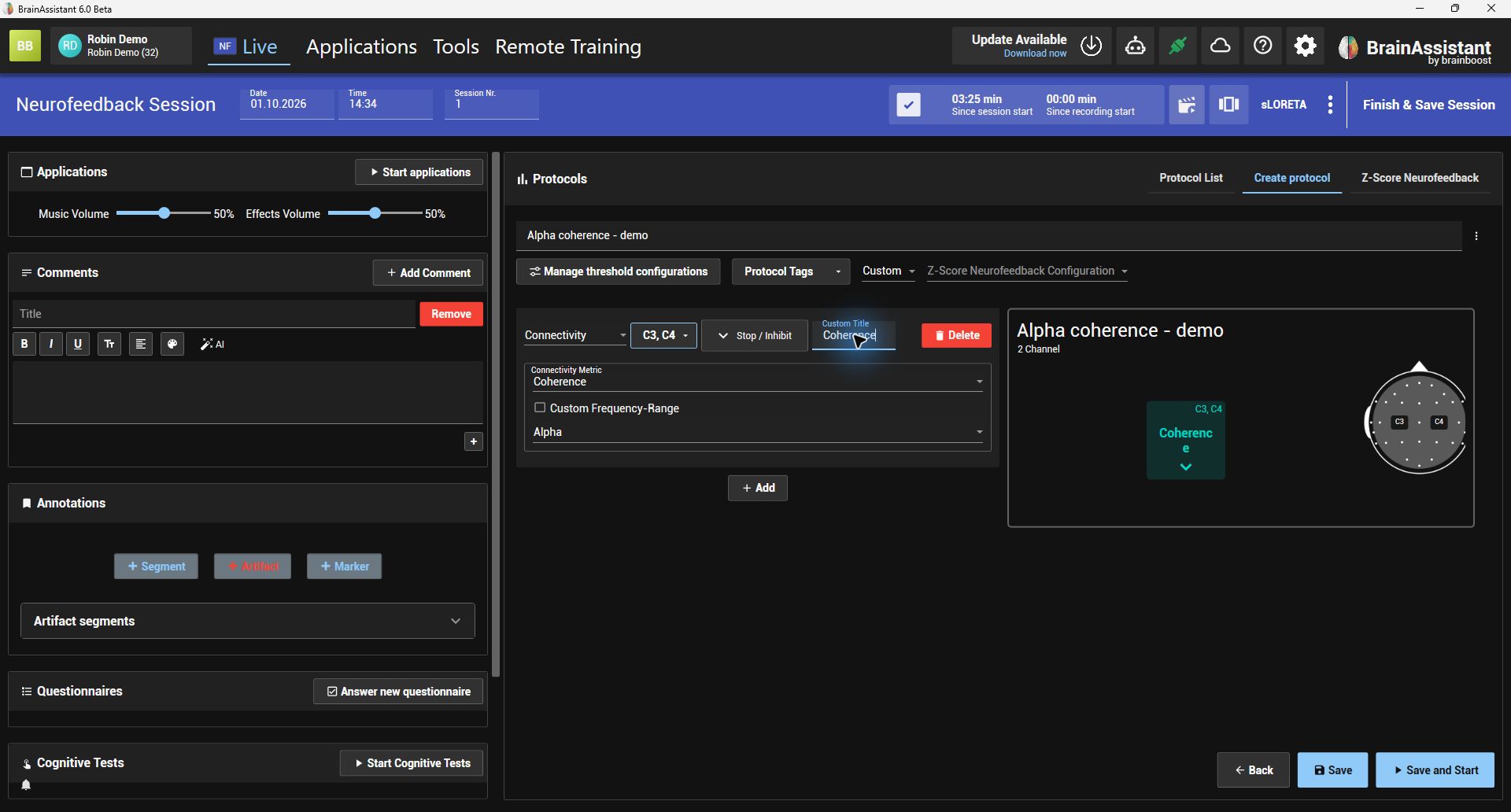
Use raw connectivity, such as coherence, in ETOMs and live neurofeedback. Add a Connectivity bar to a protocol, choose the positions and frequency band, and include connectivity results in report scores.
 BrainAssistantRelease highlights
Update v6.0.0.393
Research Case Library
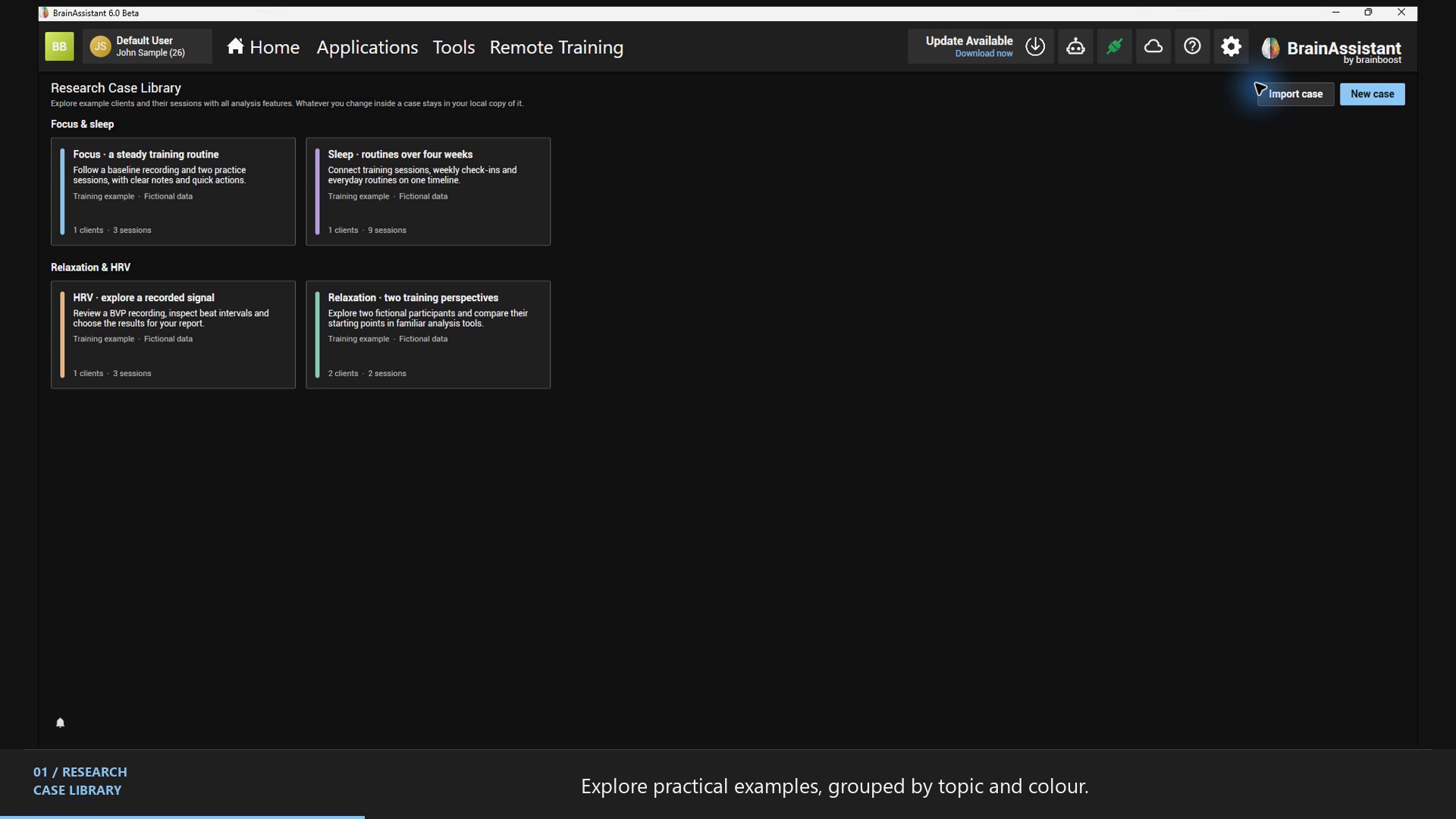
Try a complete example in the views you already know—even without Session Pro. Each case brings its sessions and report resources, so you can explore a workflow instead of starting from an empty profile.
Start in Help, at the top right. Open Research Case Library, browse cases by group and colour, and choose what you want to explore.
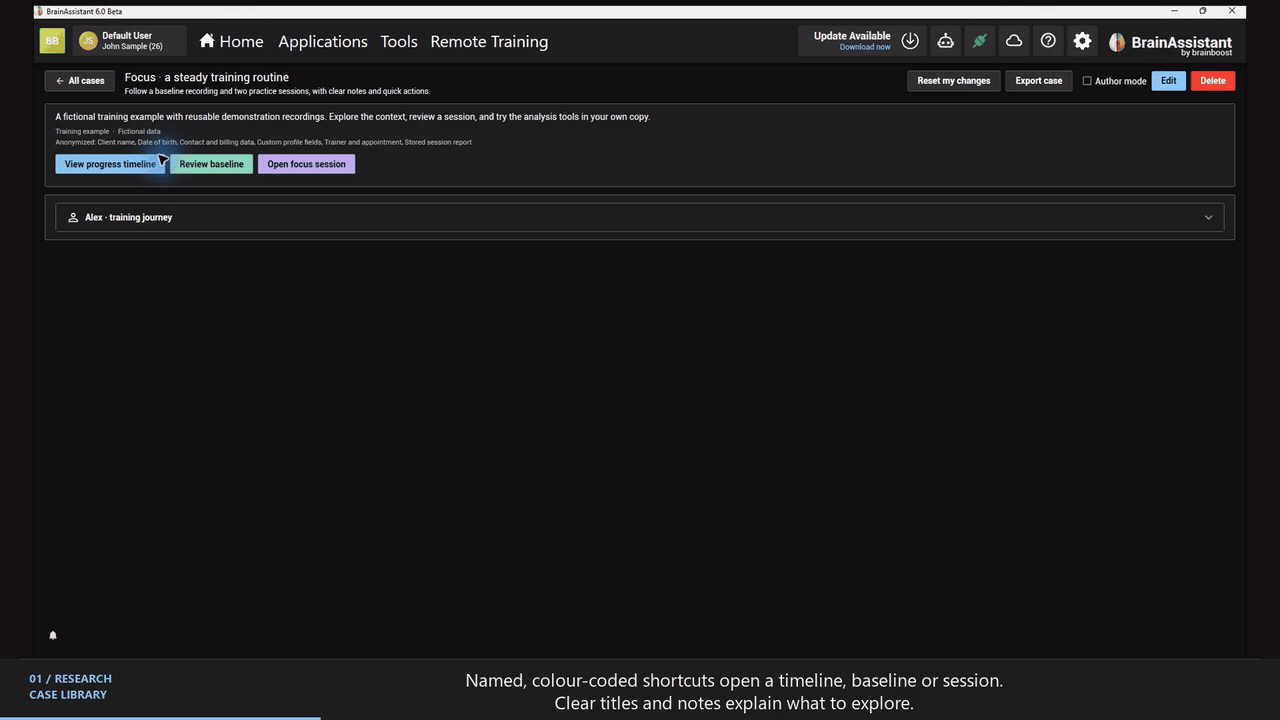
Use the named, coloured quick actions to jump to a session overview or recording. Or expand a client card, choose a session and select Open in Studio.
Your changes stay in your own copy and can be reset. Clear titles and notes give you context before you open each example.
Case creation is in beta. Build an example from selected client sessions and questionnaires, choose what to anonymize, and add your own title, notes, group and shortcuts.
Event Timeline
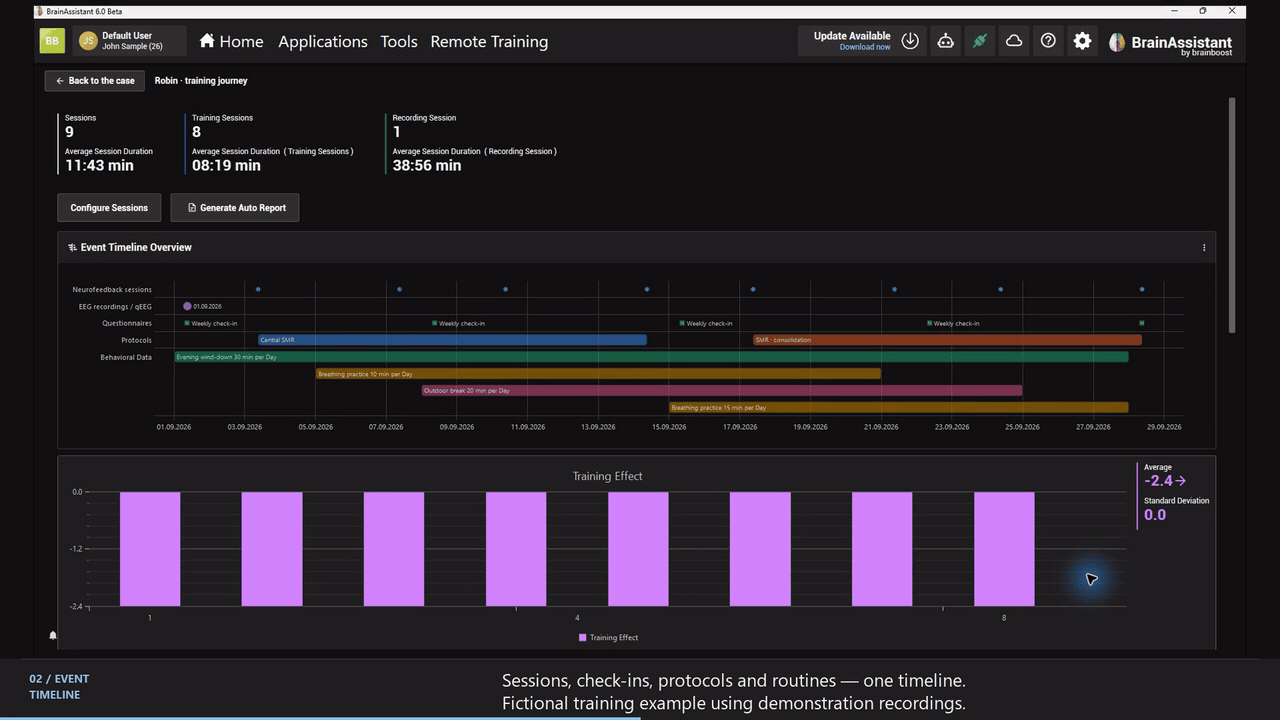
Review sessions, recordings, questionnaires, cognitive tests, protocols and logged routines together in the multi-session Session Overview. See what happened when—including overlapping activities—without piecing together separate lists.
Open the timeline’s options to choose what appears, switch to a compact view or focus on a particular period. Add the same timeline to a PDF report and keep those choices with your template.
HRV reports
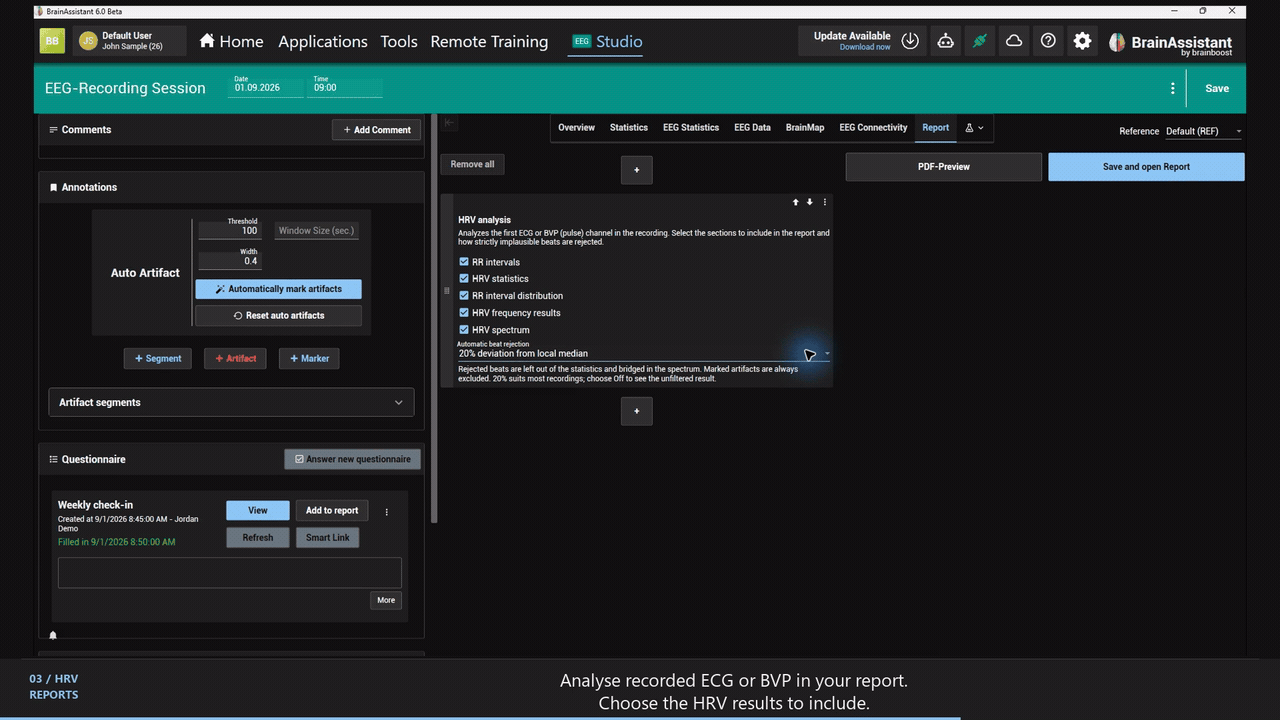
Include HRV from a recorded ECG or pulse channel in your usual reporting workflow. Choose the results and charts you want to show, then use PDF Preview to check the report before saving.
Automatic beat rejection helps reduce the influence of movement and implausible beats. Anything you have marked as an artifact is left out.
Guided calibration
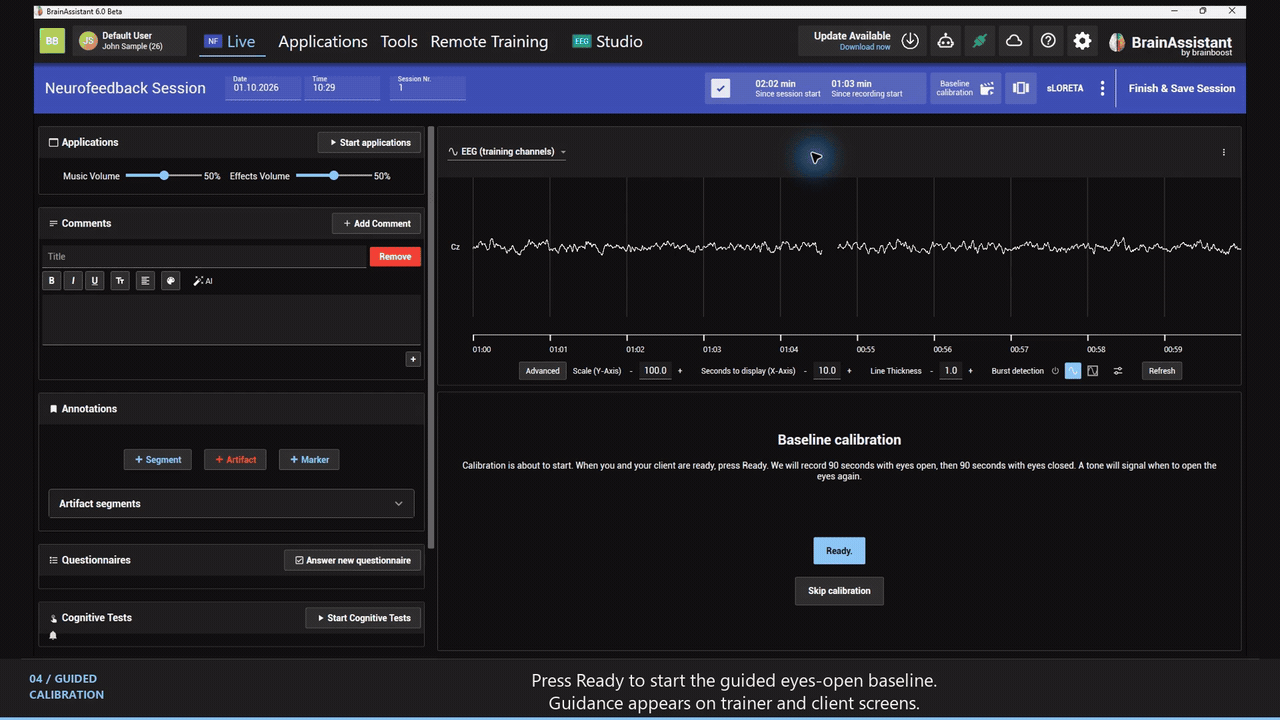
At the start of a neurofeedback session, BrainAssistant guides you and your client through eyes-open and eyes-closed baseline recordings. Instructions appear on both screens, and the baseline segments stay labelled for later review.
Press Ready when you are both prepared, or skip calibration when needed. Connections that do not support it skip it automatically.
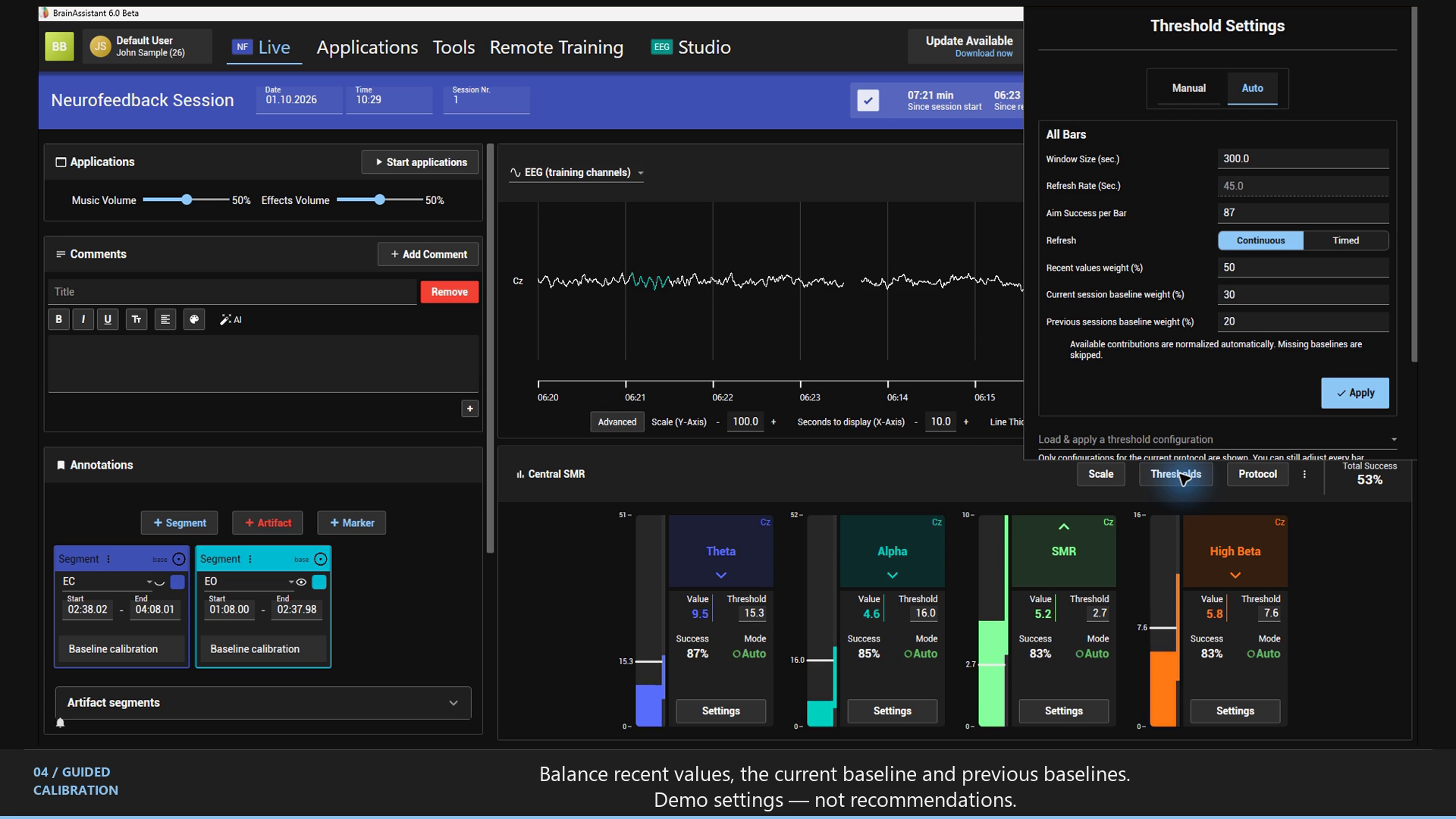
In global threshold settings, choose how much recent activity, the current session’s baseline and the last three sessions contribute to automatic thresholds. Adjust the balance to suit your workflow.
Use raw connectivity, such as coherence, in ETOMs and live neurofeedback. Add a Connectivity bar to a protocol, choose the positions and frequency band, and include connectivity results in report scores.
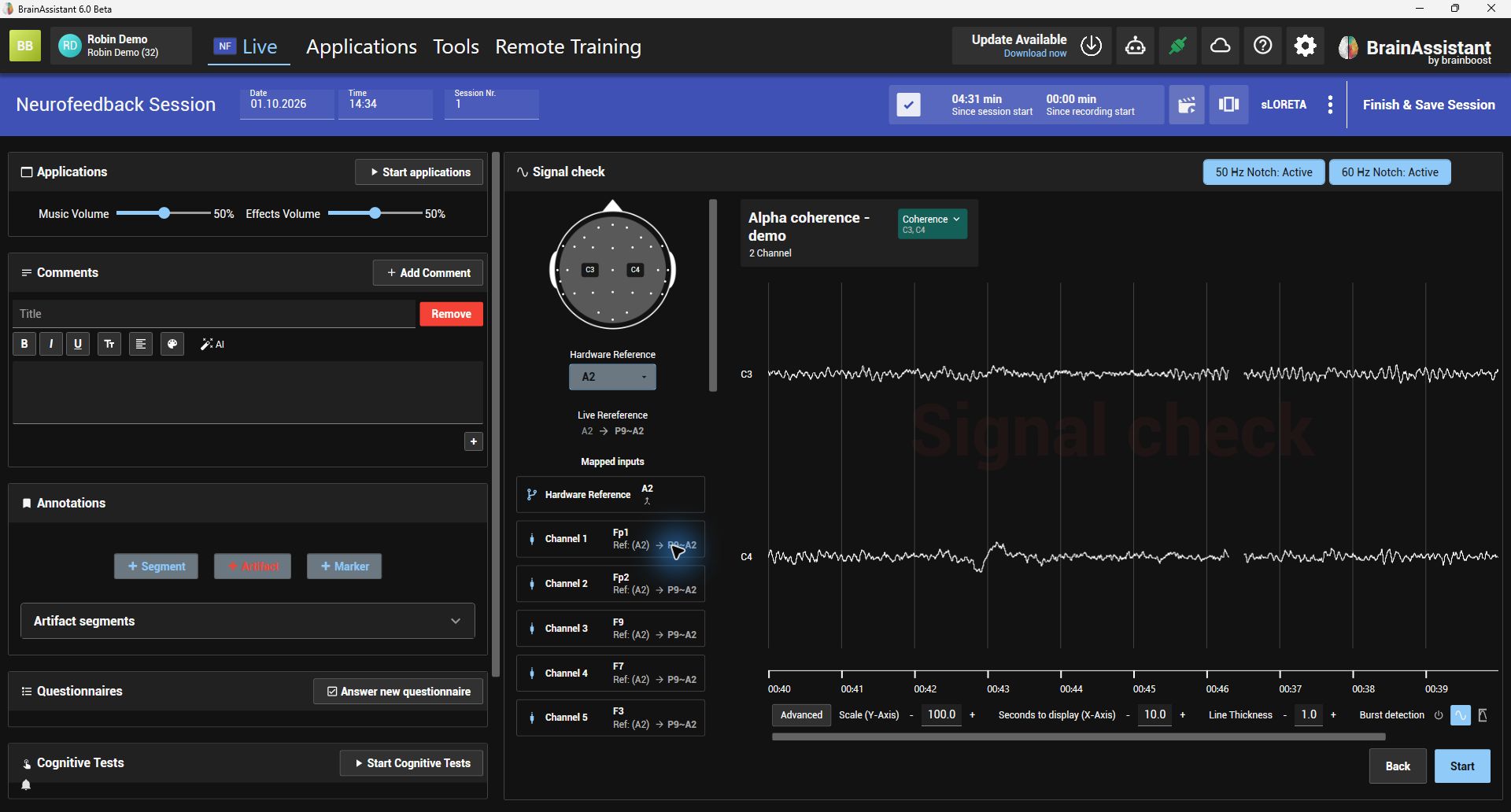
The left-hand signal check distinguishes the physical electrode reference from the reference applied live. Colour, icons and explanations make it clearer which electrodes form the new reference and which become active channels.
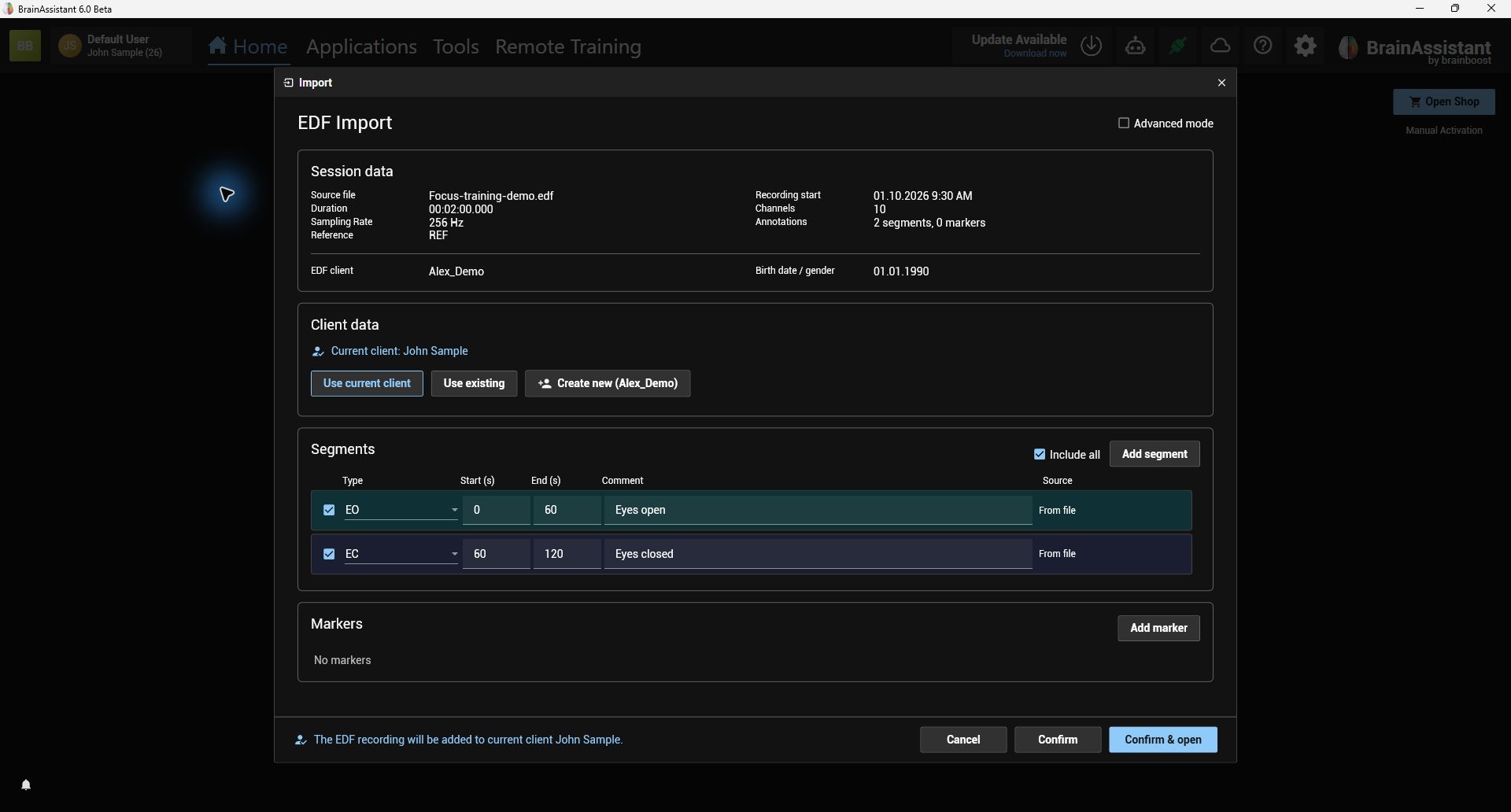
Import an EDF recording through a guided review: choose the client, check the recording, and adjust its segments and markers before saving. Eyes-open and eyes-closed markers can become suggested segments. If something needs attention, the wizard explains it and offers a one-click fix where possible.
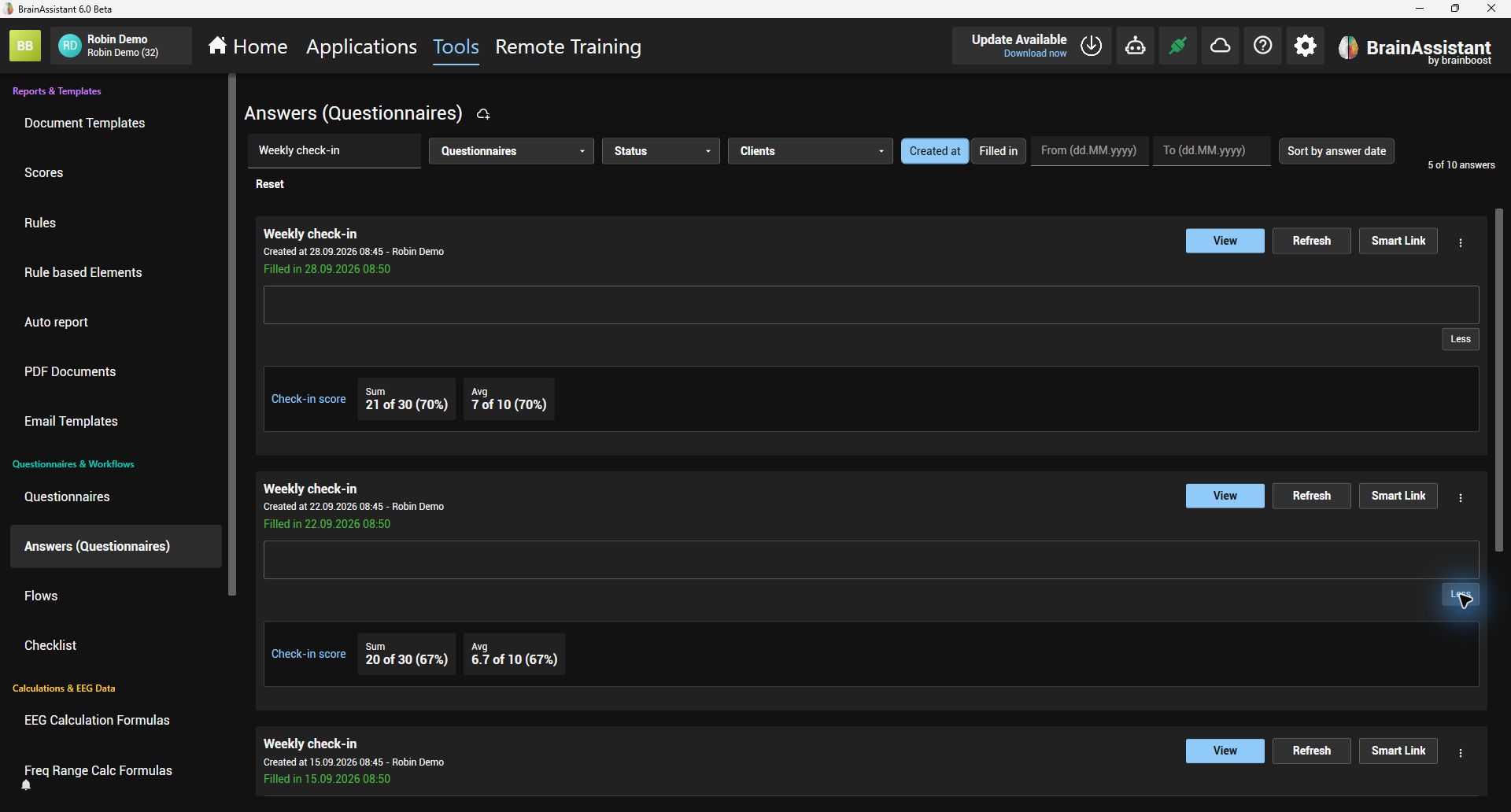
In Tools, browse all questionnaire answers from your selected workspaces—not just the latest 50. Search by text or narrow the list by client, questionnaire, answer status and dates. Sort by answer date to find an earlier check-in without working through every response.
Scores and topics can still be calculated when FZ or PZ is missing, using the additional backup calculations.
Start a new workspace with default questionnaires, assessment flows and training presets, and bring your local clients, sessions and templates with you. To reuse an existing workspace, choose Copy workspace data in Settings and decide whether to keep or replace items already in the destination.
Ask the AI assistant to edit report scores, rules and automatic reports that include descriptive text. Export all report content together in one file when you need to take it with you.
Save a remote training setup before sending an invitation without losing the client’s name or email. Reopening it keeps your chosen quick-start threshold settings. If you change an invited client’s email, a reminder points you to Save and Invite to update the invitation too.
Studio and Session Overview now agree on segment training effects, and their averages use the same qualifying segments as reports. Info badges explain what’s included and which artifacts were excluded. After editing segments or artifacts, reopen the statistics to refresh them; older sessions are flagged when recalculation is needed.
Working across multiple CloudSync workspaces? Choose Active, All or Smart in client lists, analysis, questionnaires and reports. Smart includes related information across your accessible workspaces by default. Conflicting profiles are flagged, and incompatible questionnaires stay out of combined trends.