
Cancelling a subscription does not refund it. Your license stays active on the devices you registered it on until the end of your next billing cycle.
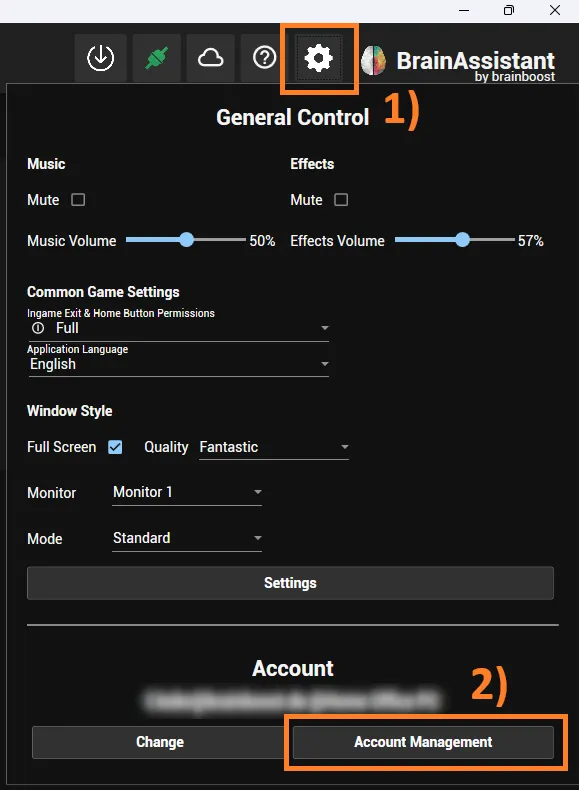
1. Click the settings icon
2. Click Account Management
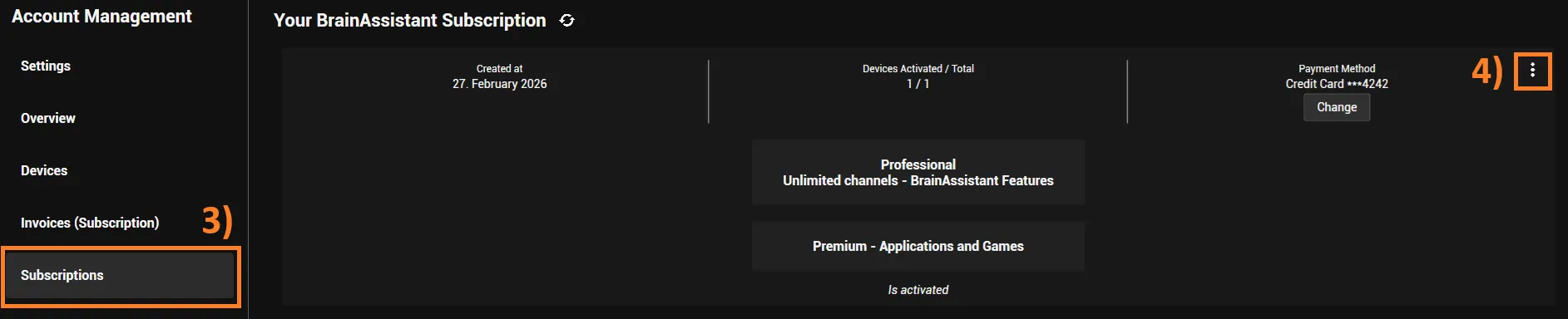
3. Click Subscriptions
4. Open the subscription’s options
Click the three vertical dots (More Options) of the subscription you want to cancel.
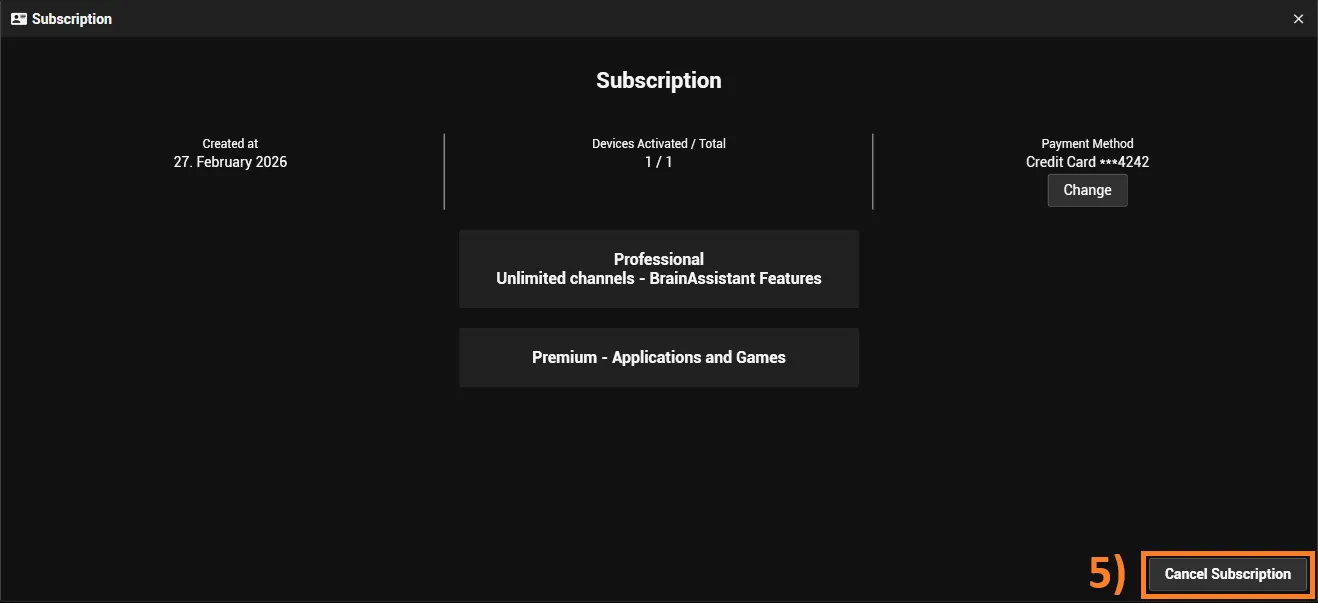
5. Click Cancel Subscription
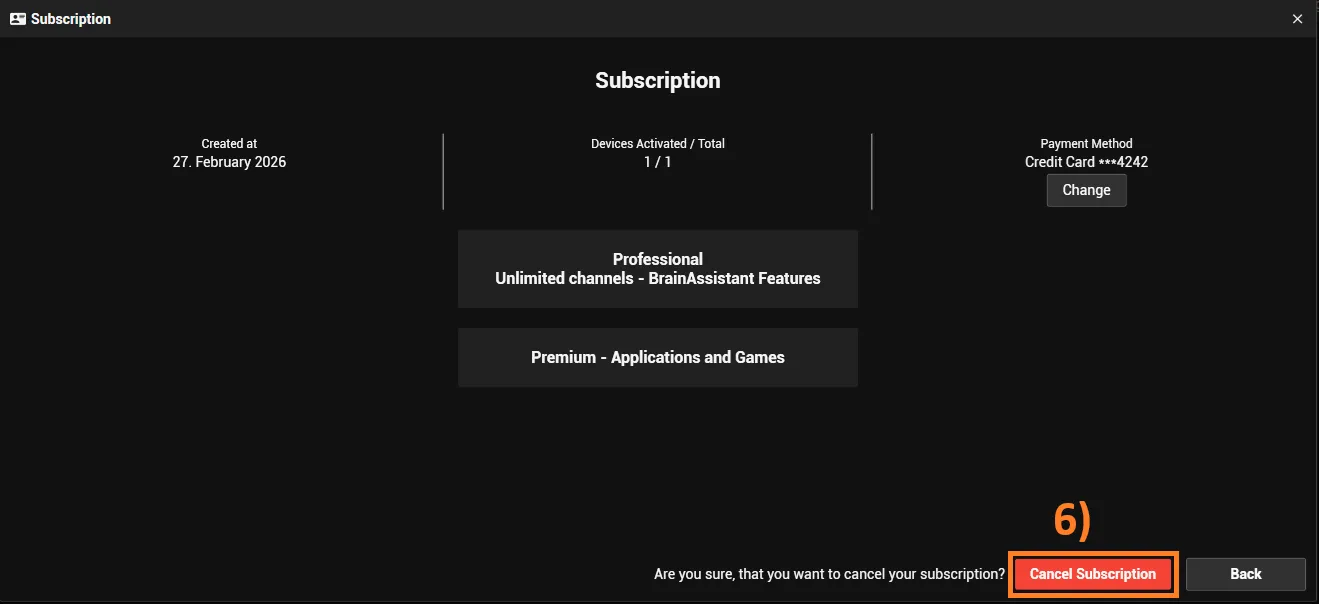
6. Confirm
Click Cancel Subscription again to confirm the cancellation.
A cancelled subscription cannot be restored. To use BrainAssistant again later, you have to take out a new subscription.
To subscribe again, see Subscribe to BrainAssistant.