Start a session
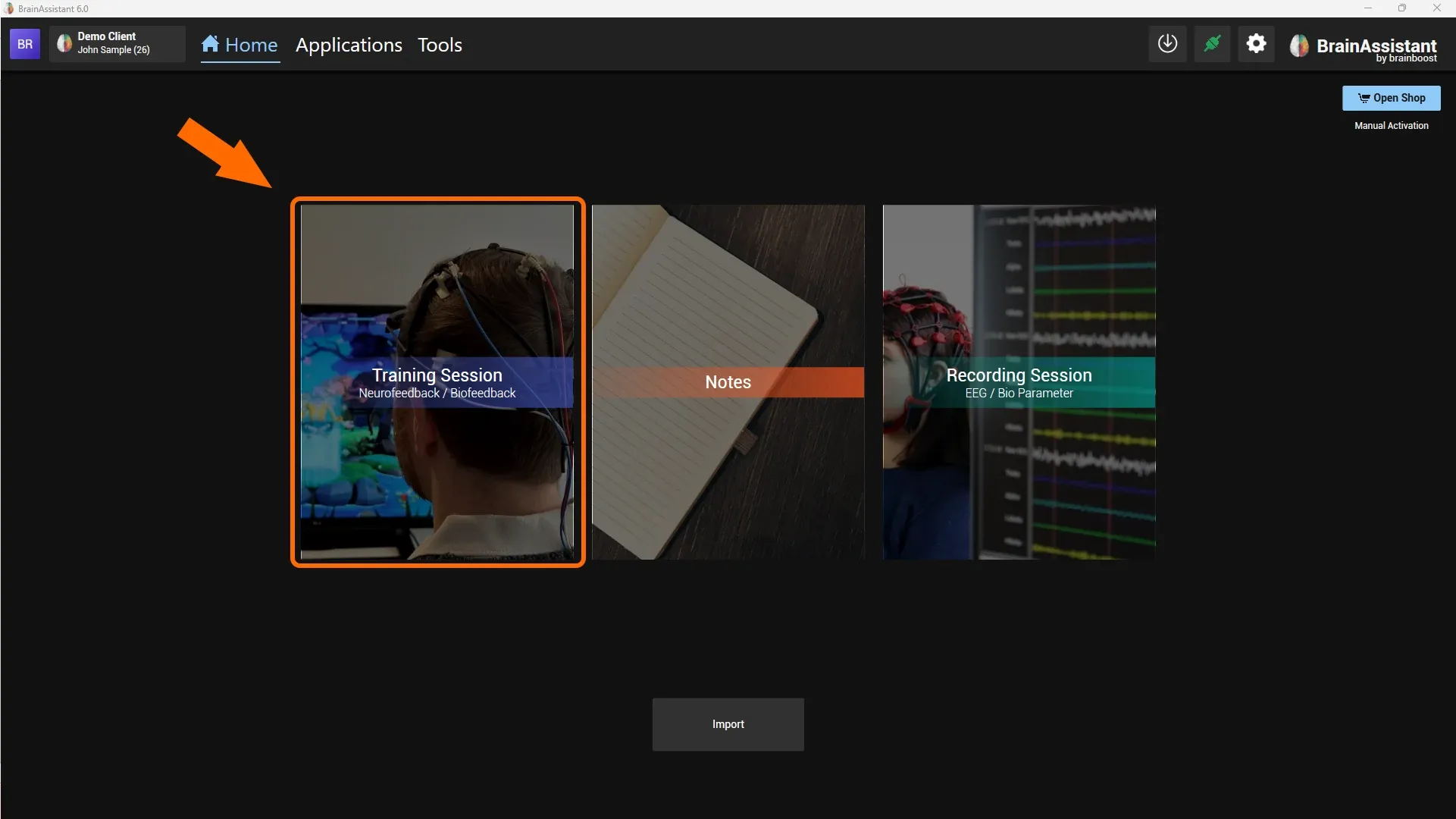
To start a neurofeedback (or biofeedback) session, click Training Session on the home page.
Select the hardware, cap and protocol
You can already add comments on the left by clicking the blue Add Comment button; this option stays available during the whole session.
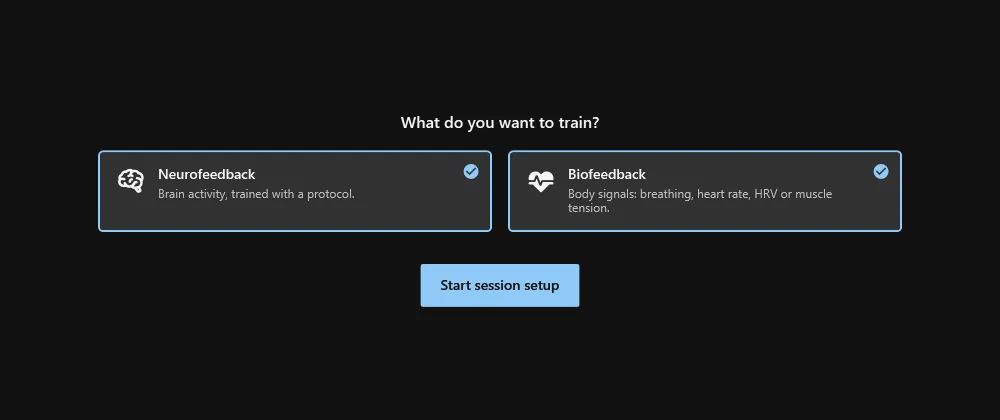
With the biofeedback module, the first step asks what you want to train: Neurofeedback, Biofeedback or both. Biofeedback alone skips the protocol selection and goes to the biofeedback bars instead; a row of steps above the setup shows the way to the signal check. To continue, click Start session setup.
Now choose the cap or mapping you want to use. You should find the name of your cap here. If your amplifier has no fixed cap, use Automatic mapping.
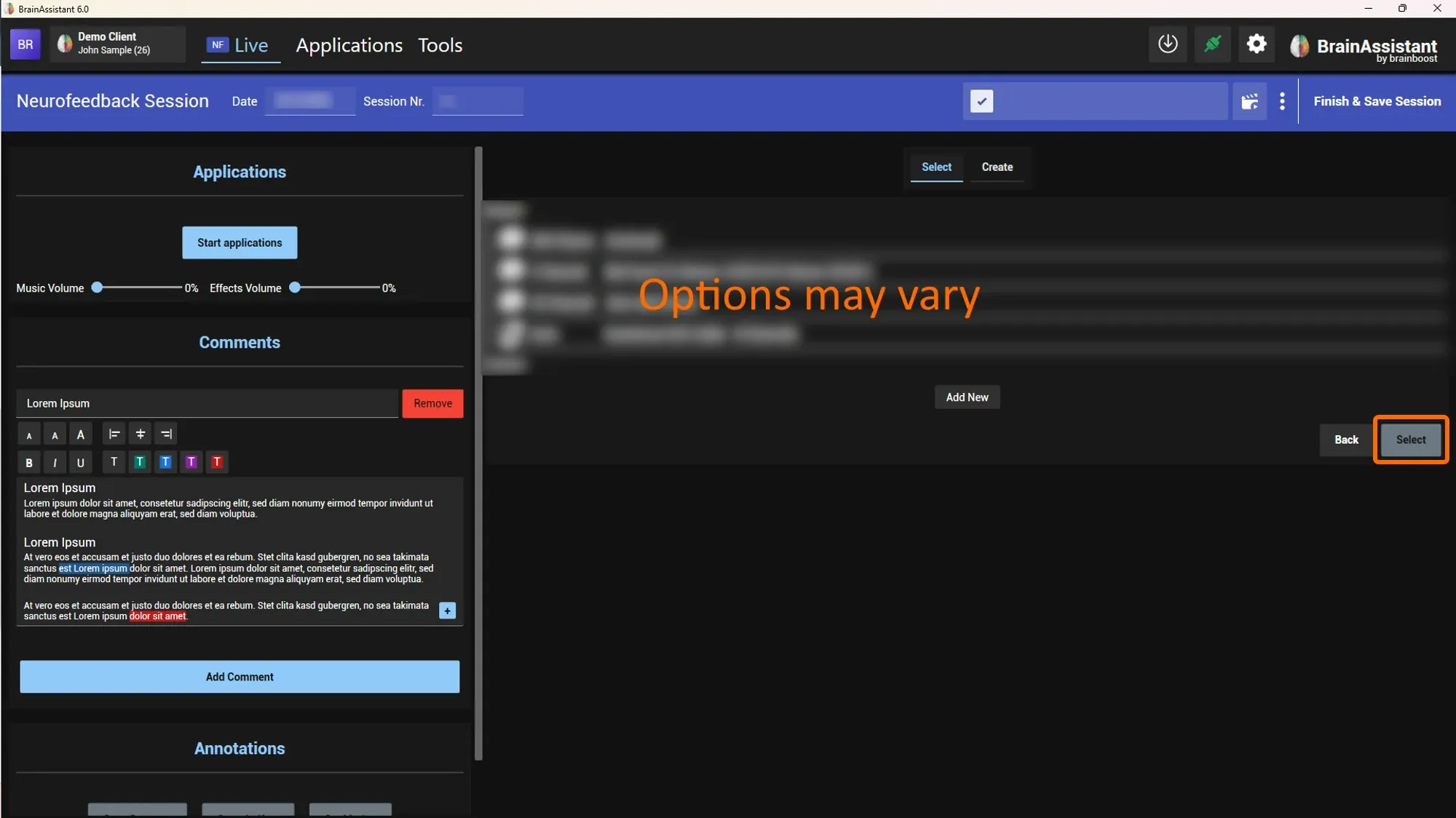
Confirm with Select at the bottom right.
If your amplifier or cap is not listed, write to support@brainboost.de so we can add it.
The list shows all pre-built protocols that come with BrainAssistant, for example CZ SMR.
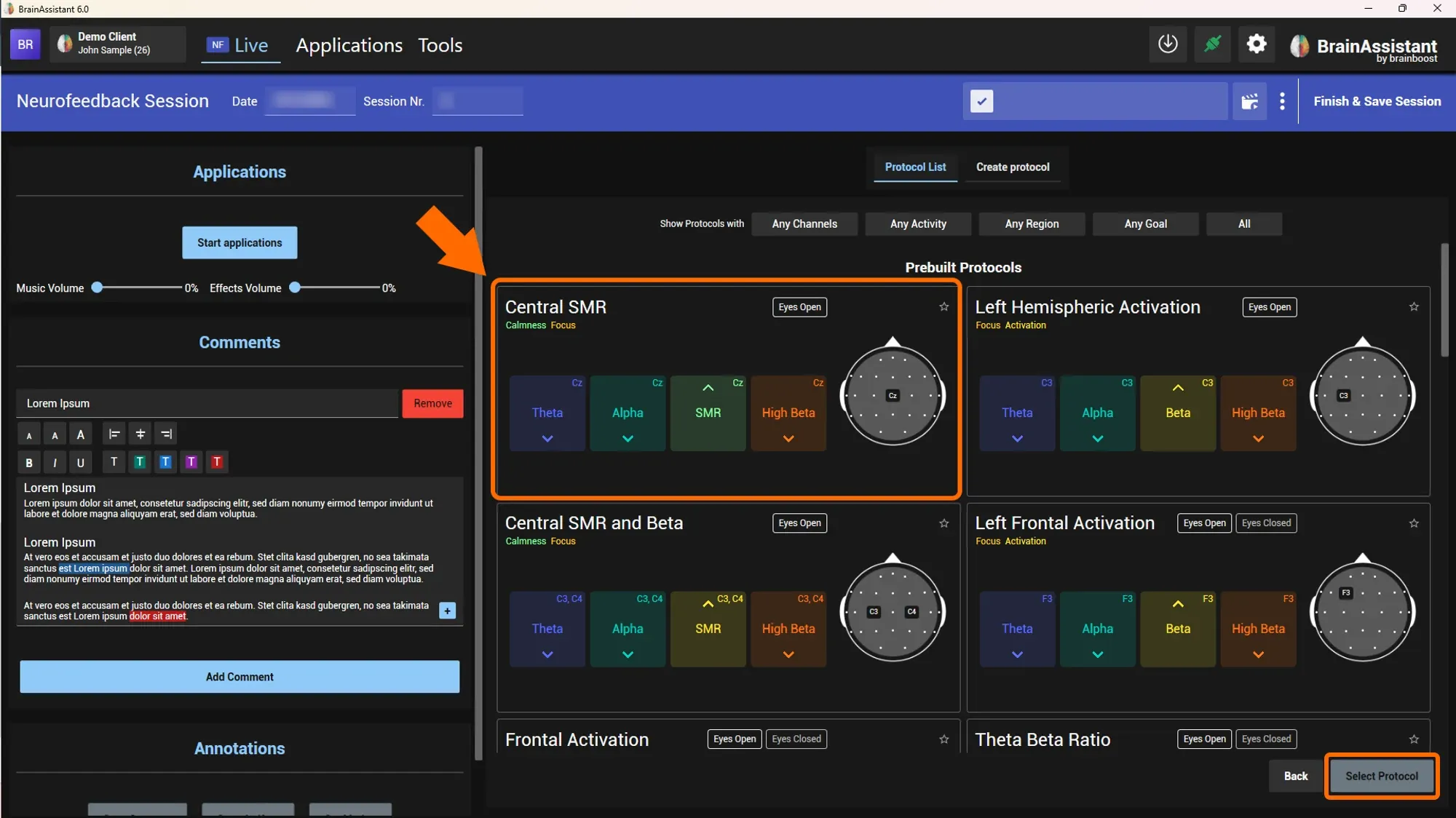
Click a protocol and confirm with Select Protocol at the bottom right.
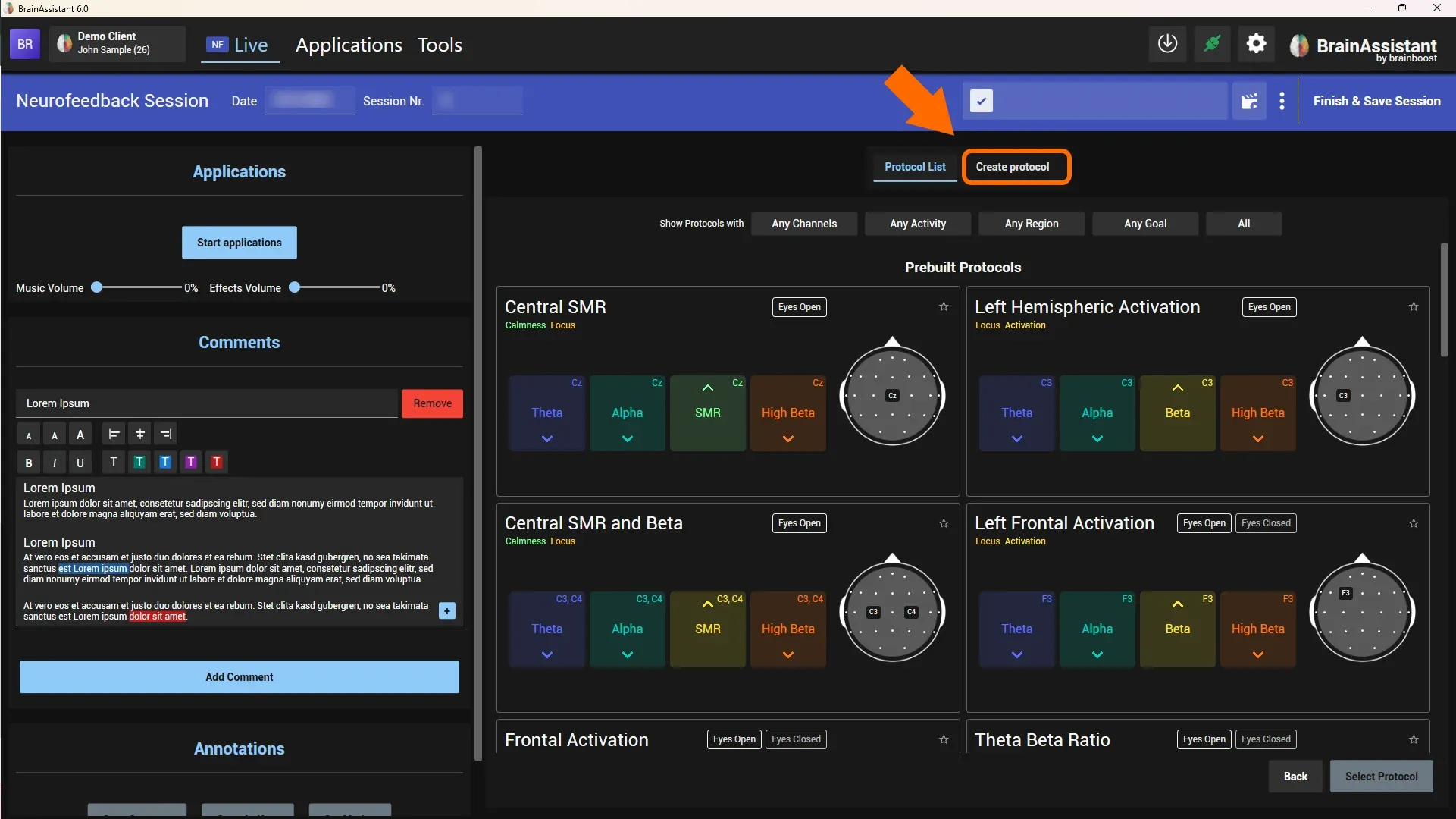
You can also click Create protocol to build your own protocols. More in our recorded webinar on YouTube: Creating protocols
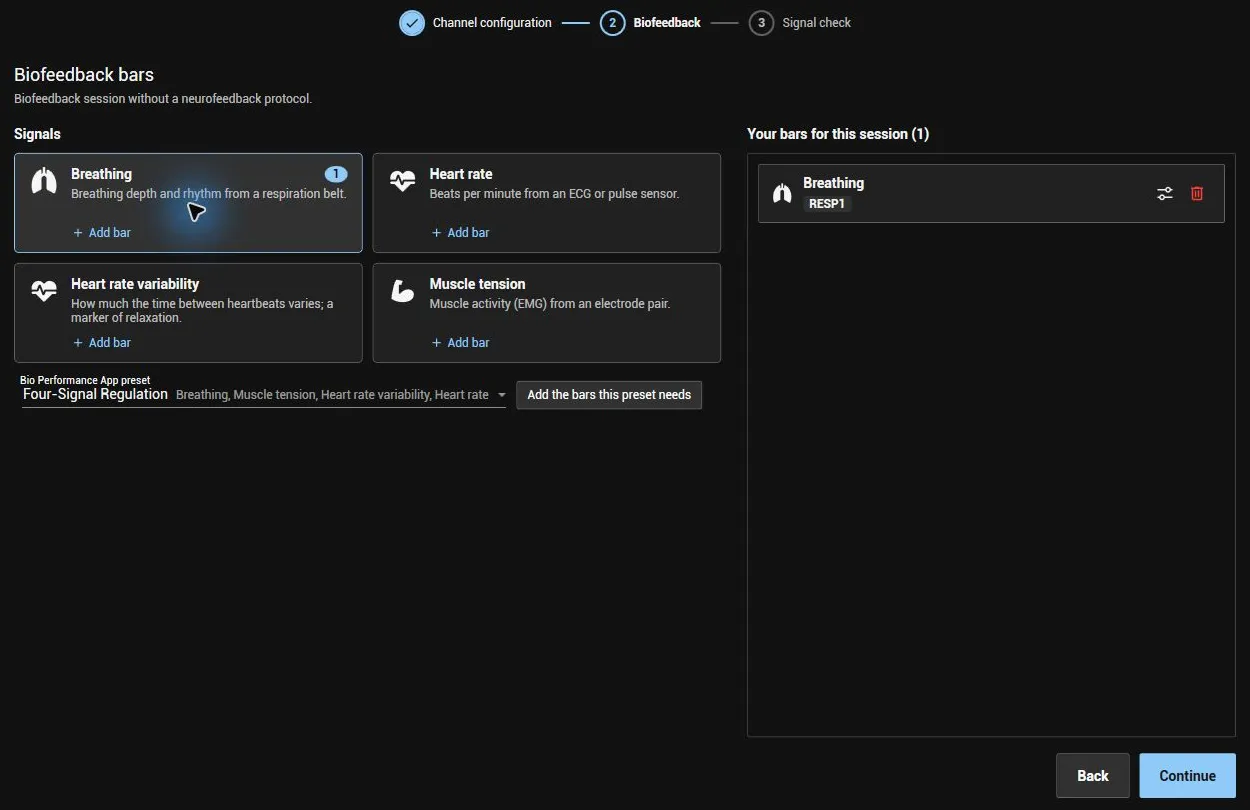
Biofeedback bars
With biofeedback, the bar step follows: after the cap selection, or after the protocol when you train both. It shows the signals: Breathing, Heart rate, Heart rate variability and Muscle tension. Click Add bar on a signal to add its bar; your bars for this session are listed on the right. A Bio Performance App preset adds all bars an app needs in one click.
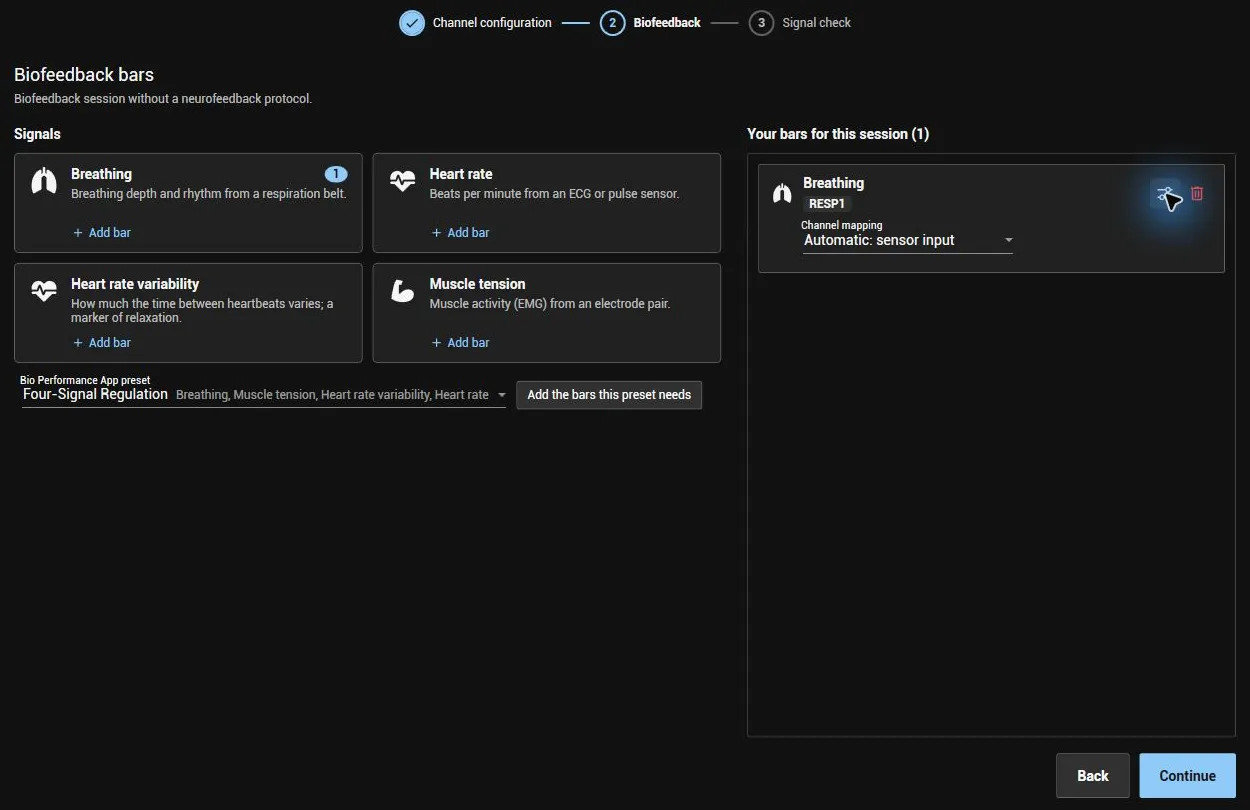
The slider icon on a bar shows its Channel mapping, the hardware channel the bar reads. Automatic: sensor input uses the matching sensor of your amplifier. Click Continue to go to the signal check.
Signal check
Check the signal, then click Start. In the bottom view you can change the X and Y axis to inspect the signal.
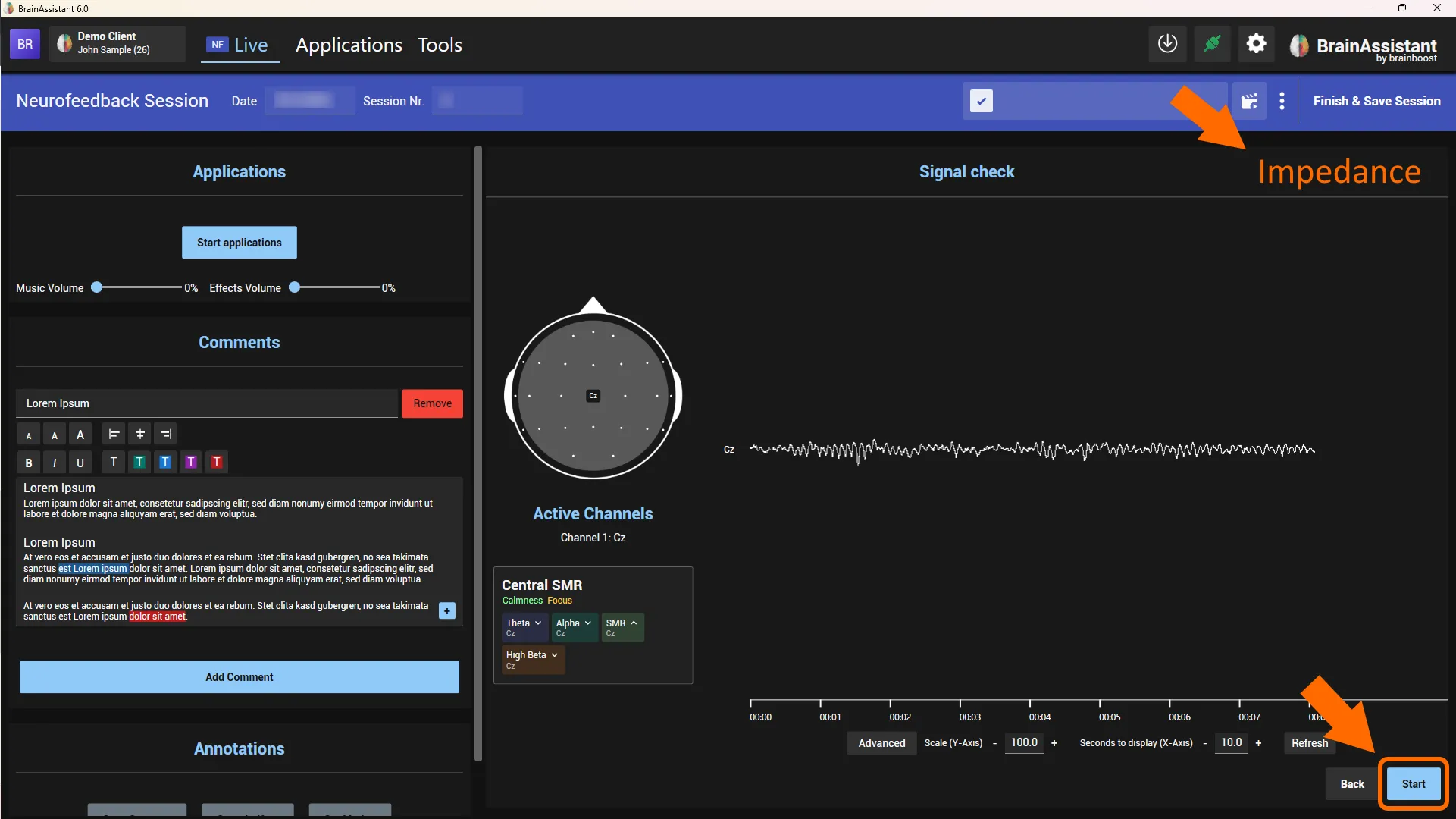
If supported by your hardware, you can check the impedance at the top right. We recommend getting all channels to a green or yellow state; the raw EEG inspection remains the more important part.
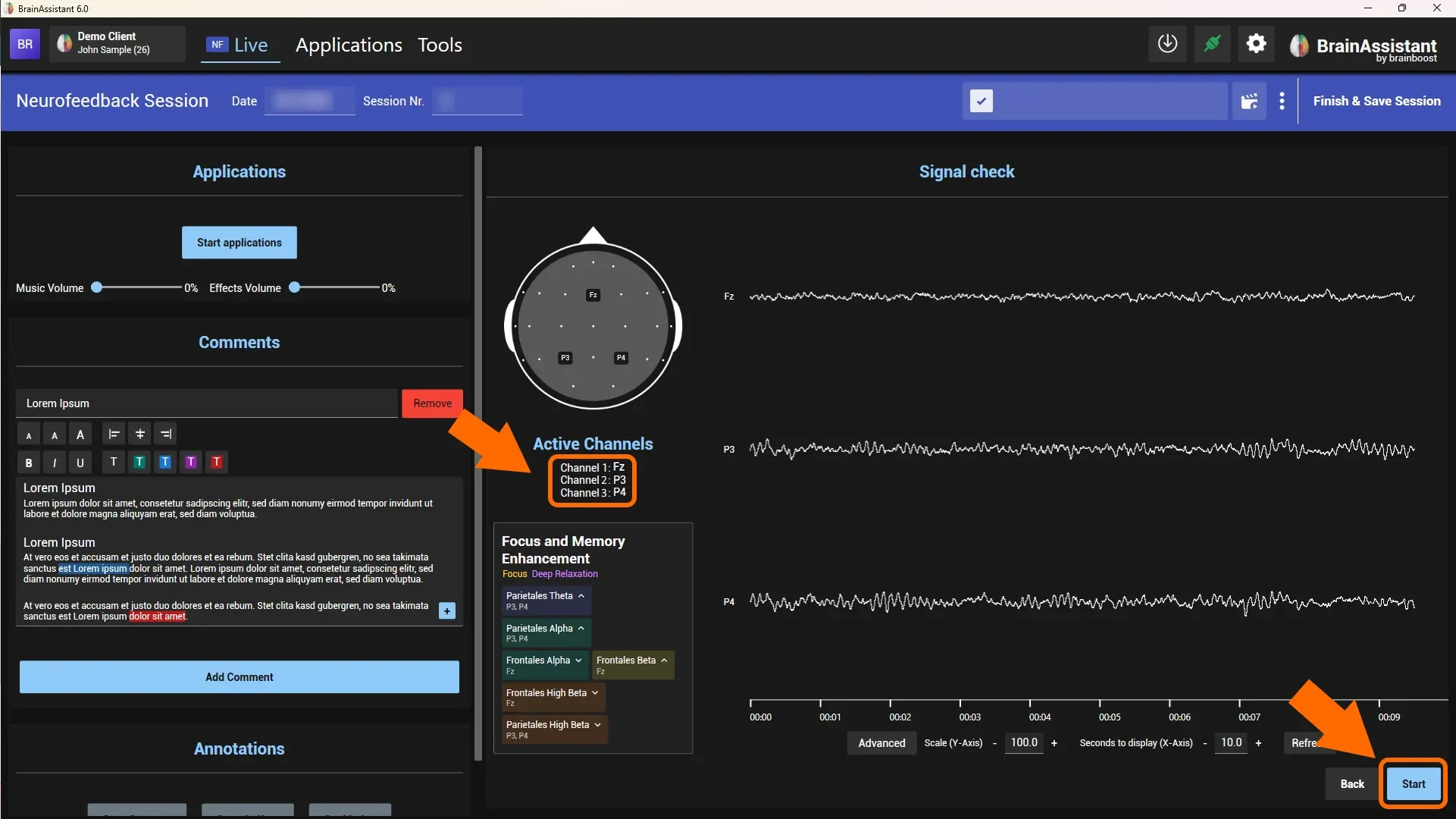
If you use an adapter instead of a cap with a fixed mapping, check the order of the channel numbers: for example, shake an individual electrode and see whether an artefact appears on the correct channel.
The electrodes need to be applied in the correct order depending on your adapter.
The neurofeedback training
If everything is connected correctly, you see the EEG and the bars on the right.
If you cannot see the EEG and want support connecting your amplifier, contact us at support@brainboost.de.
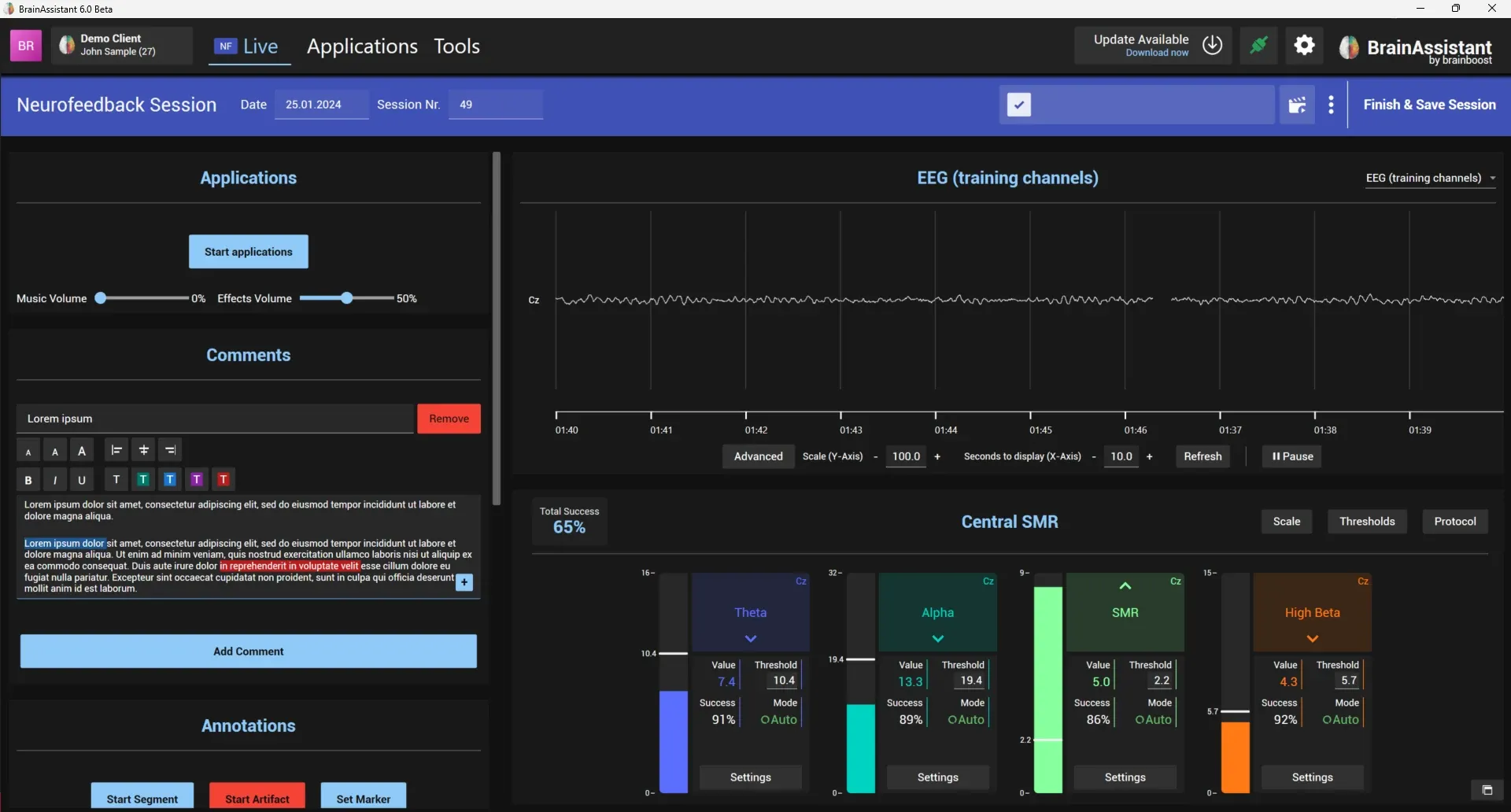
Threshold
More information on how to adjust the threshold. See also Automatic thresholds.
Comments
On the left is the comment section. Set a title (for example “Neurofeedback Session 1”) and take notes during the session. The buttons above the text field change the size and colour of your text.
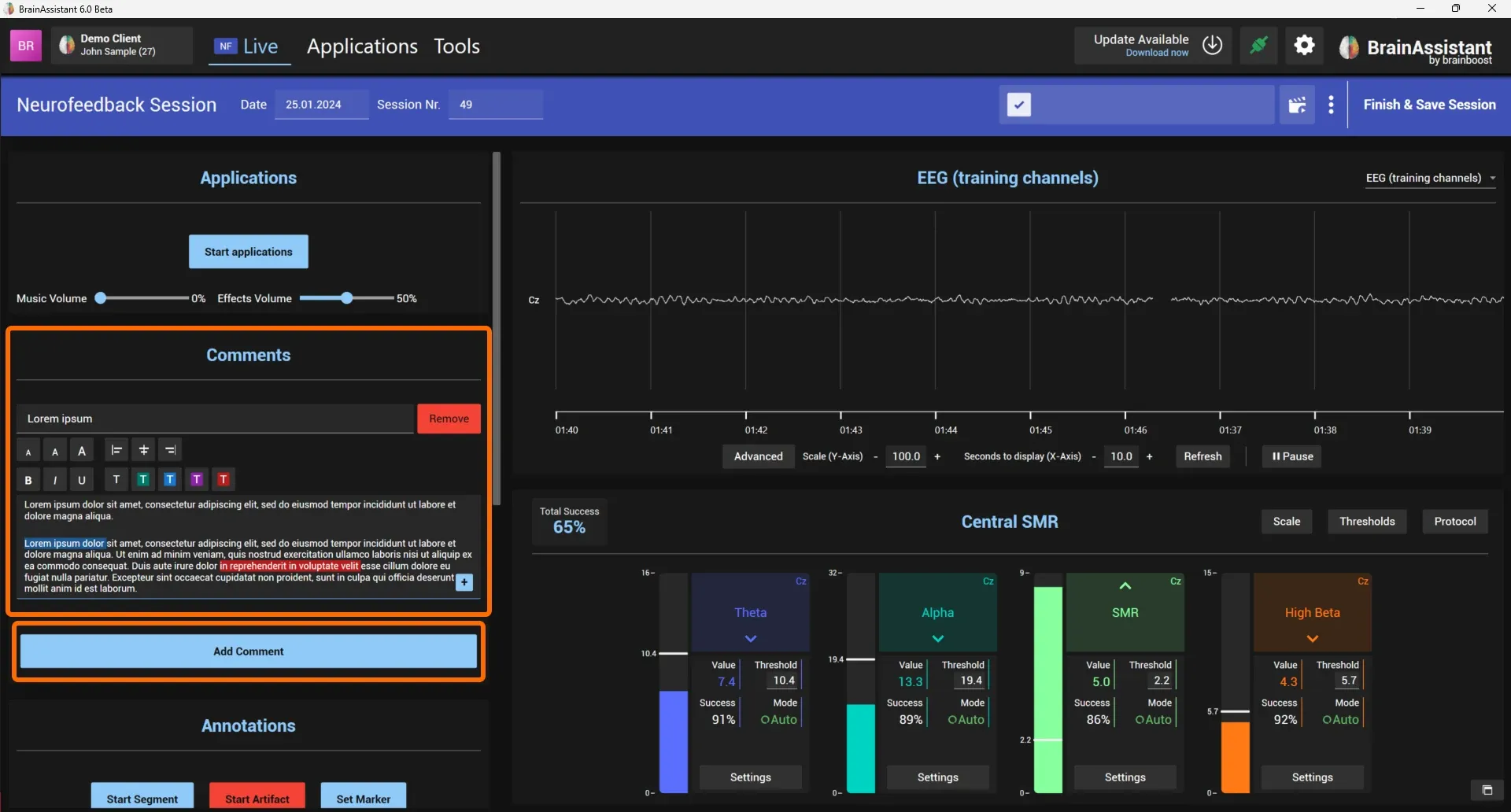
Click Add Comment to create a new comment field.
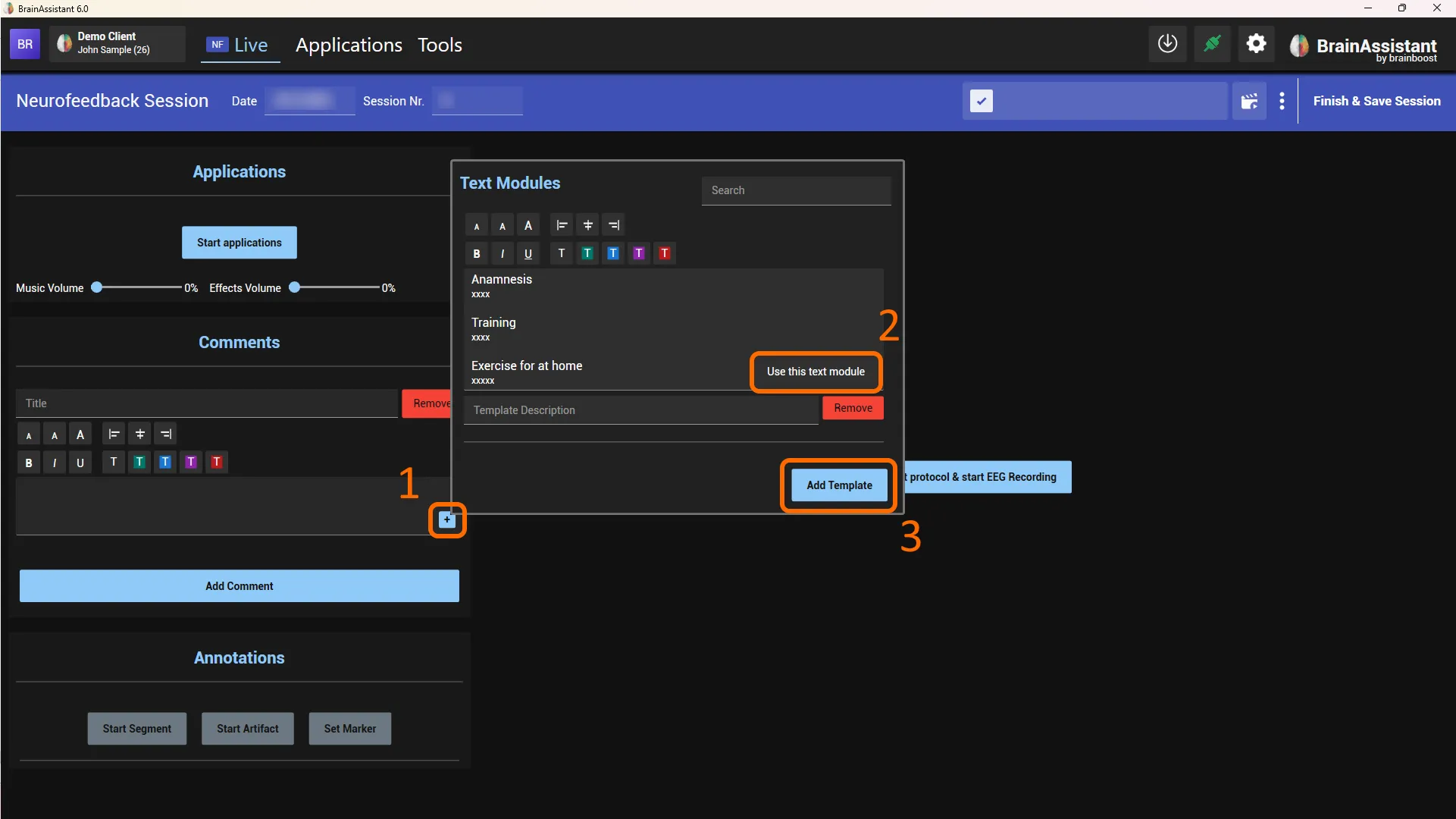
Templates: the blue plus button (1) creates text modules you can reuse in every session. Click Add Template (3) to create your own; Use this text module (2) inserts one.
Markers
If you notice something during the session, for example a brief strong movement of the client or an anomaly in the raw EEG, you can mark that point in time right away.
A marker identifies a point in time in the recording. A segment describes a period, for example an application such as the Focus Master.
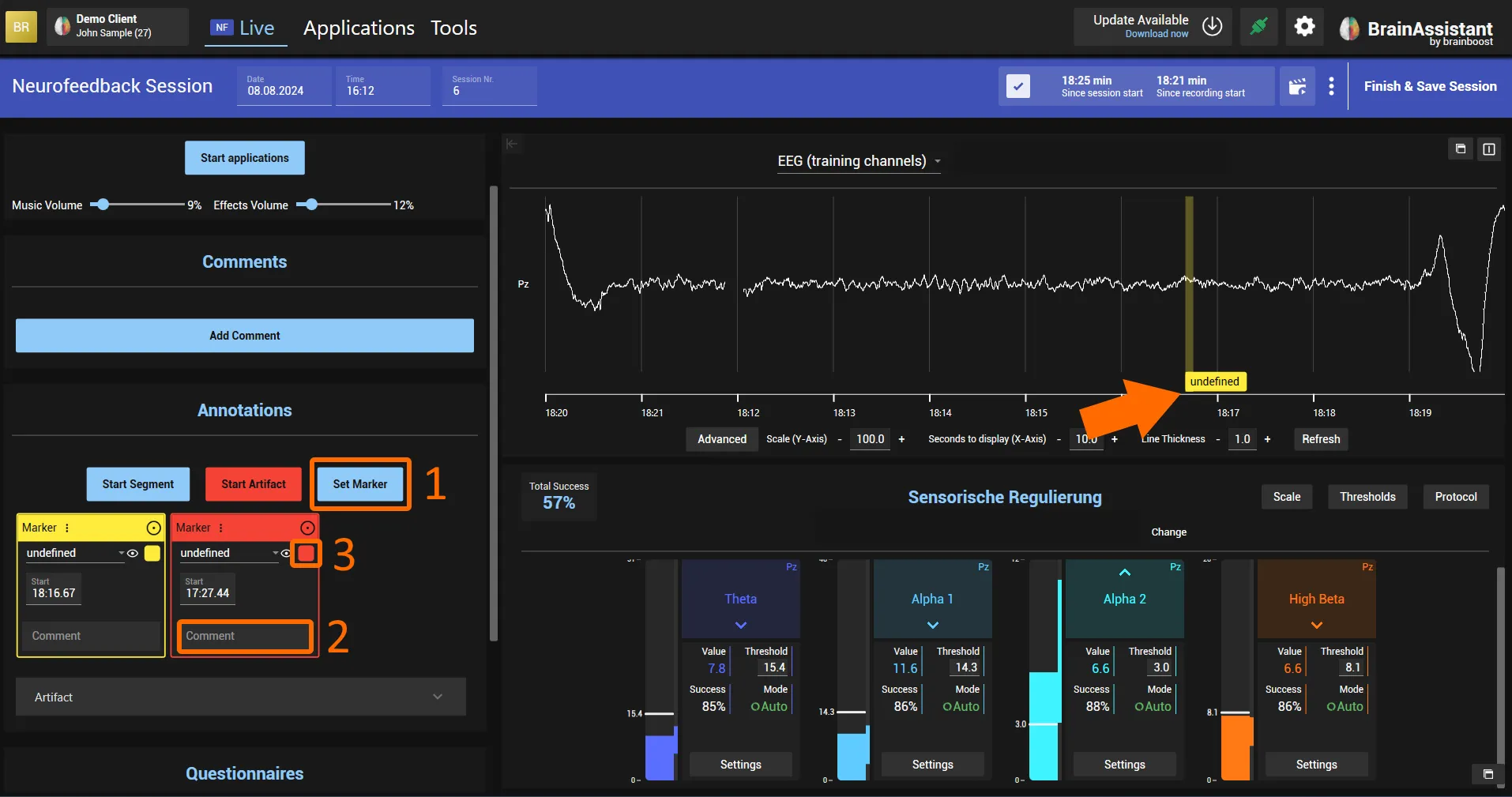
- Click Set marker.
- Define the marker, e.g. EC (eyes closed), and add a comment such as “Theta peak”.
- Change the colour to find the marker more easily afterwards or to distinguish it from other markers.
Mark artifacts during a session
You can mark an artefact during an ongoing training session.
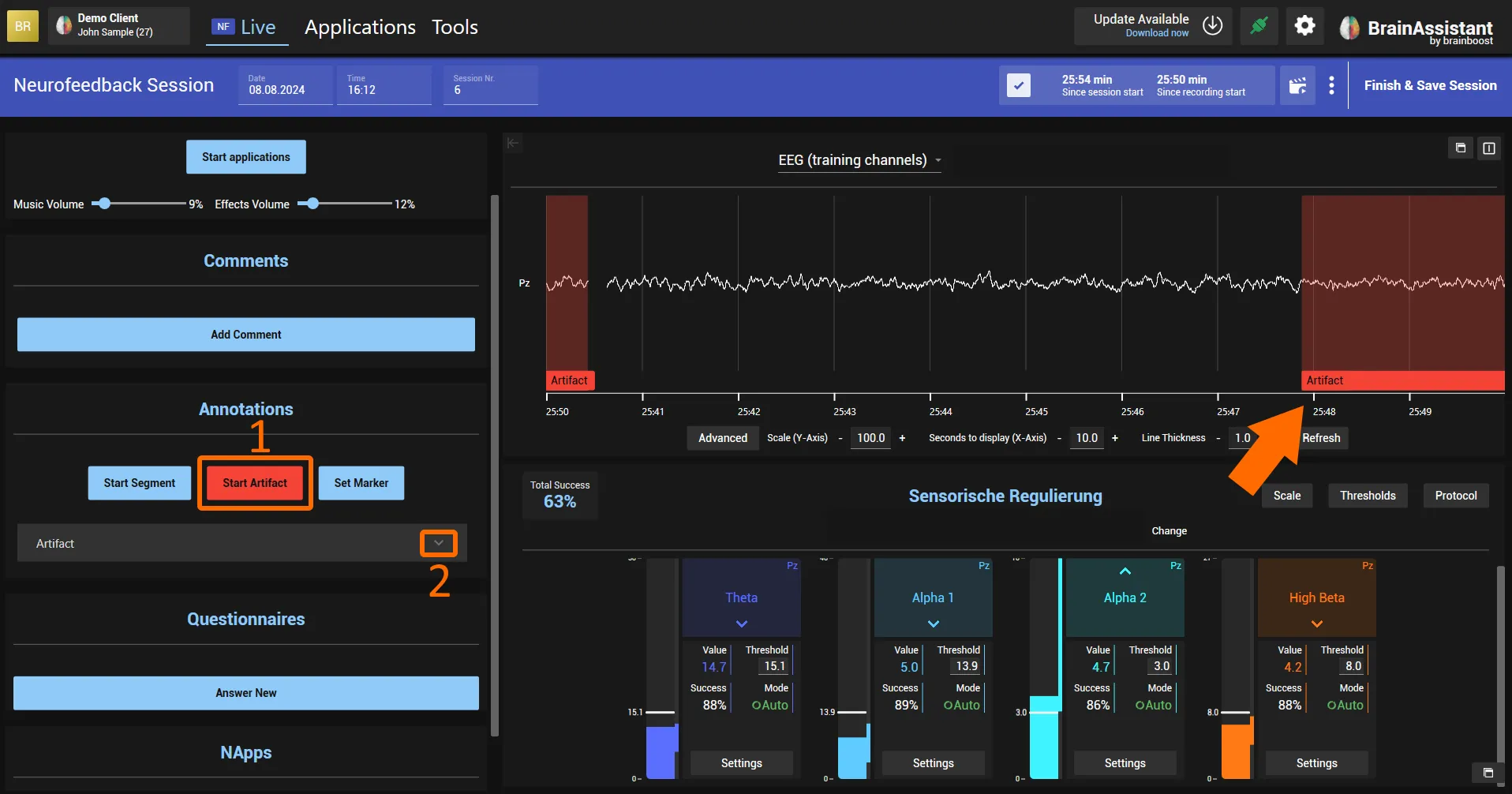
- Click Start artefact: a red Artifact segment starts and is shown directly in the raw data.
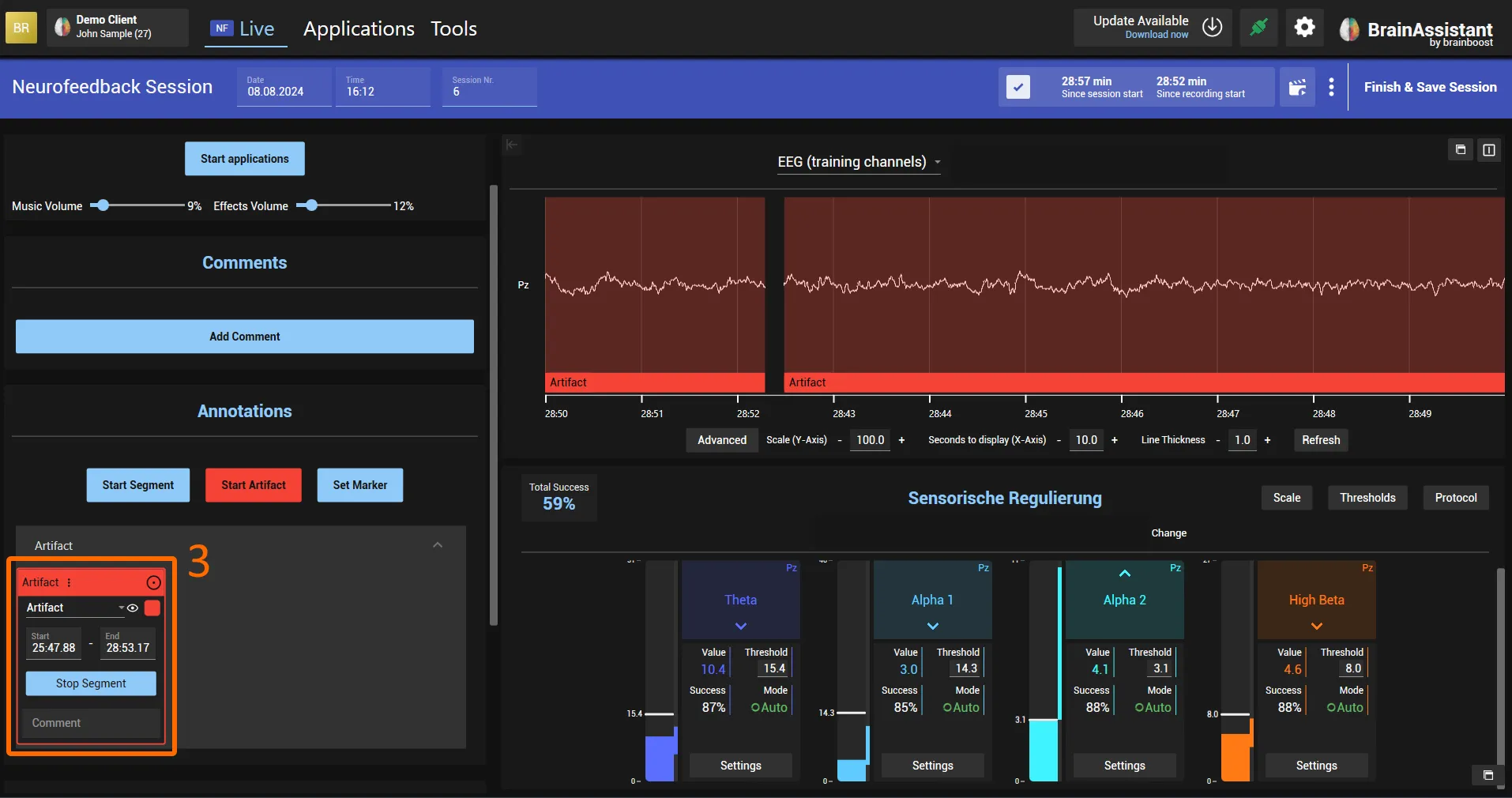
- To edit or stop the artefact, click the grey arrow under Artifact. A popup opens where you can
- change the colour, enter a comment, edit the start and end time, or
- end the artefact.
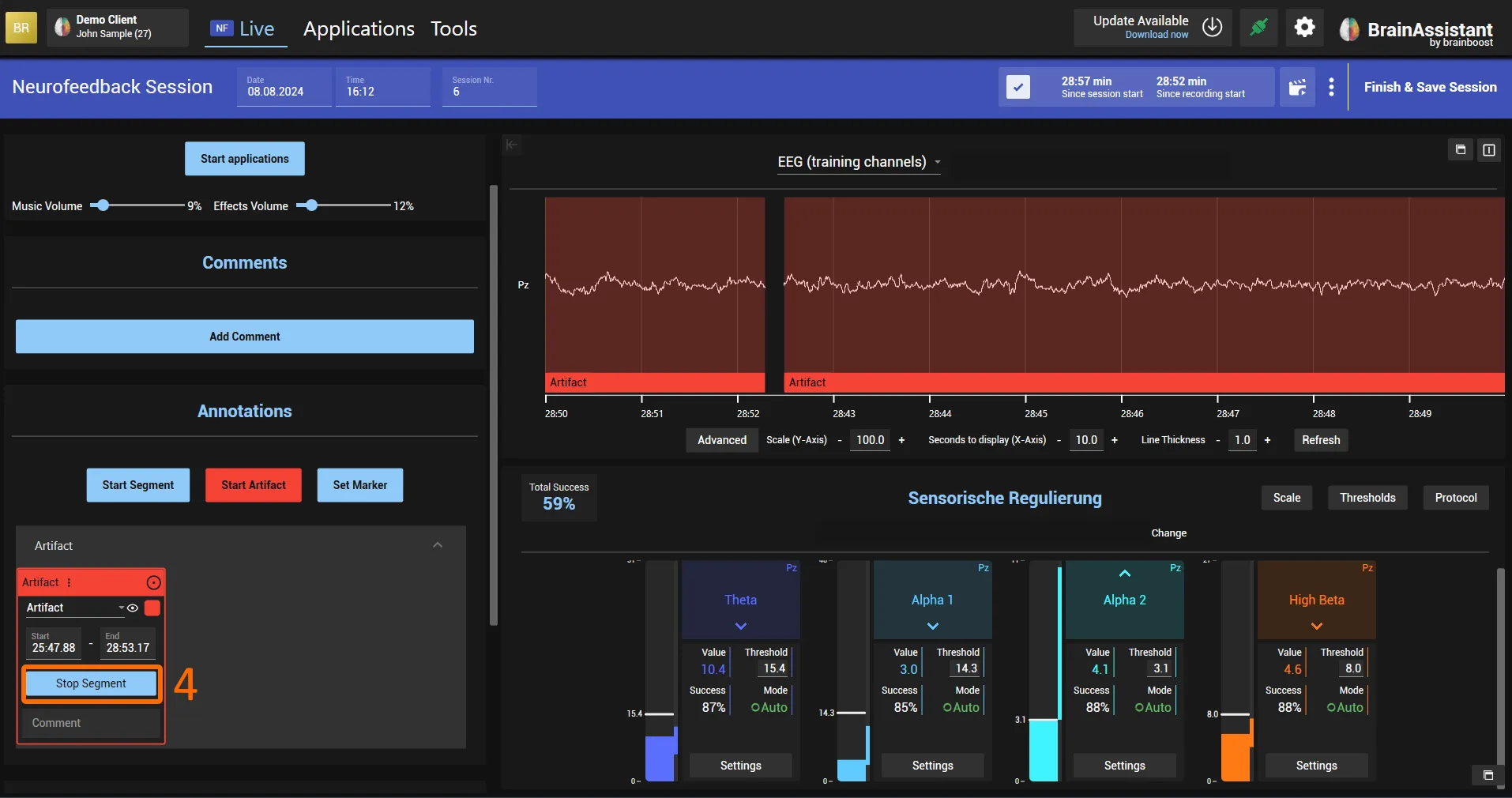
We generally recommend marking artifacts afterwards in the Studio. This allows you to work more thoroughly and cut out artifacts in the raw signal more precisely.
Neurofeedback and biofeedback applications
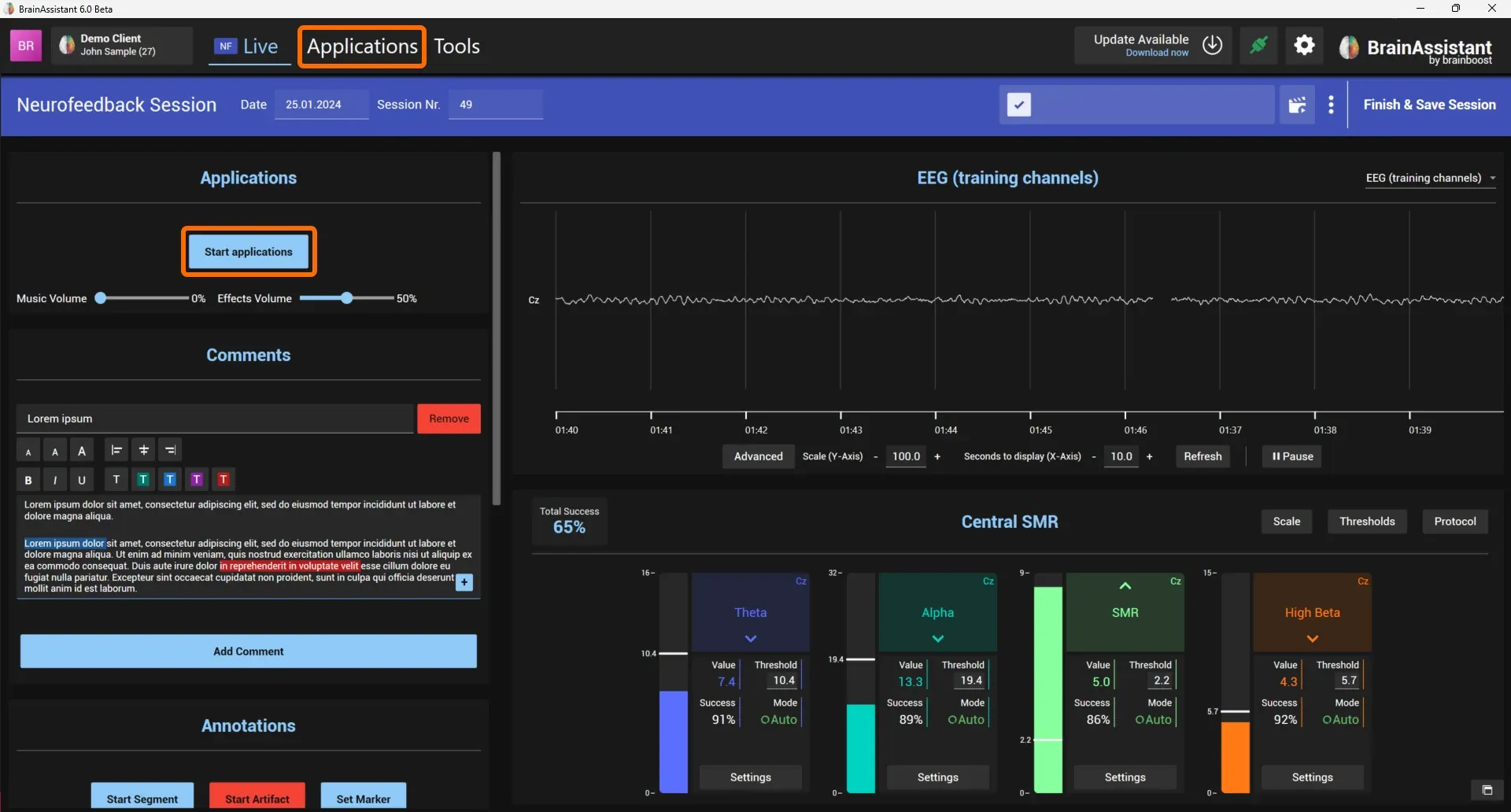
To start an application, click Start Applications on the left (above the comments) or Applications in the top menu.
Now you see all feedback applications.
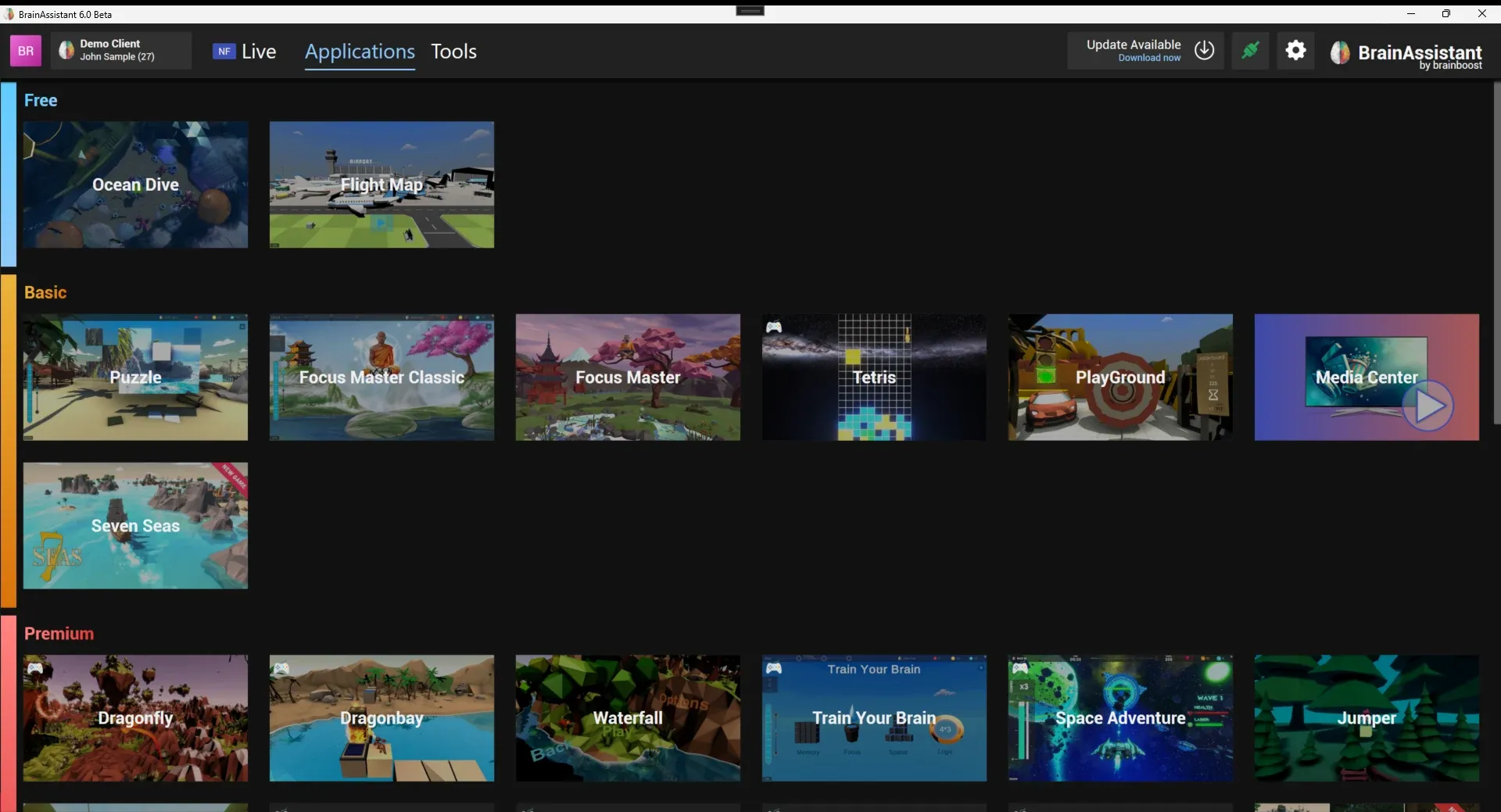
Depending on your BrainAssistant plan (Only Free Applications, Basic Applications, Premium Applications) you have access to different games and applications. Click the game or application you want to use. Our recorded webinar gives tips on the different games: Games webinar
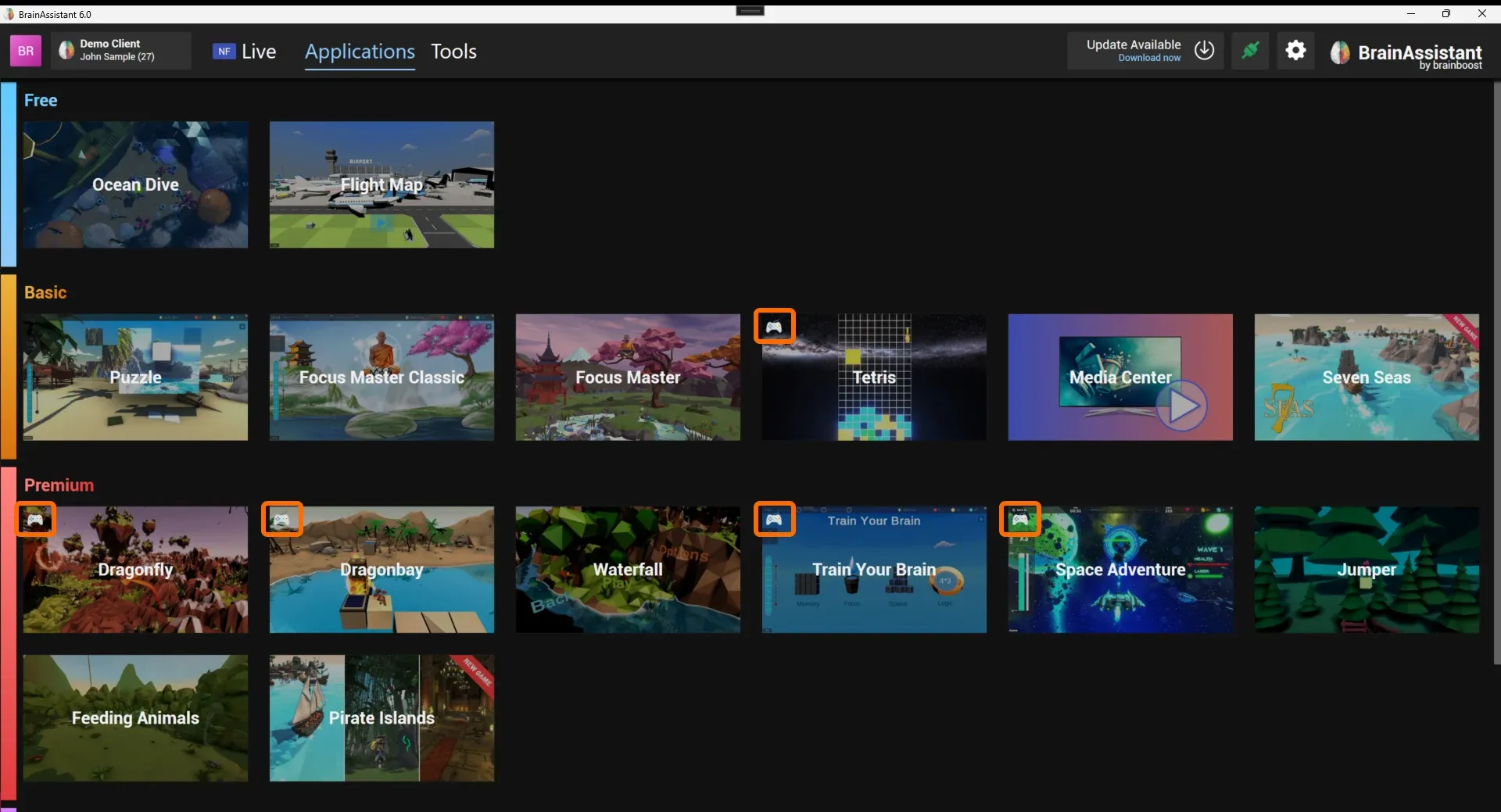
BrainAssistant also offers controller-supported games, recognisable by the controller icon at the top left of the card. BrainAssistant supports Xbox controllers, which work well with Windows PCs and laptops. More in Use an Xbox controller.
More information on the individual games is in the game guides.
Starting a game or application
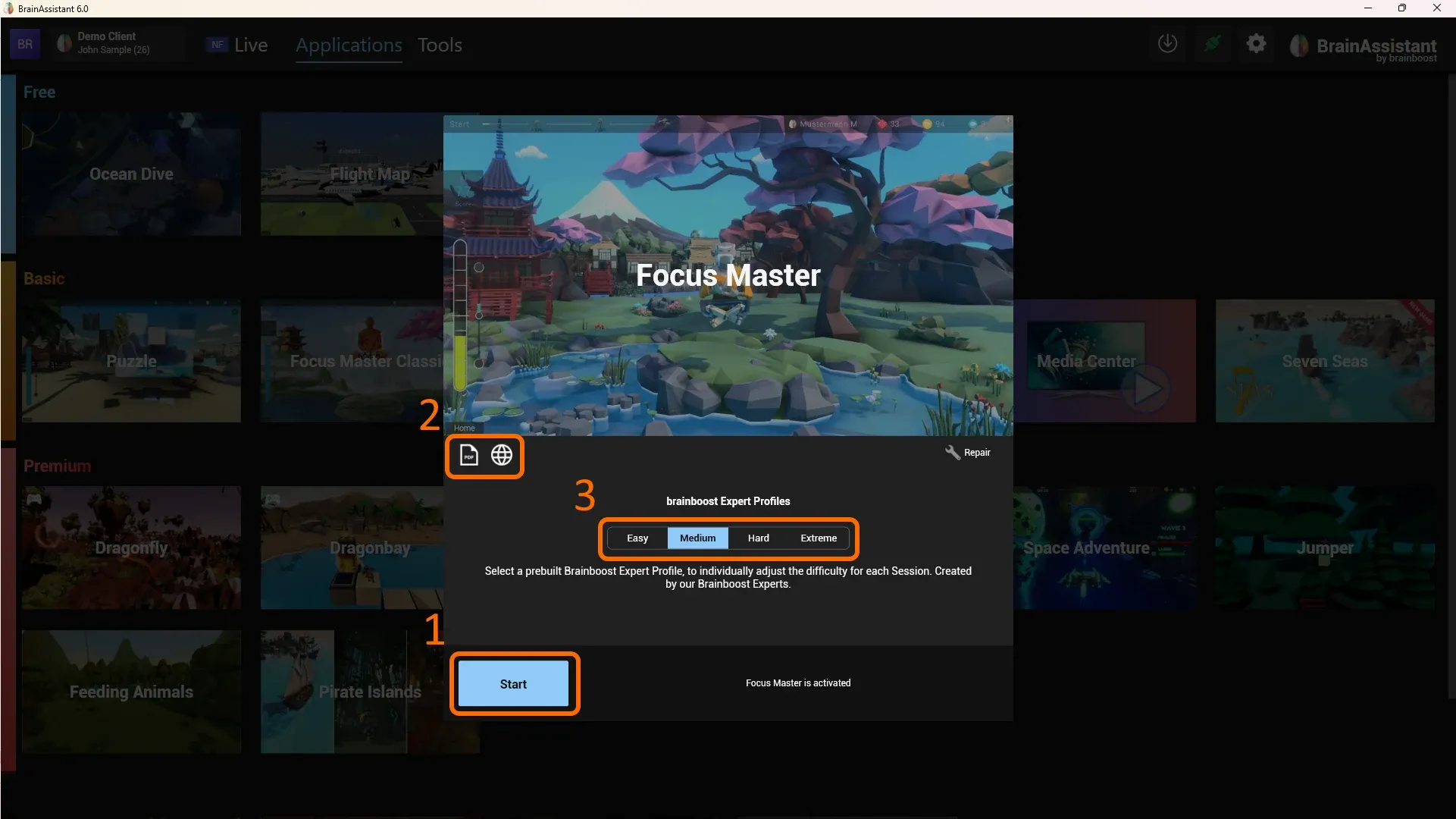
Clicking a card shows more pictures and videos of the application. Click Start (1) to start it. A manual and further information are at the top left (2); some games also have a YouTube tutorial. The brainboost Expert Profiles (3) choose the difficulty of the game (this does not influence the neurofeedback threshold settings); we recommend starting with Medium.
Monitor settings
Most setups use two monitors: one for the trainer to supervise the EEG and adjust thresholds, and a TV or second screen for the client where the feedback application is displayed.
If the game starts on the wrong screen: (1) click the gear icon at the top right and (2) select the correct monitor in the middle of the popup (Monitor 1 or 2).
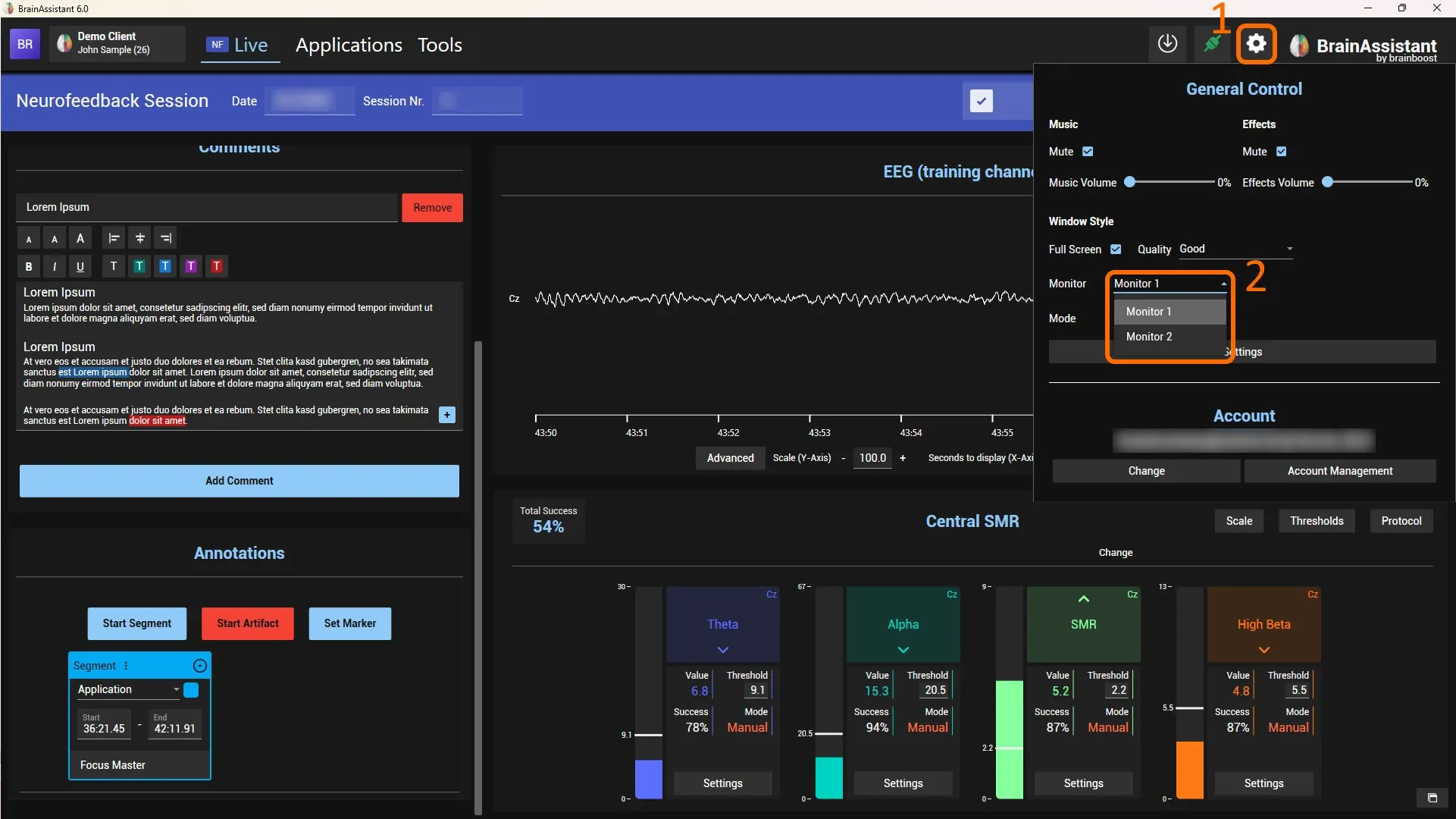
If the game or application opens on the wrong monitor, make sure both monitors are plugged in, then select the correct monitor (usually monitor 2).
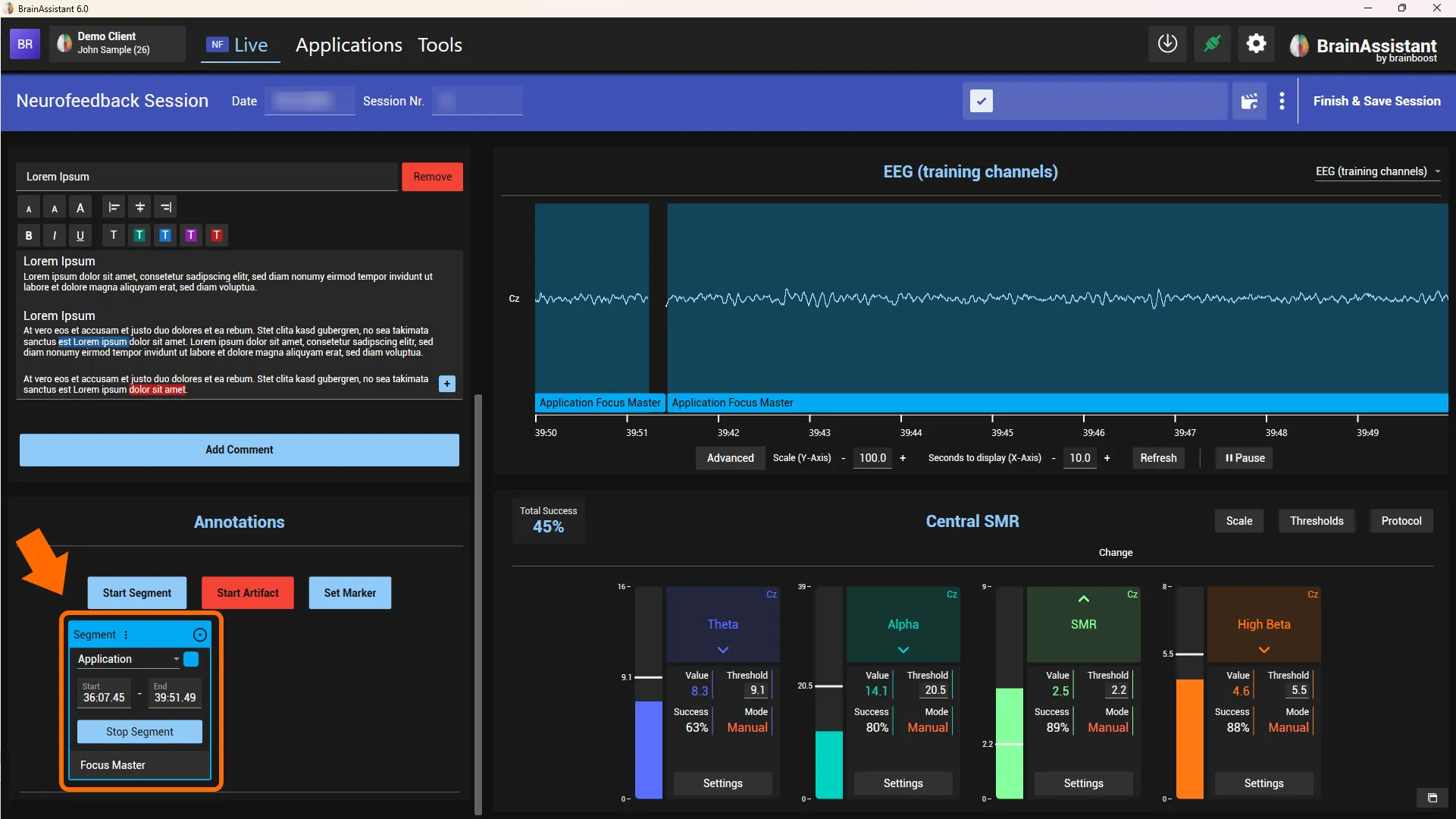
Once the game starts, a new segment is created on the left underneath the comment, so you can later see which application was running at what time. When you stop the application, the segment stops automatically.
Finish and save the session
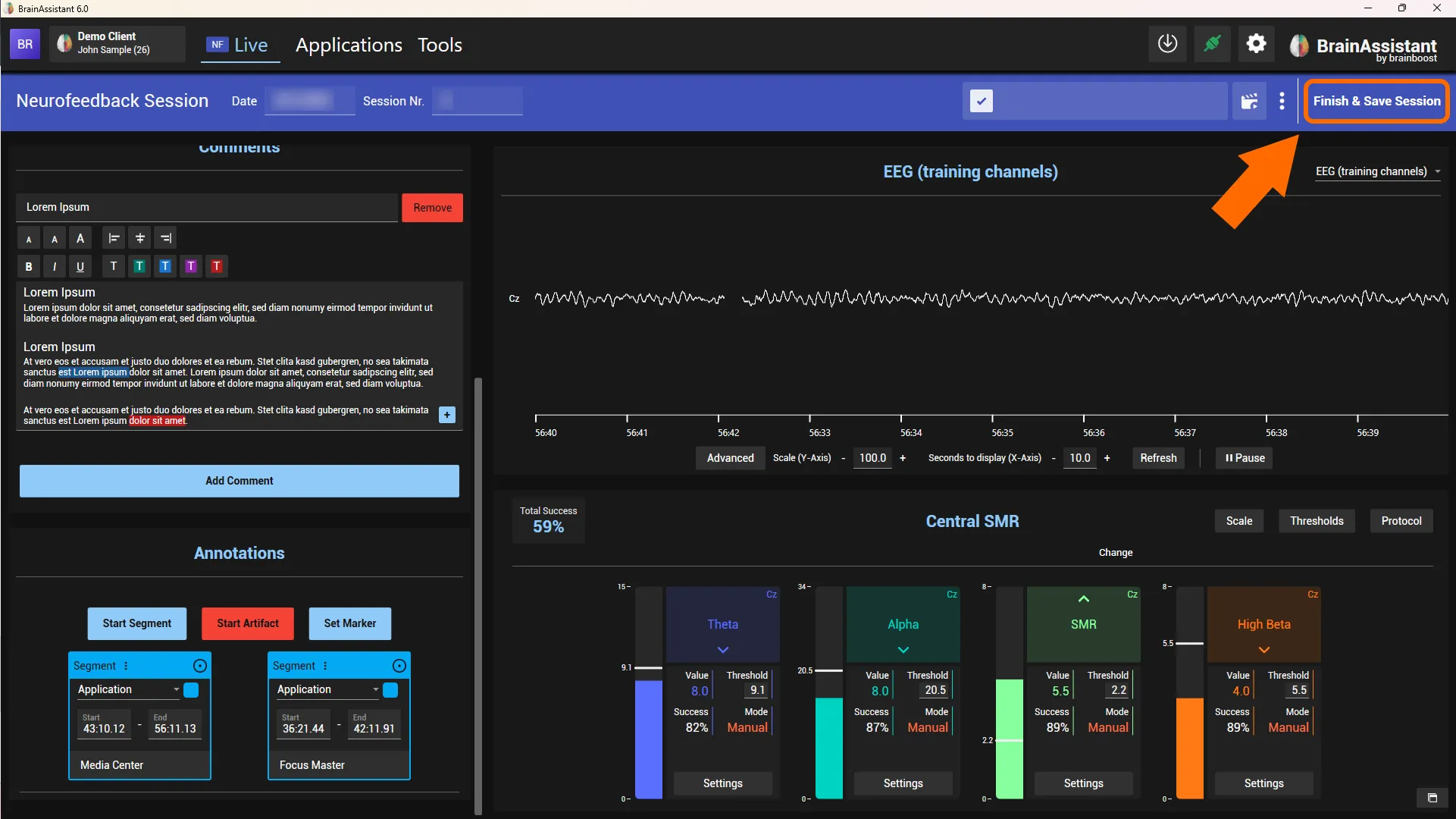
When you are done, click Finish & Save Session at the top right to save all data and stop the recording.
Evaluate and analyse the session
How to analyse a session is described in Session analysis: graphs and report, and in the feature pages for the Studio and Studio statistics.