The live session viewport can be split into two views and the sidebar can be hidden. There are also options to display a real-time FFT. These options are available in neurofeedback and EEG recording sessions.
Split view
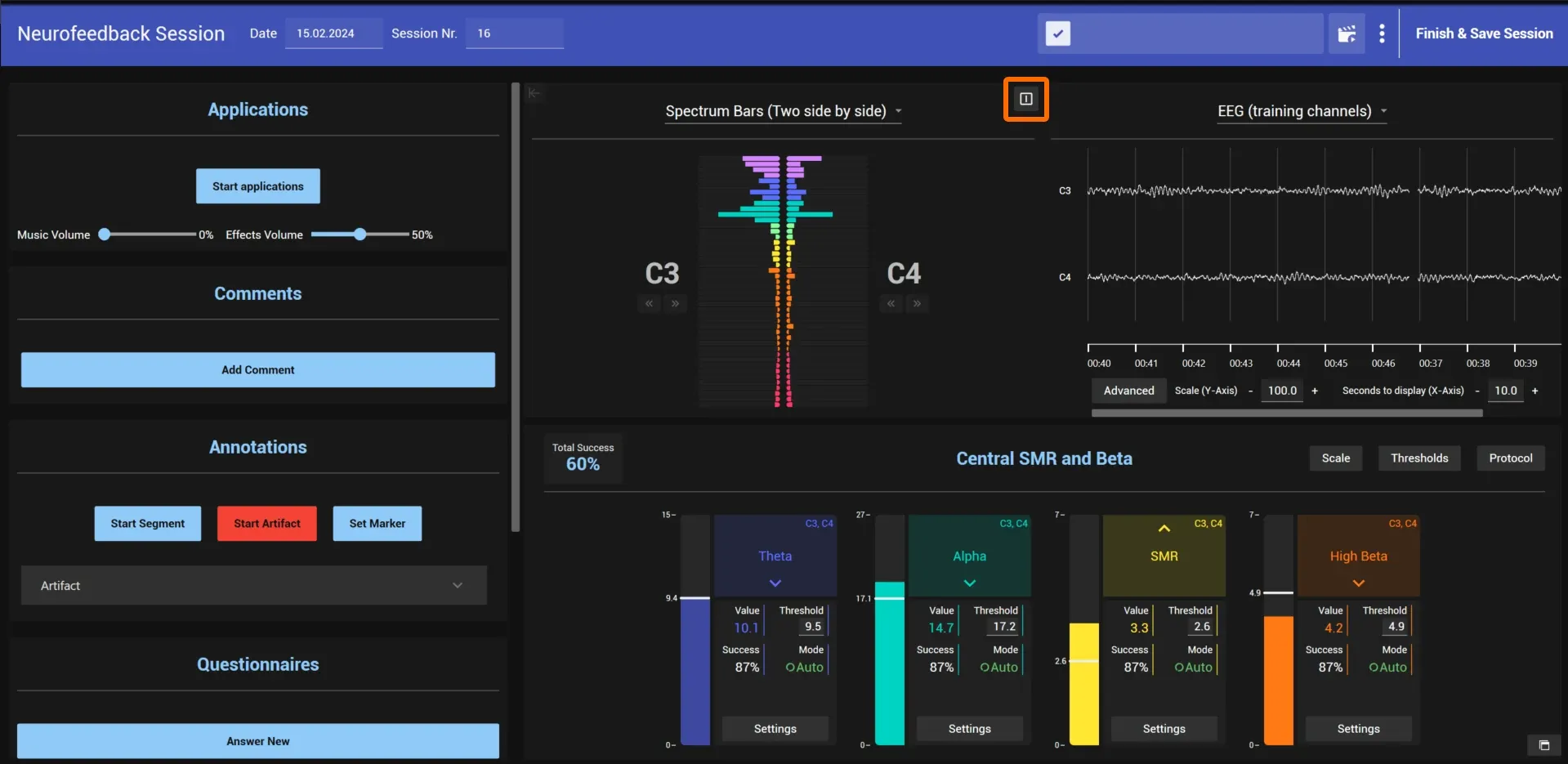
You find two buttons in your live sessions. The left button hides the sidebar, the right button creates a split view. Both work independently. Use the dropdown selection to adjust the viewport and display the data you want.
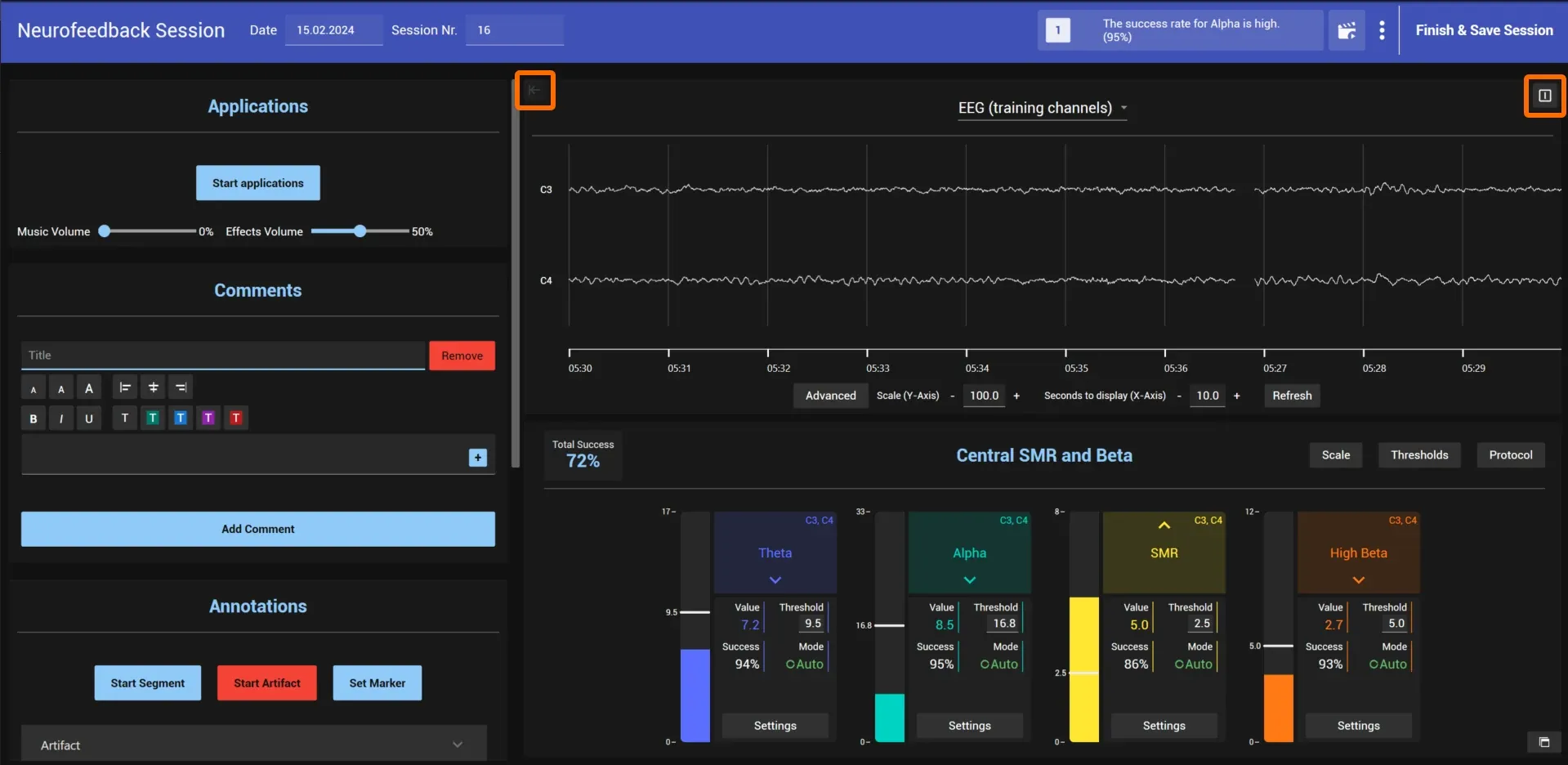
Split view with visible sidebar:
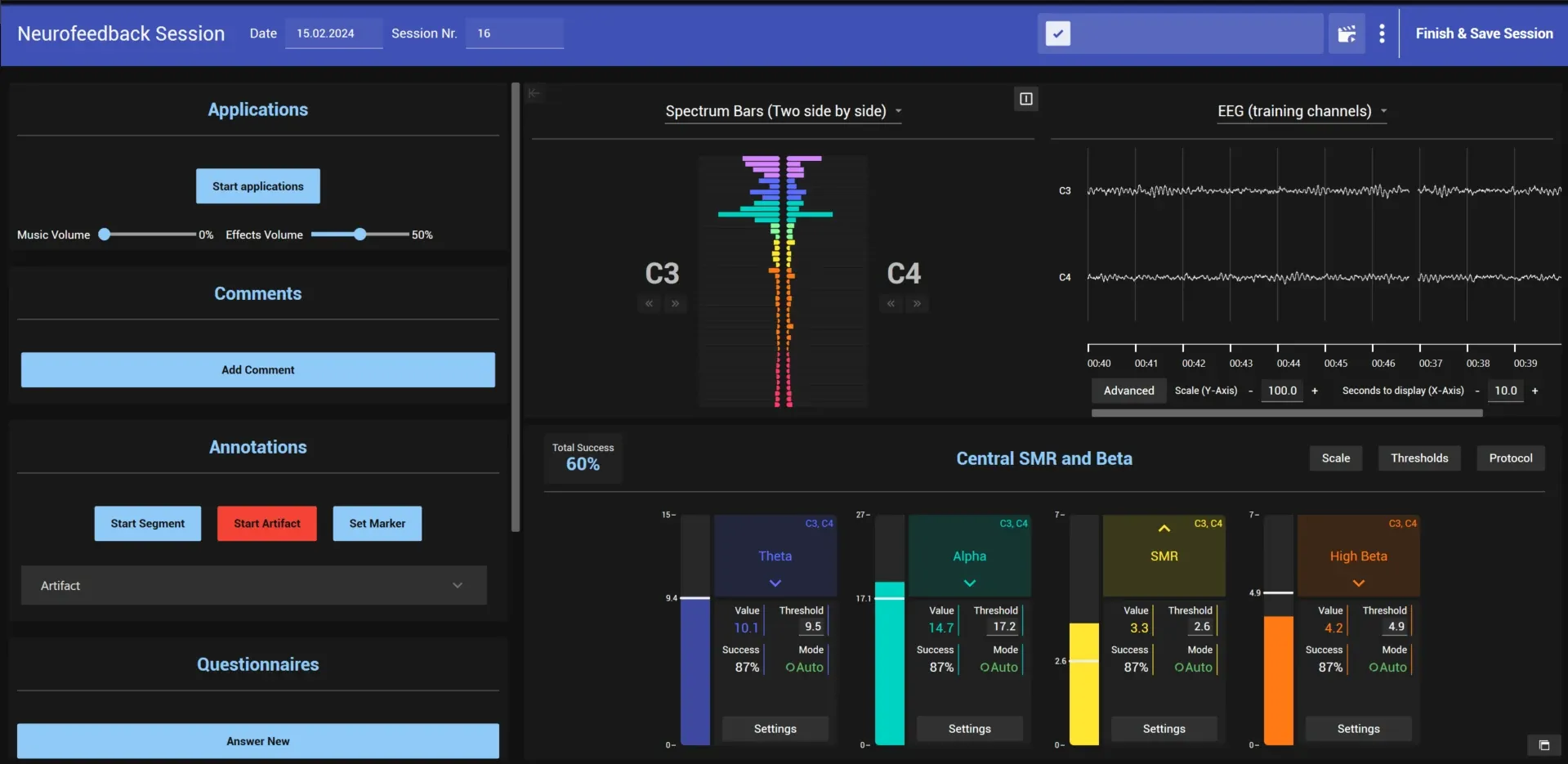
Split view with hidden sidebar:
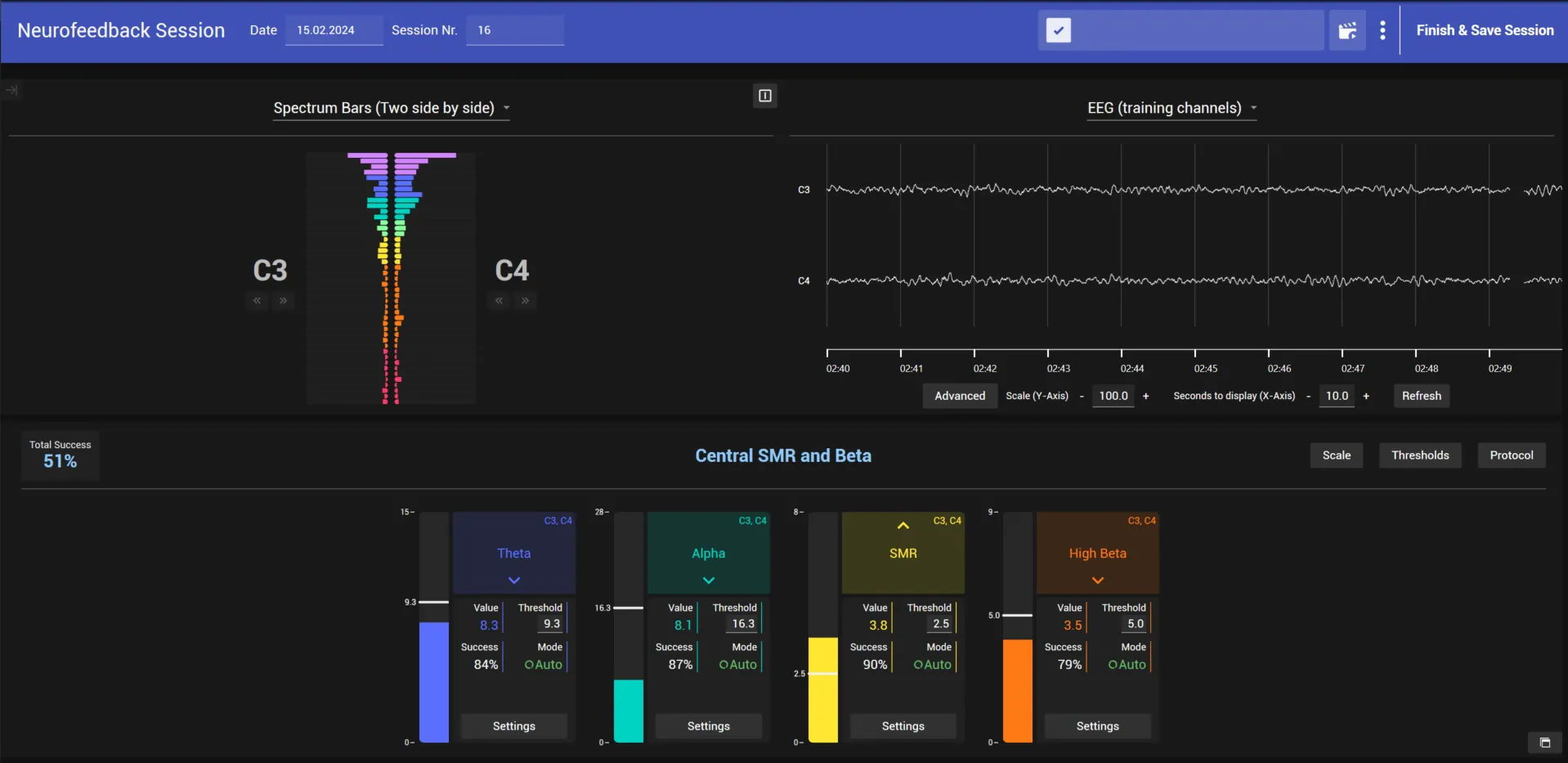
Use the highlighted button to go back to single view.
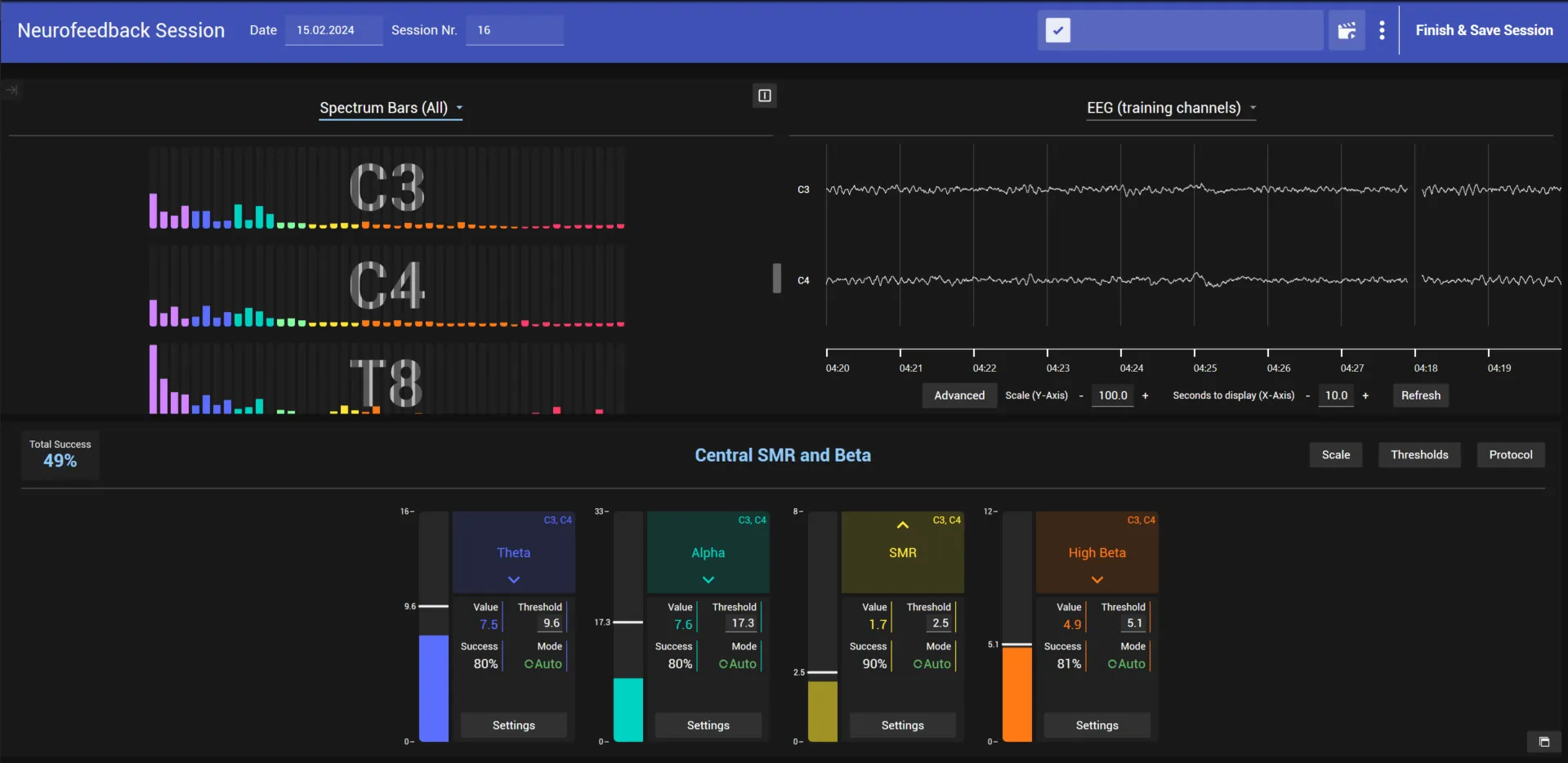
FFT for all available channels:
Open individual windows
Frequency bands
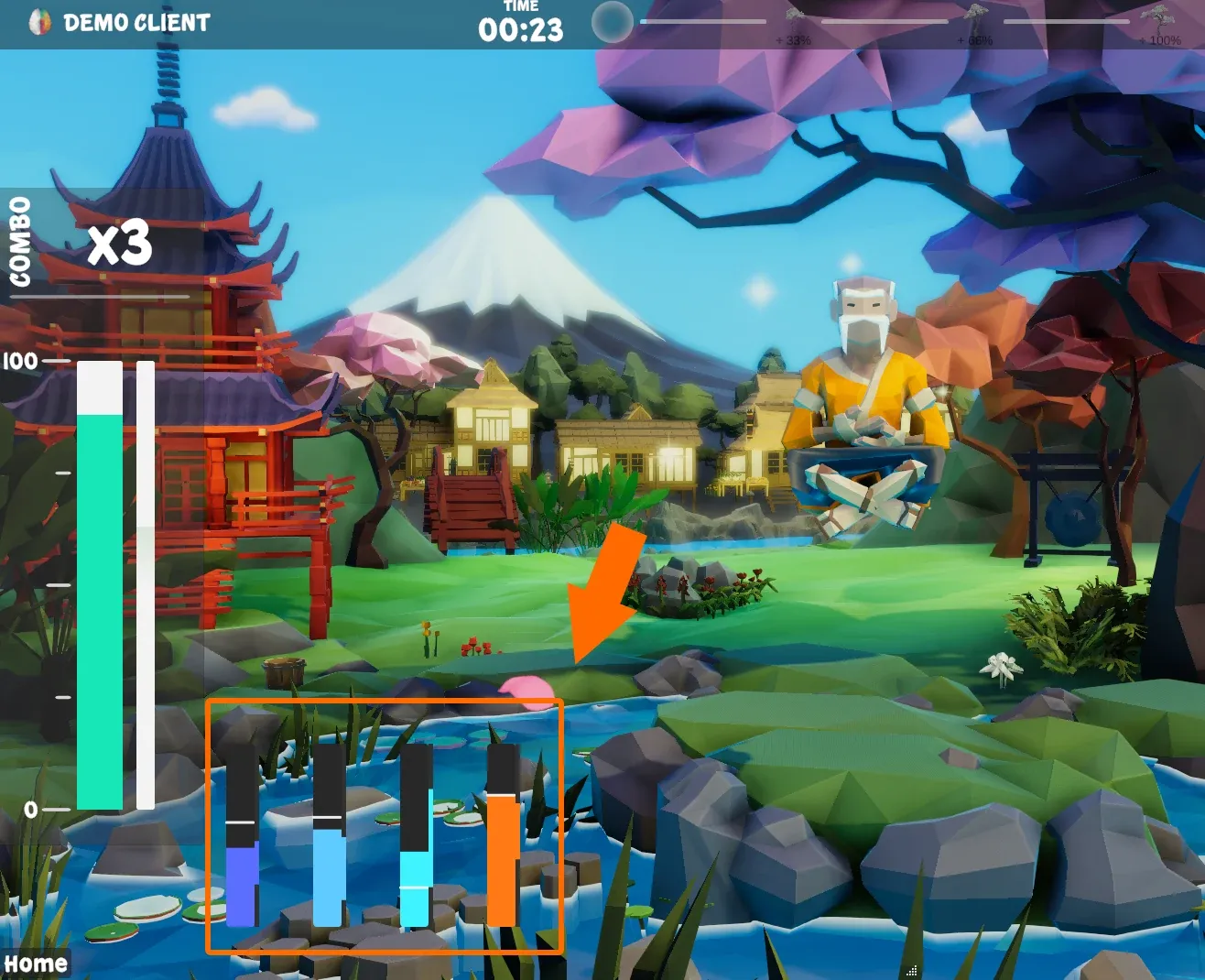
To show your client the individual bars, click the small symbol at the bottom right.
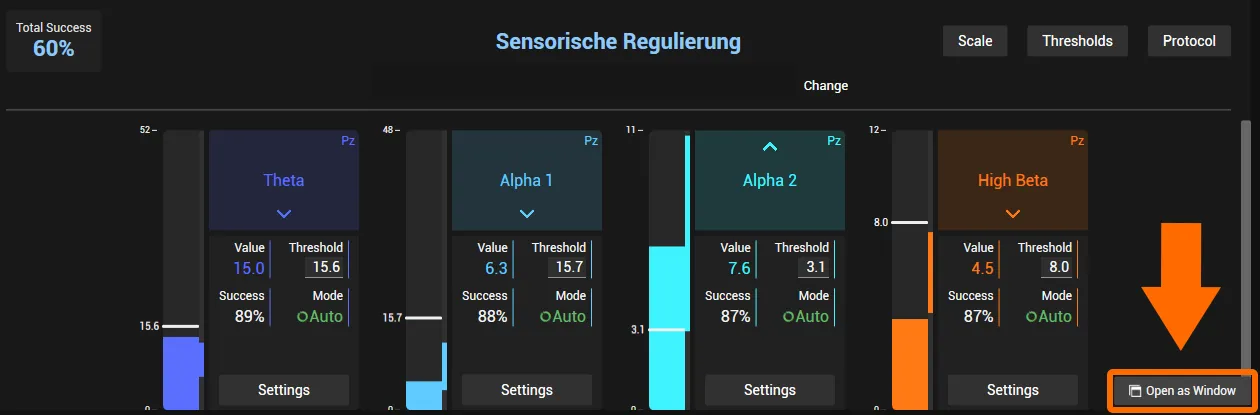
This opens a separate window with the bars, which you can drag to the client’s screen.
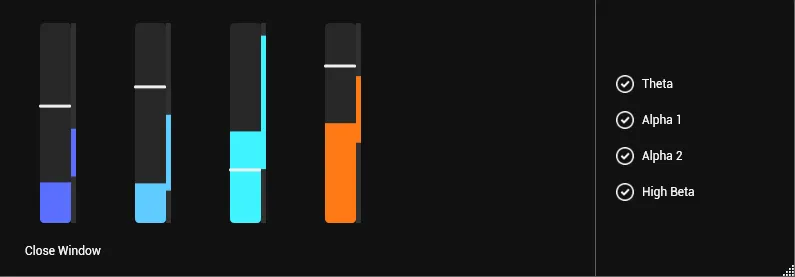
While the mouse is over the window, it has a black background as above. When you move the mouse away, the bars get a transparent background, so you can place them over the client’s application without blocking the view.
Raw EEG, amplitudes and FFTs
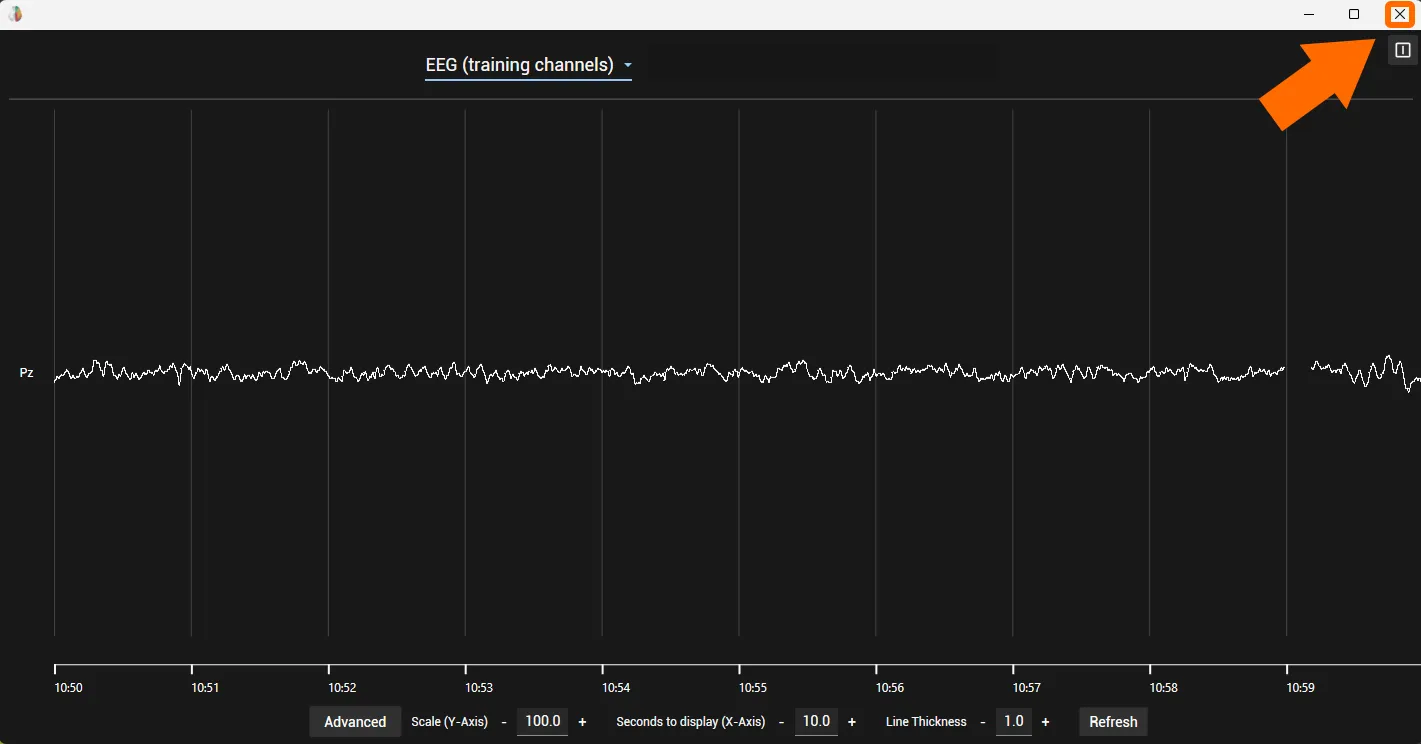
Like the bars, you can open the raw EEG in a separate window and show it to your client. Click the small symbol in the top right corner.
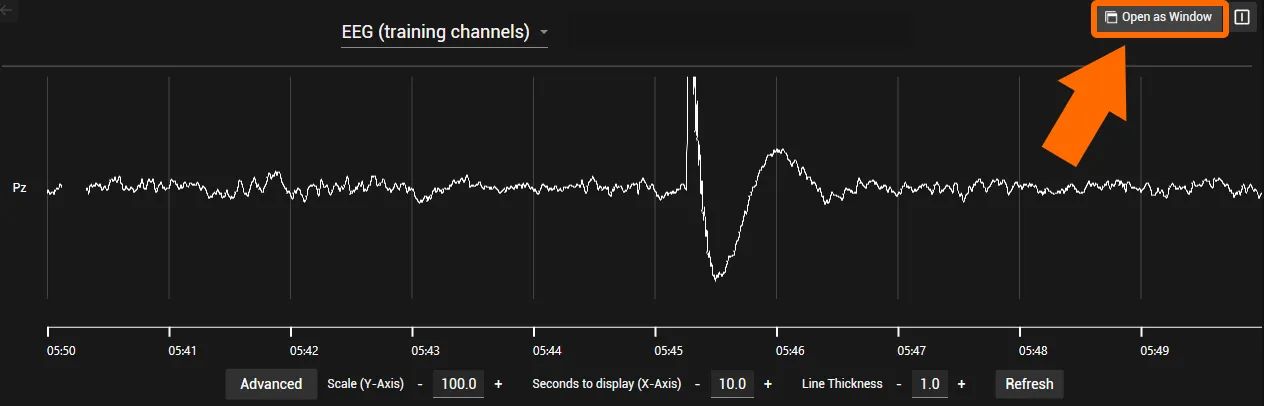
Then drag the window wherever you want.
Instead of the raw EEG, you can also open the amplitudes or the FFTs of the individual training channels in a separate window.
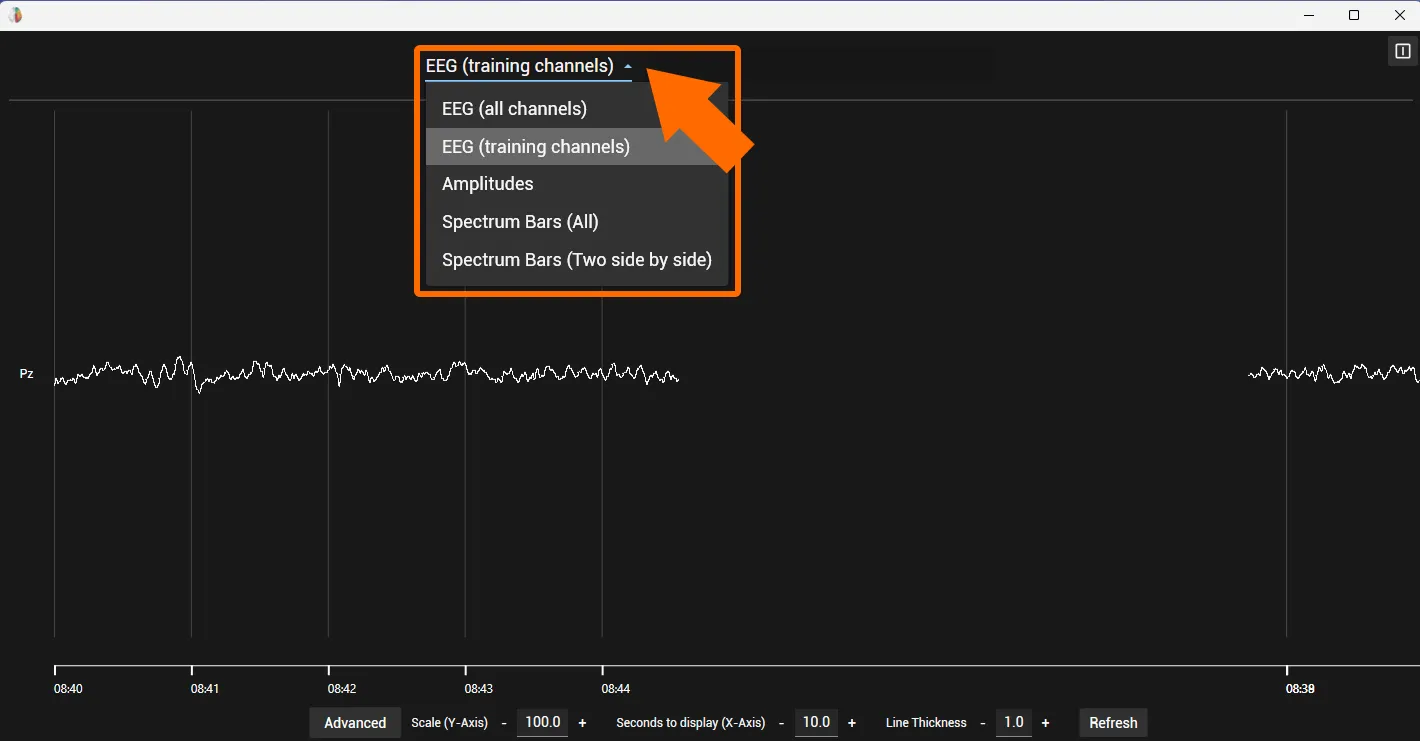
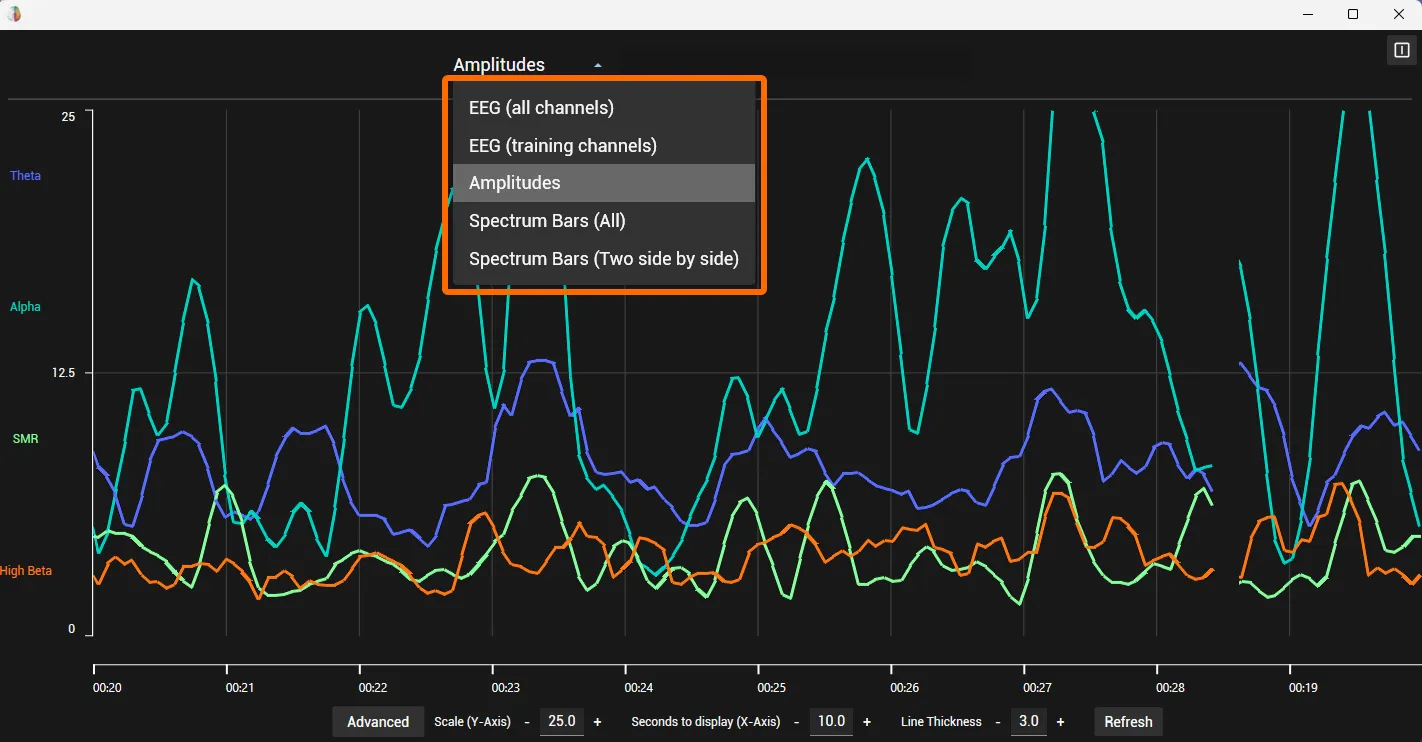
Close the window again with the small cross at the top right.
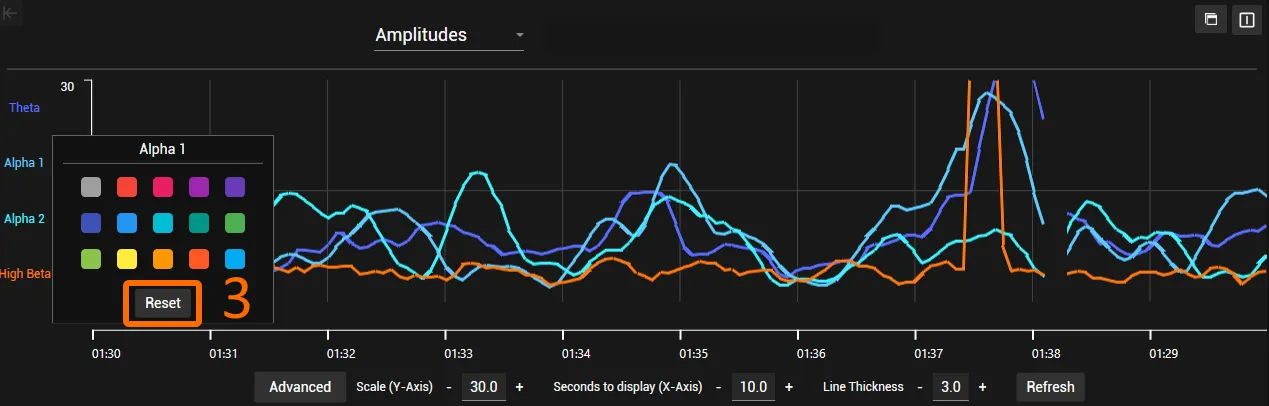
Colour the amplitude lines
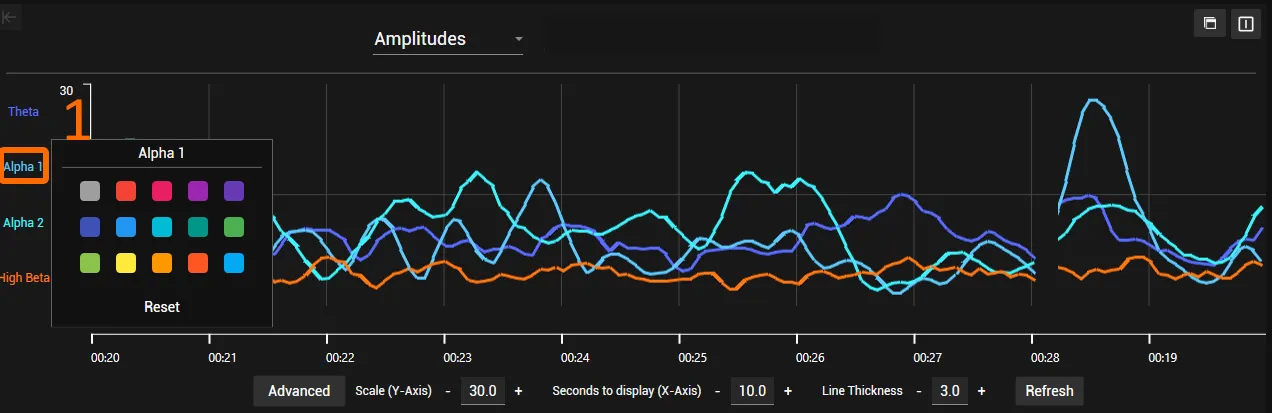
You can change the colour of the individual frequency bands in the amplitude view. This helps when you want to watch one band more closely (e.g. Alpha 1).
-
Click the frequency band whose colour you want to change.
-
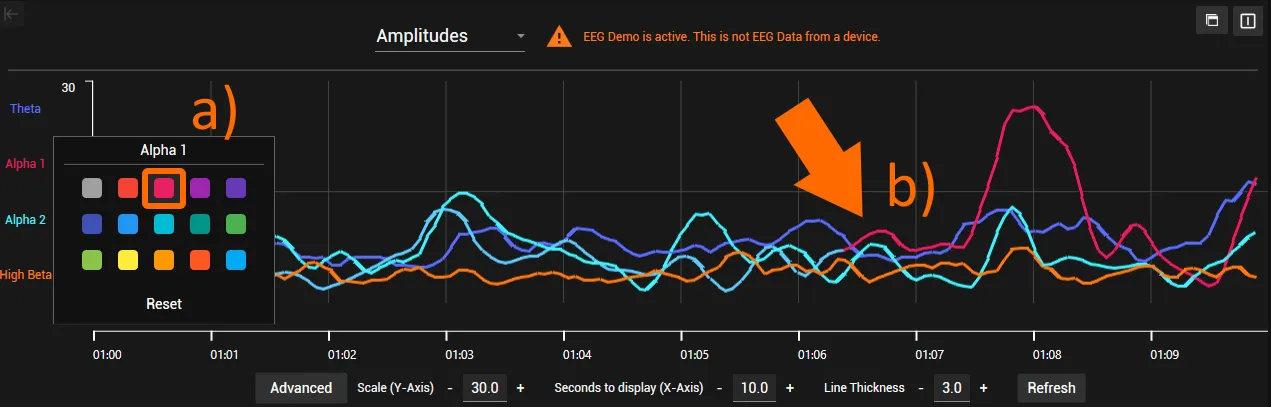
Click the colour you want (a); the selected amplitude changes to that colour (b).
-
To restore the original colour, click Reset.