
The Media Center is an add-on application that transfers the feedback to movies, PDFs, music, podcasts and much more. It controls the brightness of the screen and the volume of the sound.
| Positive feedback | Negative feedback |
|---|---|
| The screen gets bright and visible | The screen gets dark, the content can no longer be recognised |
| The sound gets loud and audible | The sound gets quieter and inaudible |


Start the Media Center
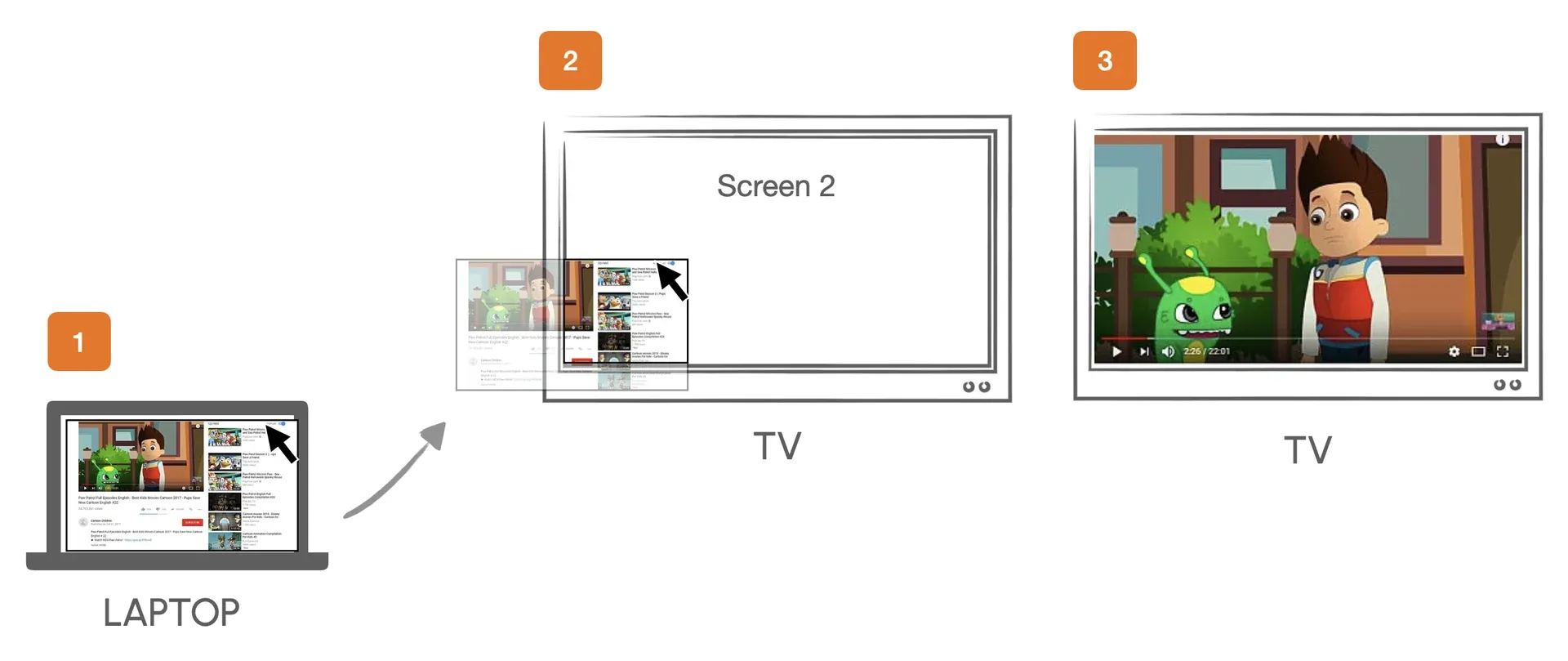
Before opening the Media Center, start the video or movie on the client’s screen first.
-
Open the video in a browser.
-
Drag the browser window to the client’s screen. Make sure Extend display is selected in the Windows display settings.
-
Set the video to full screen and press Play to ensure smooth playback.
If you work with headphones, first give your client the headphones and then set the volume of your computer to a comfortable level. Based on the volume of your computer you set the maximum volume of the Media Center (see Volume).
-
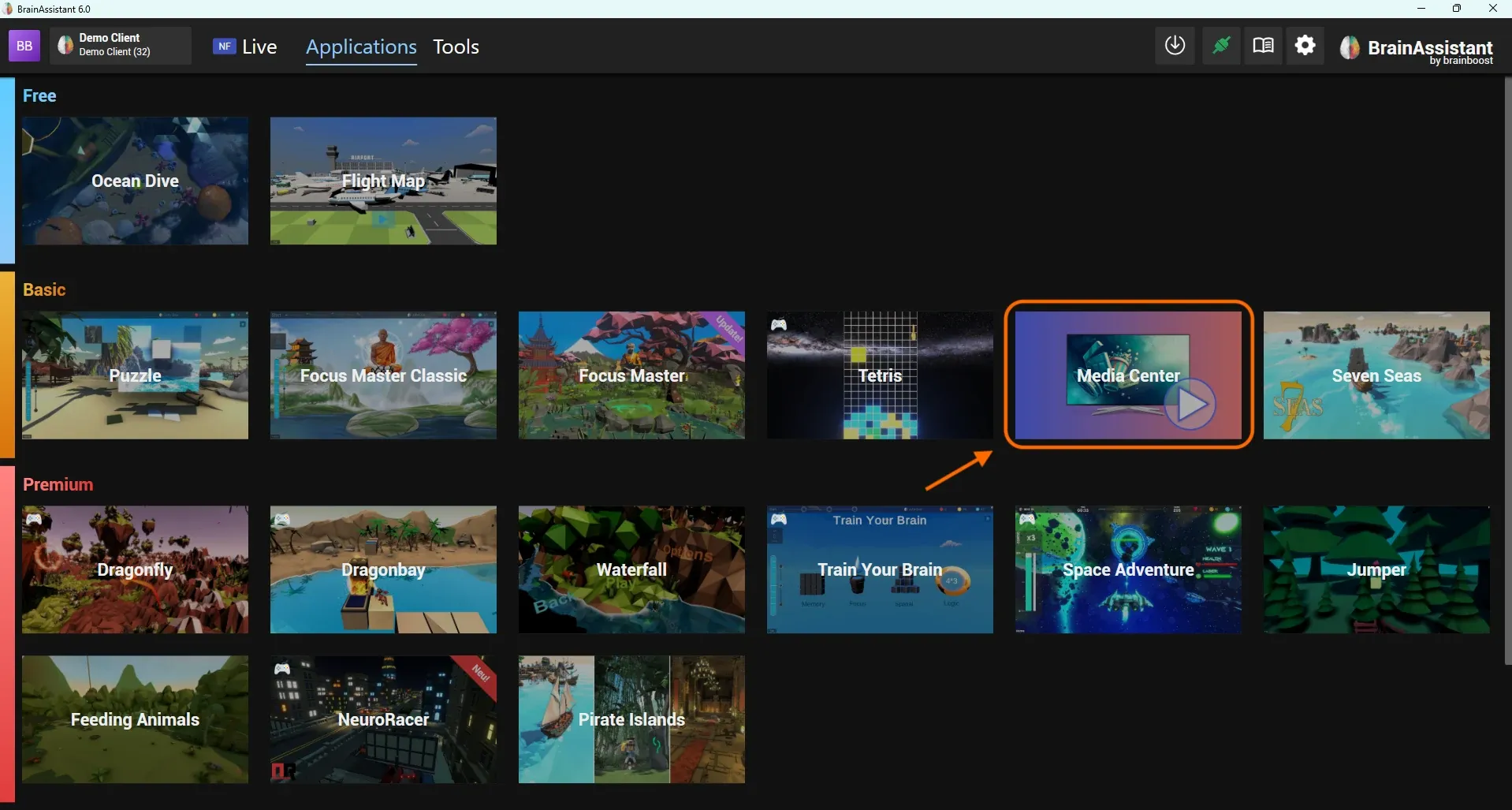
Click Applications in the top menu and select Media Center.
-
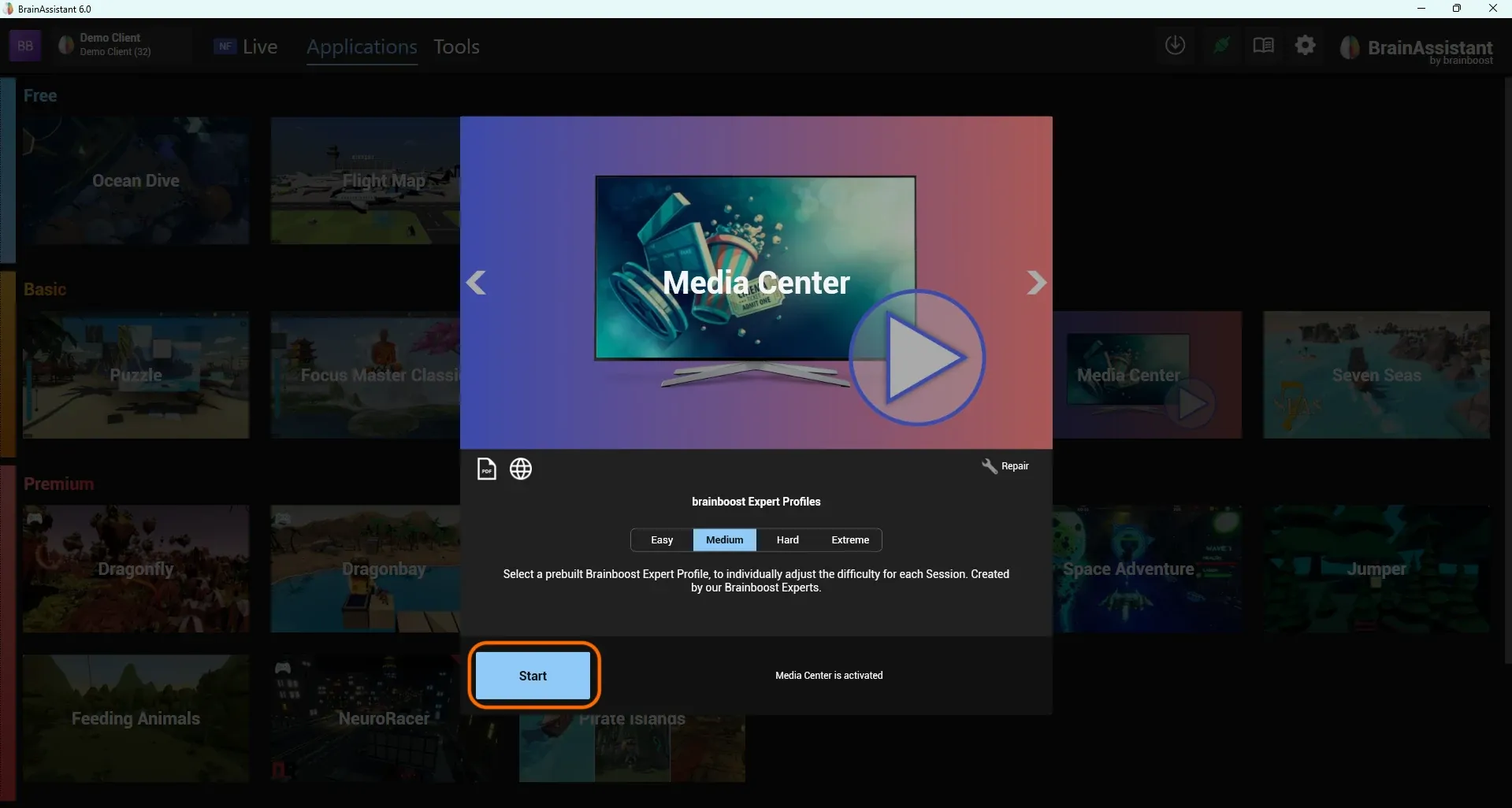
Click Start to start the Media Center.
Media Center settings
After starting, a window opens where you set the minimum and maximum of the dimmer and the volume.
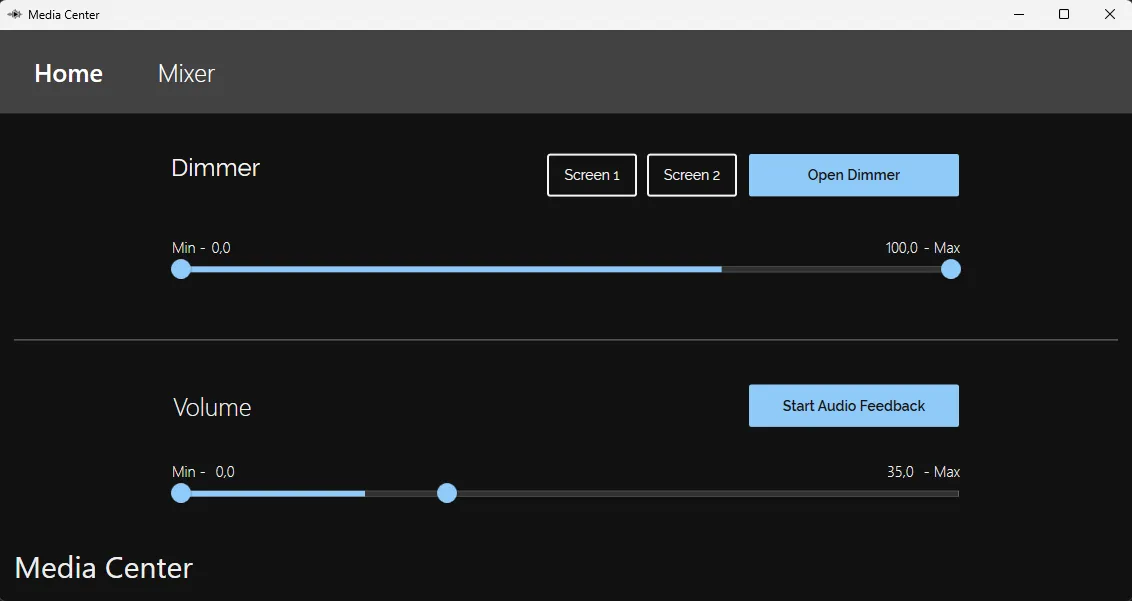
The dimmer (visual feedback) and the volume (auditory feedback) work independently of each other. You can use the volume control without activating the dimmer, for example when you use the Media Center with a podcast or music.
Dimmer
-
Set maximum and minimum: we recommend a dimmer maximum of 100%. With positive feedback the dimmer is then completely transparent and the client sees the whole image. Do not set the minimum to 0%, as the client would see a black screen during negative feedback. Start with around 10% and adjust as needed.
-
Start the dimmer: move the mouse over the Screen 1 and Screen 2 buttons to see on which screen the dimmer will open. Click the screen you want; the dimmer opens in full screen.
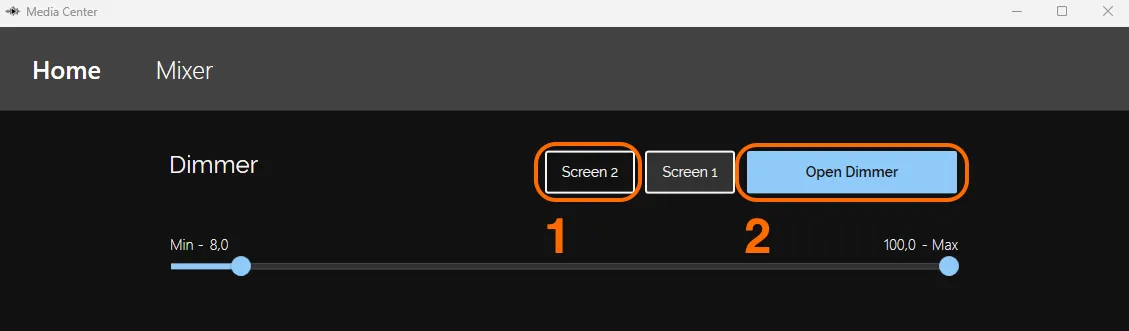
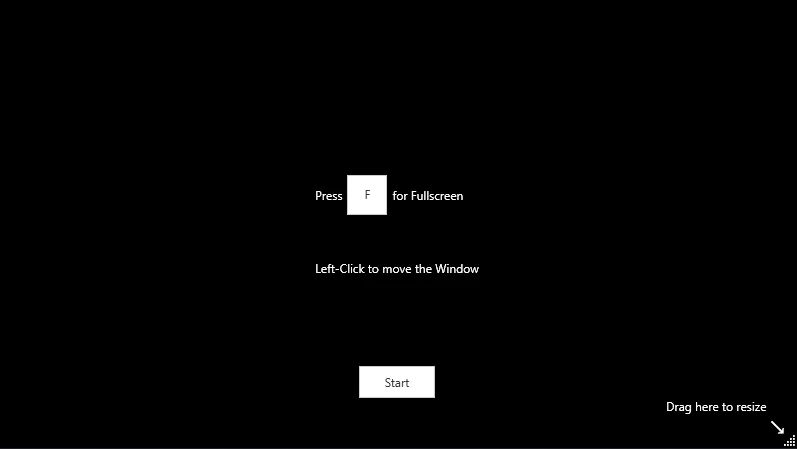
Alternatively, open the dimmer as a window: click Open Dimmer on the right. A window opens that you can drag to the client’s screen. To adjust its size, press the F key or drag the bottom right corner. Click Start to start the Media Center.
Volume
-
The volume control affects the entire Windows system sound.
-
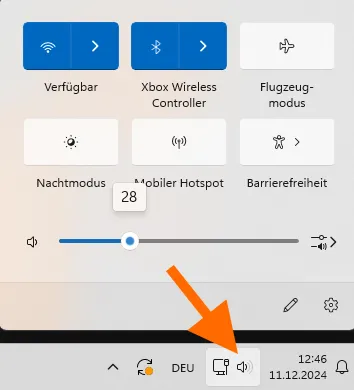
Set maximum and minimum: a maximum of 100% means full volume with positive feedback. Match the maximum to your computer’s volume: click the speaker icon at the bottom right of the taskbar and hover over the volume slider to see the exact percentage. For example, if your computer’s volume is 28%, set the maximum to 28%. A minimum of 0% means no sound at all during negative feedback, so set the minimum so that the sound is still audible but very quiet.
-
Start the volume control: click the blue Start Audio Feedback button.
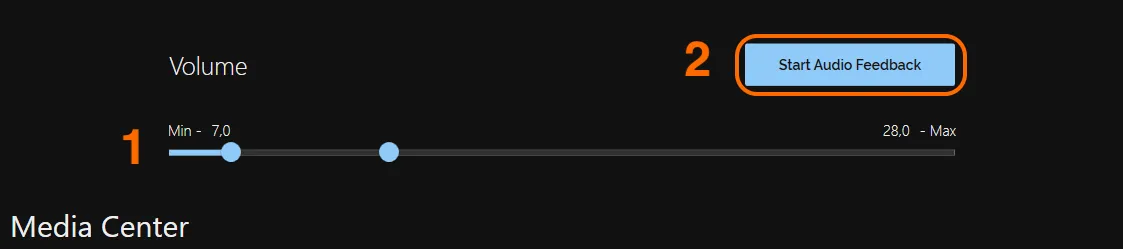
If you are watching a video or movie, do not forget to click Start Audio Feedback, otherwise only the dimmer reacts.
Stop the Media Center
-
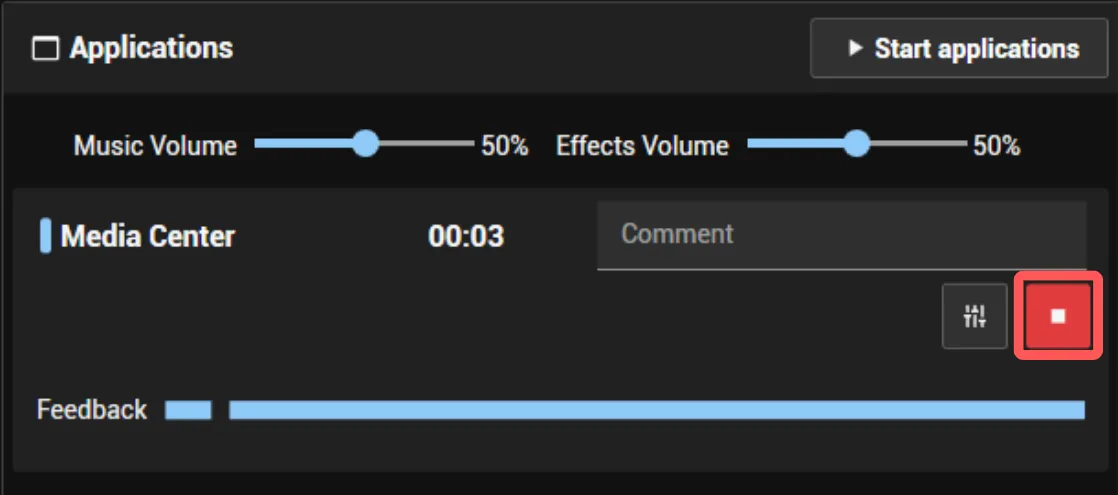
To stop the Media Center, as well as any other application in BrainAssistant, click the red Stop button next to the application in BrainAssistant.
-
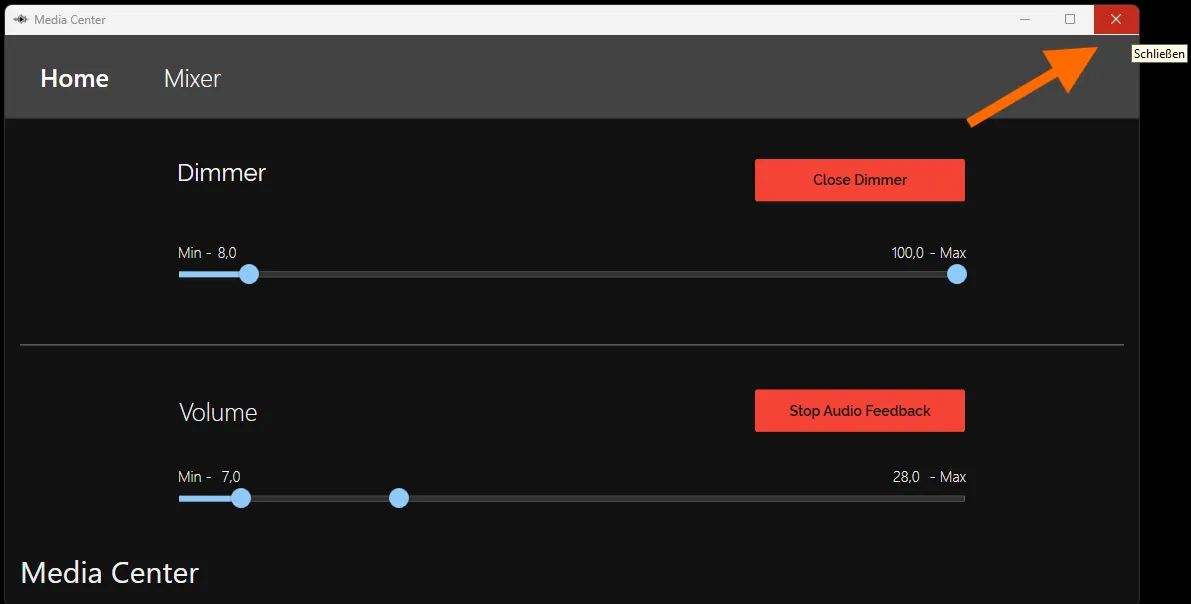
You can also close the Media Center with the X at the top right of the Media Center window.
-
Alternatively, right-click the Media Center in the Windows taskbar and close it there.
Application, combination and typical reactions
The Media Center can be combined with all popular streaming services such as Netflix, Disney+, Amazon Prime or Spotify, and can also be used in front of anything else on the computer, such as PDFs, school exercises or emails.
One example is dimming school exercises for school children at the beginning of a session. This creates a transfer into everyday life and addresses symptoms that arise in the school context.
With the volume control, another application is relaxation training with closed eyes. This type of training is particularly suitable at the end of the session and can be combined with exercises such as breathing exercises.
Watching movies provides both acoustic and visual feedback, which increases the effect for many clients. A film at the end of a session can also serve as a motivation or reward for the completed training, especially for children.
| Recommended duration | When in training | Controller needed | Combination with different feedback |
|---|---|---|---|
| 15 min | Start or end of the session | No | Visual and auditory feedback can be combined within the Media Center |
Philosophy and background
The Media Center has many application options and lets you select the optimal feedback for each client. This supports the transfer to daily life, and relaxation and concentration can be practised in situations with many stimuli. The client’s own relaxation state can also be trained.