1. Import a flow from a .bata file
A .bata file contains all information about a flow. Importing it adds the flow (or other content) to BrainAssistant. You can get .bata files from other BrainAssistant users or from brainboost. For more information, contact us at support@brainboost.de.
To import the flow, click Import and select the .bata template file.
Make sure you run the latest BrainAssistant version before importing.
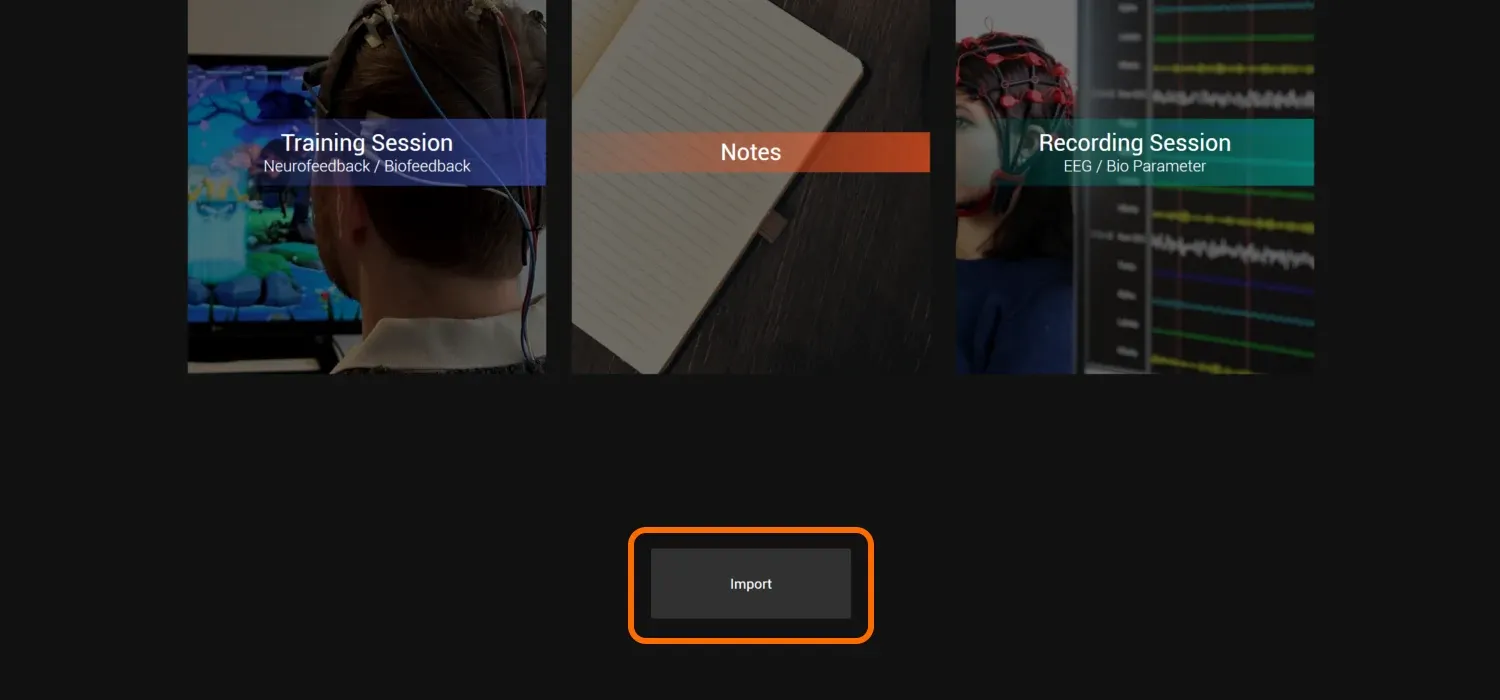
The flow template is now imported. You can import more flow templates (or other .bata files) the same way.
You only need to do this once per computer.
2. Start a flow
You can start a flow while a session is running. Start a Training Session or Recording Session first.
How to start a session: for neurofeedback or biofeedback training see Training session, for qEEG recordings see Live EEG recording.
In the live session view, the flow icon is at the top right.
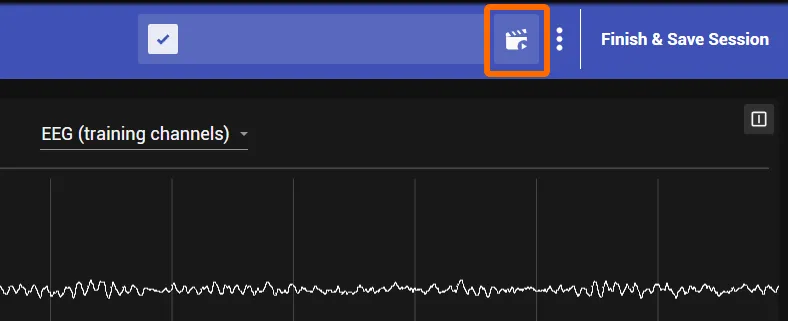
Click the flow button to open the flow overview.
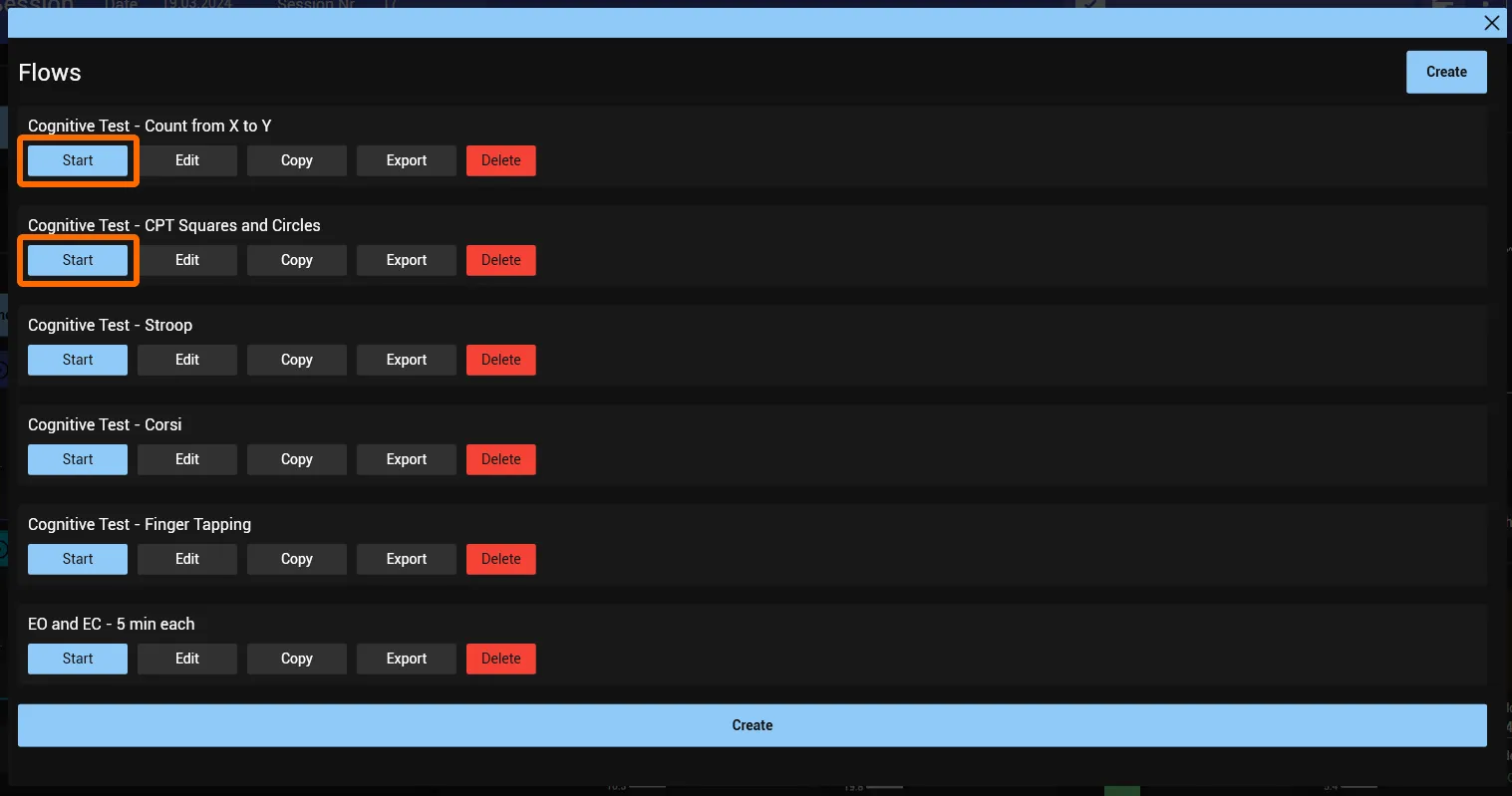
Here you find all imported flows. Start one by clicking its Start button.
Once you click Start, the flow begins.
3. While a flow is running
The top row of the live session view shows that a flow is running.

While a flow is running, the flow client window is open.
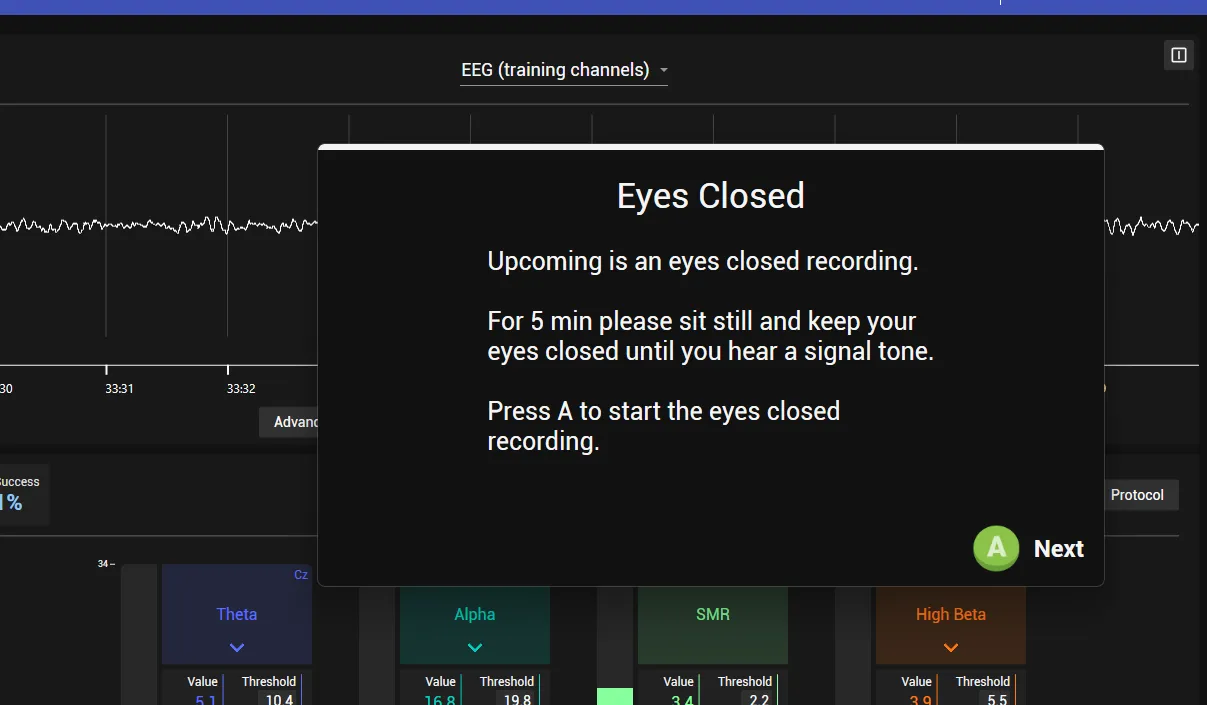
Make sure the client can always see this window: it gives the client the instructions.
The flow client window should open automatically on your second screen. If it does not, move it yourself:
- double-click inside the window to switch between fullscreen and window mode
- drag the window to move it (hold the left mouse button and move the mouse)
The client window tells the client what to do. For most interactive flows, the client needs an Xbox controller connected to the computer. See Xbox controller.
While the flow is running, it creates annotations (segments) automatically. You can also add annotations manually; see Markers in the training session guide and Live EEG recording.
4. Skip or stop a running flow
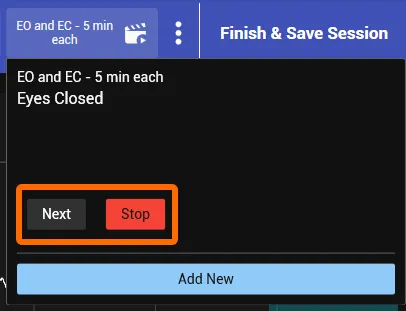
While a flow is running, click the flow display at the top of the live session view to see information about the current flow.
Here you can:
- skip one step of the flow with Next
- end the whole flow with Stop
More about recording sessions in BrainAssistant: Training session and Live EEG recording.