
This guide shows how to move your BrainAssistant data, including all personal BrainAssistant data, from one PC to another.
Preparation
- BrainAssistant is installed on both PCs.
- Both PCs are up to date and run the same BrainAssistant version.
- You are logged in with the same account on both PCs.
- You have a cloud drive or an external drive (e.g. a USB stick) for the transfer.
The data transfer is additive: your new PC keeps all of its own BrainAssistant data and additionally gets the data of the old PC. If you want to fully overwrite the BrainAssistant data on your new PC, contact us at support@brainboost.de.
Export the data on your old PC
-
Open BrainAssistant on your old PC.
-
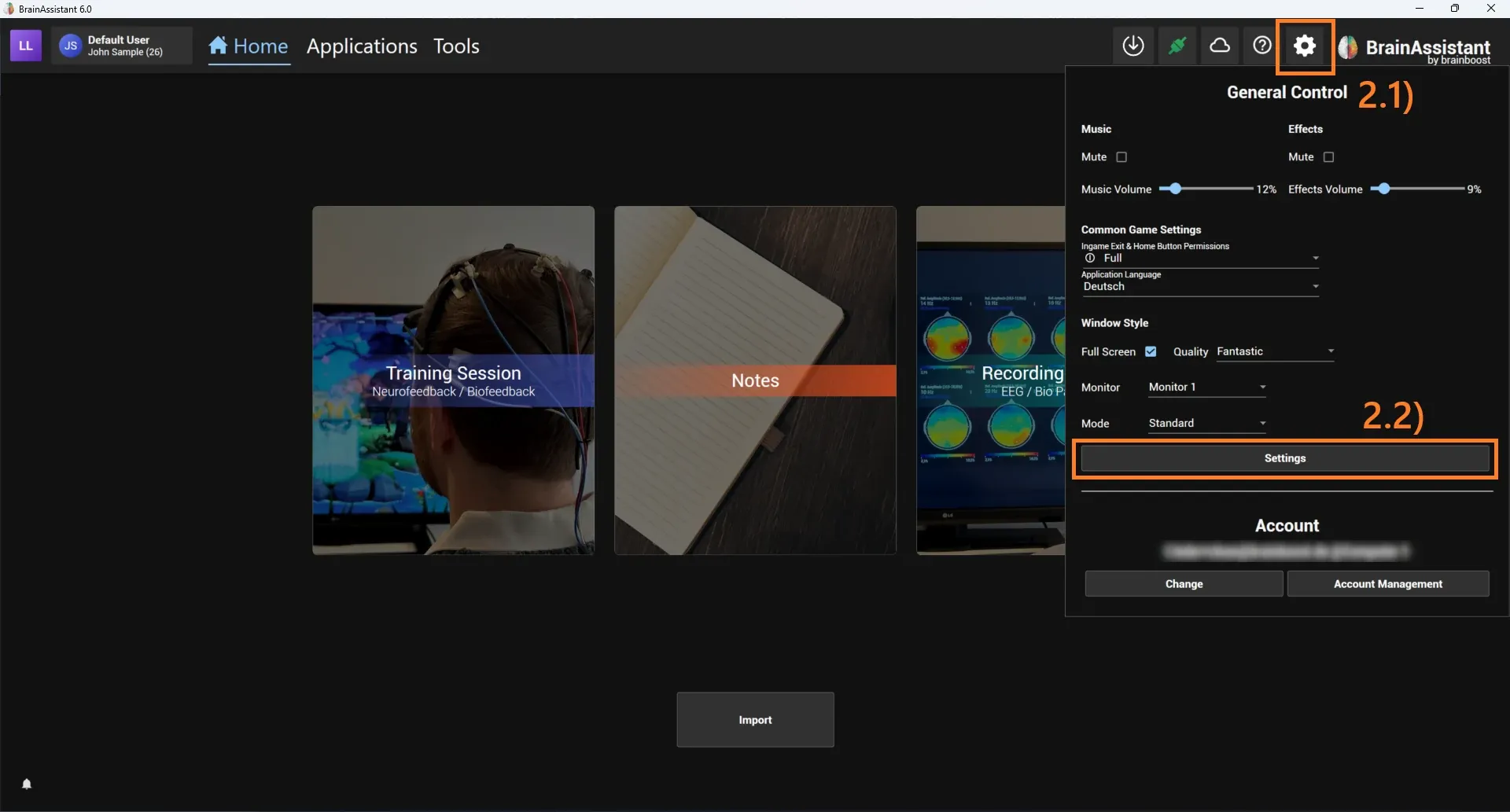
Click the cog wheel (settings) icon and select Settings.
-
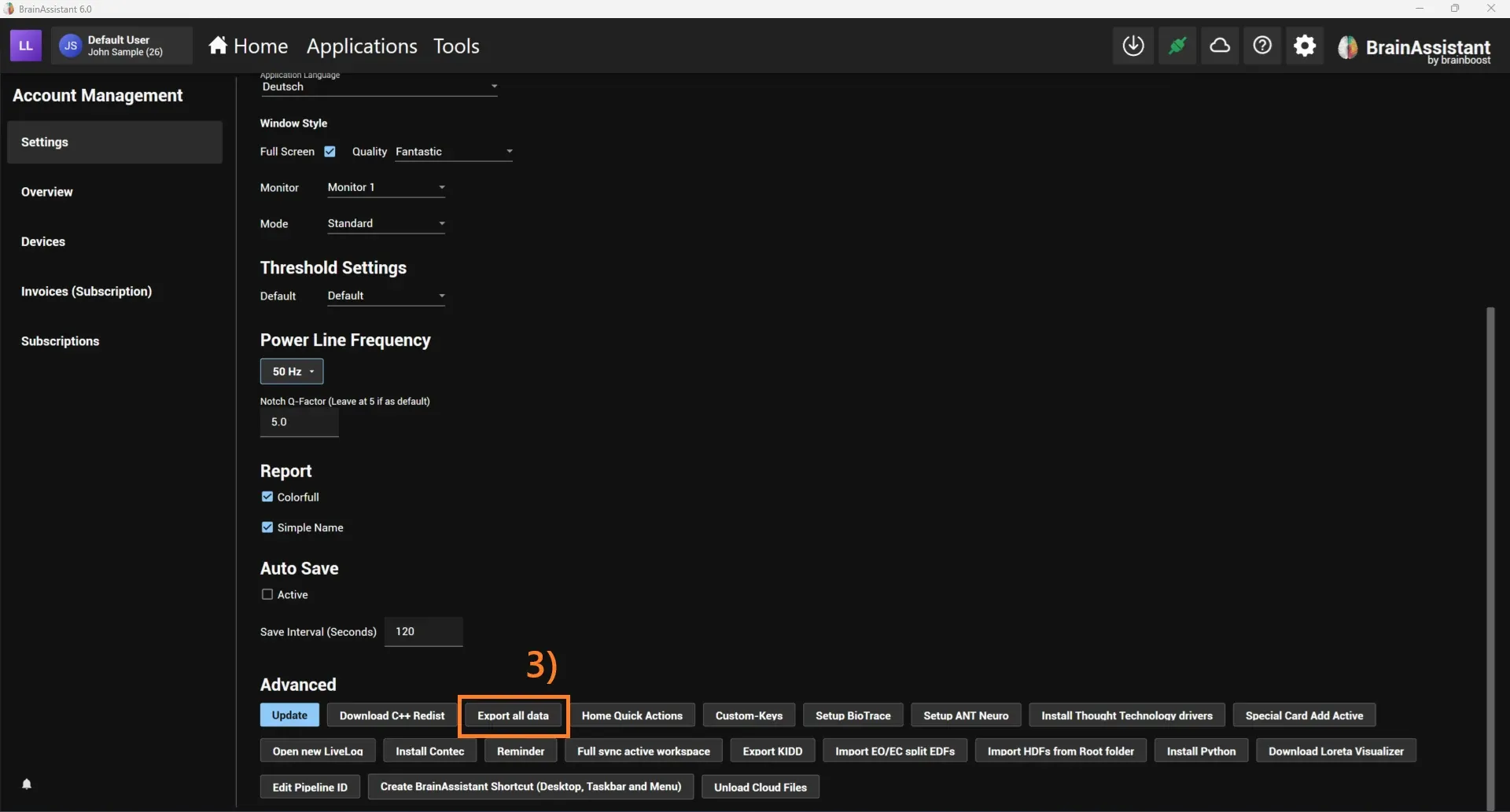
Scroll down to Advanced and click Export all data.
-
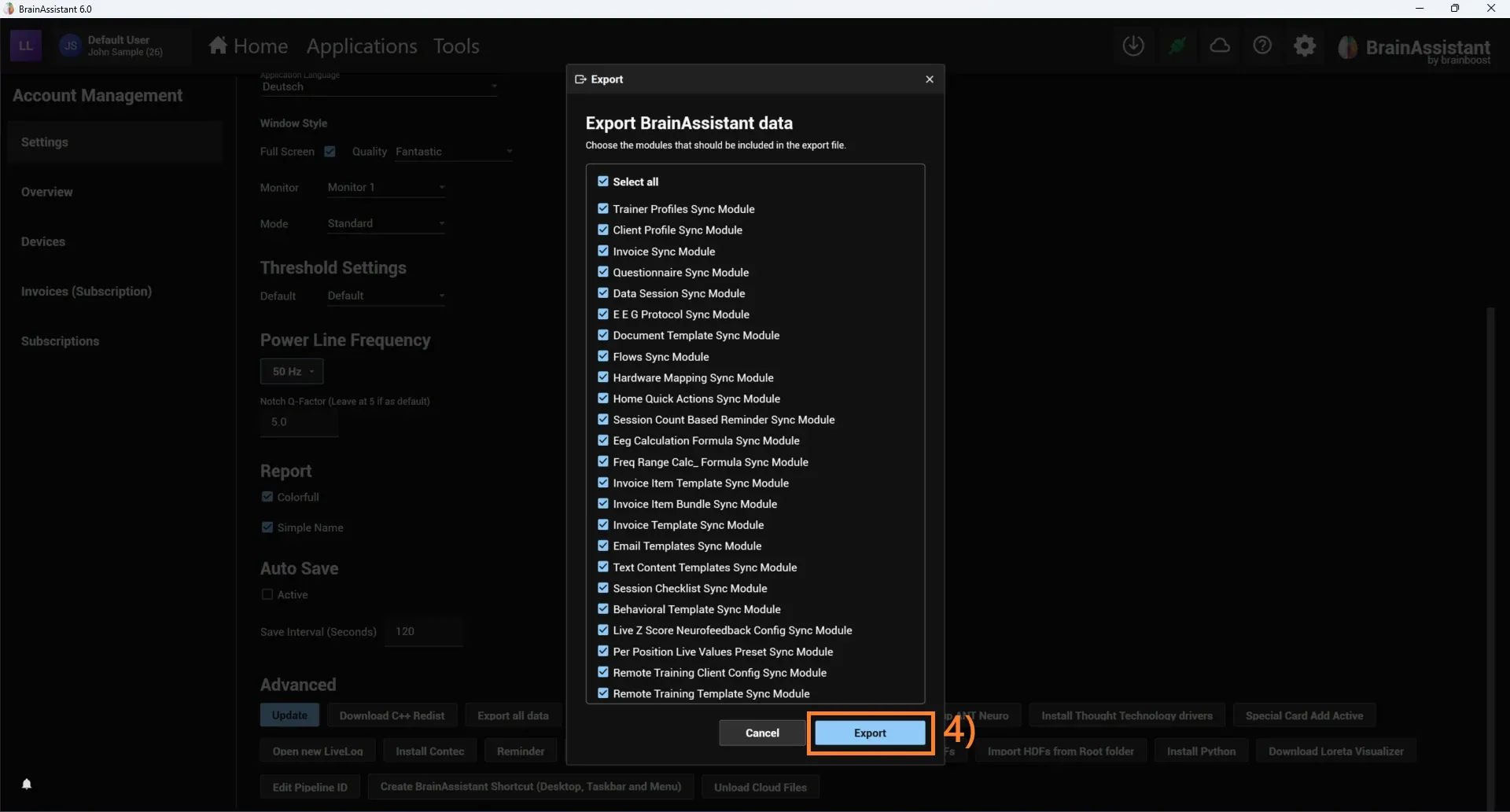
In the popup, select which modules to transfer and click Export. If you are fully migrating to the new PC, keep everything checked.
-
Save the created
.batafile on the drive you use for the transfer.
You can also use this export as a backup of your data. The export may contain private client data, so secure the file adequately, ideally with password protection and encryption.
Import the data on your new PC
-
Copy the exported
.batafile to your new PC. -
Open BrainAssistant and check that you are logged in.
-
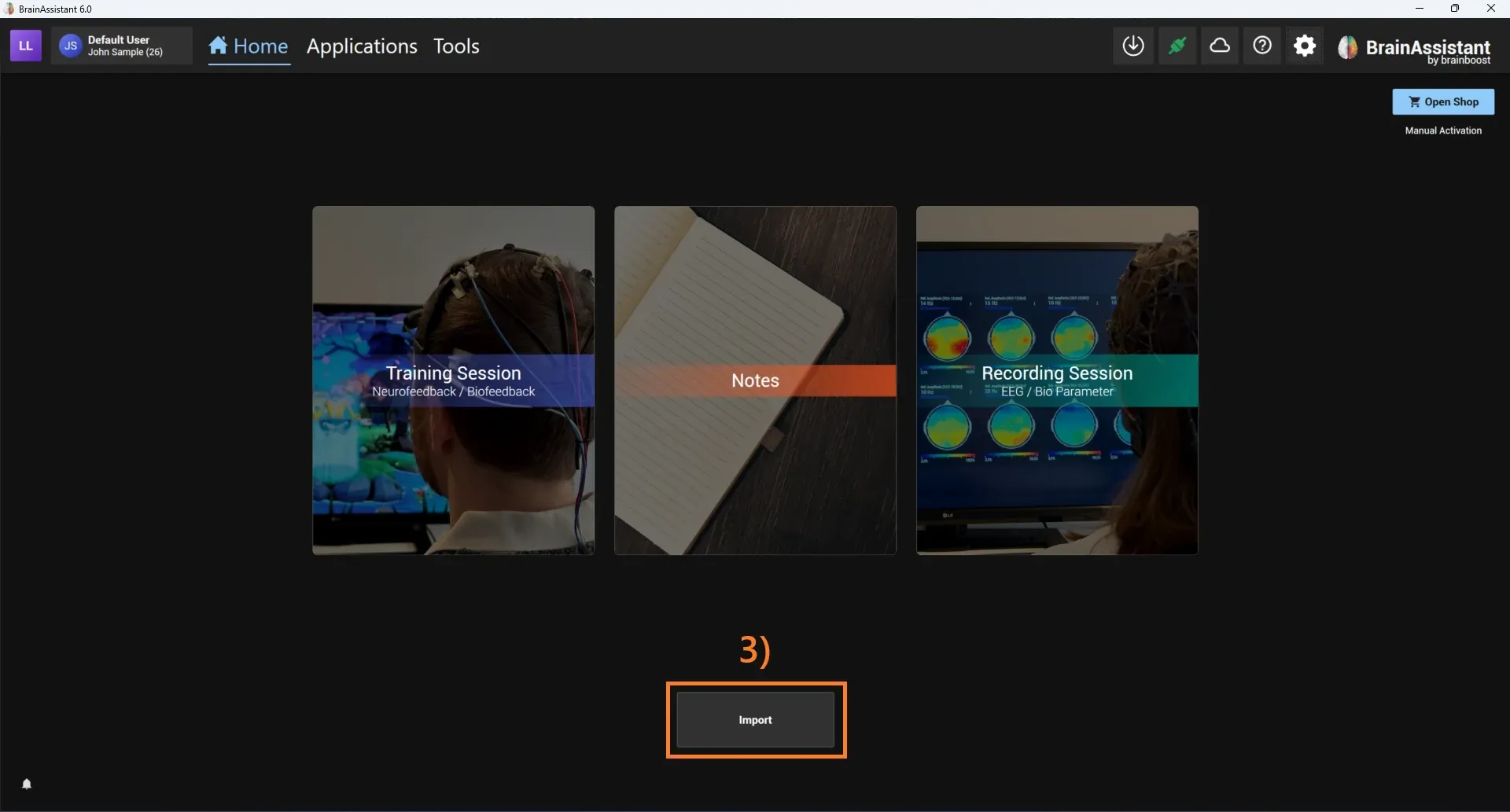
Click Import on the home screen and select your data export.
-
Check that all of your exported data is now available on your new PC.
Your data is now transferred. To also move your license, see Devices and subscriptions. If you have questions, contact support@brainboost.de.
Optional: delete the data on your old PC
These steps are not needed for the transfer, but they are required to fully remove the BrainAssistant data from your old PC.
-
Close BrainAssistant on your old PC.
-
Open the Windows Explorer (search for “explorer” or press Windows + E).
-
Type
%appdata%into the address bar and press Enter.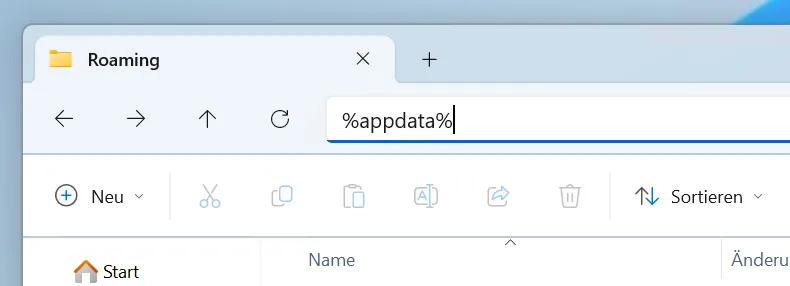
-
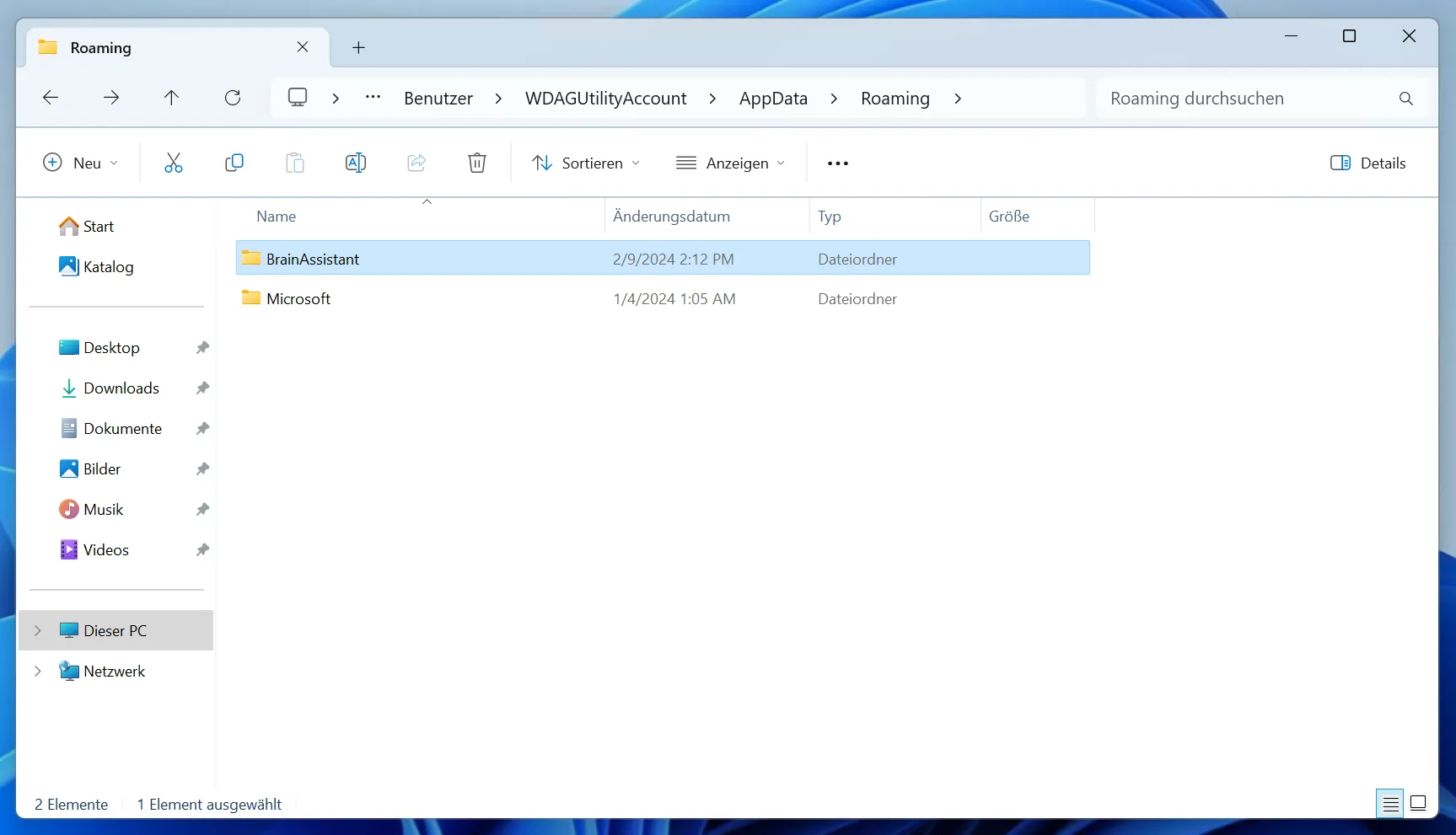
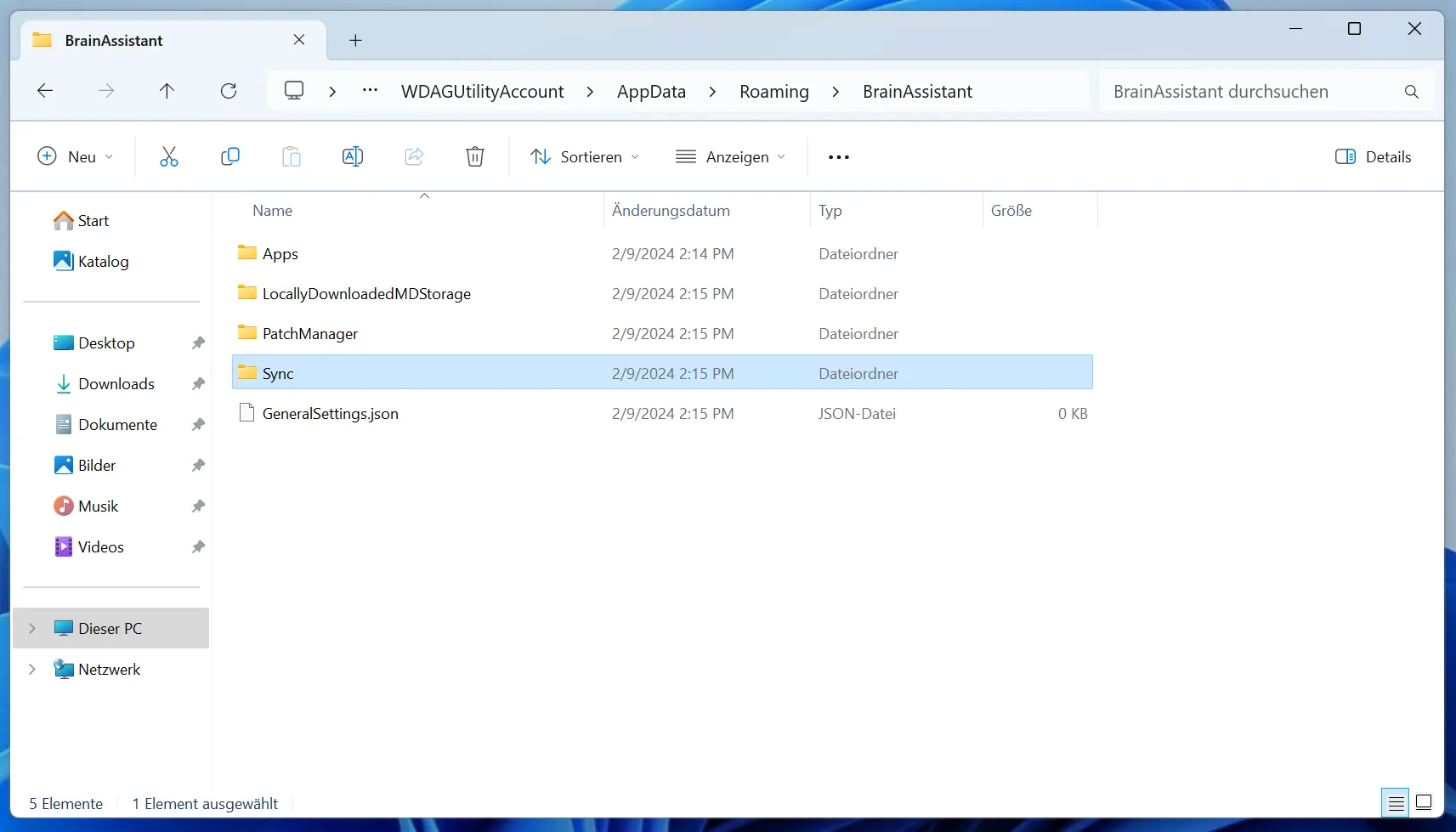
To remove BrainAssistant completely, delete the BrainAssistant folder. Otherwise open the BrainAssistant folder and delete only the Sync folder.
-
If you deleted only the Sync folder, also reset the import cache of BrainAssistant on your old PC. Otherwise the old PC will be missing the default report templates and similar content.
Press Windows + R, type
regeditand confirm to open the registry editor.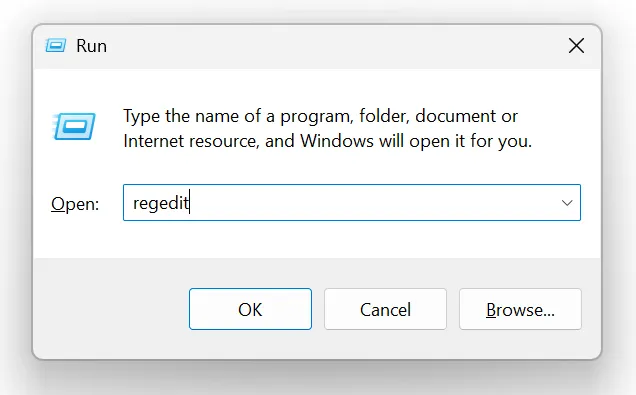
Navigate to
Computer\HKEY_CURRENT_USER\Software\BrainAssistantand delete the Importer folder. -
Empty the Recycle Bin to make sure all personal BrainAssistant data has been wiped.
-
Open BrainAssistant and check that all data has been deleted. You can now log out or uninstall BrainAssistant.