
The finished report looks like this: example qEEG auto report (PDF)
Import an EDF (external recordings)
If you recorded the EEG with an application other than BrainAssistant, import the EDF into BrainAssistant first.
First export the EDF from your other application. There is usually a button called EDF or Export there.
To import an EDF, click Import and select the EDF:
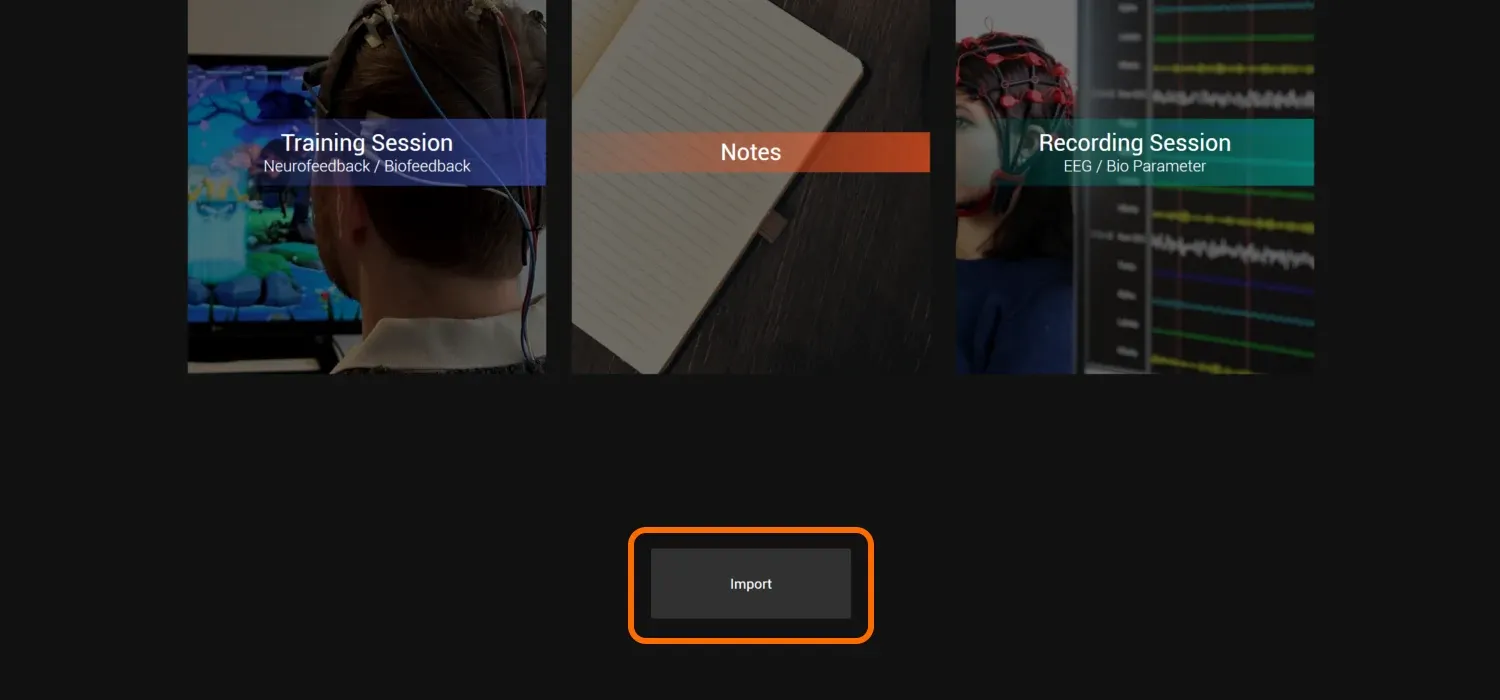
After the import, the name of the newly created or imported client is shown at the top left.
More in Import and export a .bata or EDF file.
Open the EEG recording (internal recordings)
If you already recorded an EEG in BrainAssistant or imported an EDF before, click the client name at the top left and find your session under Sessions.
1. Click the client name at the top left

You now see a list of all recorded sessions of this client. The latest sessions are at the top; further down you find older sessions.
2. Click Show Details at the session you want to open
Find the session you want to inspect and click Show Details on the right side of the session.
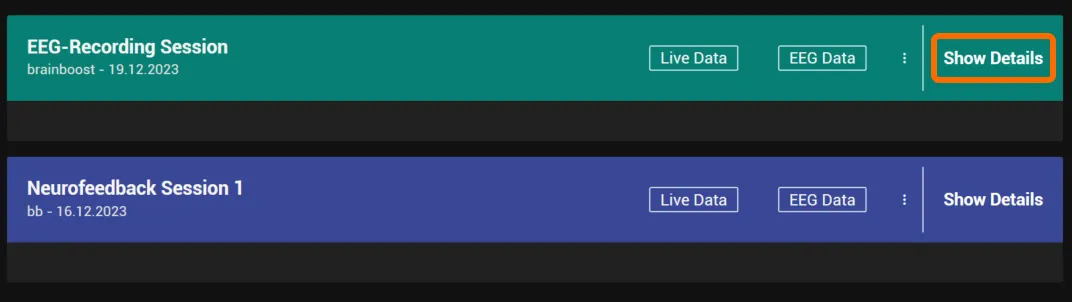
The session opens in the Studio.
You can navigate somewhere else in BrainAssistant and come back to the open session with the Studio button in the top bar (tagged EEG for a qEEG recording).

Check or create segments
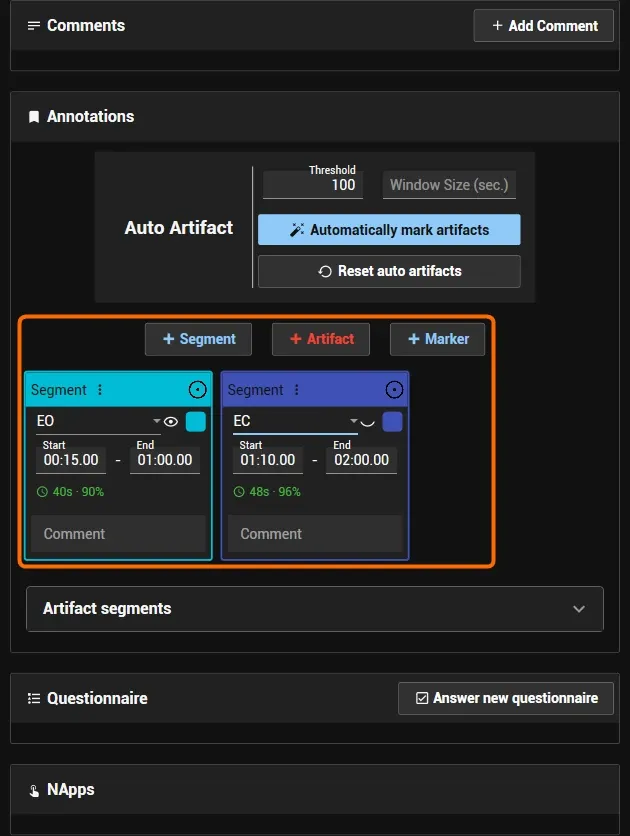
On the left you see the segments that are already in your session. Add segments with the Segment button (plus sign) in the Annotations section.
The auto report needs:
- one EO segment
- one EC segment
To create them:
- click Segment,
- change the type of the segment from Undefined to EO or EC,
- set the times below the drop-down accordingly.
To check that everything is set correctly, open the EEG Data page. There you see the EEG, can scroll through the session and see where the segments are.
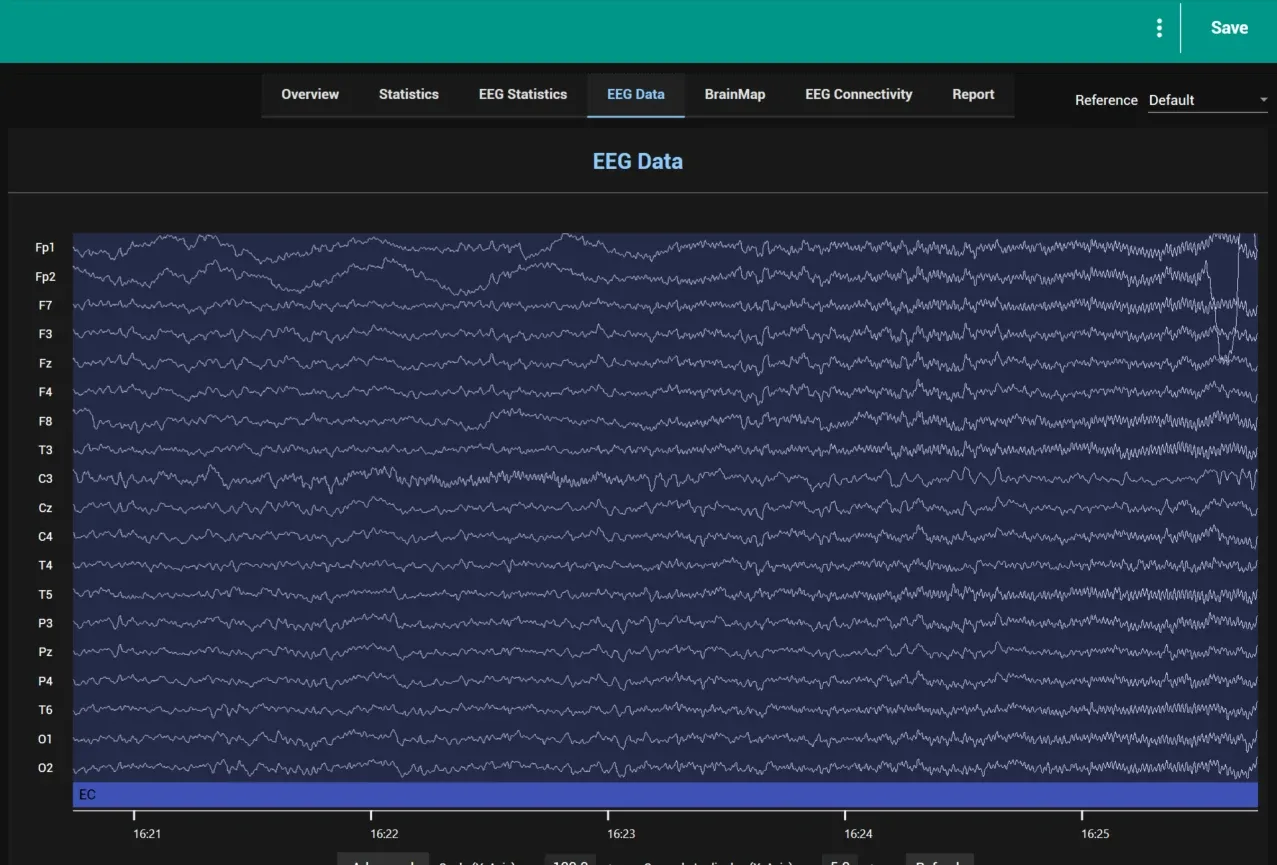
The very first step for analysing your data is to inspect your raw EEG to check that you recorded a proper signal. Cut out the artifacts before you generate the auto report! See EEG analysis: brain maps and report.
Optional: review the document settings
Before you generate the report, you can review the document settings. Go to Tools:

and select Document Templates on the left (if it is not selected automatically).
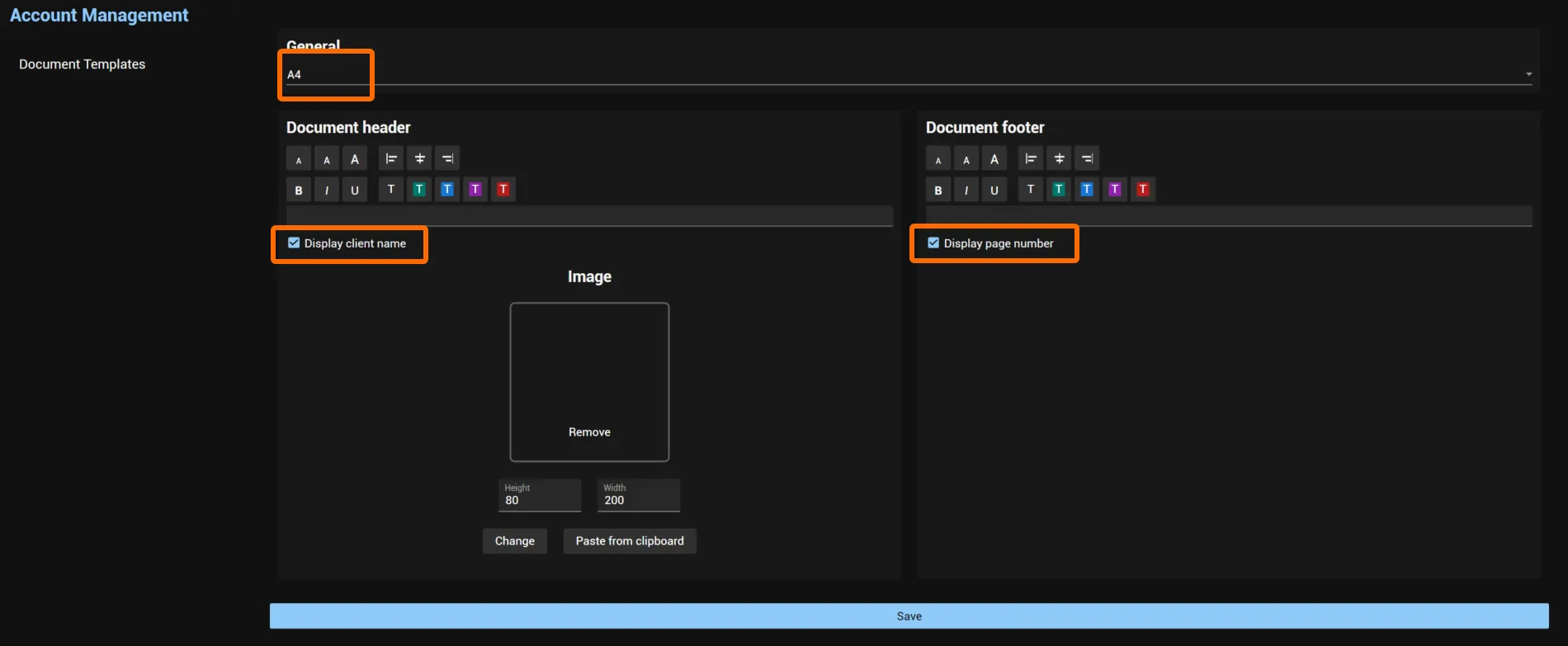
Here you configure several things about your report. The most common settings to change:
- A4 or Letter
- Header and footer text
- Display the client name (and other data if available)
- Display the page number
Then go back to the session with the Studio button in the top bar.
Generate the automatic qEEG report
To generate the automatic qEEG report, click Generate Auto Report and then Full Report on the Overview page of the Studio:
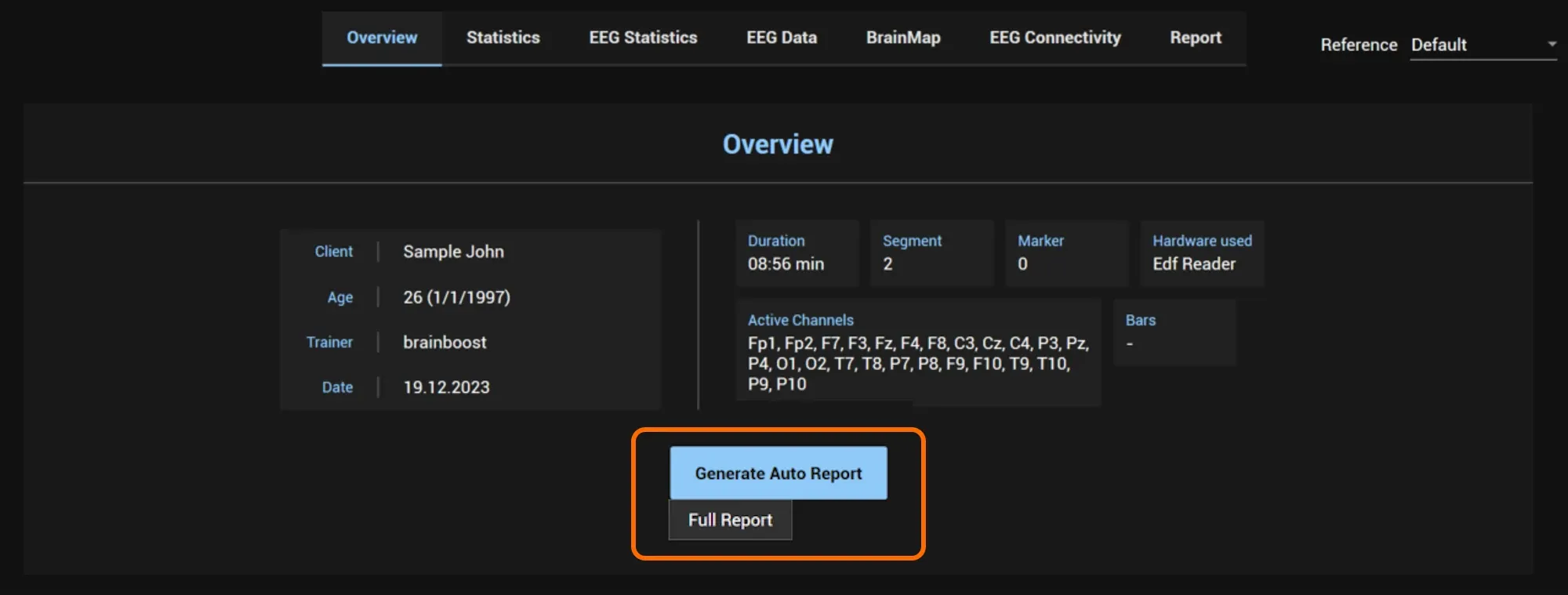
This requires an EO and an EC segment as described above.
If you need help or have any questions, contact us at support@brainboost.de.