
Create a new client
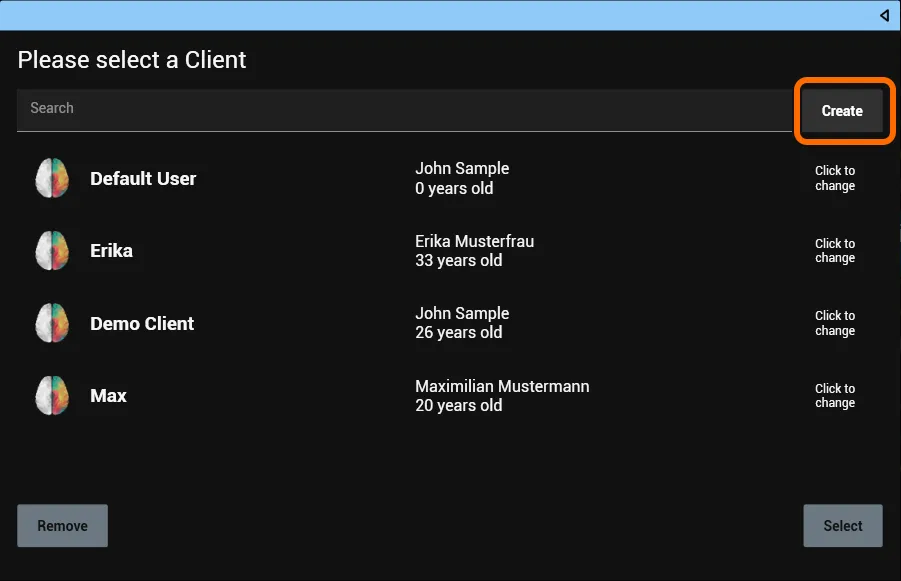
Click Create to create a new client.
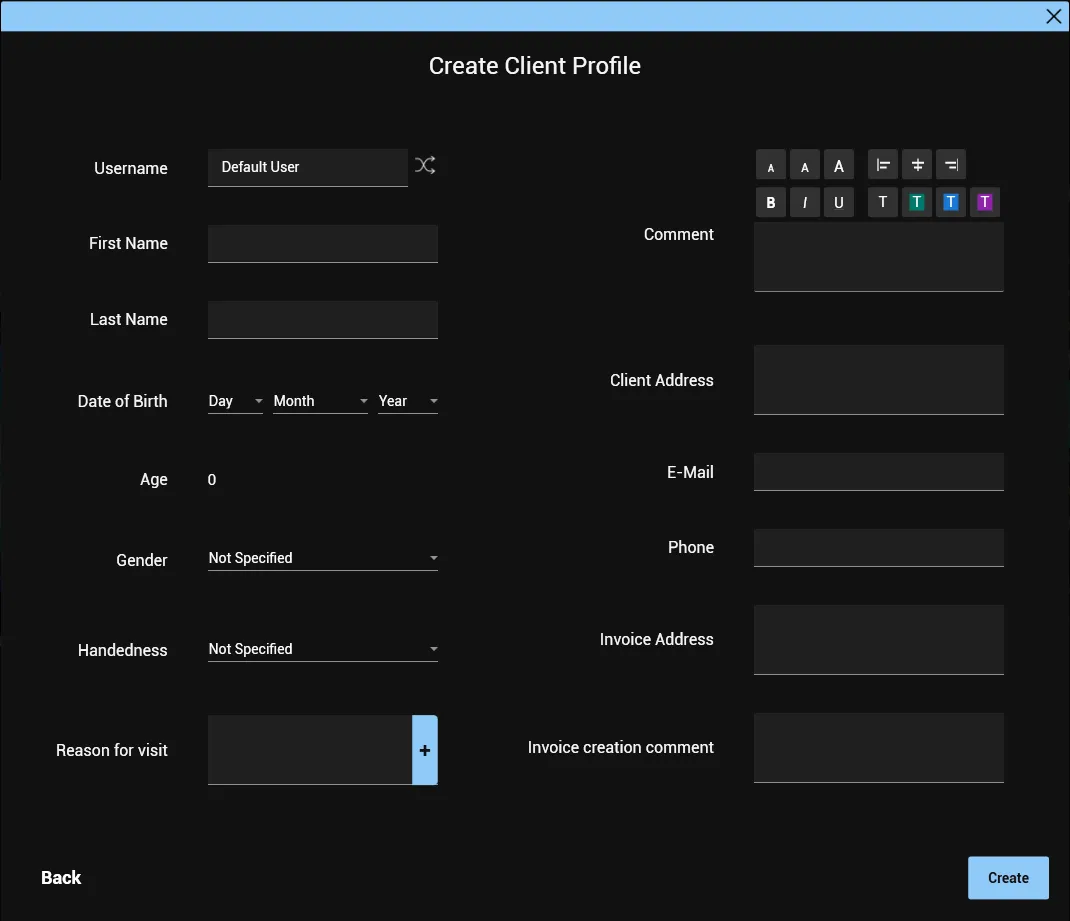
A window opens where you enter the client’s personal information.
We recommend filling in at least everything up to Handedness.
Search for clients
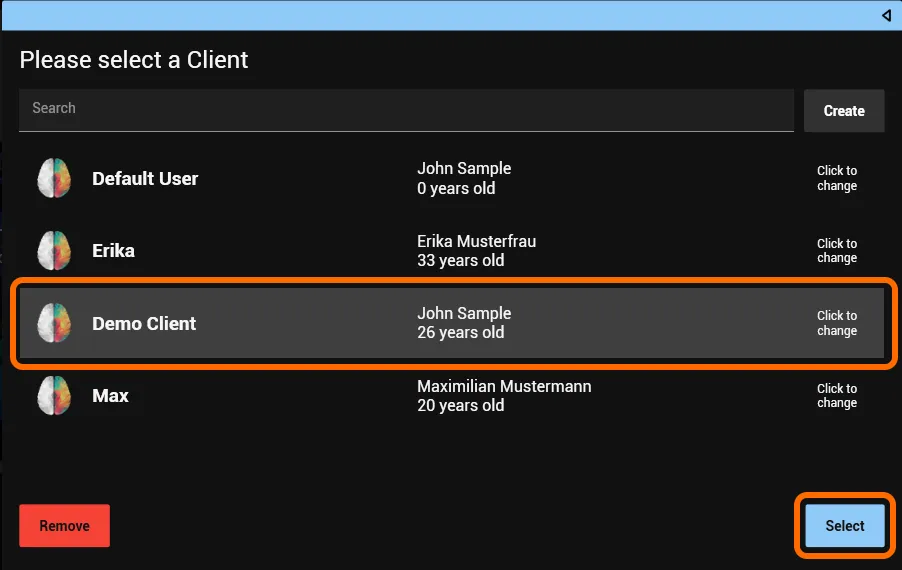
To find a client, type the name into the search bar at the top. To select the client, click the name and then Select at the bottom right.
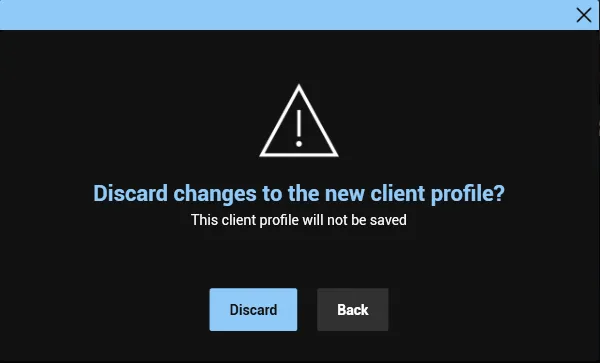
If you accidentally started to create a new client profile, click the X in the top right corner. In the window that opens, click Discard to delete the unfinished client profile.
Remove clients
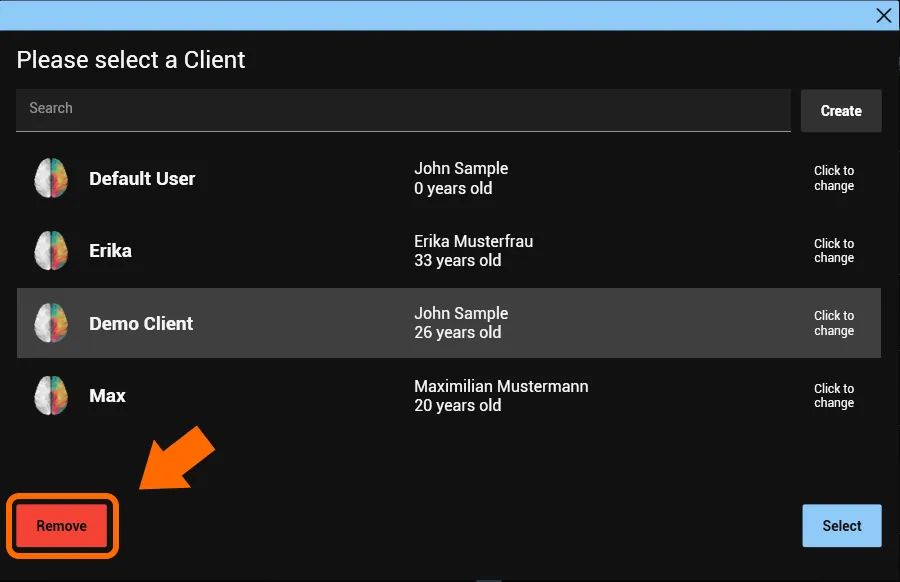
To remove a client, click the red Remove button at the bottom left.
Change the client
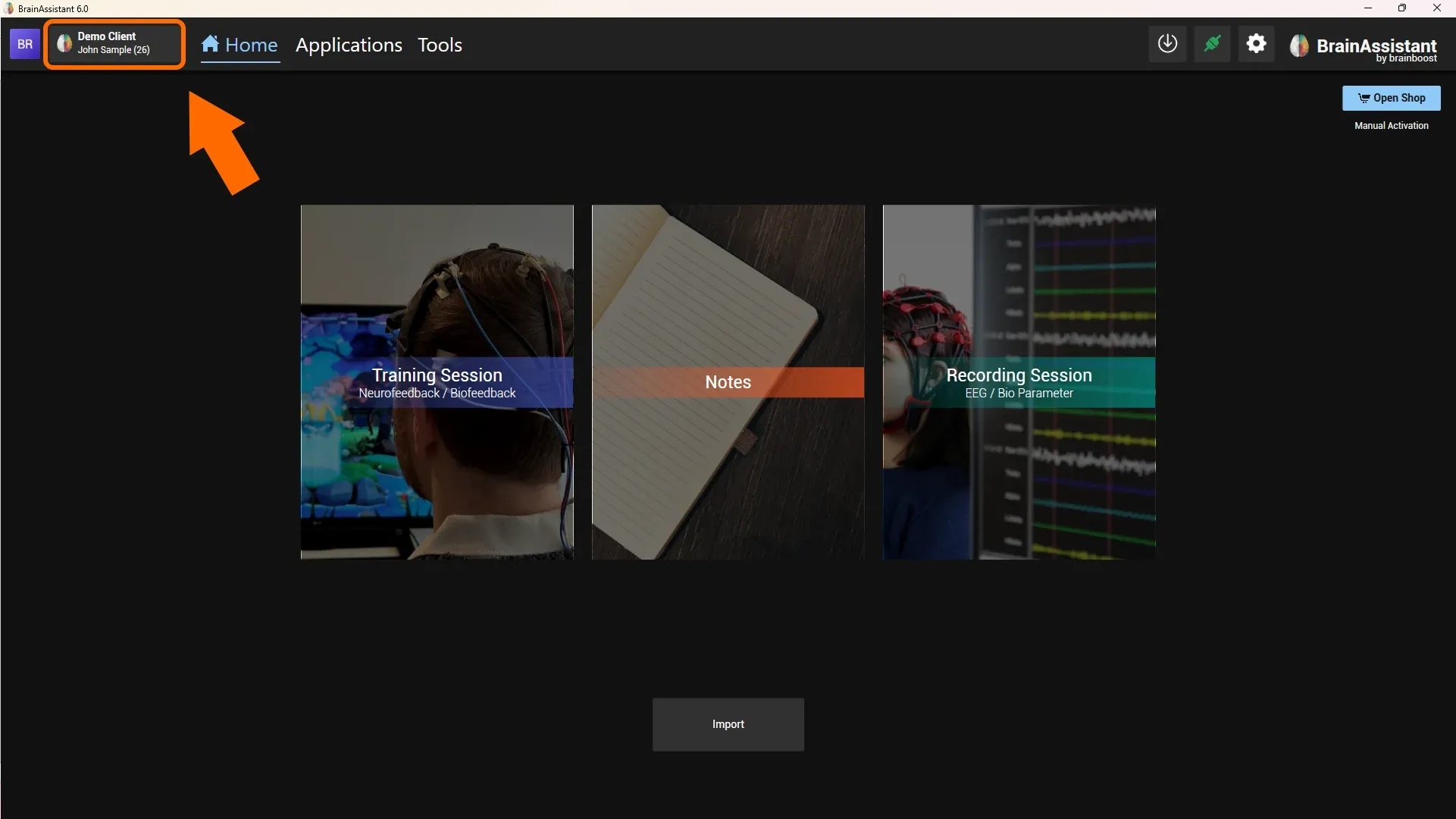
To change the client, click the client’s name at the top left.
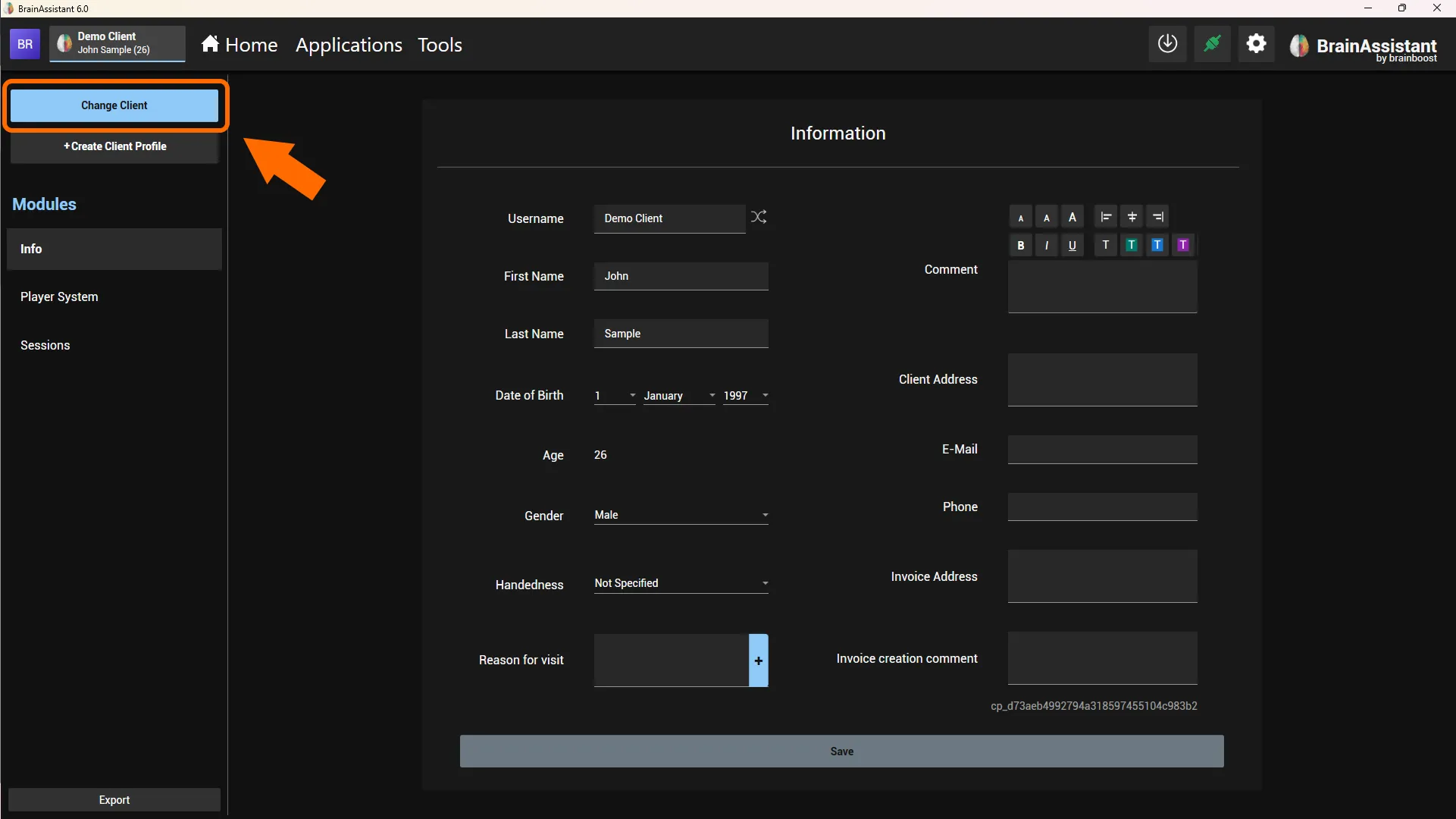
Then click Change Client. In this view you can also change or correct the information of the currently selected client.
Client management
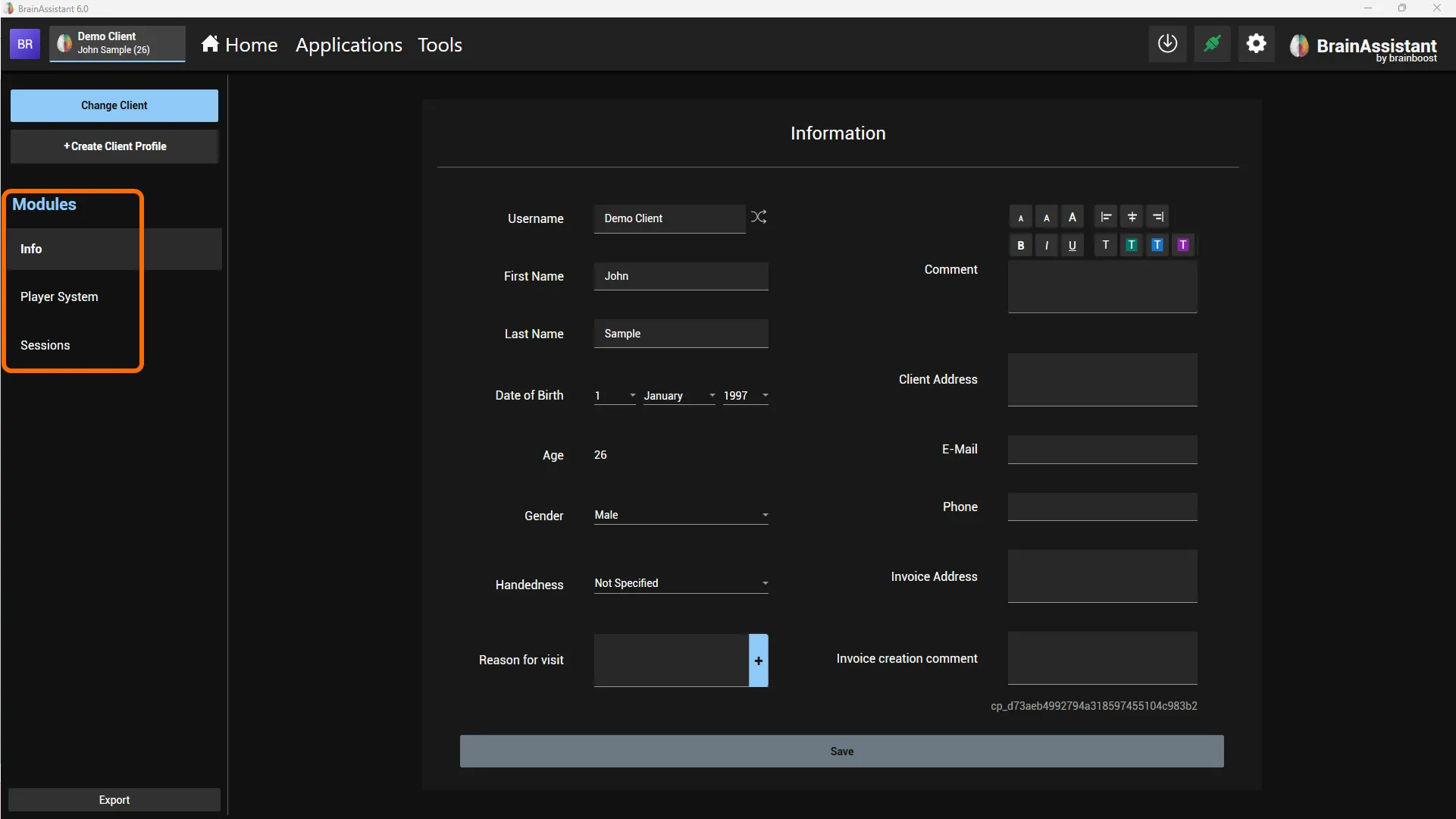
In the main menu, click the client’s name (top left) to open the different modules. In the Info section you can add further information about your client.
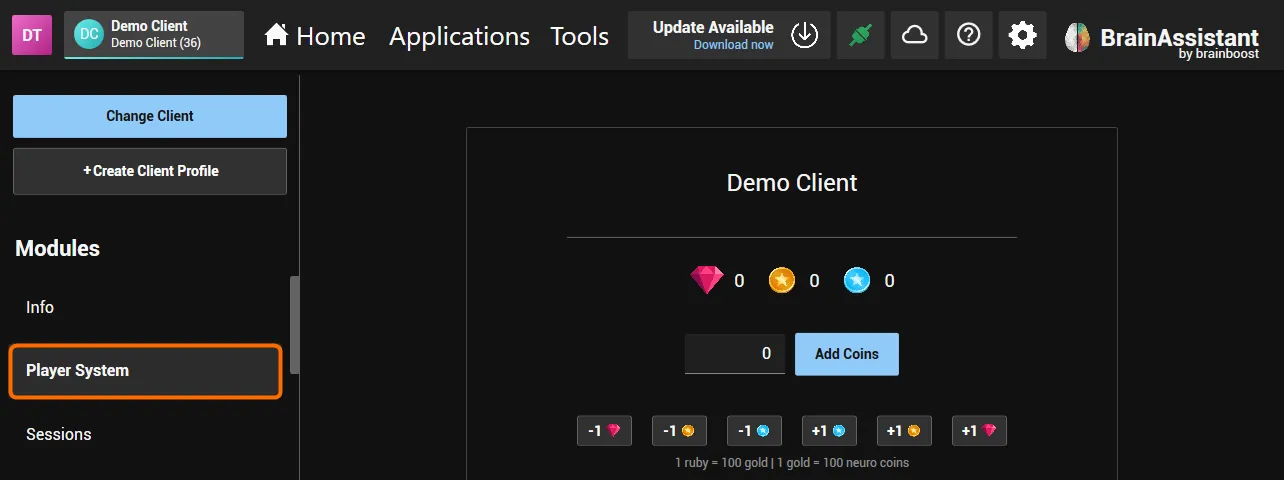
The Player System section shows the coins your client has collected. The client collects coins in every game and they are all added up. Coins can be spent in every game on new characters, backgrounds and more. You can add or deduct coins manually. The client’s icon is set in the Info section (Icon).
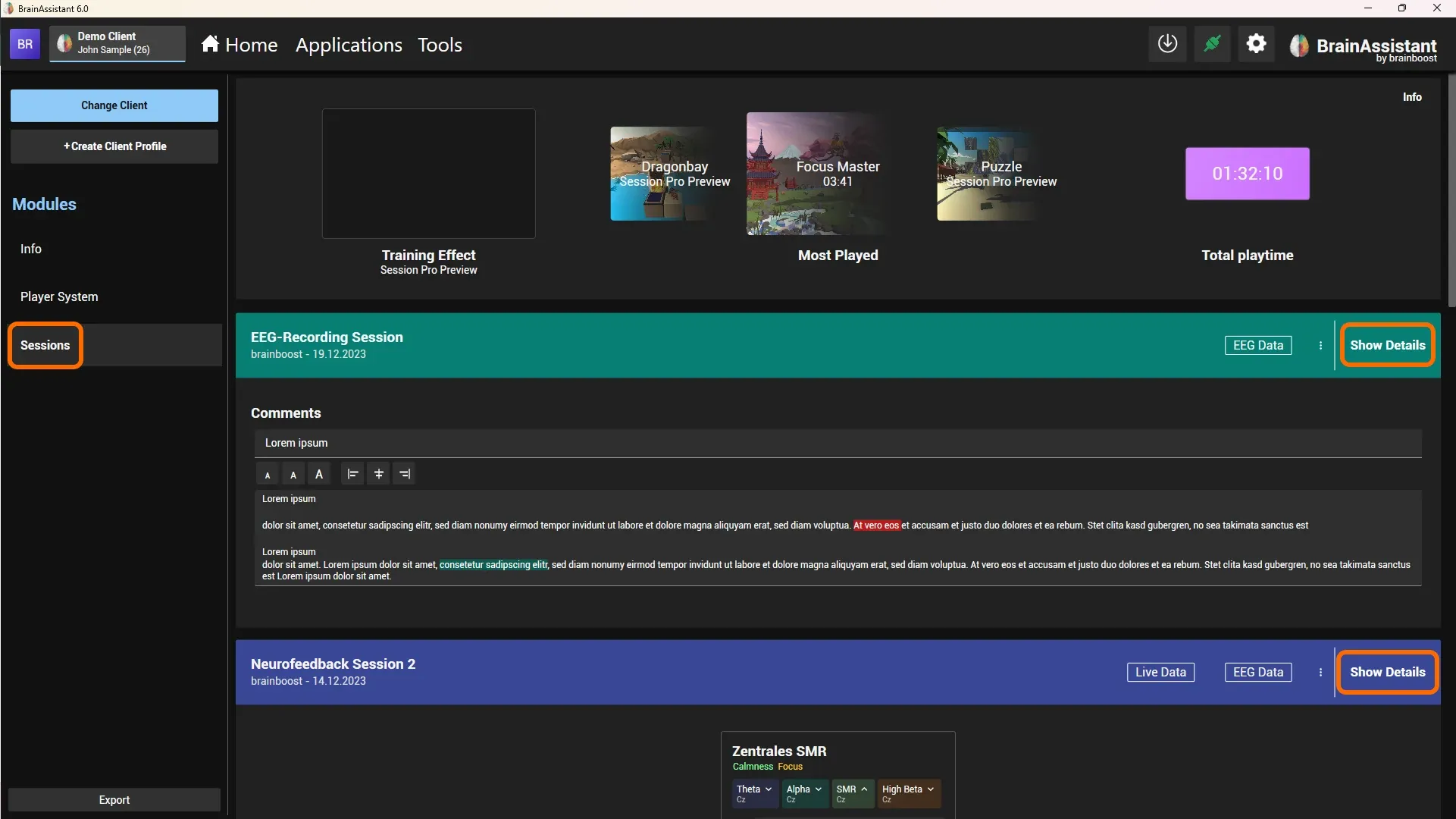
The Sessions section gives an overview of previous sessions and recordings. Click Show Details on the right side (circled in orange) to review training sessions or EEG recordings and create reports. See Session analysis and EEG analysis.