
Particle Brain shows live or recorded EEG on one or more animated 3D brains. This page has the steps; what the views, layers, threshold modes and report options do is described on the feature page Particle Brain.
Start Particle Brain during a live session
-
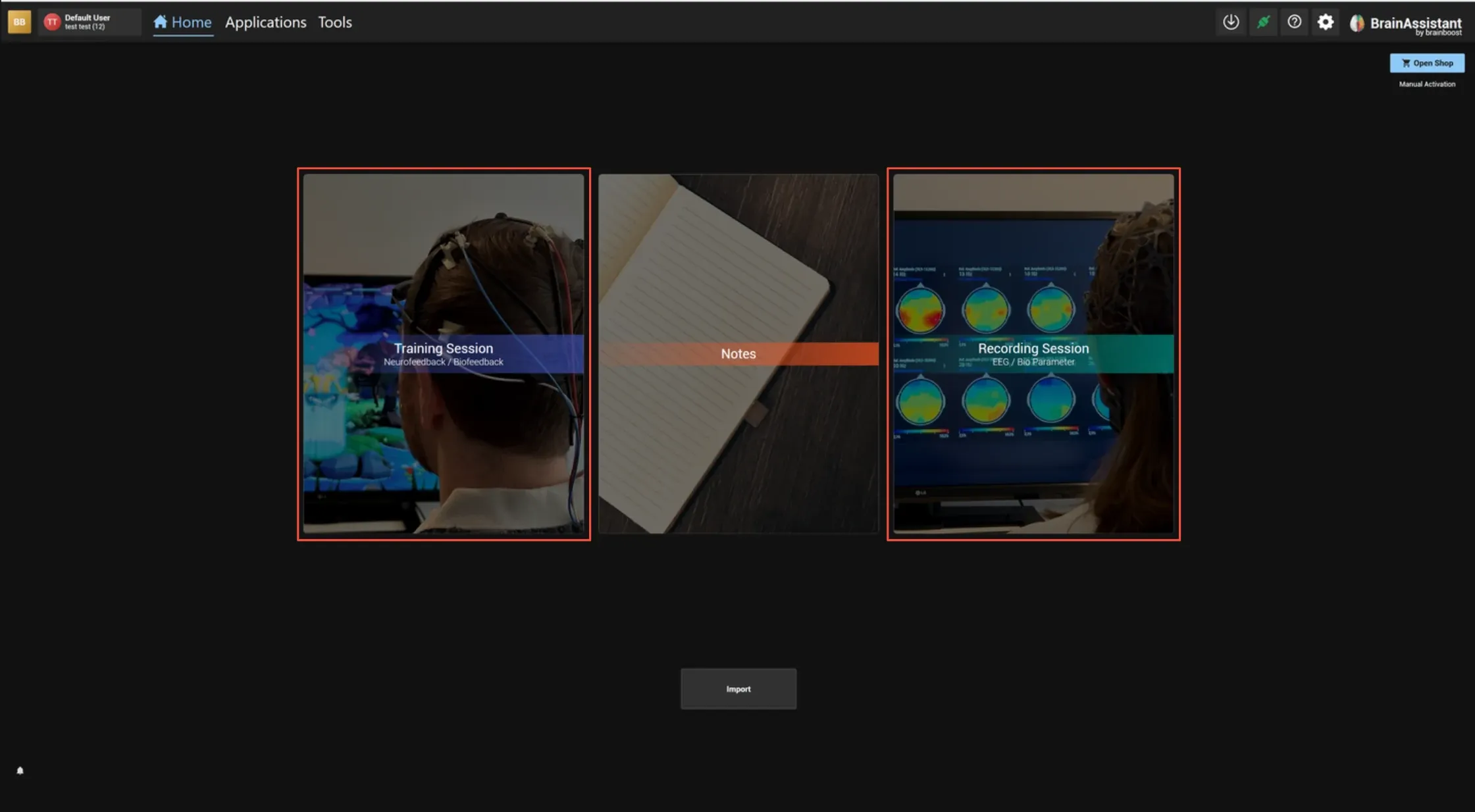
Start a training session or an EEG recording.

-
Once the session is running, click Applications in the top bar.
-
Select Particle Brain and start it.

Start Particle Brain in the Studio
-
Click the client name at the top left and click Show Details next to a recorded session (see EEG analysis: open the session).
-
In the Studio, open EEG Statistics.
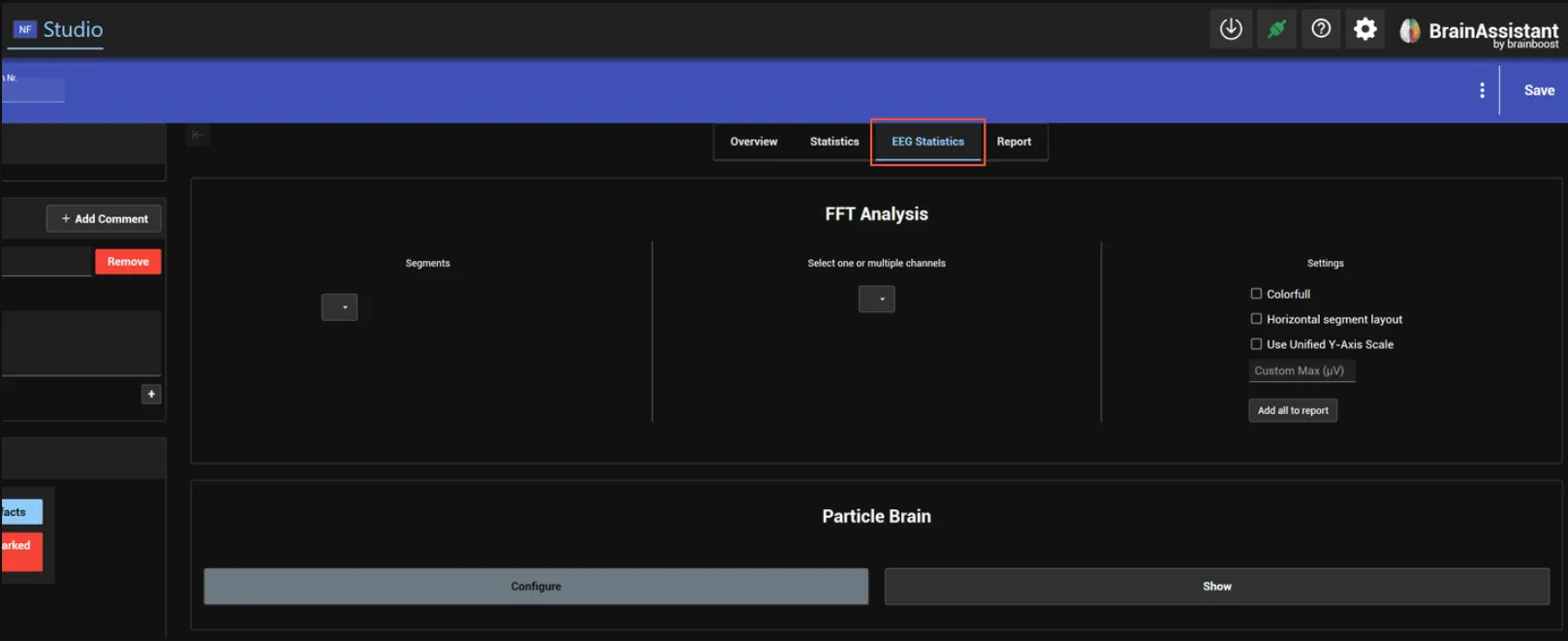
-
In the Particle Brain section, click Show to start it; Configure opens the configuration window.
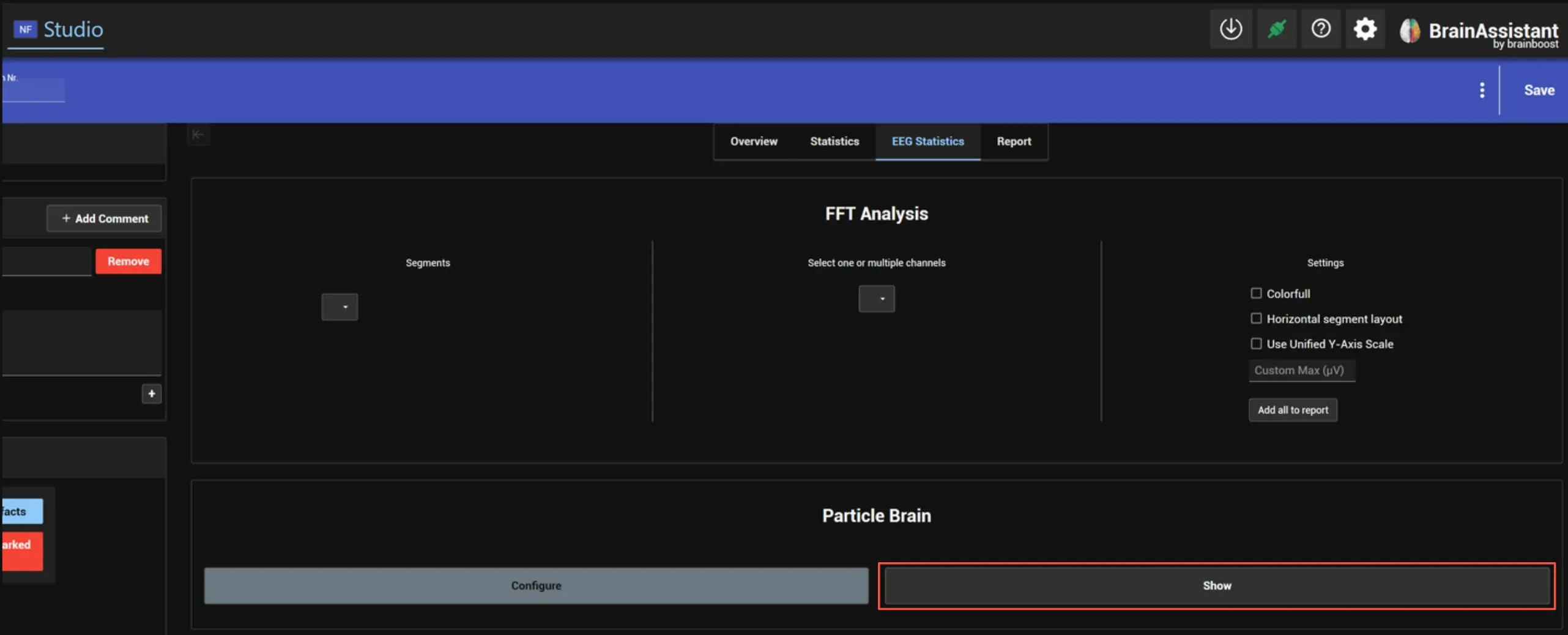
Apply a preset
-
In the Particle Brain configuration window, click Presets under Quick Selection.
-
Click the card of a preset. It is applied at once and its name appears on the Selected Preset button.
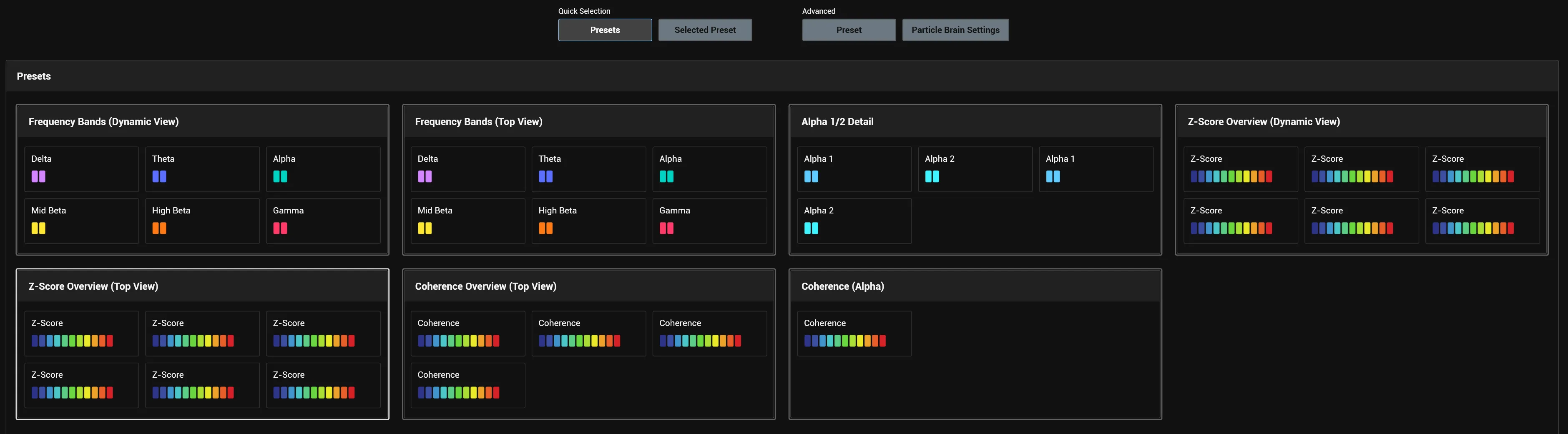
-
Optional: click Selected Preset to change the grid, the camera, the labels or the thresholds of the running visualisation.
Create a preset
- Click Preset under Advanced, then + in the left panel.
- Enter a Preset Name.
- Select the Threshold Mode (Preset).
- Click the cards you need under Available Presets. They move to Added Presets.
- Configure any display text, camera, calculation or threshold overrides.
- Click Save.
- Click Select Preset to apply the preset.
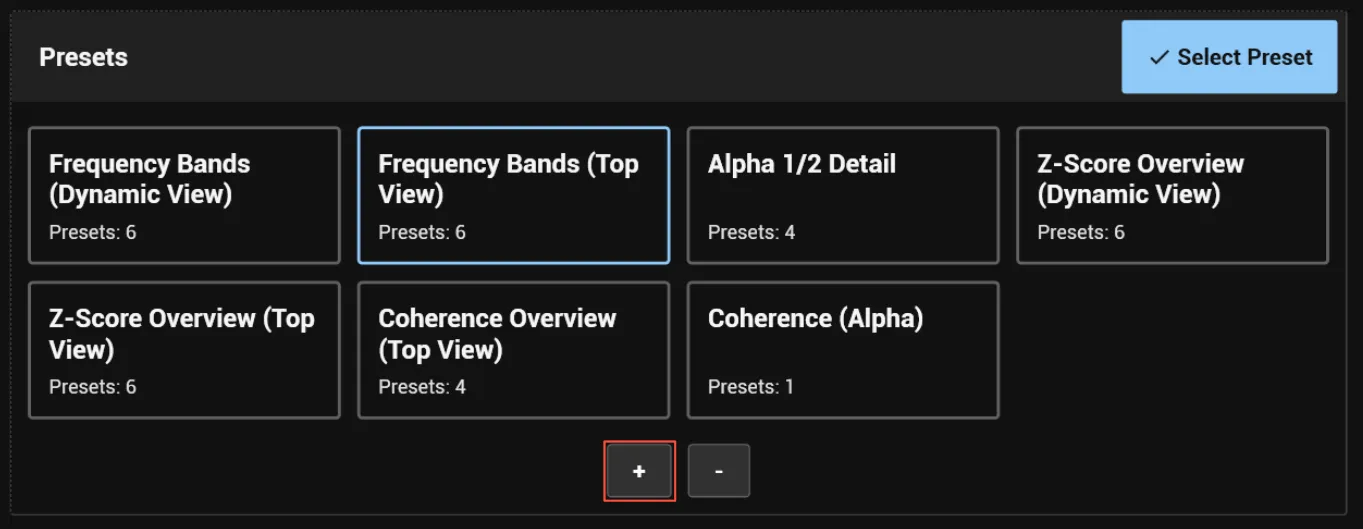
Create a frequency range calculation formula
A frequency range calculation formula defines how the values of an EEG position layer are calculated.
-
Open Tools.

-
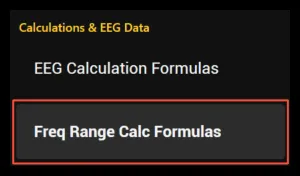
Open Freq Range Calc Formulas under Calculations & EEG Data.
-
Click Add, then Edit.
-
Enter a display title, for example Alpha.
-
Click Add to create a configuration card.
-
Set the calculation type, for example Amplitude.
-
Set the frequency range, for example 8-12 Hz.
-
Set the epoch length, for example 0.25 seconds. The epoch length determines how many samples are processed for each live update.
-
Save the formula.
The saved formula is then available in the Frequency Range Calculation Formulas selector of an EEG position layer.
Add Particle Brain screenshots to a report
The report element needs a report of one recorded session and the installed Particle Brain app.
-
Open the session in the Studio and open the Report page.
-
Click + and choose Particle Brain Screenshots.
-
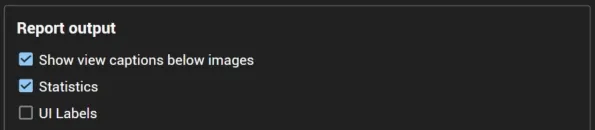
Under Report output, choose whether view captions, a Statistics table and UI Labels are shown.
-
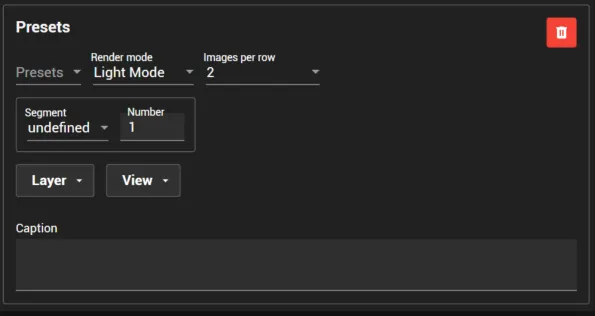
In the Presets card, choose the config preset (Presets), the Render mode, the Segment and its Number, the Layer and one or more views (View). Click Add for another result.
-
Click PDF-Preview to check the images, or Save and open Report.