This page goes through a qEEG recording from the raw EEG to the PDF report. What the pages of the Studio show is described on the feature pages Studio EEG data and Studio statistics.
You can do all of these steps while a live session, training or qEEG recording is running.
Open the session
-
Click the client name at the top left of BrainAssistant.

-
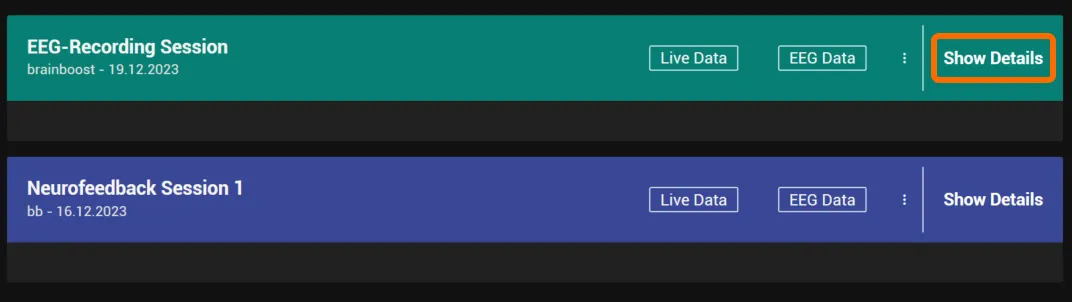
The list shows all recorded sessions of this client, the latest at the top. Find the session you want to analyse and click Show Details on its right side.
-
The session opens in the Studio.
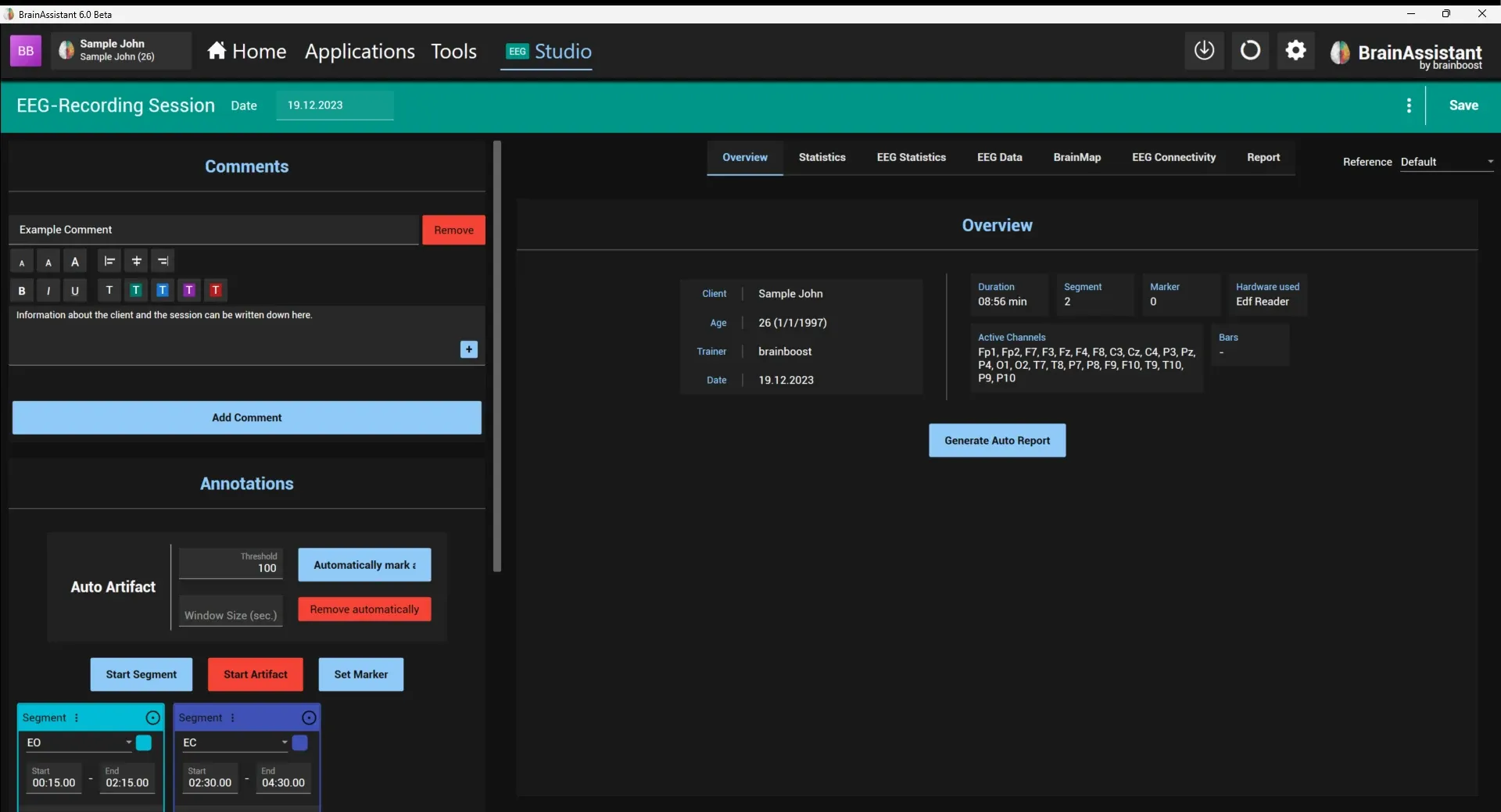
You can go somewhere else in BrainAssistant and come back to the open session with the Studio button in the top bar (tagged EEG for a qEEG recording). Saving or discarding the session closes the Studio.

Set the reference
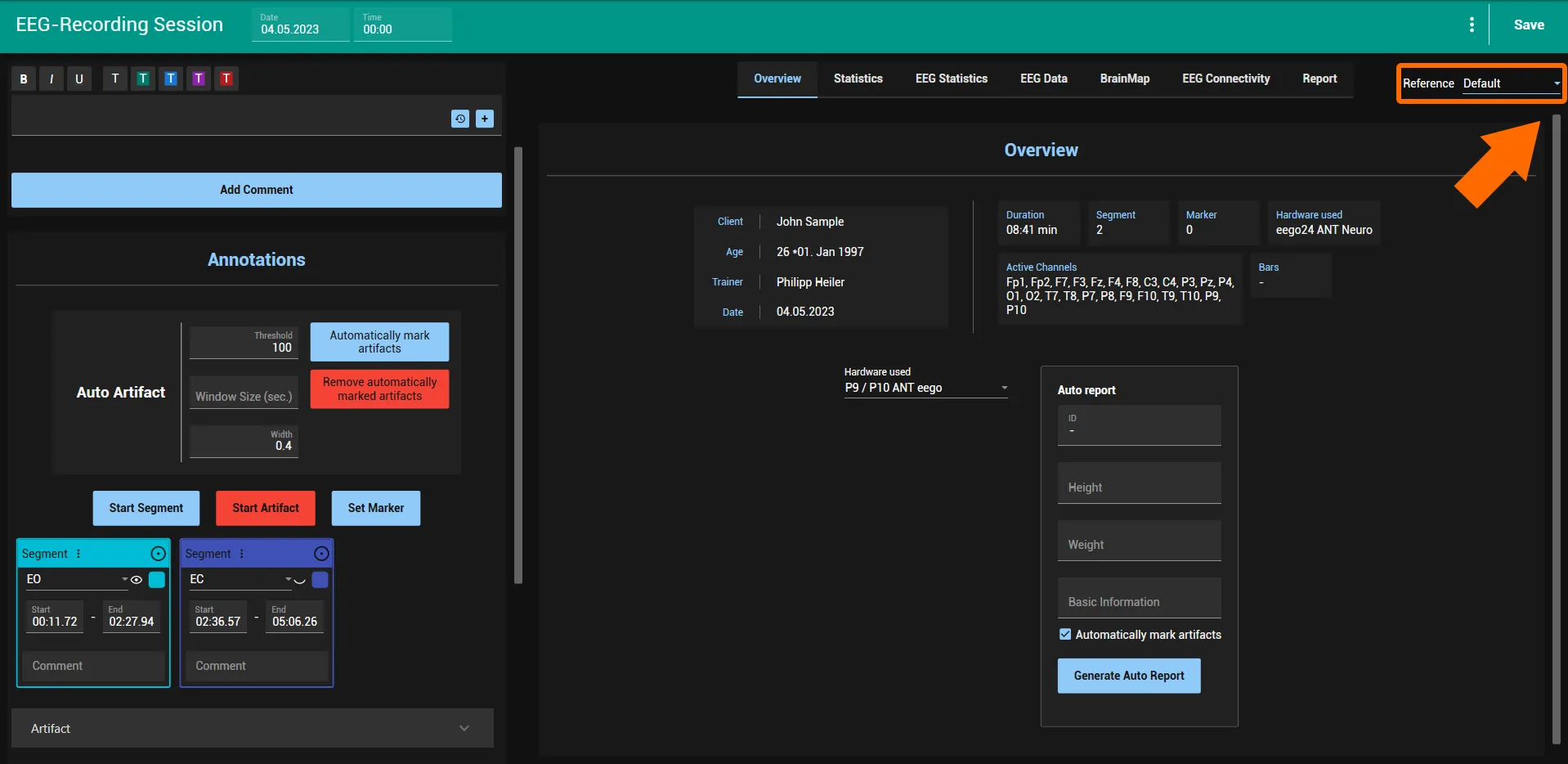
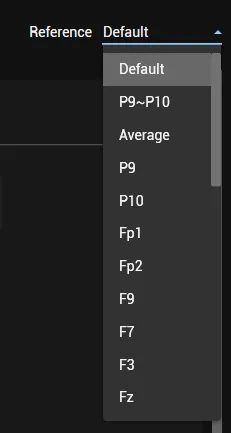
- Open the Reference list at the top right of the Studio pages.
- Choose the reference that suits your hardware if the default is not suitable.
Example: the 24-channel qEEG cap from ANT Neuro has the reference set to Cz by default. To get brain maps and FFTs with information on Cz, change the reference to P9-P10.
Inspect the raw EEG
Always check first that you recorded a proper signal.
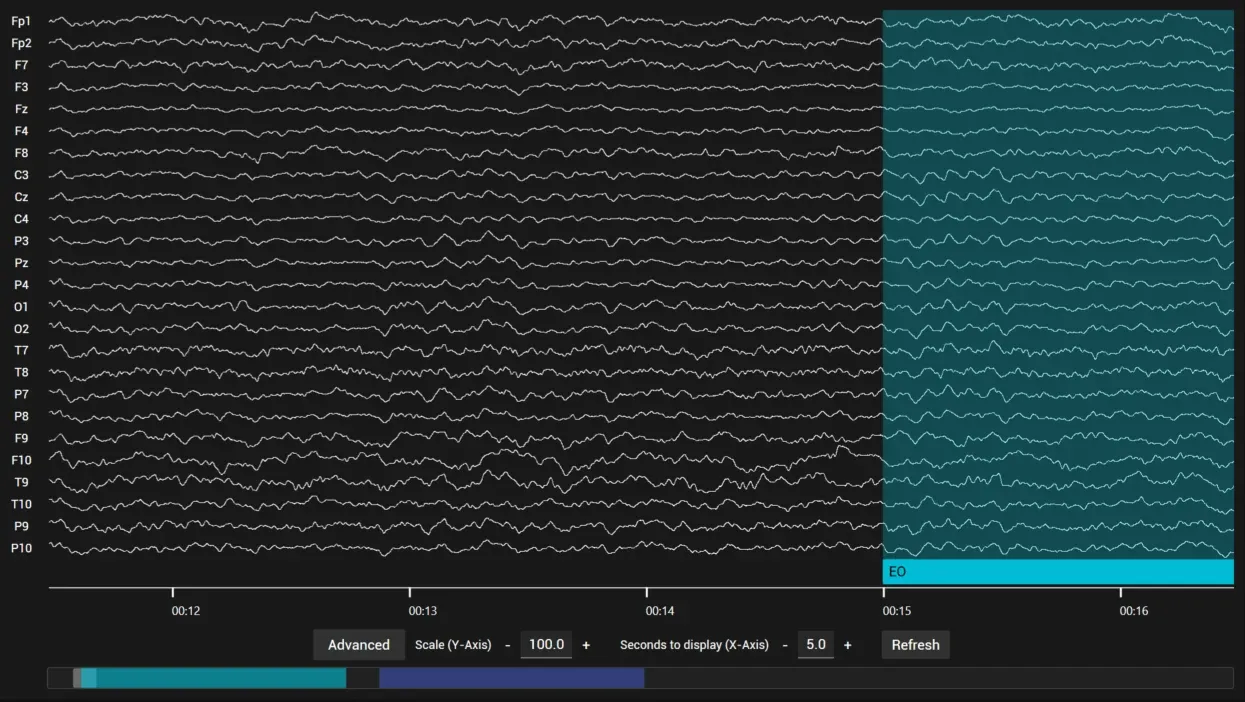
- Open the EEG Data page.
- Scroll through the recording and check the signal of every channel. Move the mouse over the EEG and use the mouse wheel to scroll through the EEG; move it over the bar at the bottom that shows the segments and use the mouse wheel to change the time scaling. Scale (Y-Axis) changes the amplitude scaling.
Remove artifacts
Cut out the artifacts in the Annotations section of the side panel, automatically or manually:
- Automatically: set the Threshold and click Automatically mark artifacts. The lower you set the threshold, the stricter the correction, which means more data is cut out. Reset auto artifacts removes the automatically marked artifacts again if you want to try another threshold. The marked artifacts are listed under Artifact segments; click the arrow to expand the list.
- Manually: move the EEG view to the disturbed part, click the Artifact button with the plus sign and adjust the start and end of the new artifact so it covers the disturbance.
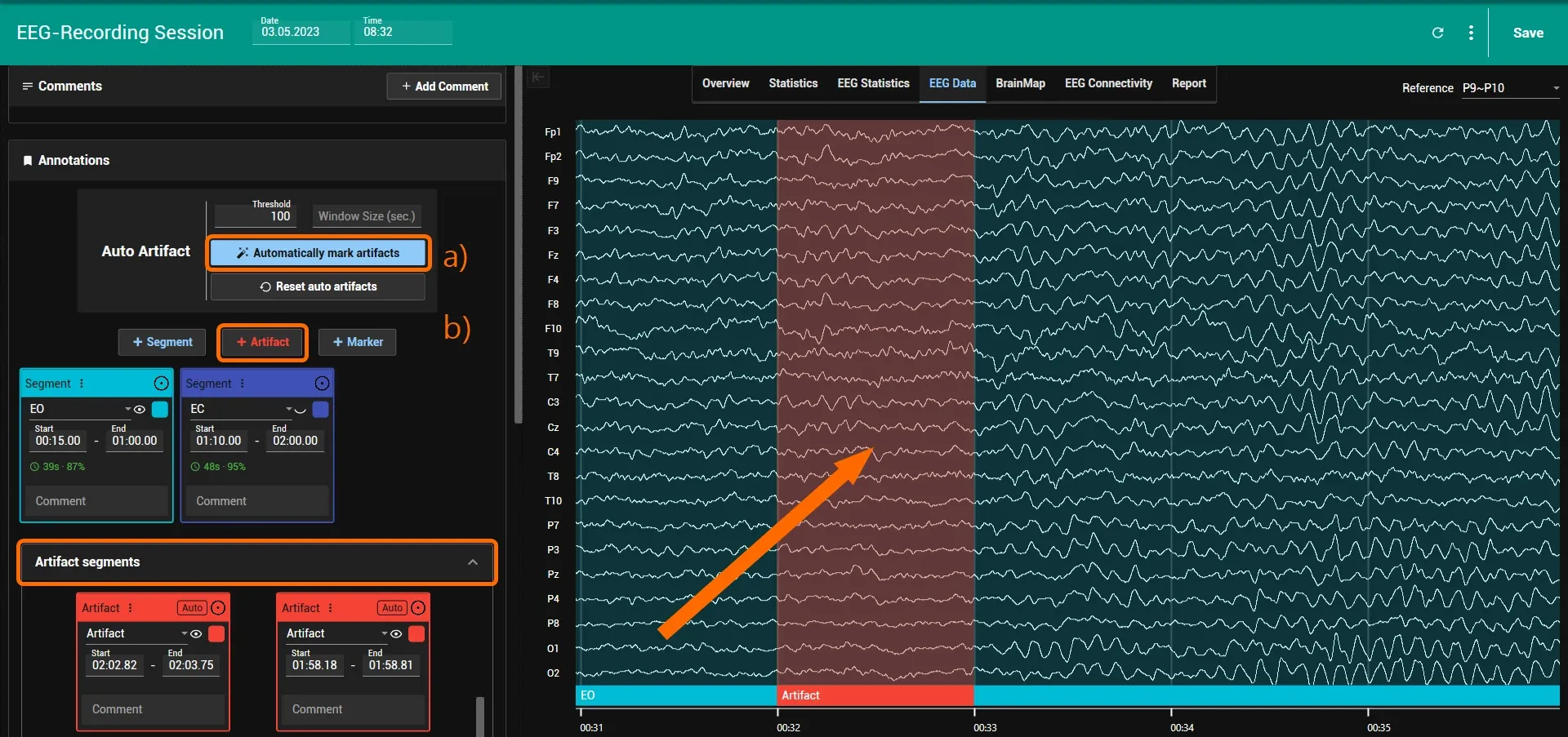
The marked artifacts are no longer taken into account when the statistics and the brain maps are calculated.
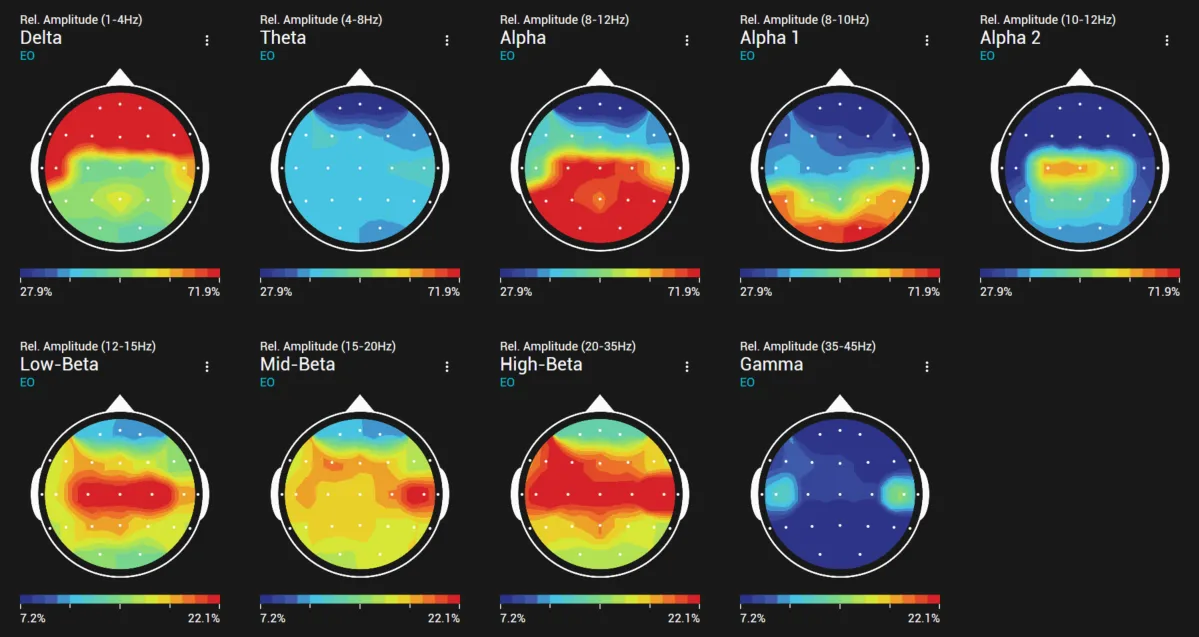
Add brain maps
-
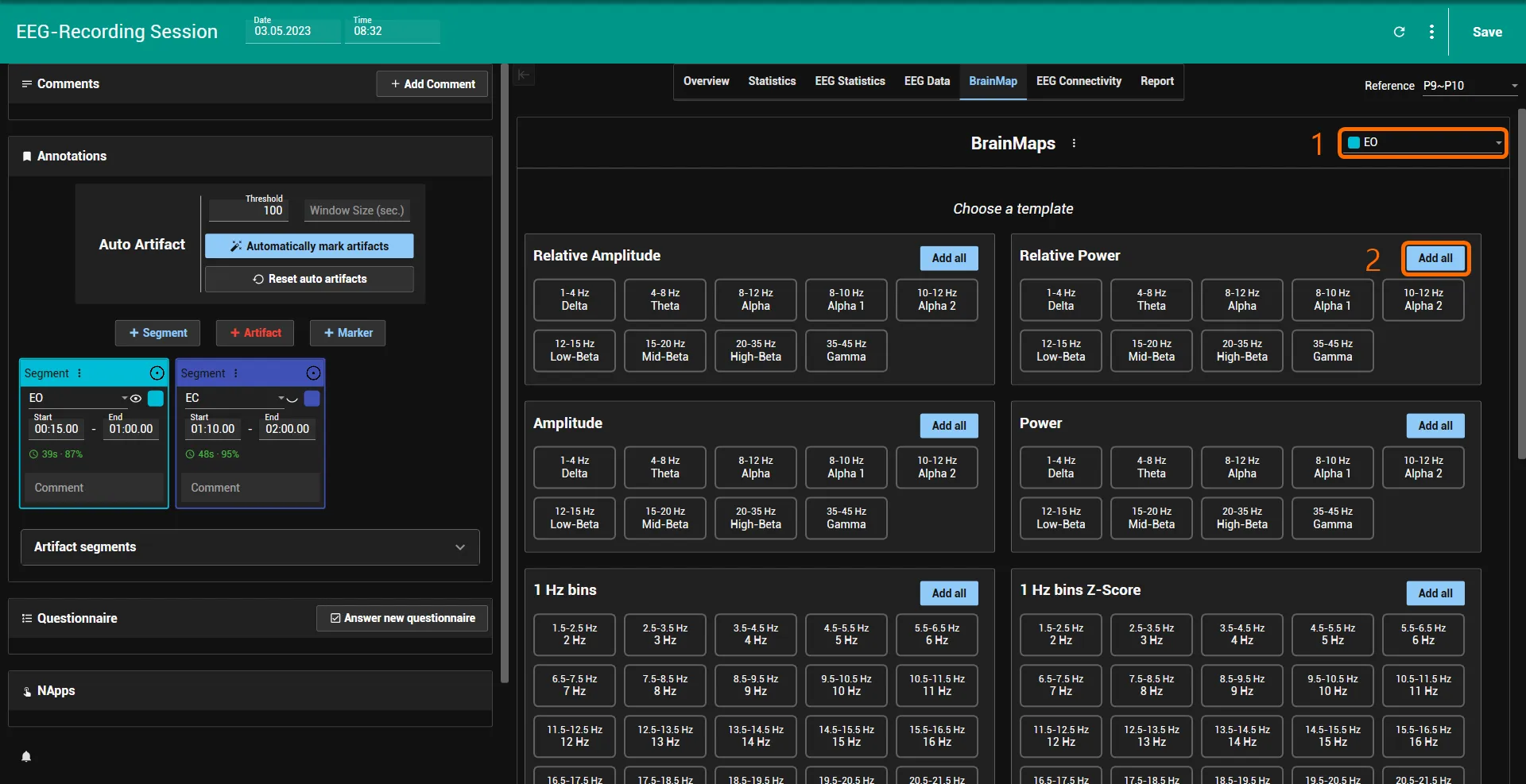
Open the BrainMap page and click Add.

-
Select the segment at the top right of the new BrainMaps panel (1), for example eyes open.
-
Under Choose a template, click Add all next to the type you want (2), for example Relative Power, or click a single frequency band. The types are:
- Relative Amplitude
- Relative Power
- Amplitude
- Power
- 1 Hz Bins (relative amplitude in 1 Hz steps)
- Z-Score (empirical Z-scores and relative Z-scores against the norm database)
-
The brain maps are calculated for the selected segment. Repeat with Add for further segments or types.
Optional: FFT spectrum
-
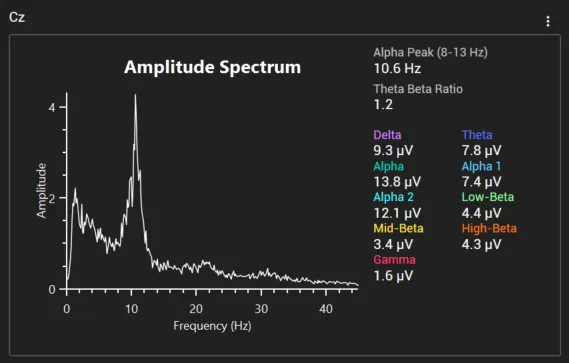
Open the EEG Statistics page and go to FFT Analysis.
-
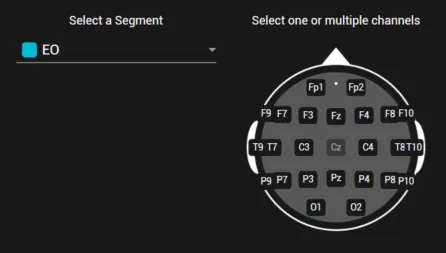
Select the segments and positions you want to show the FFT spectral analysis for. You can show and compare several at once.
Build the report
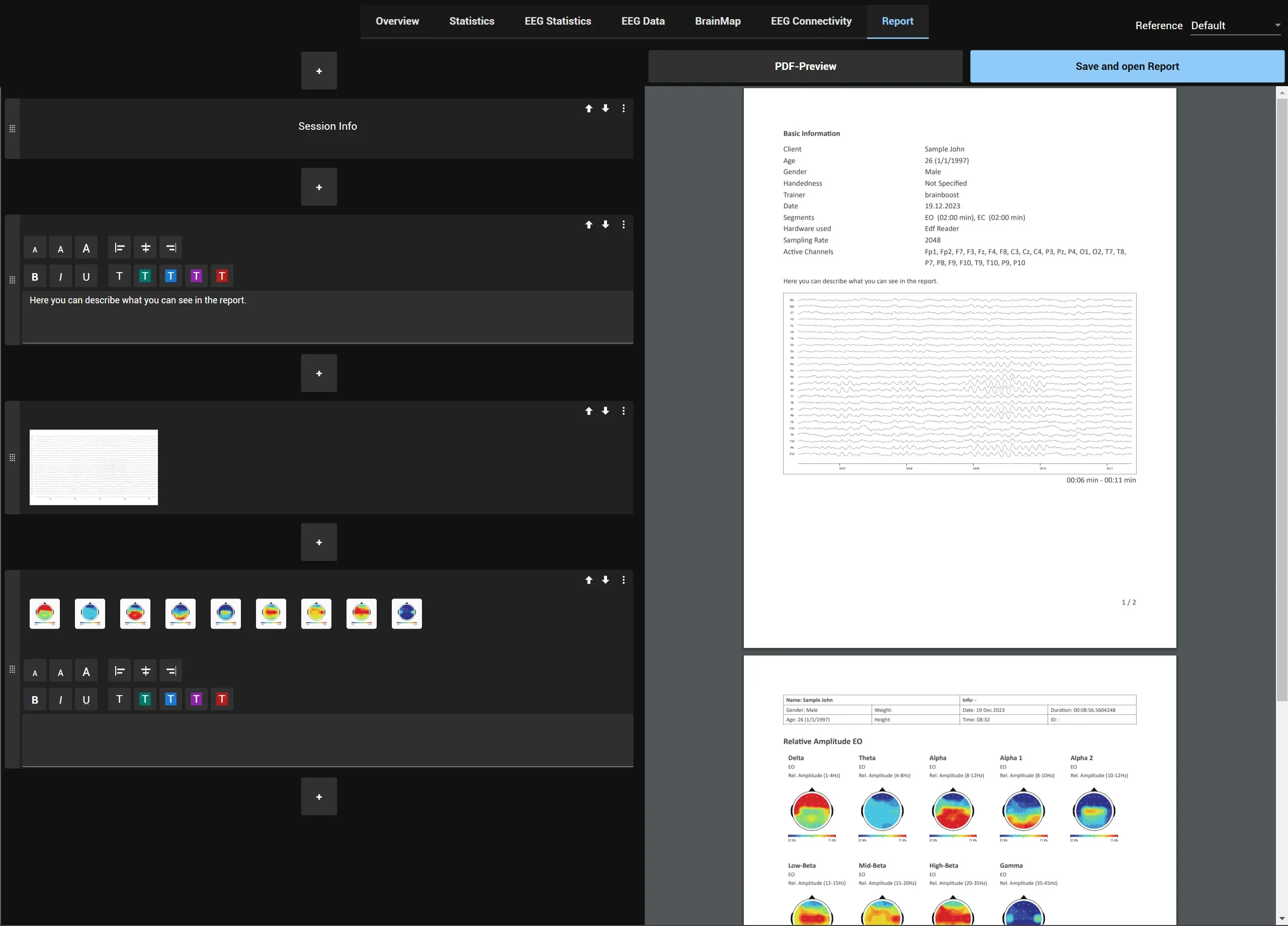
The report is put together on the Report page of the Studio from report elements.
- Add the results you want to show, either where you see them or on the Report page:
- Brain maps: ⋮ next to the title of the BrainMaps panel, then Add to report.
- FFT spectra: ⋮ at the top right of a spectrum, then Add to report; or Add all to report for all shown spectra.
- Raw EEG: Advanced under the EEG on the EEG Data page, then Add to report (a screenshot of the displayed EEG).
- Any other element: on the Report page, click + where the element should go and choose it from the list.
- On the Report page, arrange the elements: the arrows move an element up or down, and its ⋮ menu holds further options and Remove. Text elements take your own explanations.
- Click PDF-Preview to see the PDF on the right.
- Click Save and open Report, choose where to save the PDF and confirm. BrainAssistant saves the PDF and opens it.
For automatic report generation, see qEEG auto report.
Save the session
Click Save at the top right. It saves the artifacts, annotations, comments and the report of the session so they are there the next time you open it, and closes the Studio. Discard in the ⋮ menu next to it closes the Studio without saving.