1. Get the files
Option A: download and unzip the files on your PC
Download the files from Google Drive.
To unzip the downloaded .zip file, right-click it and click Extract All….
Option B: copy the files from your old PC
On your old PC, find your BioTrace folder. It is usually located under C:\BioTrace+ NX10\.
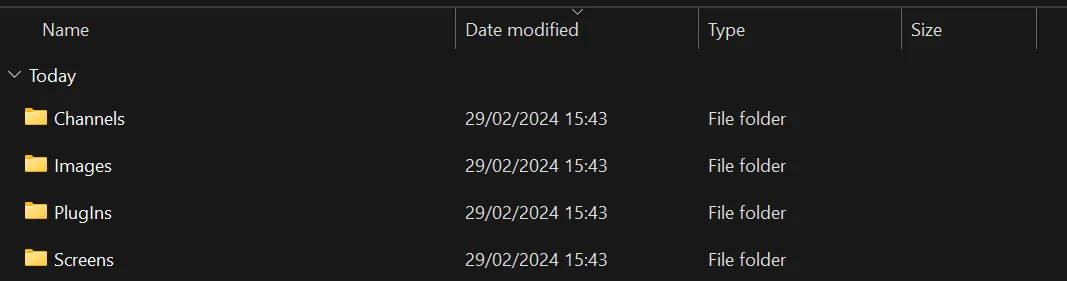
Among others, it contains these folders:
- Channels
- Images
- PlugIns
- Screens
Copy these four folders to a USB stick (or anywhere else to transfer them to the new PC). The USB stick then contains all four folders:
2. Locate the BioTrace installation folder on your new PC
Find your BioTrace folder on the new PC. It is usually located under C:\BioTrace+ NX10\.
Among others, it contains these folders:
- Channels
- Images
- PlugIns
- Screens
3. Copy the files to BioTrace
Copy the files inside the downloaded or exported folders into the matching folders of the BioTrace installation folder. For example, the content of Images goes into the Images folder of BioTrace.
If you downloaded the folder, you might have to unzip it first:
- Right-click the .zip file.
- Click Extract All….
You then have a normal (not .zip) folder.
Example
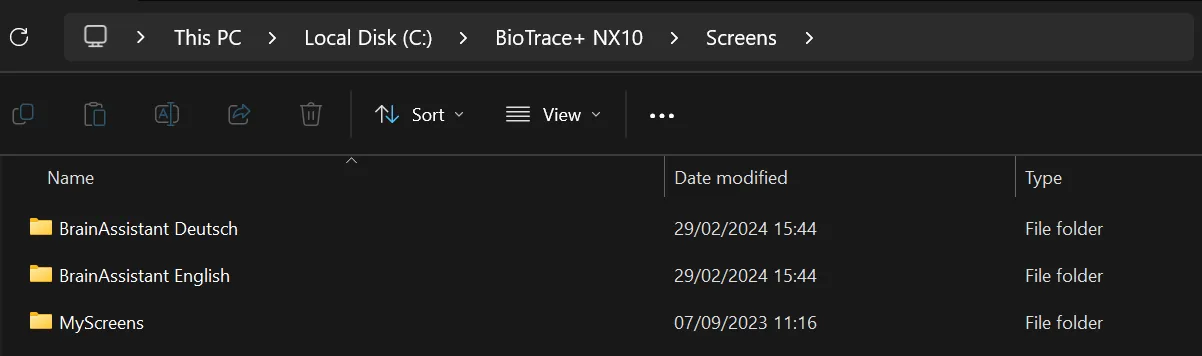
The downloaded Screens folder contains two folders. Copy both BrainAssistant Deutsch and BrainAssistant English to the C:\BioTrace+ NX10\Screens folder.
The result in C:\BioTrace+ NX10\Screens should look like this:
Do this for the content of all four folders.
4. Open the screens in BioTrace
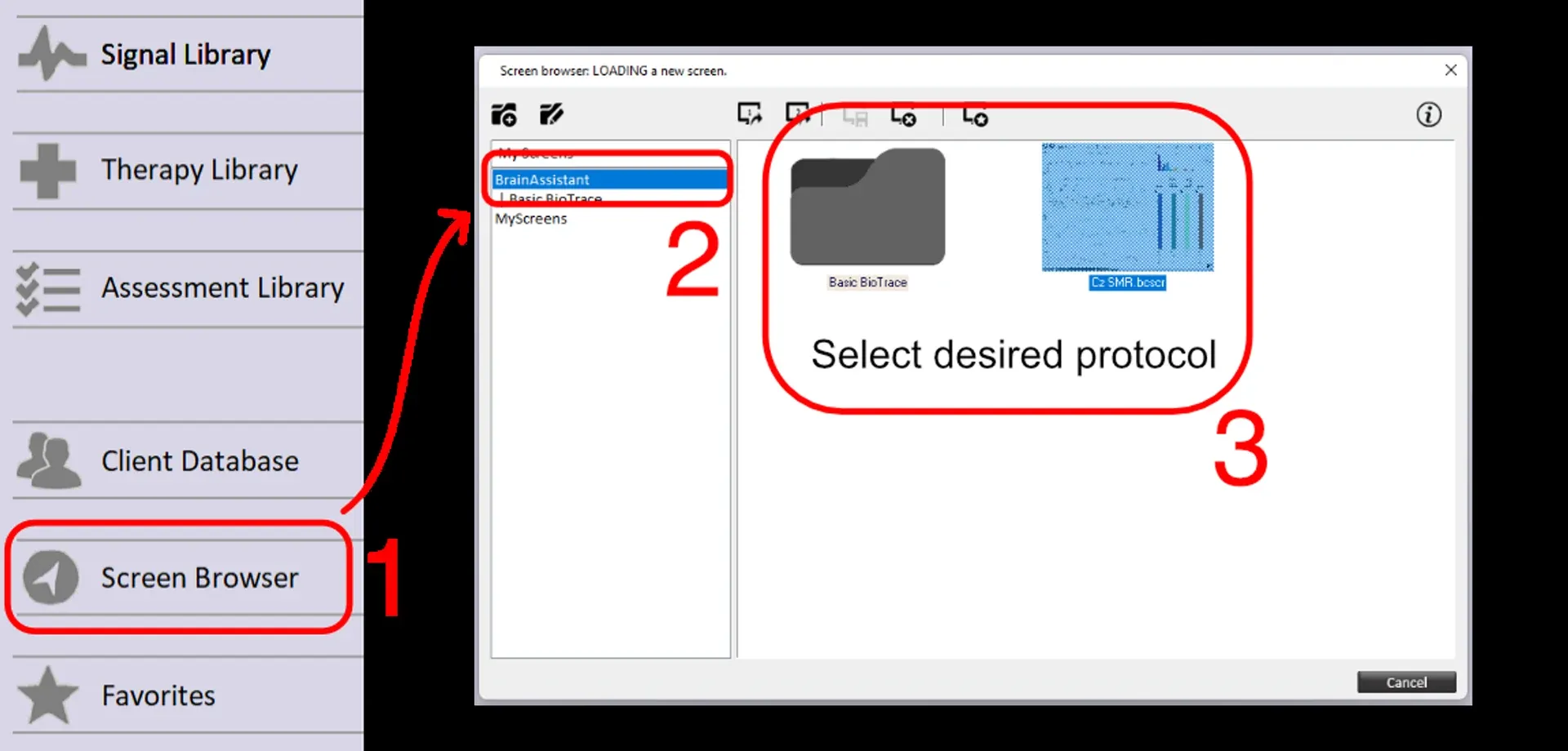
You can now find the screens in BioTrace under Screen Browser.