
Device management
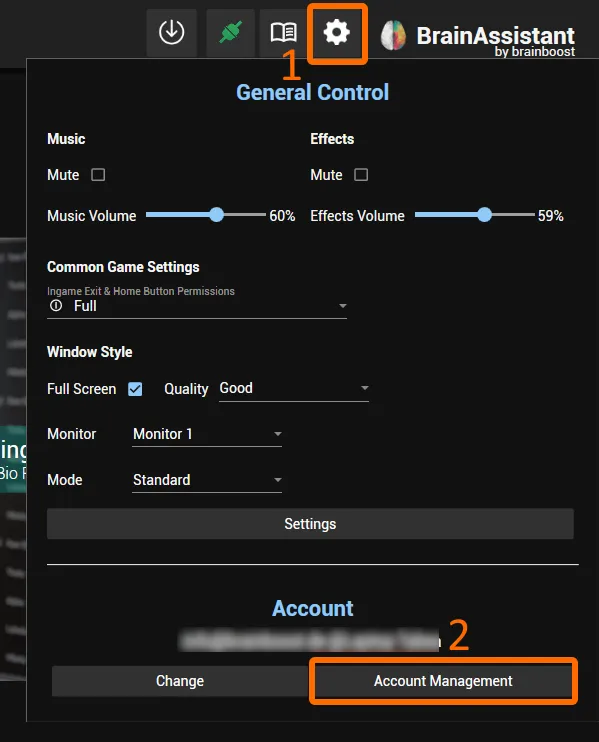
In BrainAssistant, Settings > Account Management > Devices lists all devices connected to your BrainAssistant account. Click the cog wheel icon (1) and then Account Management (2).
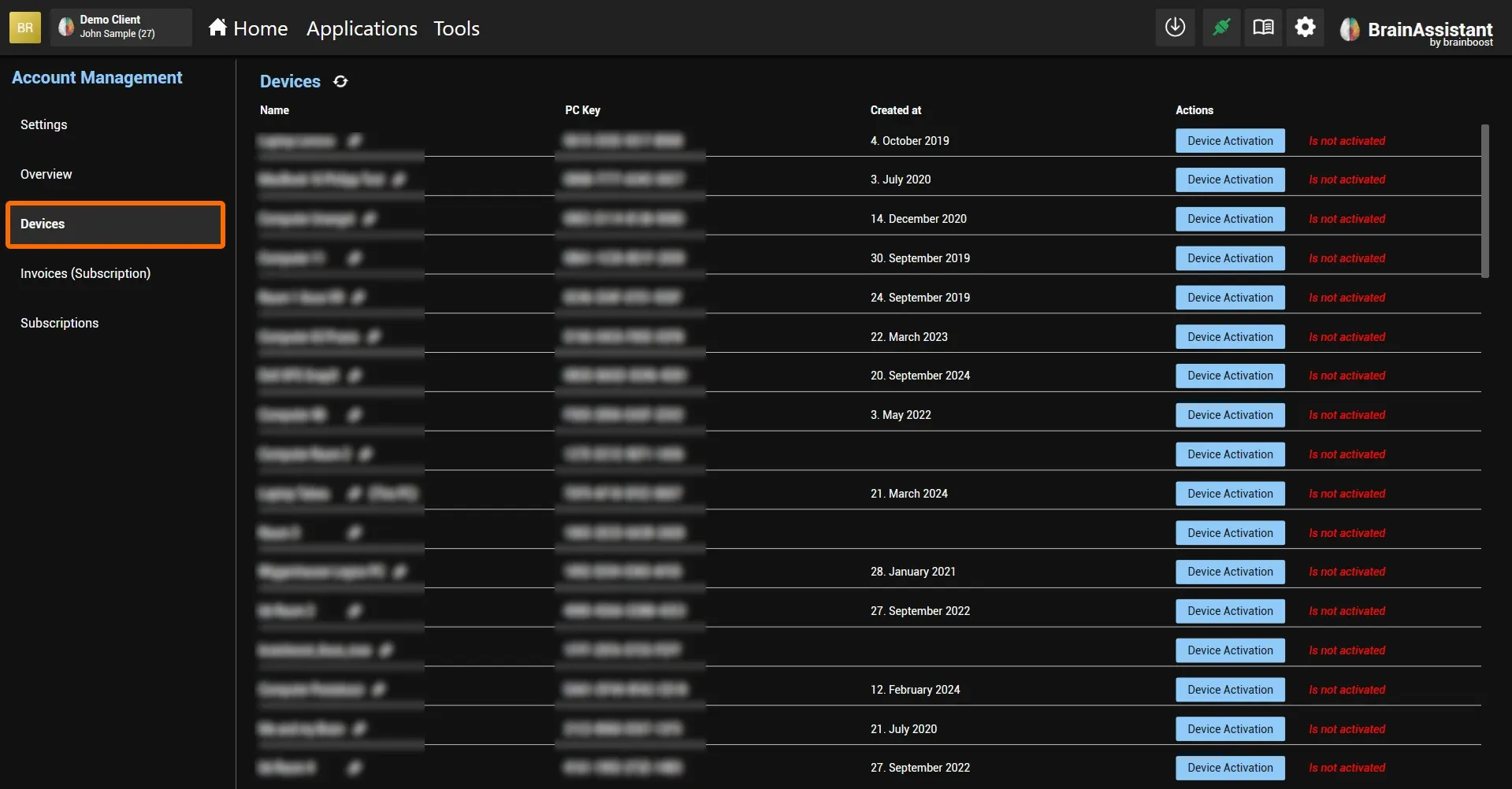
On the right of each device you see:
- Is activated if at least one subscription is active on this device.
- Is not activated if no active subscription is assigned to the device.
Activate a device
To activate a device or change its activation:
-
Click Device Activation.
-
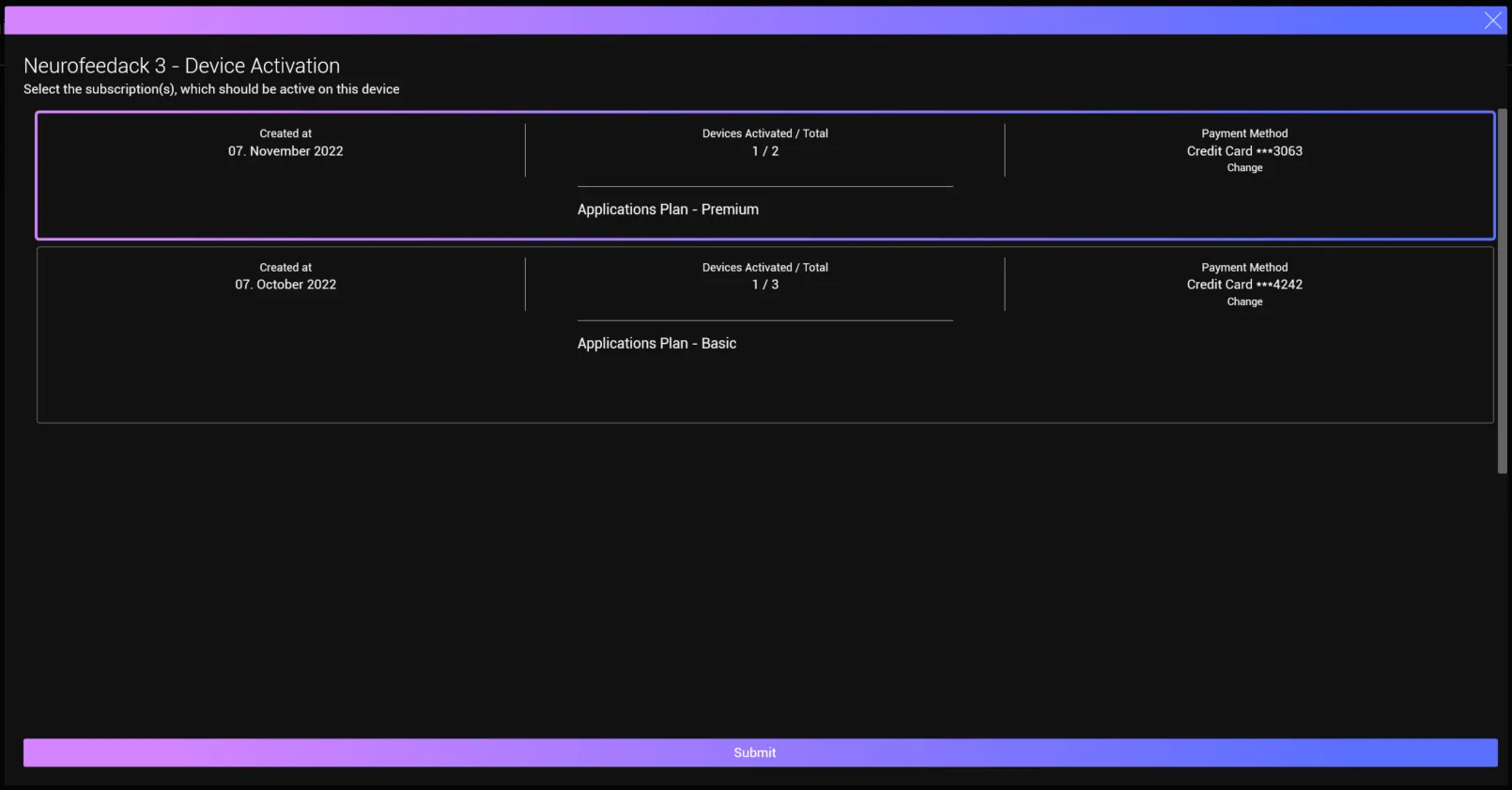
Select the subscriptions you want to be active on this device. Click a subscription in the overlay to select or deselect it.
-
Click Submit.
After a few seconds the devices page reloads and shows the device as Is activated.
Deactivate a device
A step-by-step guide to removing licenses from a device is in Deactivate a device.
Switch devices
To switch the PC you use for neurofeedback, install BrainAssistant on your new PC, then:
- Deactivate your old device and remove the license from it.
- Activate the new device as shown above.
If you are still in the free trial period but have already purchased a full BrainAssistant license, you see both the free and the paid licenses in the activation step. Make sure you select your paid license on the new PC.
To move your data as well, see Move your data to a new PC.
Can’t find what you are looking for? Contact us at support@brainboost.de.