BrainAssistant lets you start cognitive tests during a recording, note or training session. They objectively measure attention, processing speed and executive functions and help to assess cognitive performance. Cognitive tests are particularly useful in the initial consultation and for monitoring the progress of neurofeedback training.
Overview
These cognitive tests are available in BrainAssistant:

Start a cognitive test
In a training session as well as in a note-taking session, the cognitive tests are always on the left-hand side of the current session.
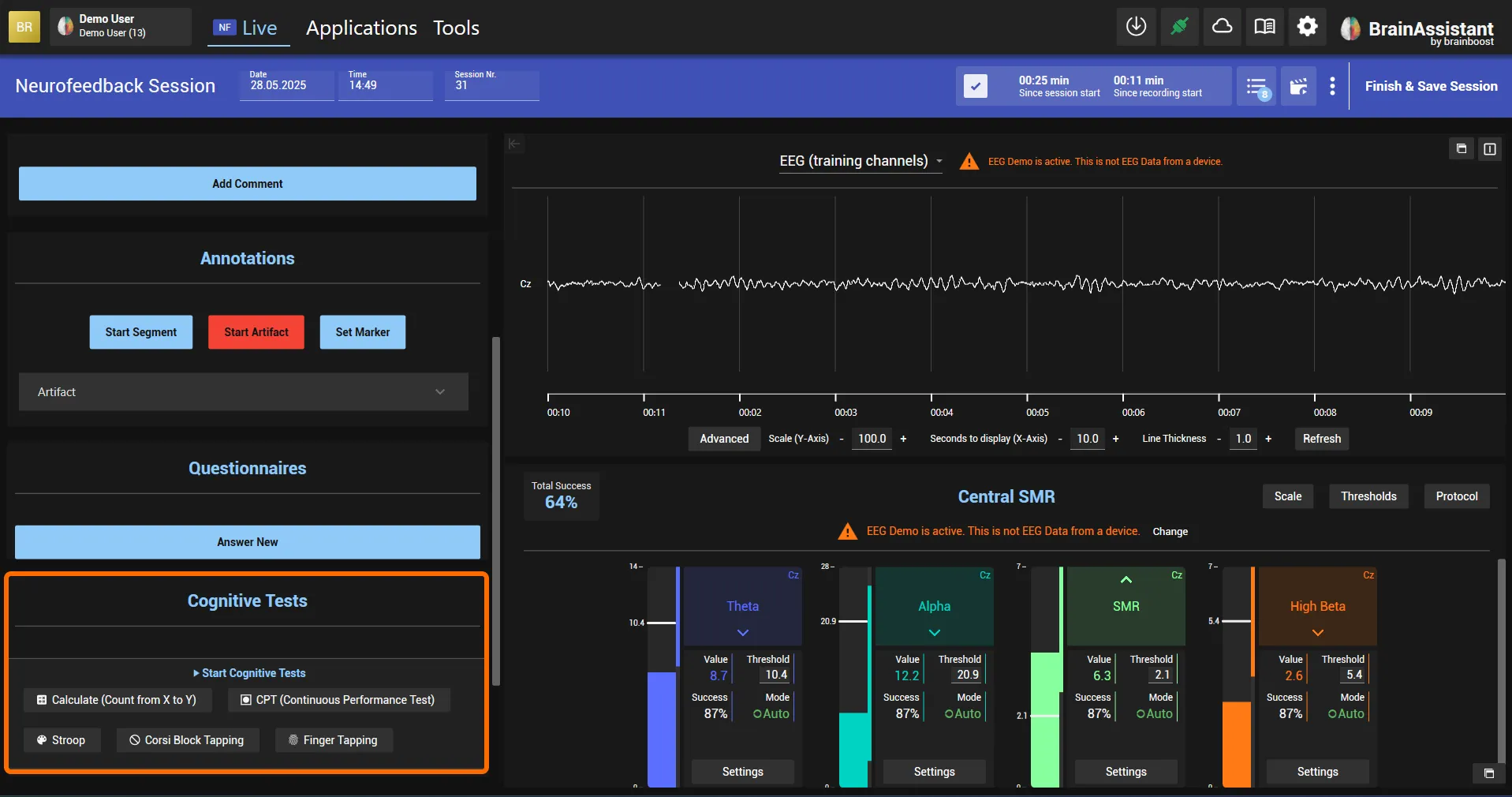
Click the cognitive test you want to start.
A client window opens. Drag it to your second screen with the left mouse button held down. Double-click the client window to switch it to fullscreen.
This is what it looks like for the CPT, for example:
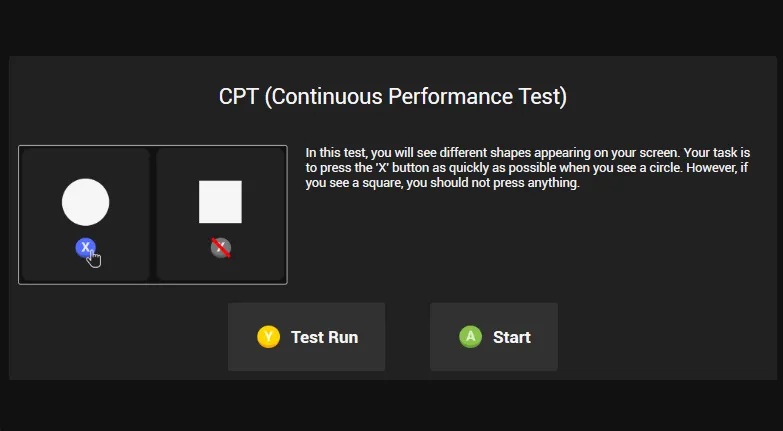
Your client can run the test on their own with a connected Xbox controller: once started, the test runs automatically and you do not need to click anything.
How to connect a controller: Xbox controller.
Stop a cognitive test
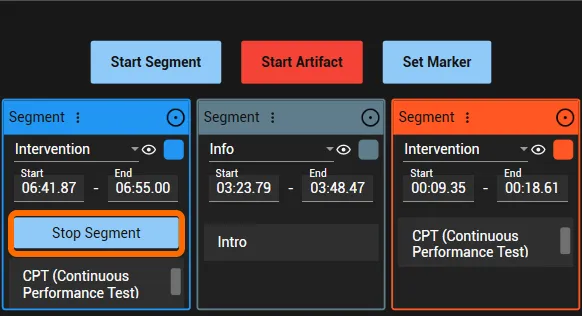
The test usually ends automatically after all preset stimuli have been shown. To end it early, click Stop Segment.
To close the client window, move the mouse over the BrainAssistant icon in the Windows taskbar (do not click, just hover). A second small window preview appears. Click the X on the preview of the client window (the cognitive test).
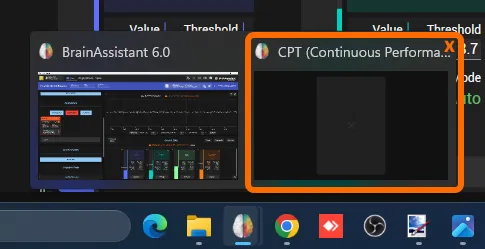
Do not close BrainAssistant itself, only the client window.