This page goes through the analysis of a neurofeedback or biofeedback training session. What the pages of the Studio show is described on the feature pages Studio EEG data and Studio statistics.
You can do all steps while a live training session or qEEG recording is running.
Navigate to a session
-
Click the client name at the top left of BrainAssistant.

-
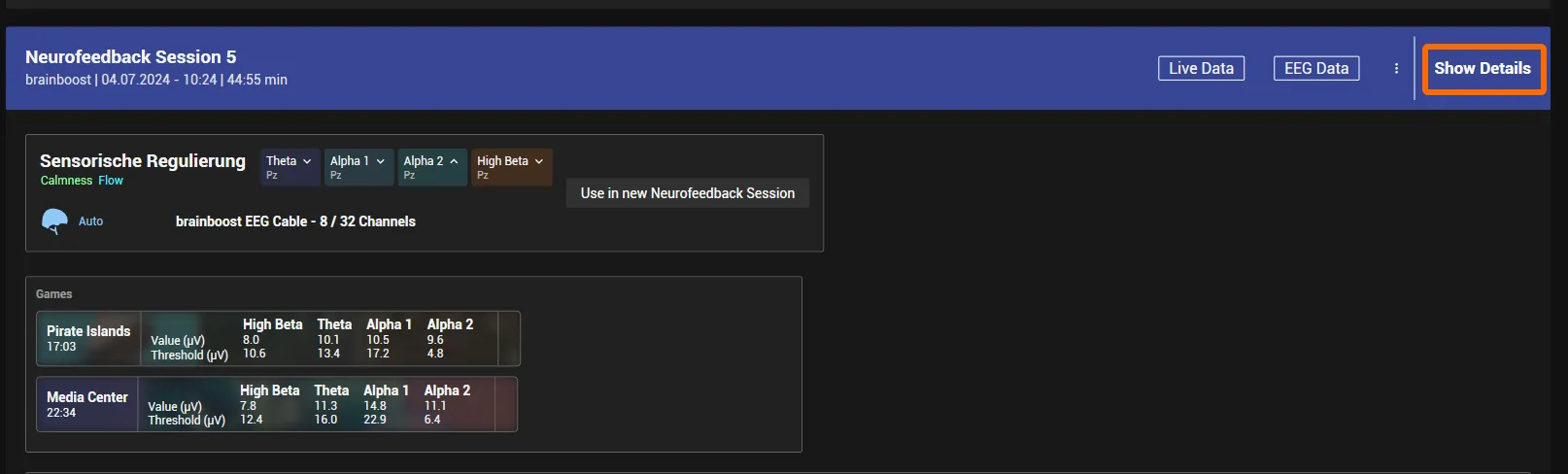
The list shows all recorded sessions of this client, the latest on top: training sessions in blue, qEEG recordings in green. For each session, the quick view shows your comments, the applications, the protocol used and more. Find the session you want to analyse and click Show Details on its right side.
-
The session opens in the Studio. The side panel on the left lists the applications that were used, the comments and the annotations; the Overview page shows the session information, for example the bars used for neurofeedback and biofeedback.
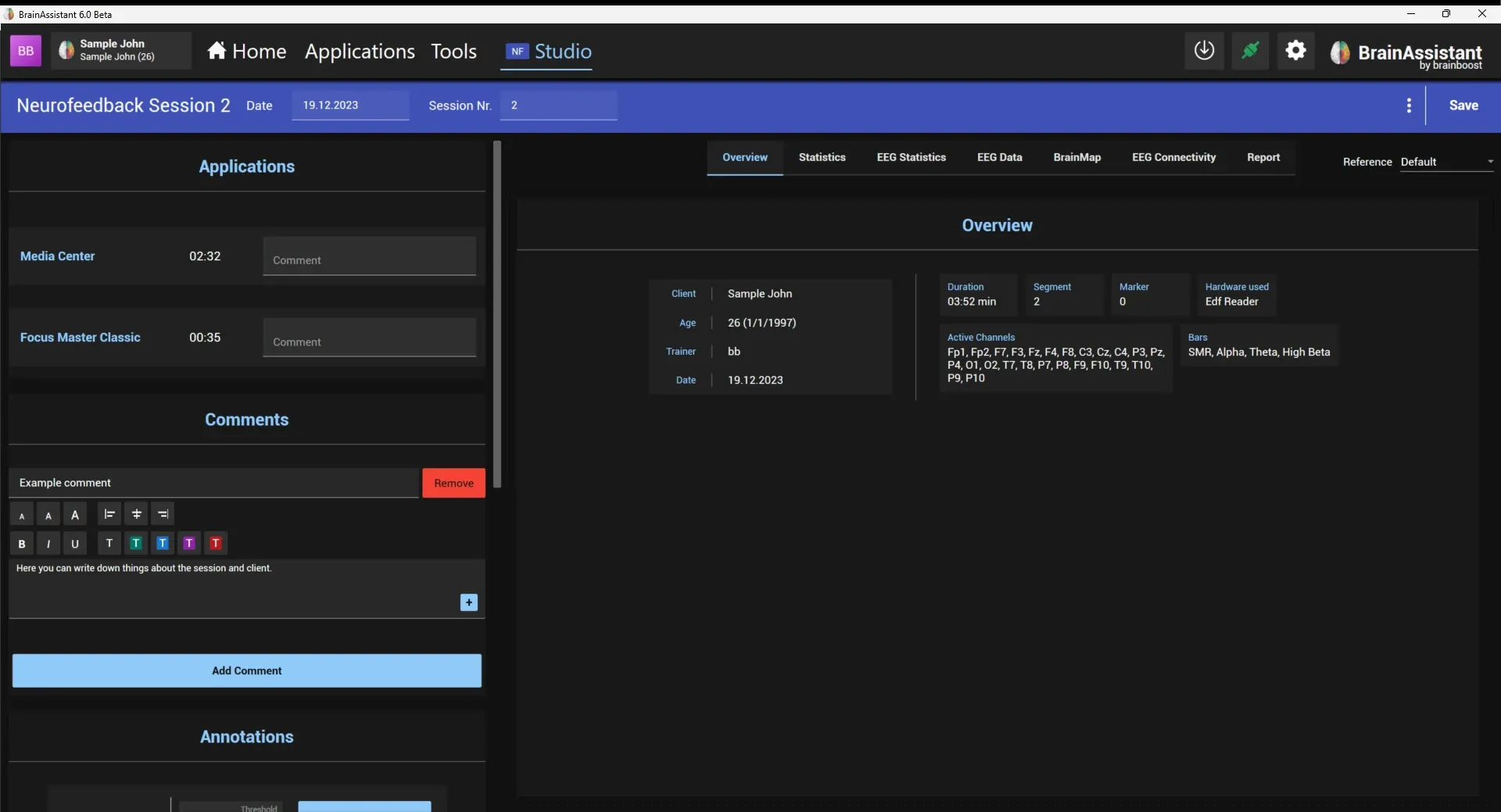
You can go somewhere else in BrainAssistant, for example run a live training session at the same time, and come back to the open session with the Studio button in the top bar (tagged NF for a neurofeedback session). Saving or discarding the session closes the Studio.

Check the raw EEG and remove artifacts
-
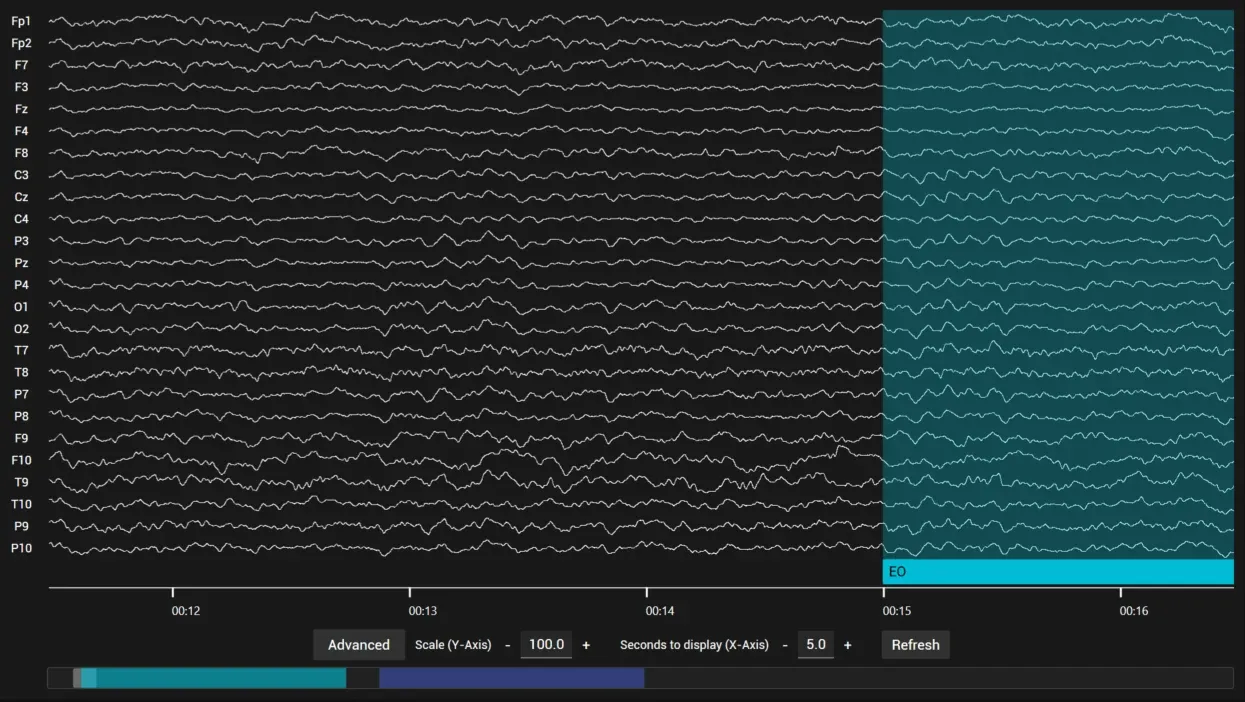
Open the EEG Data page and check that you recorded a proper signal. Move the mouse over the EEG and use the mouse wheel to scroll through it; over the bar at the bottom that shows the segments, the mouse wheel changes the time scaling.
-
Cut out the artifacts in the Annotations section of the side panel: automatically with Automatically mark artifacts (the lower the Threshold, the stricter the correction and the more data is cut out), or manually with the Artifact button with the plus sign. The details are in EEG analysis: remove artifacts.
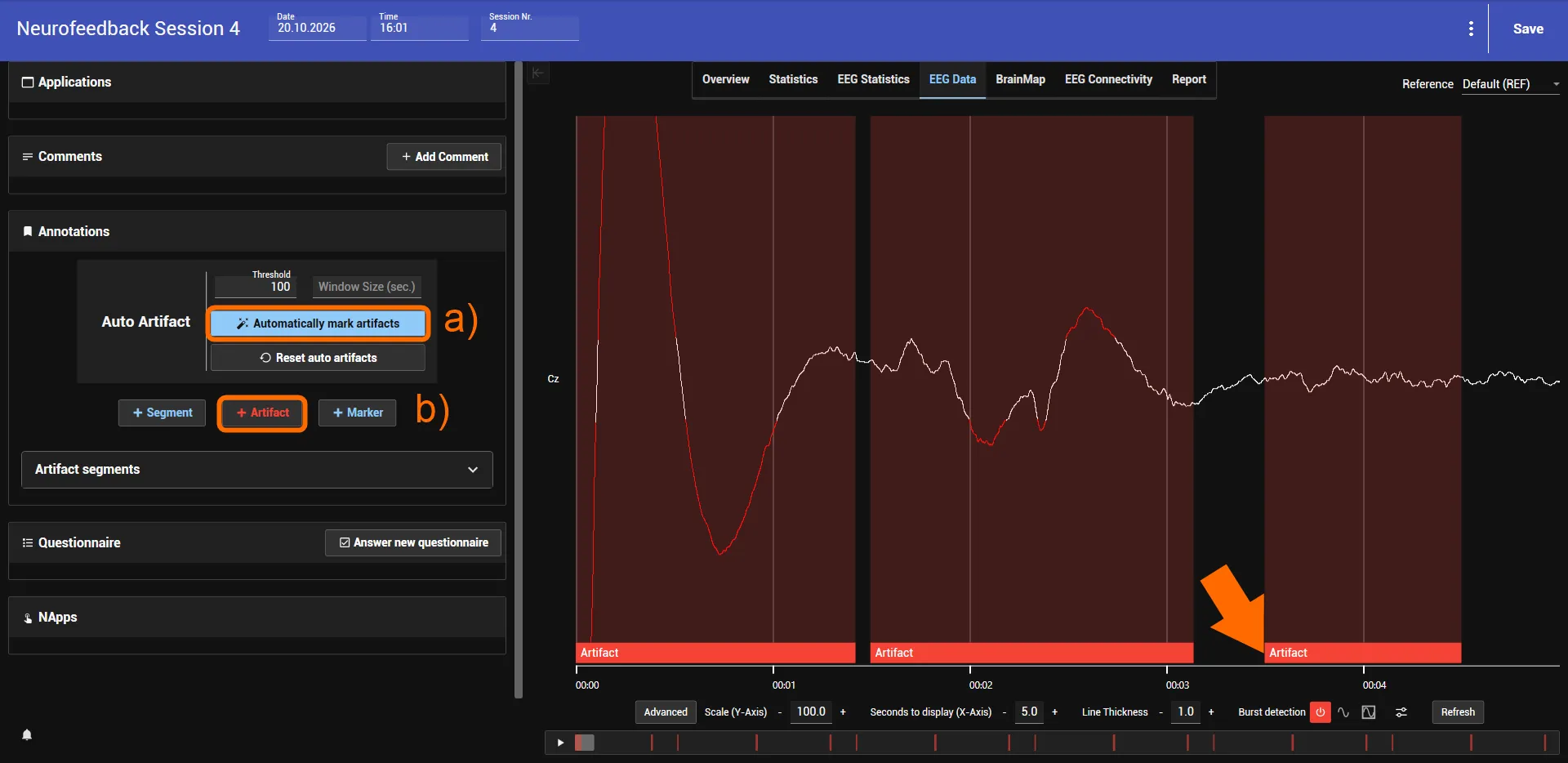
The marked artifacts are no longer taken into account when the statistics are calculated.
Read the training effect
-
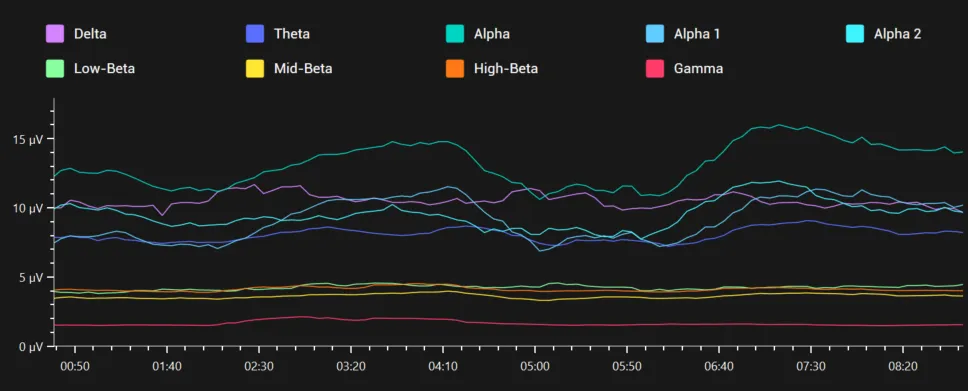
Open the Statistics page. The graph shows the frequency bands of the protocol over the course of the session and its segments.
-
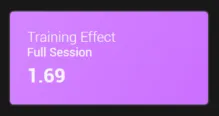
Look at the Training Effect panel of the Full Session. A positive training effect means the client made progress within the session, measured against the goal of the training protocol: the trained bands developed in the direction the protocol trains them.
-
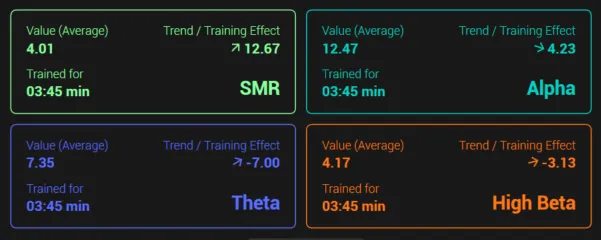
Compare the bands in their panels: each panel shows the band’s average value, its trend (arrow) and its training effect, and how long it was trained.
-
For the details, read the statistics table: per band the training direction (Up or Down), the training effect, the trend, the success, and the value and threshold as average and percentiles.

Spectra and brain maps
-
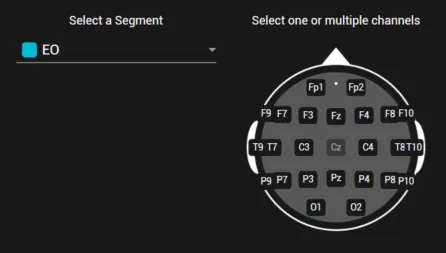
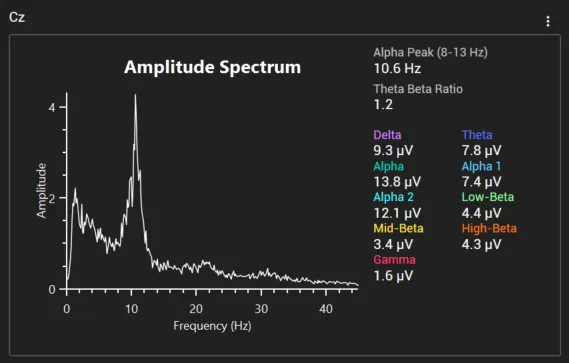
For the FFT spectral analysis, open the EEG Statistics page and select the segments and positions under FFT Analysis. You can show and compare several at once.
-
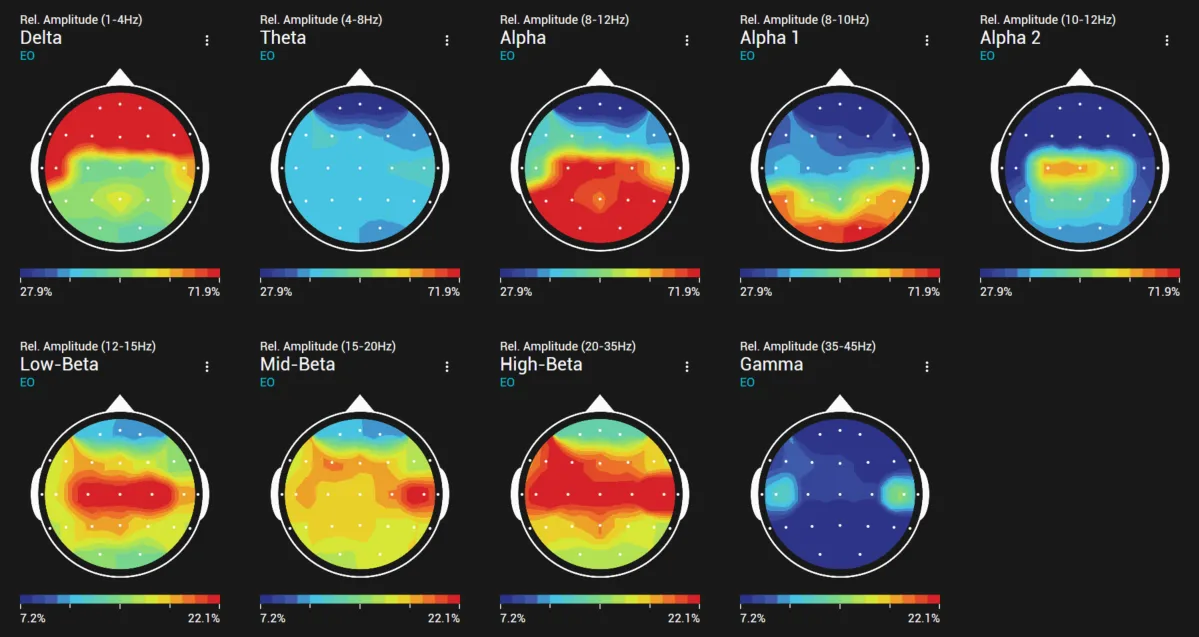
For brain maps, open the BrainMap page and follow EEG analysis: add brain maps.
Share the results with your client
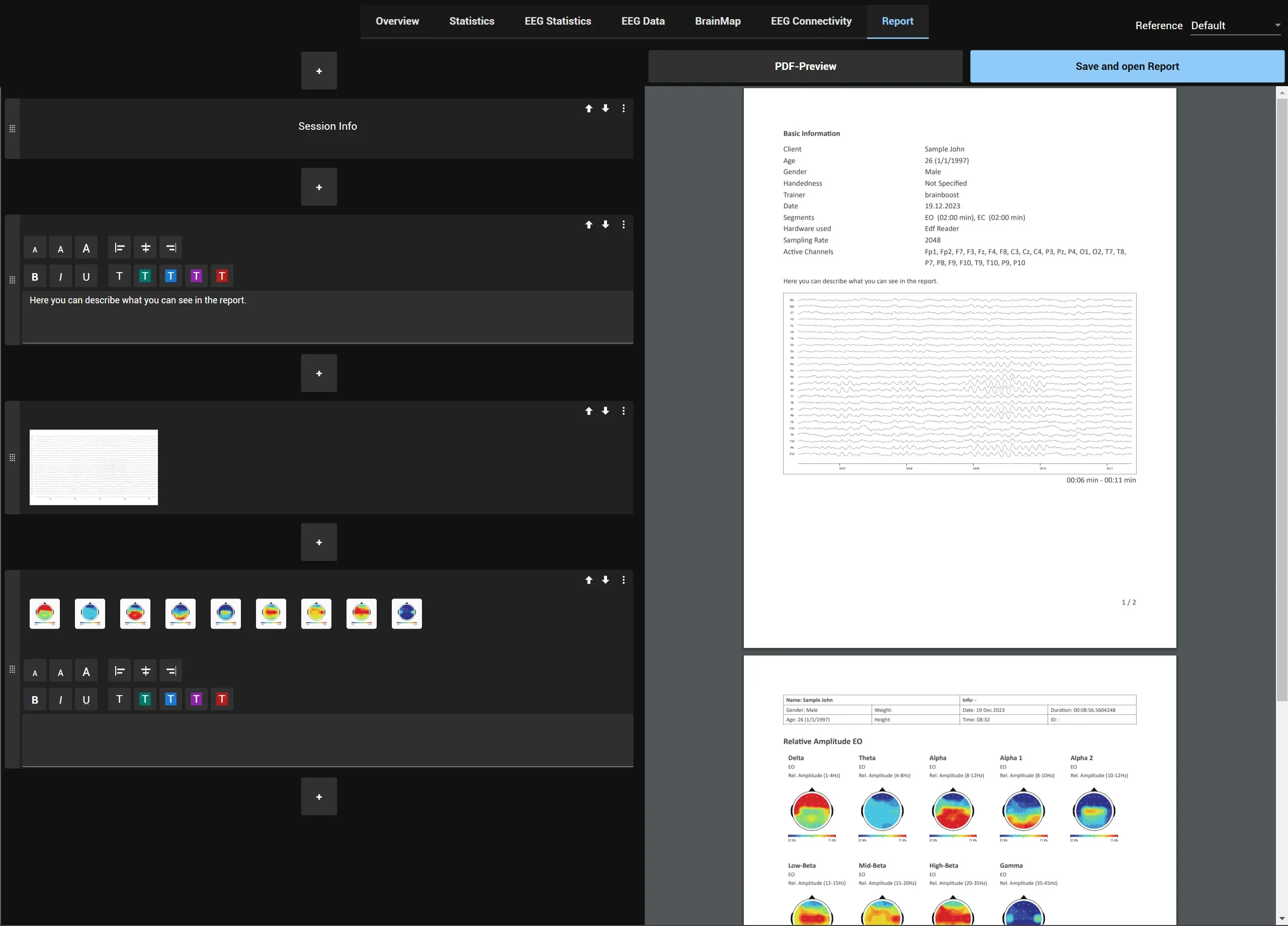
Build a PDF report on the Report page of the Studio: add the graphs, brain maps and other elements, check the PDF preview and save the PDF. The steps are in EEG analysis: build the report.
For automatic report generation, see qEEG auto report.
Save the session
Click Save at the top right. It saves the artifacts, annotations, comments and the report of the session so they are there the next time you open it, and closes the Studio.