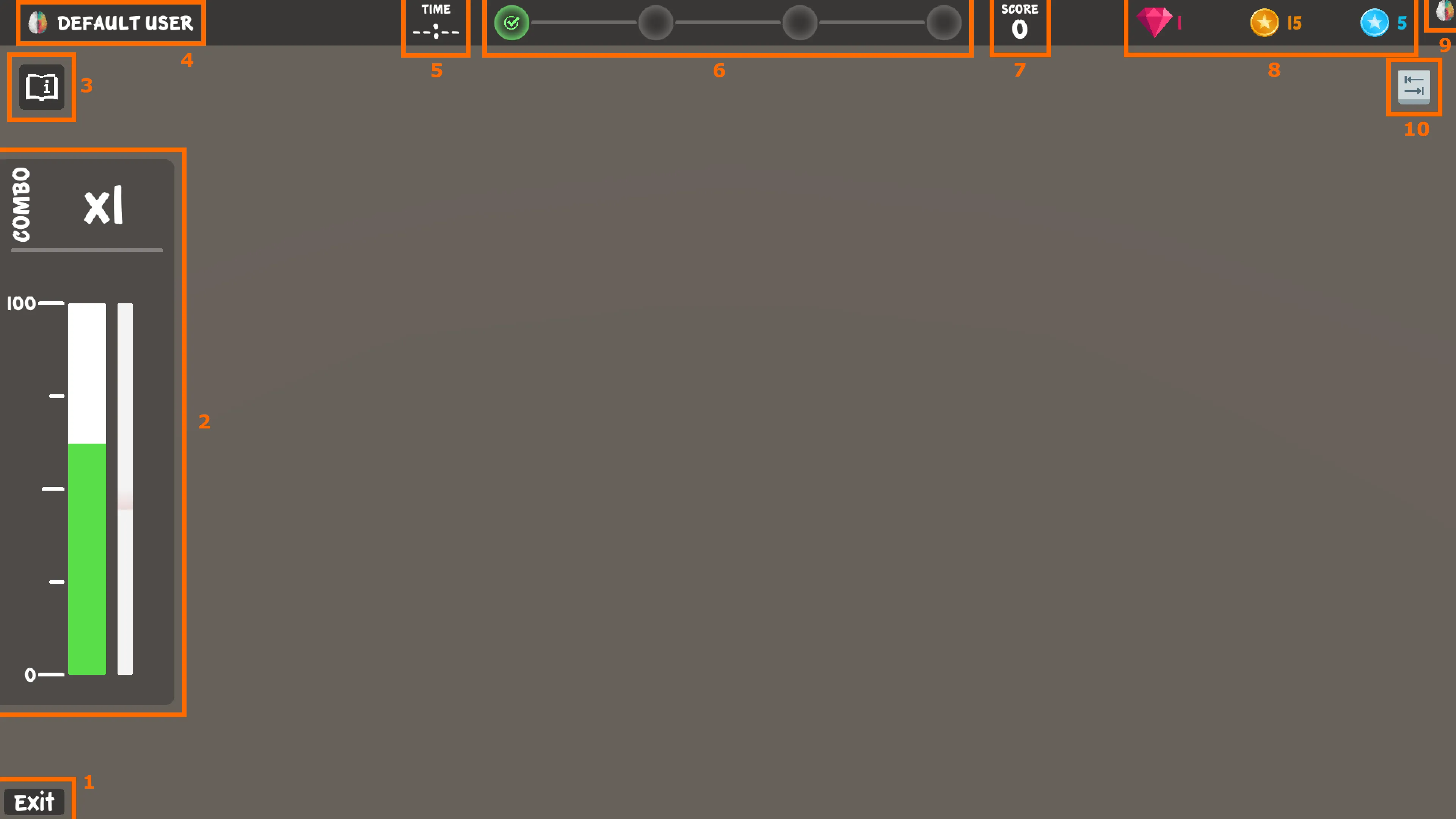
The Brain HUD is the neurofeedback interface of most BrainAssistant games. What each of its components shows (brain bar, progress bar, milestones, score, coins and more) is described on the feature page Brain HUD.
The game does not react: check the connection info
The connection info (9, top right) shows the connection state between the neurofeedback game and BrainAssistant:
- A coloured brain means both applications are connected and communicate successfully.
- A grey brain means the applications are connected, but BrainAssistant does not send any data to the game.
- A grey brain with a red error indicator means there is no connection between the two applications.
If the connection info is not coloured:
- Make sure the neurofeedback application and BrainAssistant are both running.
- Make sure a protocol is selected and a neurofeedback session has started.
- If the problem remains, close the application and restart BrainAssistant.
- Start the application again from within BrainAssistant. Always start it from there.
If none of this helps, see Troubleshooting or contact support@brainboost.de.
Leave a game or open its controls
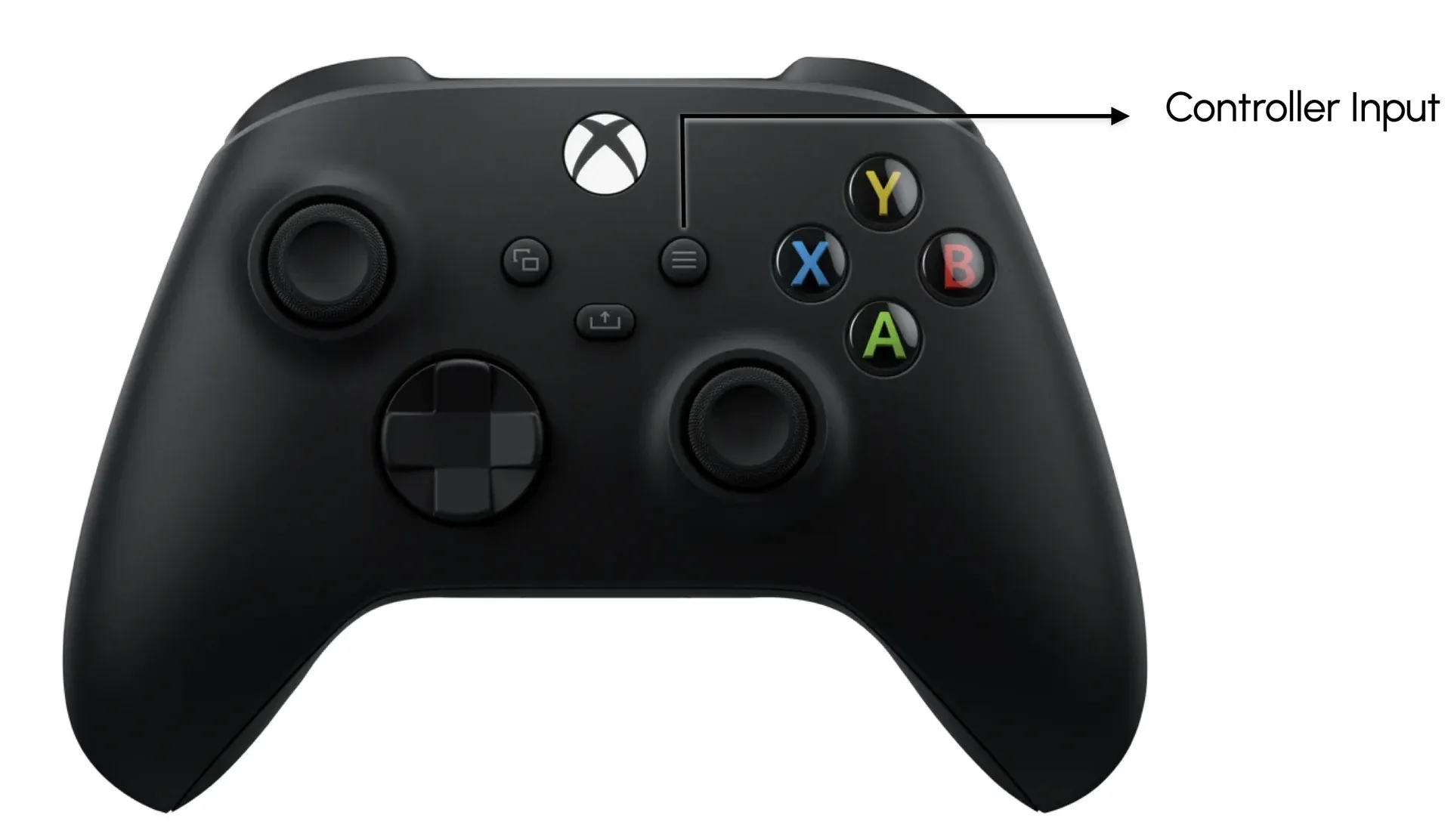
- To close the application, click the exit button (1, bottom left). Outside the main menu it is a Home button that brings you back to the main menu. You can also hold Esc on the keyboard or B on the Xbox controller for a few seconds; a circular progress bar shows how long to hold it.
- To show the game’s controls, press Tab on the keyboard or the Menu button on the Xbox controller (input info, 10). Many, but not all, games pause while the controls are shown.