The sLORETA viewer shows a recorded qEEG session on the cortex: source power or normative Z-scores per frequency band, in up to nine viewports. What the views show is described on the feature page sLORETA; this page shows the steps.
1. Check the client and the session
sLORETA needs the following from the client profile and the session.
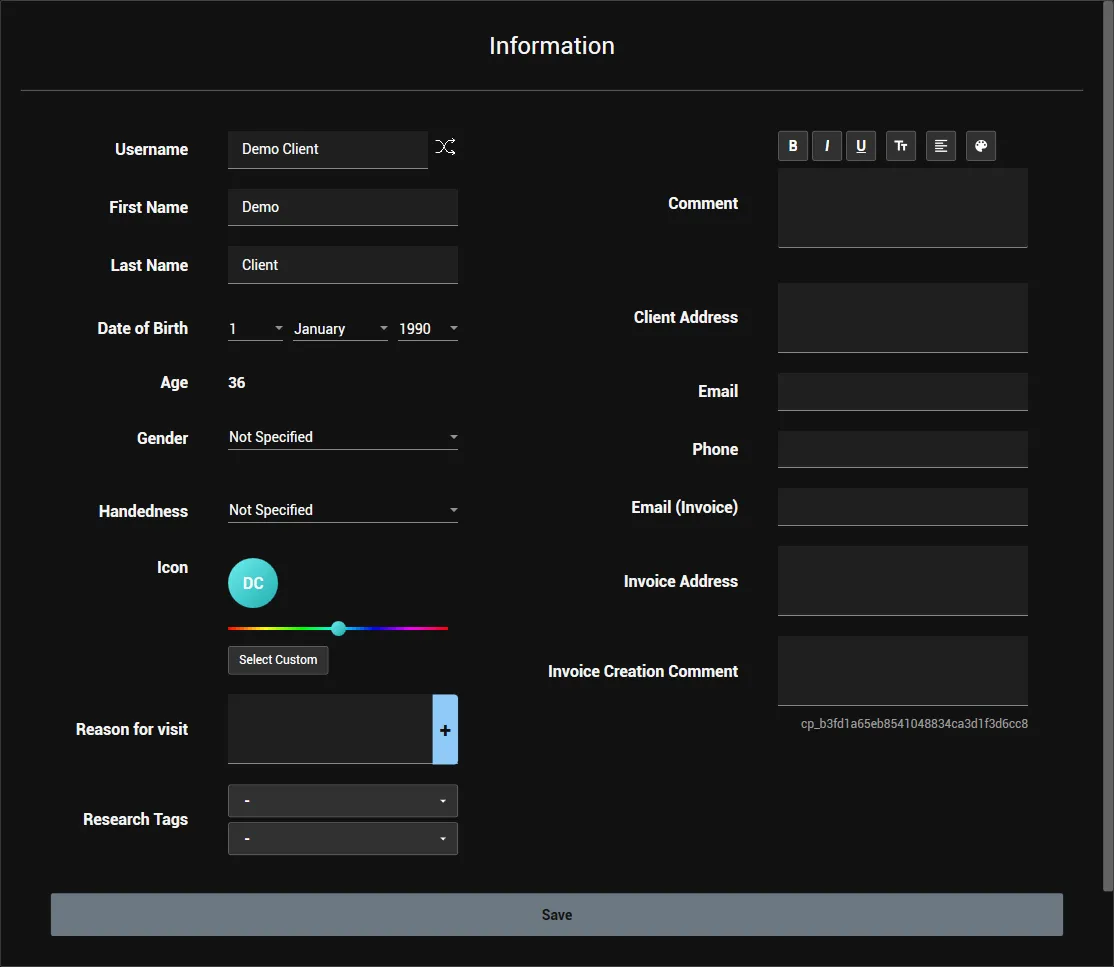
Date of birth. Z-scores are compared with people of the same age, so the client profile needs the Date of Birth; the age must be between 5 and 89 years. Gender is not used. To check it, click the client at the top left and open Info.
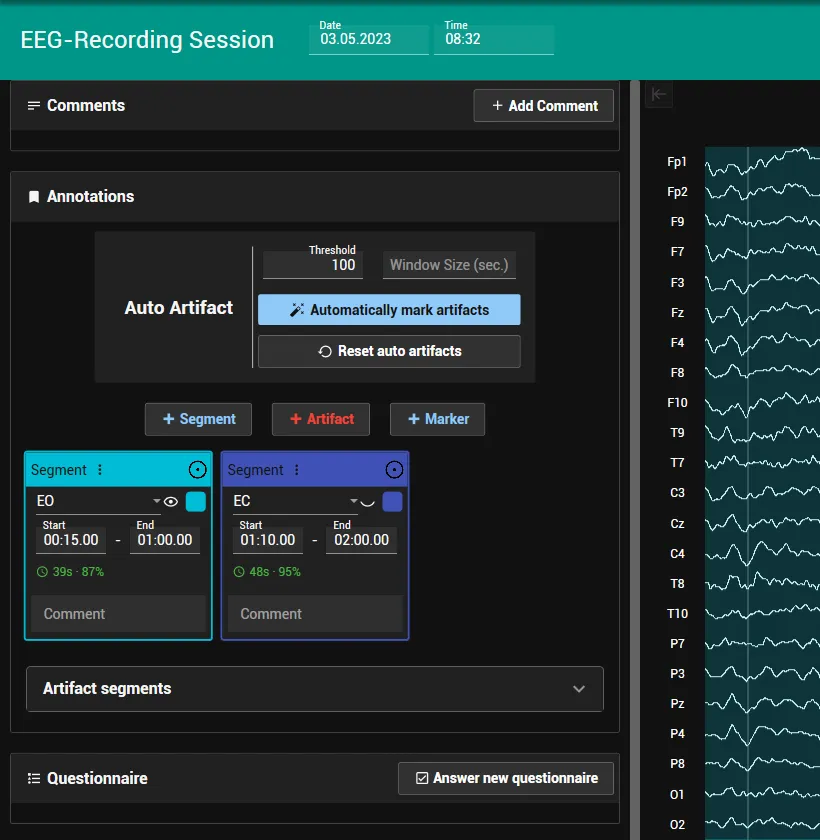
Channels. The recording needs all 19 channels of the 10-20 system: Fp1, Fp2, F7, F3, Fz, F4, F8, T7, C3, Cz, C4, T8, P7, P3, Pz, P4, P8, O1 and O2. The older names T3, T4, T5 and T6 count as T7, T8, P7 and P8.
Segment. The viewports are calculated from a segment of the session. For Z-scores the segment must be an EO or EC segment, or the eye state is set by hand in the viewport (Eye state, step 3).
More about recording a qEEG and adding segments: Live EEG recording and EEG analysis: brain maps and report.
2. Open the sLORETA section
- Open the client’s Sessions and click Show Details on the qEEG session. The session opens in the Studio.
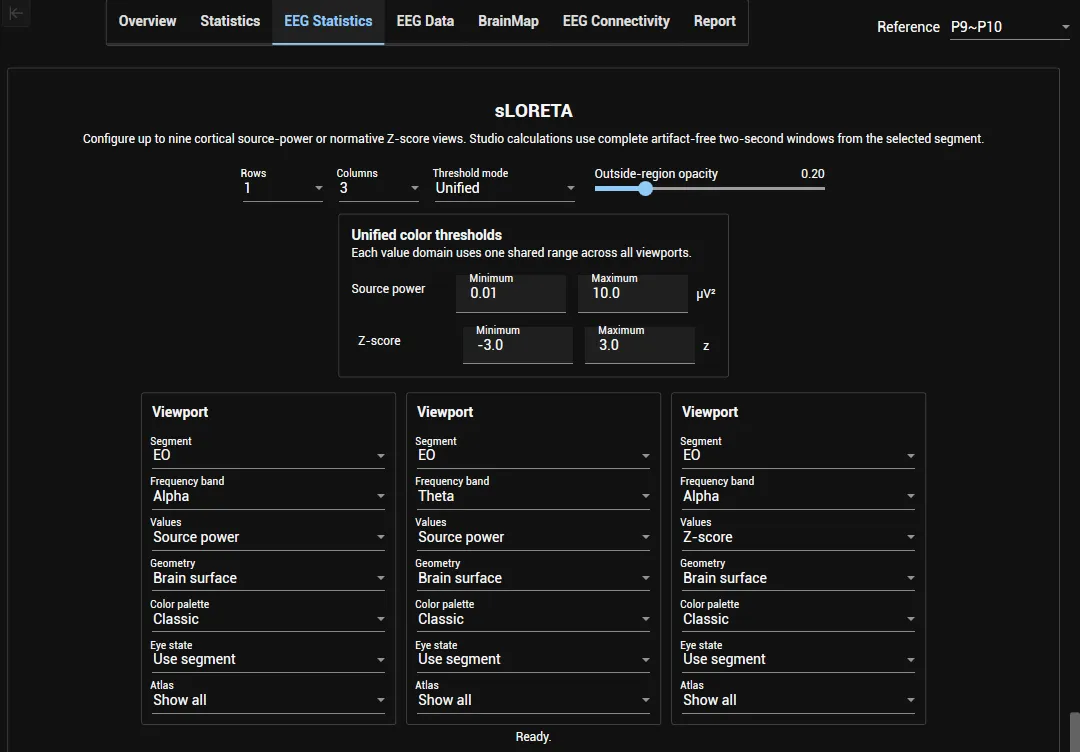
- Go to EEG Statistics and scroll down to the sLORETA section.
- The first time on a PC, click Download sLORETA viewer. The status line shows “Downloading the sLORETA viewer…” and then “Viewer downloaded.”; the button becomes Open sLORETA viewer. When the installed viewer is outdated, the button reads Update sLORETA viewer.

3. Set up the viewports
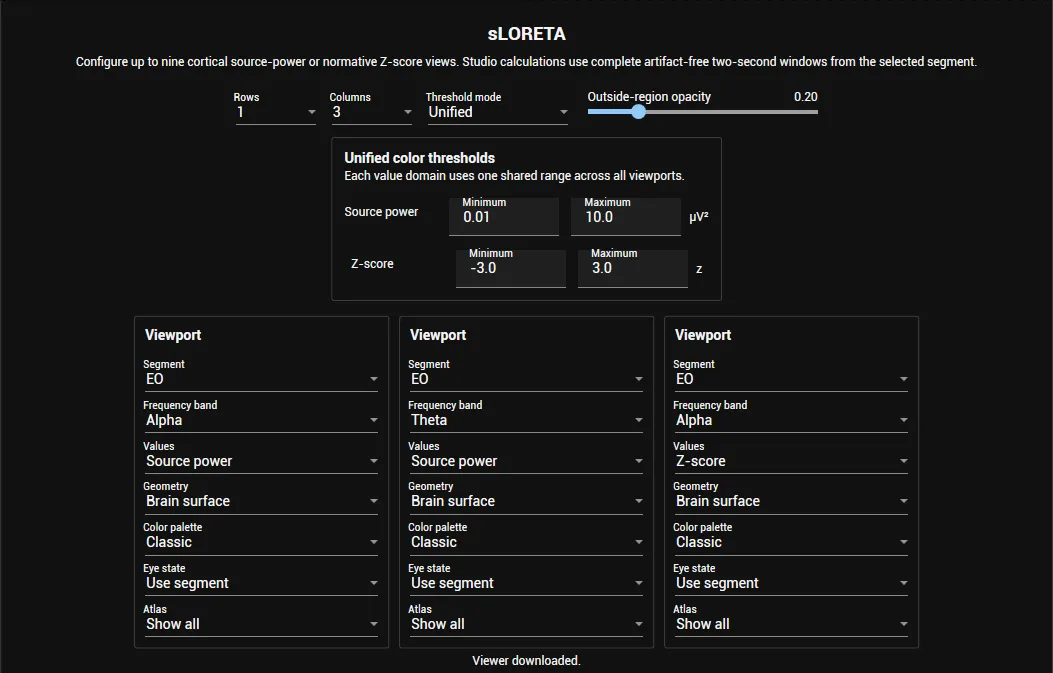
- Choose the grid with Rows and Columns (1 to 3 each, so up to nine viewports).
- Choose the Threshold mode:
- Unified: one colour range per value type for all viewports, set under “Unified color thresholds” (Minimum and Maximum for Source power and for Z-score).
- Individual: each viewport has its own Minimum and Maximum.
- Outside-region opacity sets how much of the brain outside the selected areas stays visible: 0 hides it, 1 shows it fully in grey.
- Set up each Viewport:
- Segment: the segment the viewport is calculated from. Only complete artifact-free two-second windows of the segment are used.
- Frequency band
- Values: Source power or Z-score
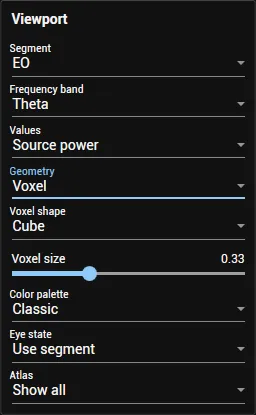
- Geometry: Brain surface or Voxel; Voxel adds Voxel shape and “Voxel size”
- Color palette
- Eye state: Use segment takes it from the EO or EC segment; Eyes open or Eyes closed sets it by hand
- Atlas: “Show all” (default) shows the whole cortex; with another atlas, choose the areas or networks to show
4. Open the viewer
- Click Open sLORETA viewer. The viewer starts in its own window. The status line shows “Waiting for the sLORETA viewer on …” and then “Connected: … viewport(s), … unavailable. Changes update automatically.” A viewport counts as unavailable when its values cannot be calculated, for example Z-scores without an age in the supported range or without an eye state.

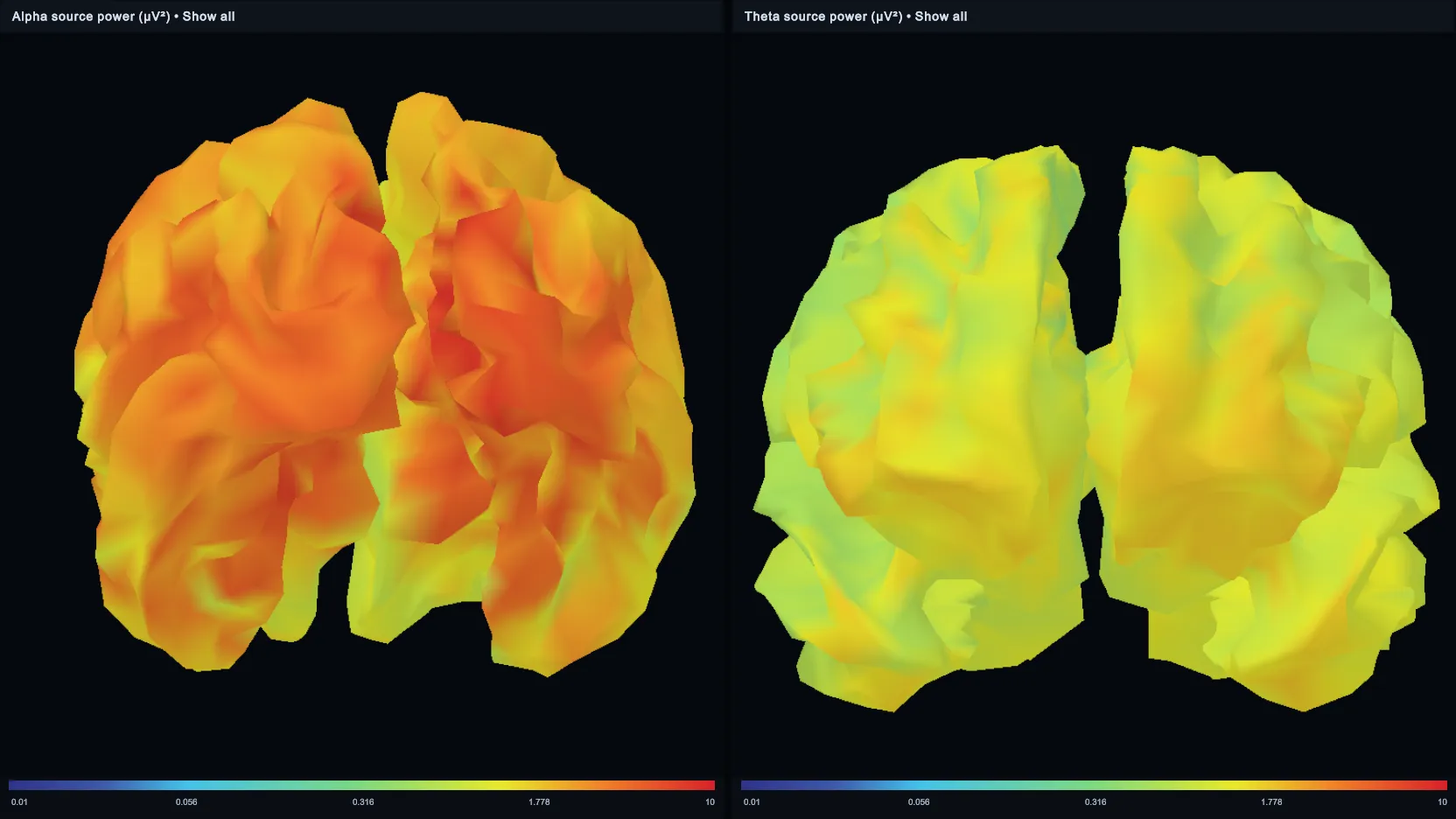
- The viewer shows one view per viewport. Changes to the viewports in the Studio update the viewer automatically.
- When you are done, click Close sLORETA viewer.
If you have any questions or need help, contact us at support@brainboost.de.