Before you start
Make sure you have a modern PC or laptop running Windows. If your PC meets the system requirements, download and install BrainAssistant.
Free BrainAssistant download: brainassistant.de/download
Before installing: a few Windows and Nvidia settings make sure the neurofeedback applications run smoothly. See Windows and Nvidia settings.
Set up BrainAssistant
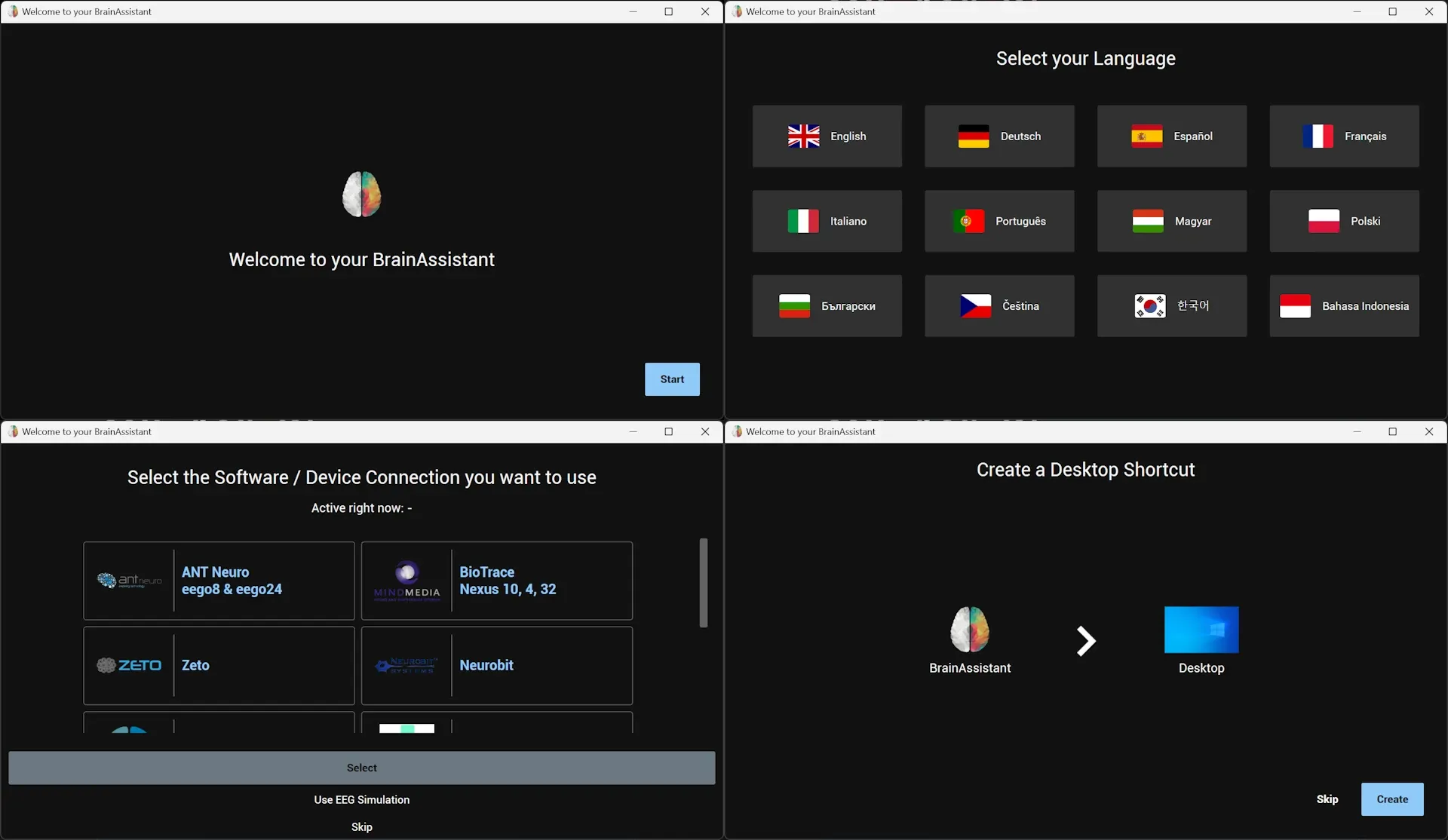
After installation BrainAssistant asks for your preferred language, the amplifier you are using and whether a desktop icon should be created.
During the setup you might be asked to install the drivers of your amplifier. If a window asks “Do you want to install […]”, click Yes.
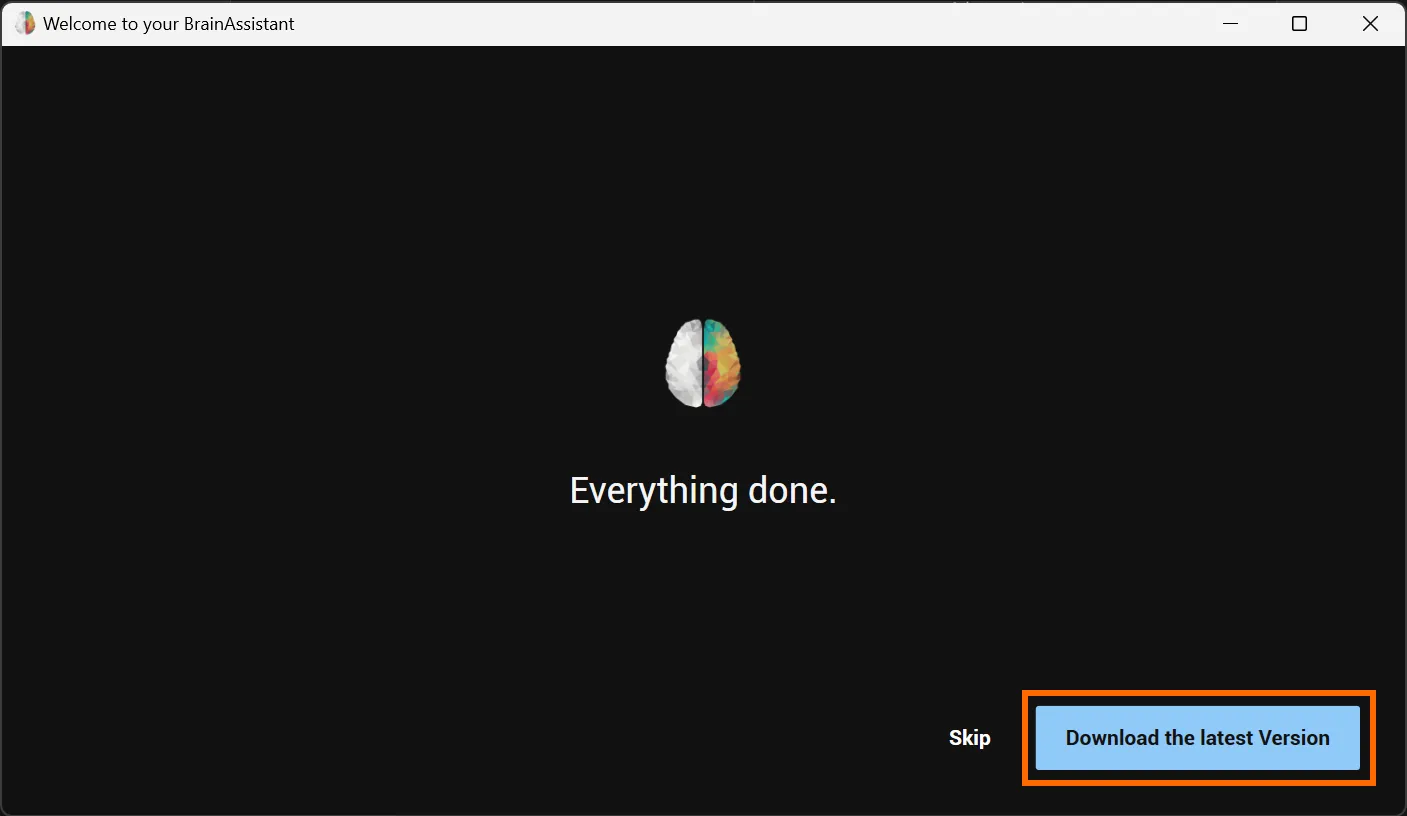
If you are prompted to Download the latest version, please do so:
Login and registration
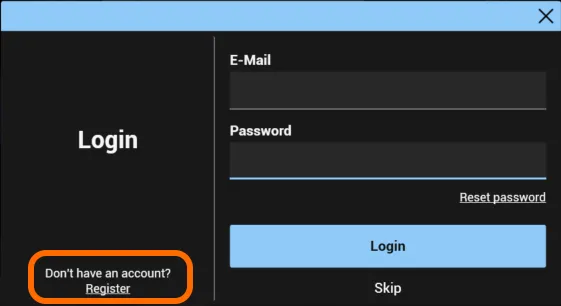
Sign in with your BrainAssistant account. One account can be used on multiple PCs and with multiple amplifiers.
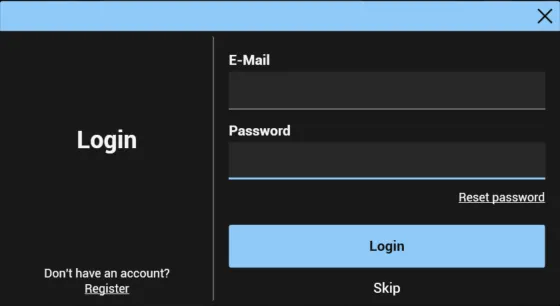
No account yet? Register
Enter your information and click Register.
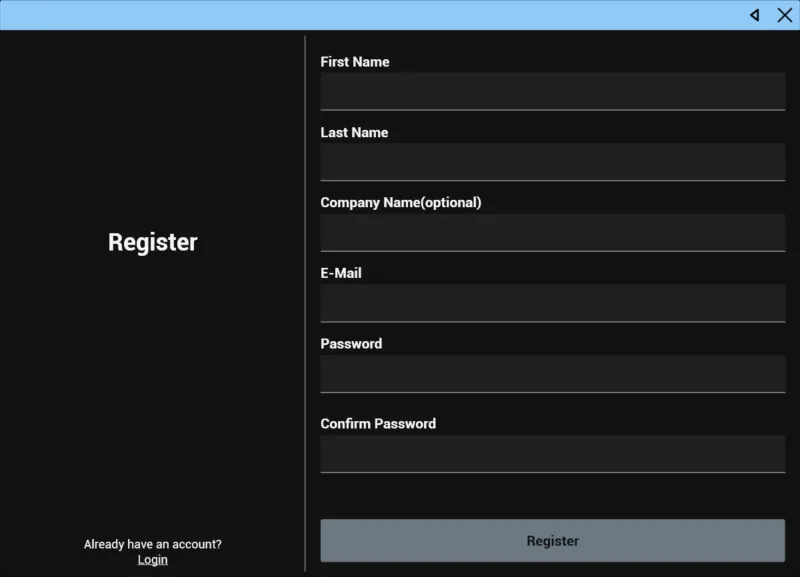
We protect your data. Details are in our privacy policy.
After registration you have a 14-day free trial with the full BrainAssistant functionality, where you can test all qEEG, neurofeedback and biofeedback features.
Create your trainer profile
In BrainAssistant there are clients and trainers. Clients are the people being recorded; trainers are the people doing the EEG recording, neurofeedback or biofeedback.
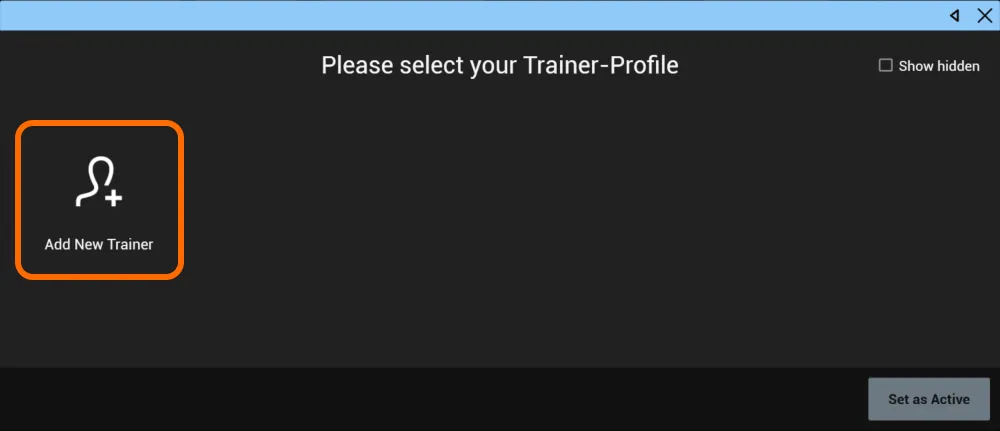
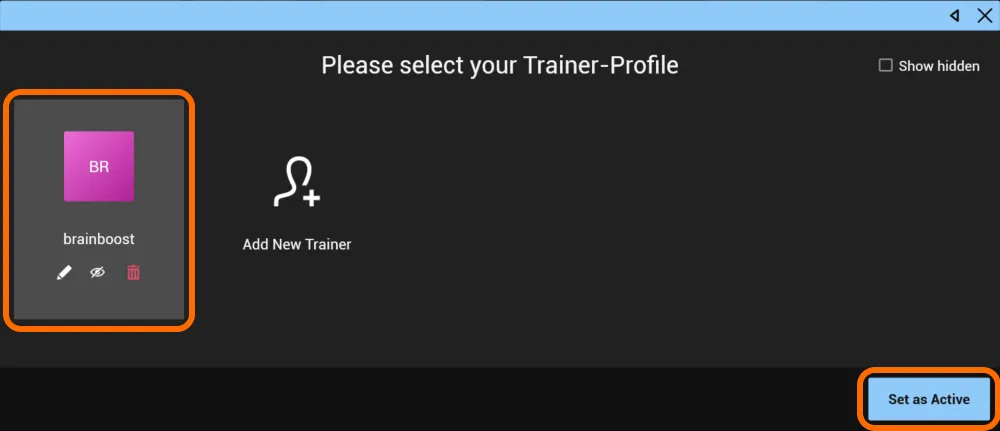
To create a new trainer, click Add new Trainer:
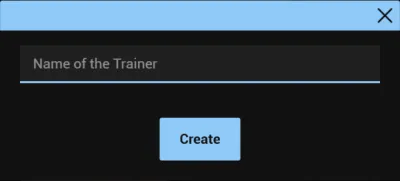
Enter your name and click Create:
Then select the trainer and click Set as Active at the bottom right:
Create and select a client
- For testing, select the Default User.
- For EEG recordings, neurofeedback or biofeedback, click Create at the top right and enter the client’s information. Only the first name, last name and birth date are required; everything else, such as gender and handedness, is optional.
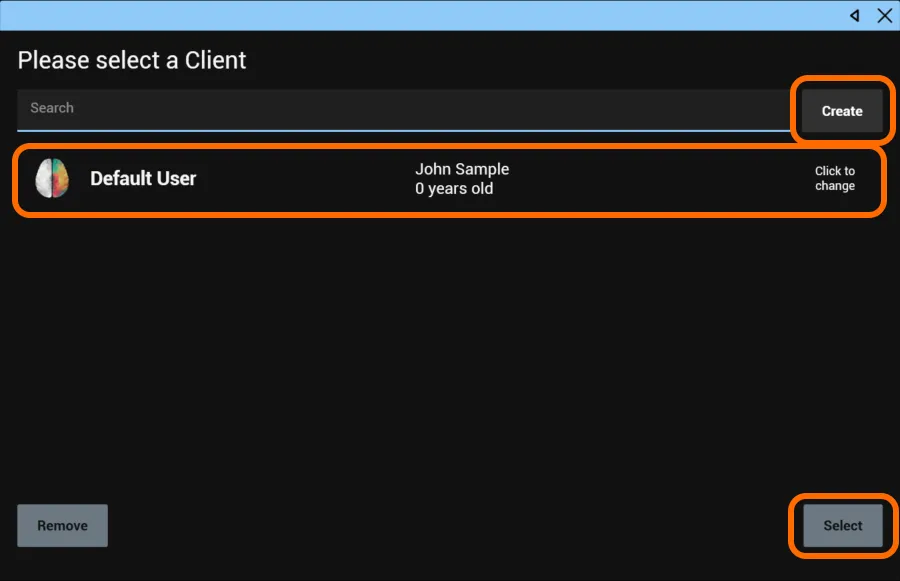
For more information about clients, see Add, search and remove clients.
Welcome to your home screen
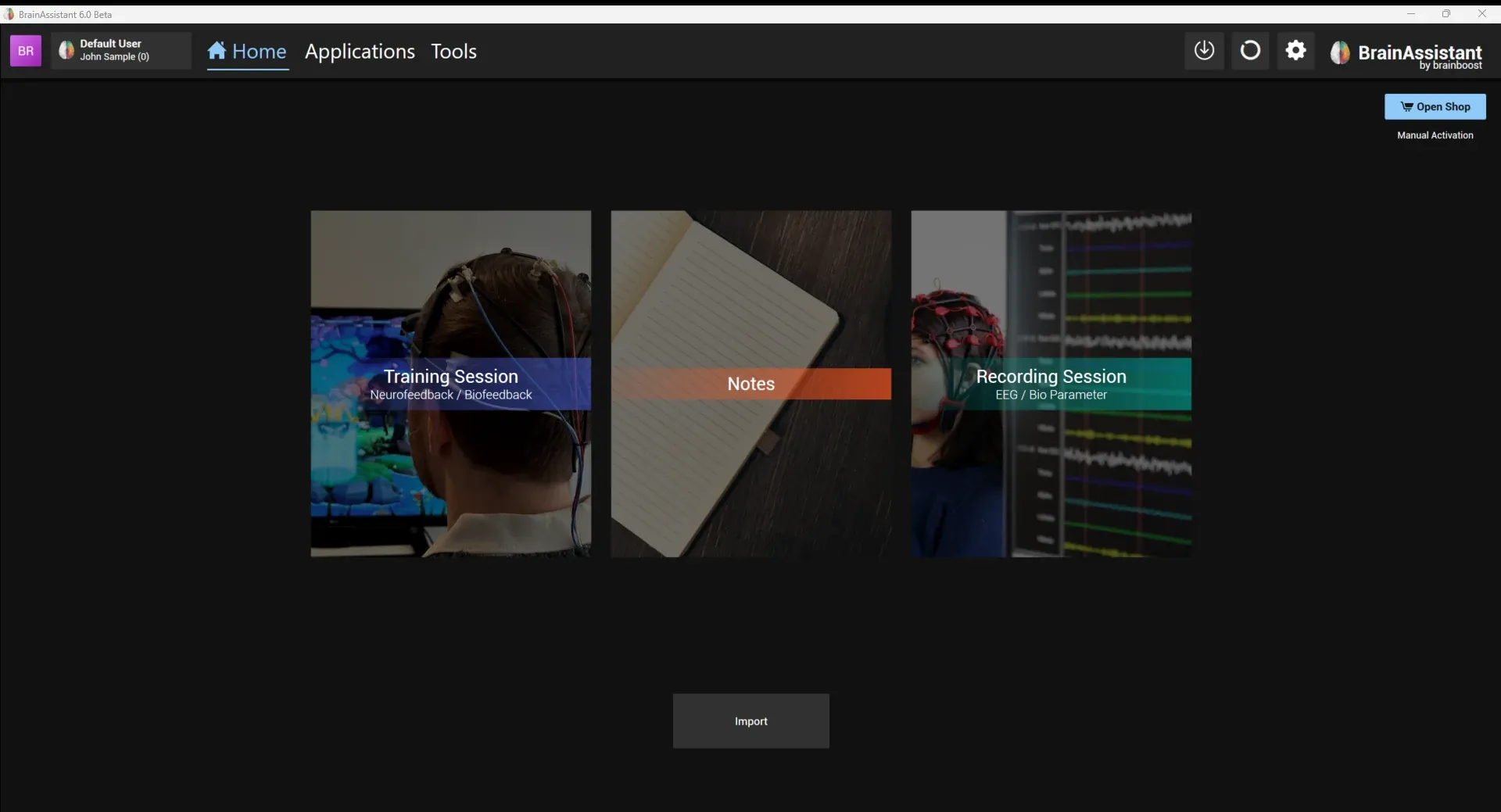
From here you continue with:
- Neurofeedback / biofeedback: click the blue Training Session button. See Training session.
- qEEG recording: click the green Recording Session button to record 1 to 24 channels. See Live EEG recording.
- Review a recorded session or create a qEEG report: click the client’s name at the top left and then Show Details. Read more about reviewing a neurofeedback or biofeedback session in Session analysis, and about qEEG reporting in EEG analysis and qEEG auto report.