
Start a recording session
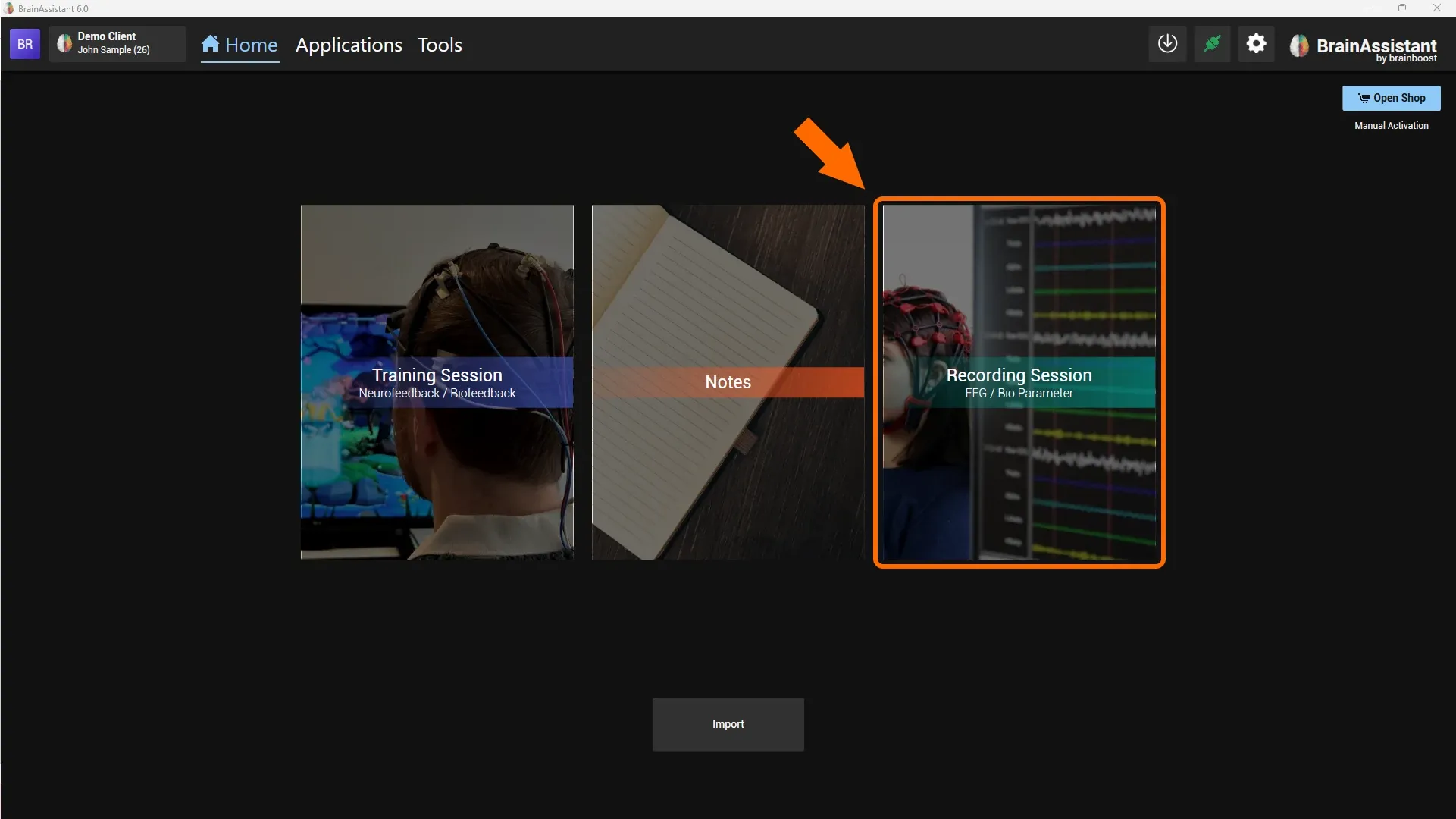
Click the green Recording Session button to start an EEG recording.
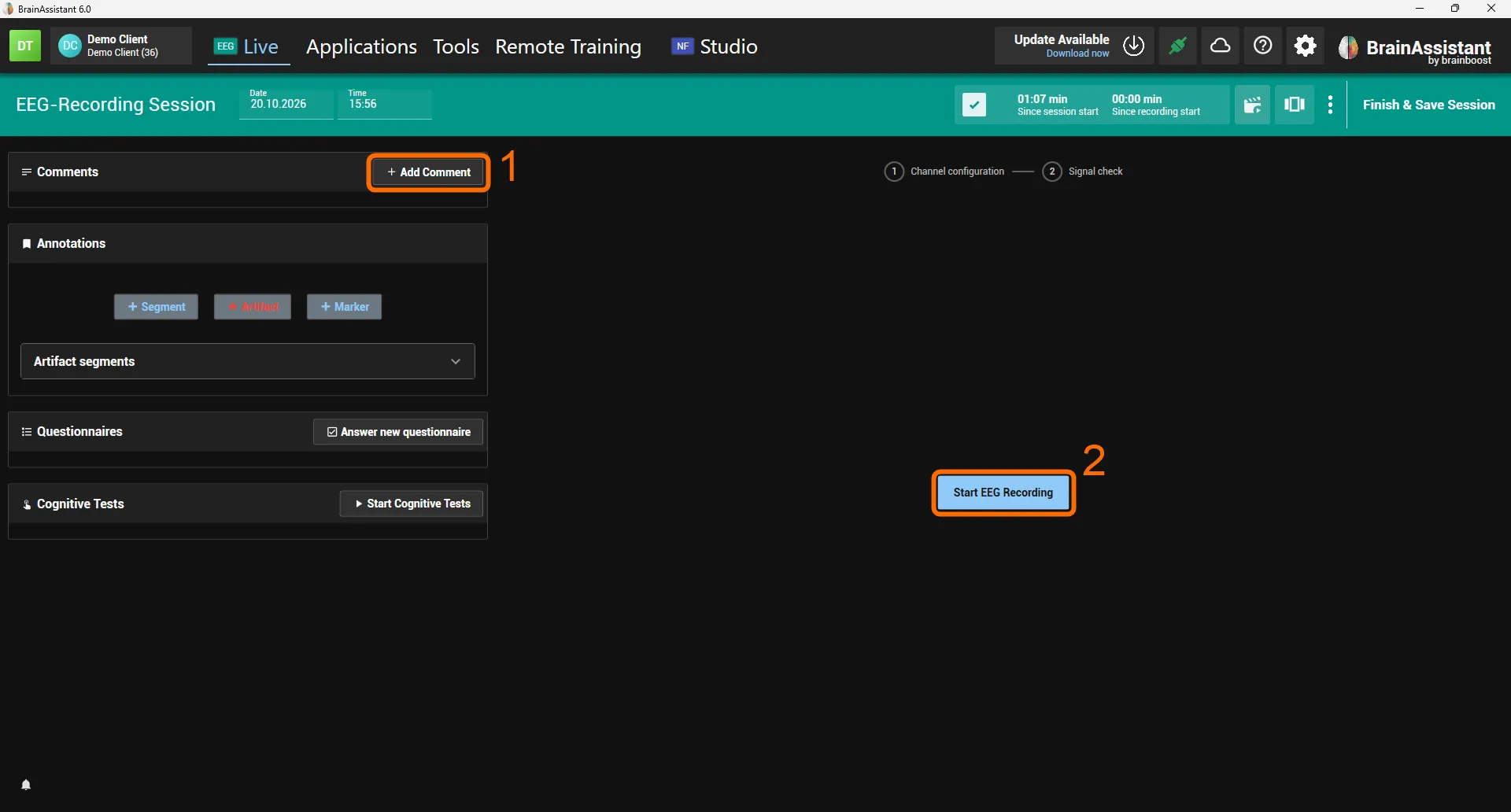
First steps in a recording session
- Click Add Comment in the Comments section to take notes during your qEEG recording. We highly recommend this: notes help you orient yourself when you review the recording and write a report afterwards, for example how the client behaves motorically or whether the client speaks during the recording.
- Click Start EEG Recording to set up the recording: you choose the cap and check the signal before the recording begins.
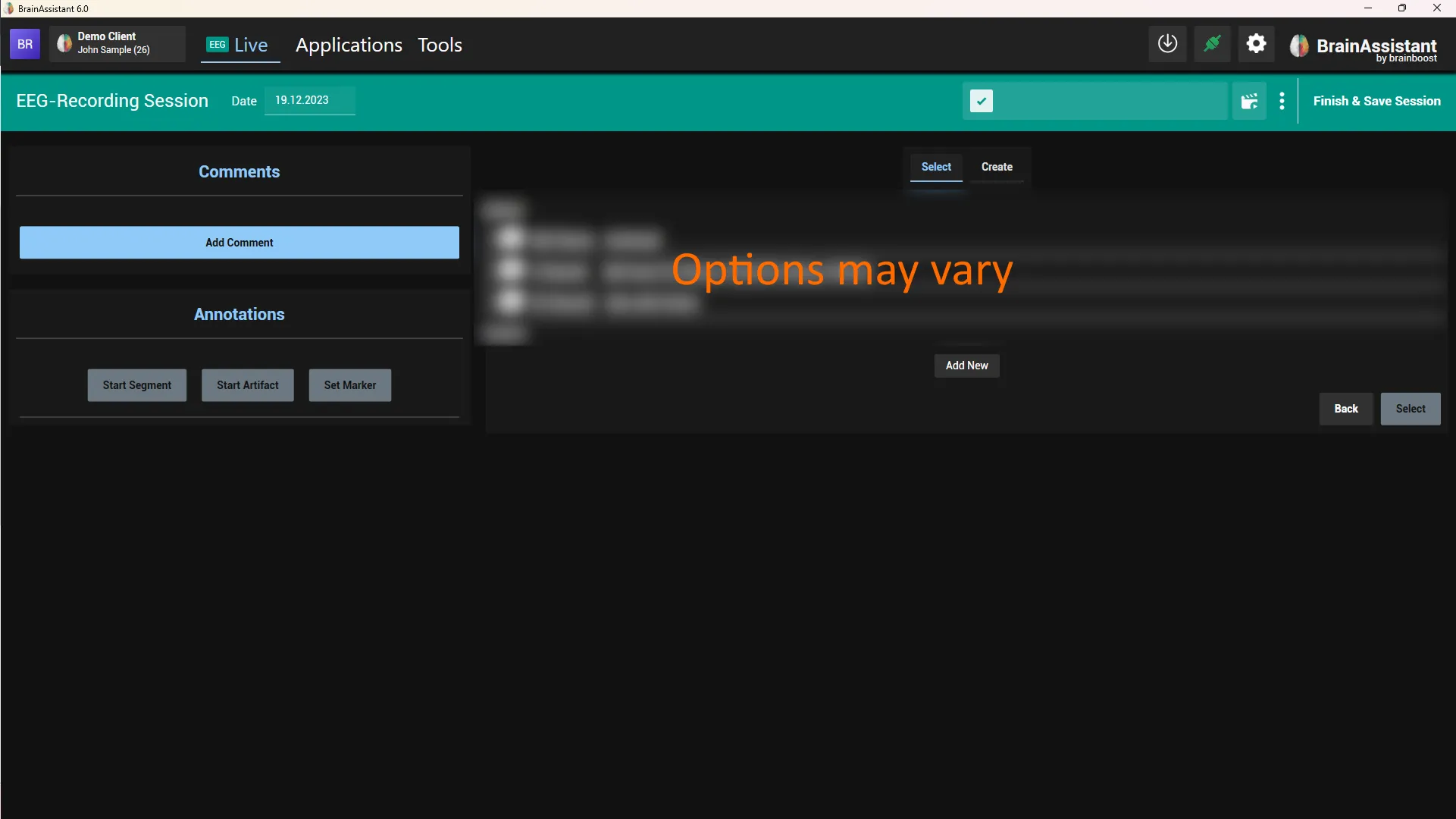
Select the cap you use or the individual channel setting. The options depend on your amplifier or device.
- No recording has started yet. This view is only for checking the signal.
- Change the Y axis. A value between 50 and 100 normally gives a good display of the data.
- Change the X axis (the seconds shown on the screen).
- Click Start at the bottom right to start the recording.
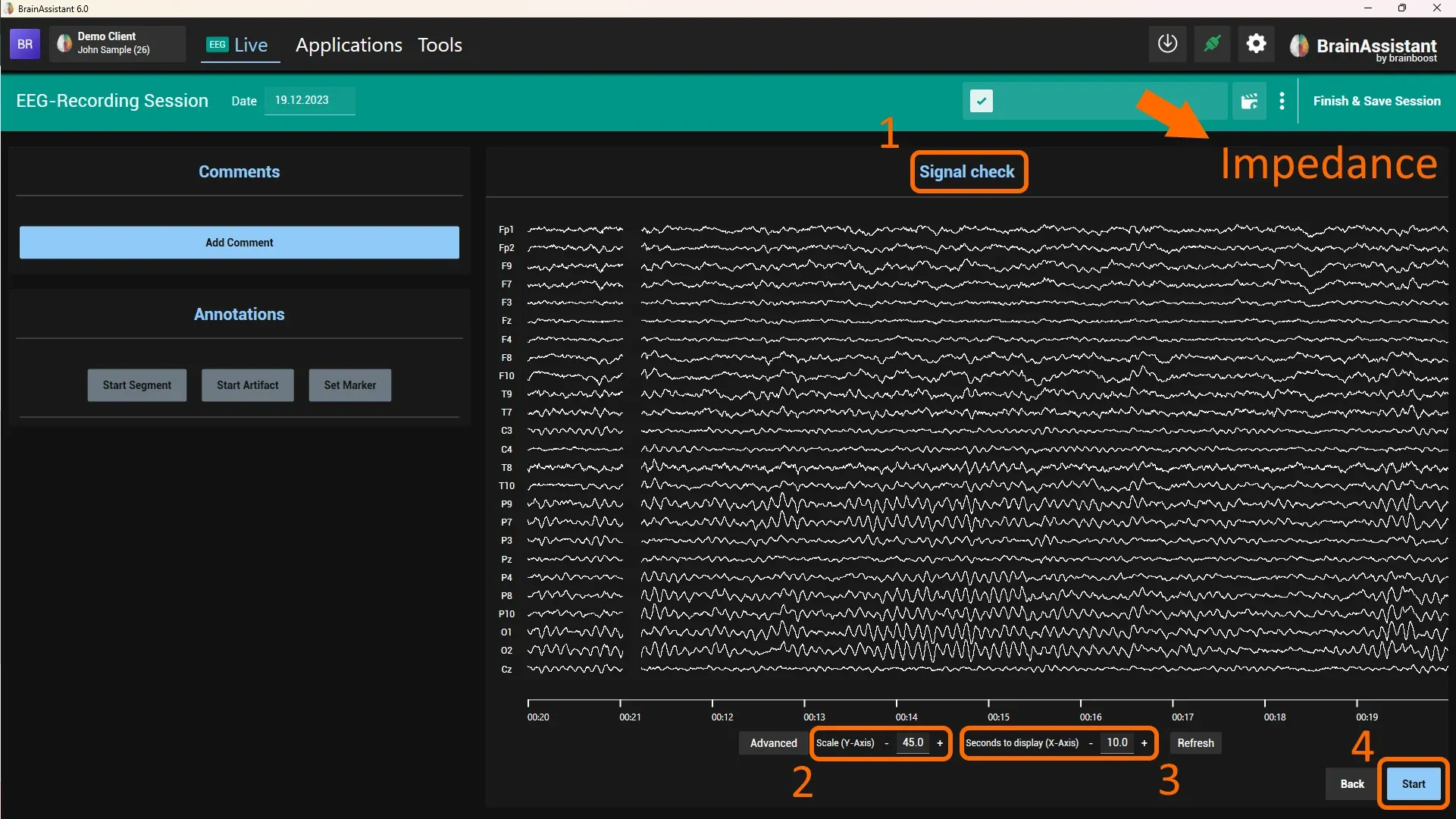
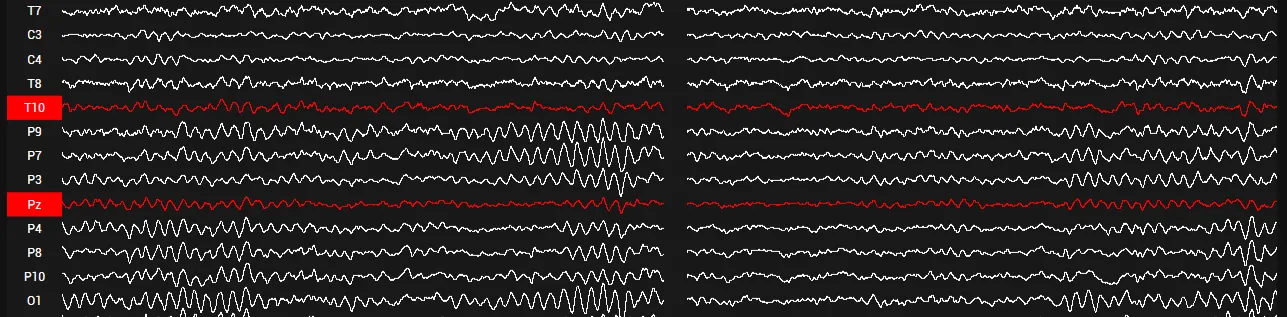
Click a channel name to mark the channel (it turns red). This helps you keep track of channels with bad signal quality while you prepare the electrodes.
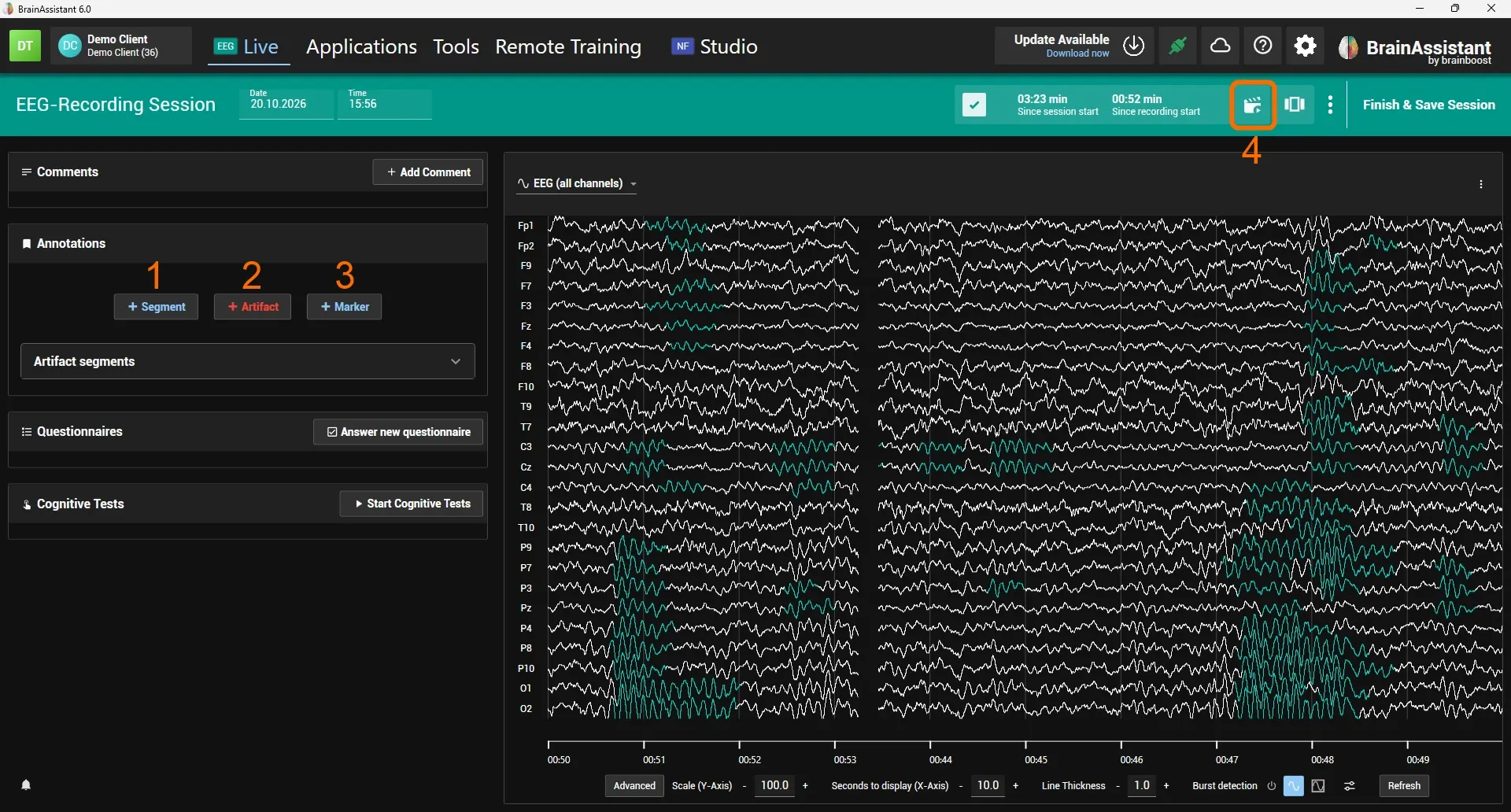
Segments, markers and flows
- Click Segment (with the plus sign) to start a segment.
- Click Artifact (with the plus sign) to mark a section as an artifact. Artifacts can also be marked automatically later.
- Click Marker (with the plus sign) to mark a spontaneous event. You can name the marker in its comment section.
- Optional: click the icon at the top right to start a flow. More in this video: Flows
You can always create segments, including artifact segments, afterwards when you review the recording. So don’t stress yourself during a live recording.
More about flows: Flows
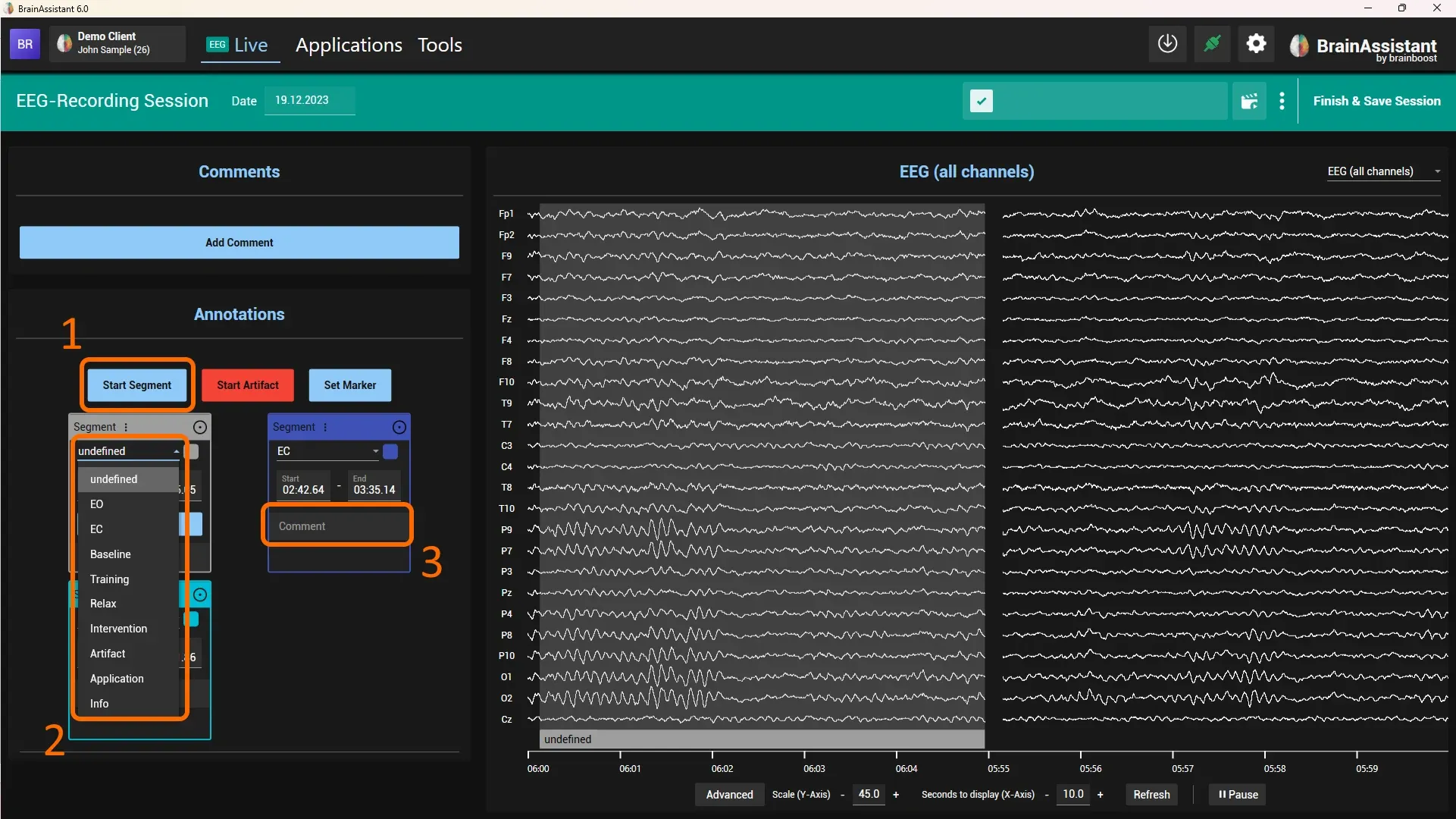
Segment definitions
- Click Segment to start a segment.
- Choose one of the predefined segment definitions in the drop-down menu. The most common are EO (eyes open) and EC (eyes closed).
- Choose Undefined to create and name your own segment in the comment section. You can also comment on predefined segments, for example an EC segment in which the client moved a lot.
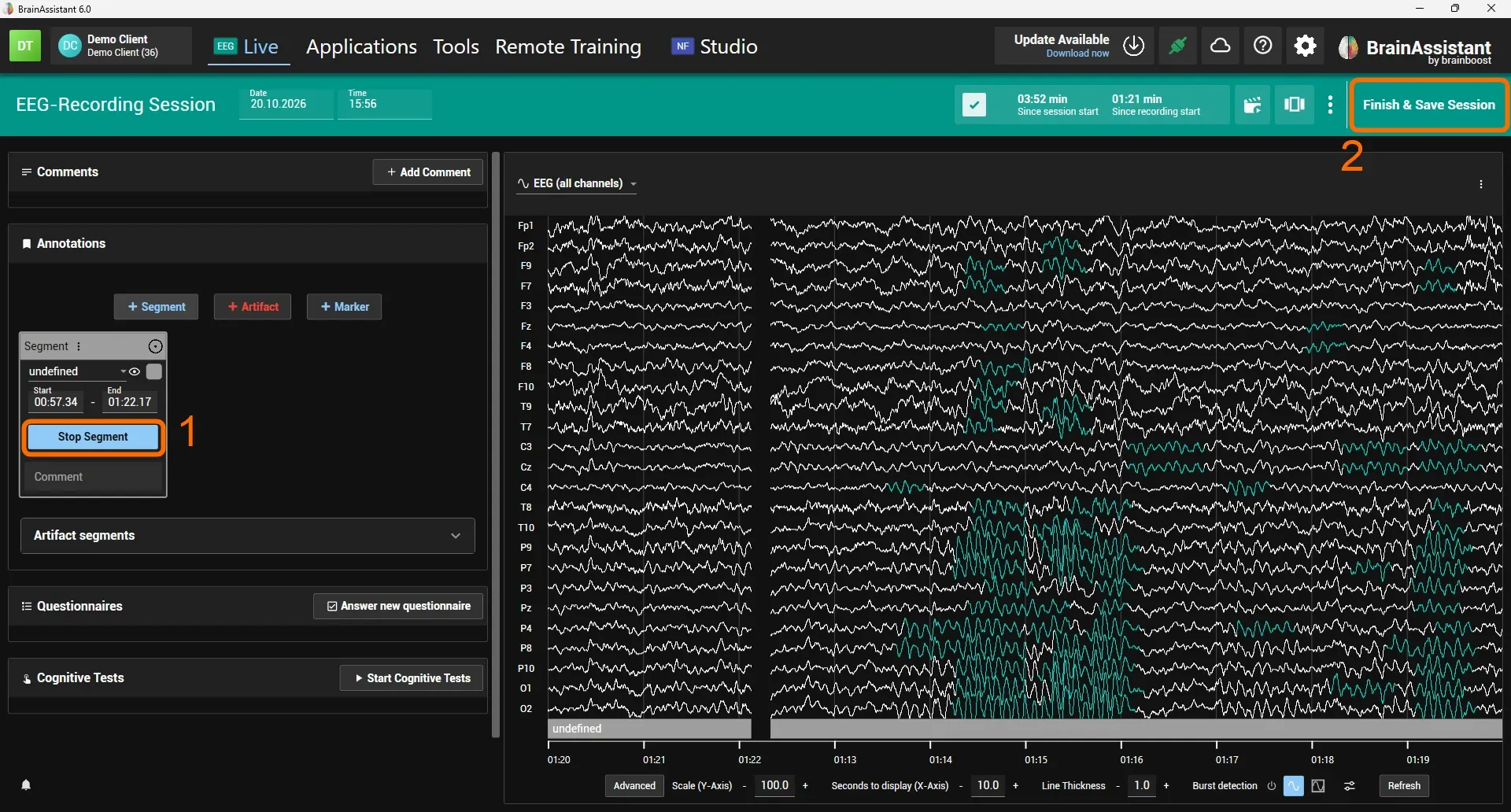
Finish the recording
- Click Stop Segment on the card of the running segment to stop it.
- Click Finish & Save Session at the top right to save all data and finish the recording.
After a session is saved you can review it. How to review a recorded session is described in EEG analysis: brain maps and report.