
A game or feedback application rewards the client while the training goes in the right direction. This page shows how the bars decide that, and how to change which bars count. The options are described in Reactions.
How bars become feedback
- Every bar is successful or not. A Go / Reward bar is successful while its value is above its threshold, a Stop / Inhibit bar while it is below.
- The game combines the bars. It gives positive feedback only while all bars it looks at are successful at the same time. As soon as one of them is not, the feedback turns negative.
By default a game looks at all bars of the session: the bars of the protocol and any biofeedback bars you added. In a protocol with Theta and High Beta to inhibit and Alpha 1 and Alpha 2 to reward, the water in Ocean Dive clears up only while Theta and High Beta are below their thresholds and Alpha 1 and Alpha 2 are above theirs.
The more bars have to be successful at the same time, the harder positive feedback becomes. Keep an eye on the Total Success and adjust the thresholds so the client is rewarded often enough: Adjust thresholds.
Open the feedback settings of a game
-
Start the game or application in the session: Training session.
-
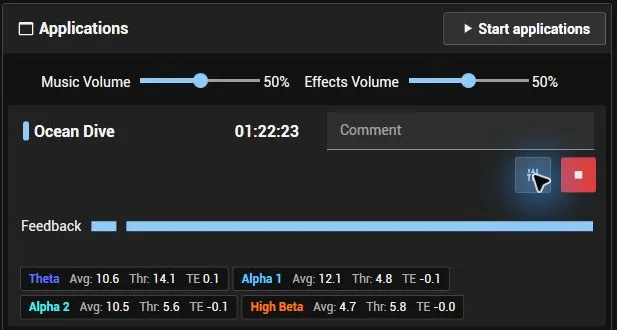
Click the button with the slider icon next to the running application.
-
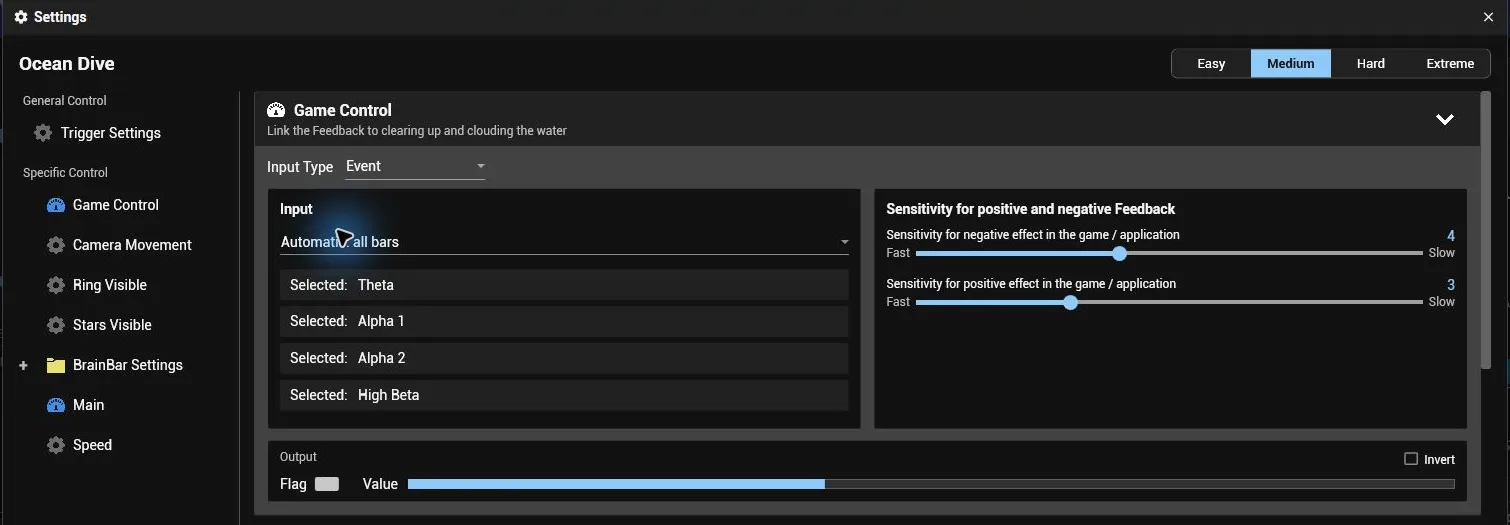
The Settings of the application open (applications with a remote control show a Control and a Settings tab: open Settings). Under Specific Control you find what the bars control in this game, for example Game Control in Ocean Dive.
Choose which bars count
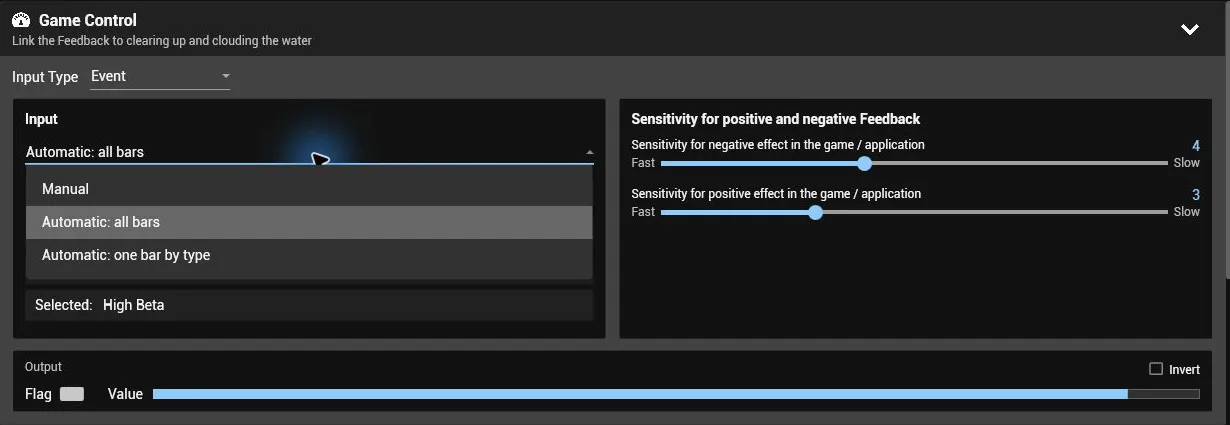
The list under Input decides which bars the game looks at:
- Automatic: all bars (default): every bar of the session has to be successful, including biofeedback bars you added.
- Manual: you choose the bars. The list starts with the bars that were selected before: remove a bar with Delete, or click Add and pick a bar in the new line. Bars you leave out no longer influence this game.
- Automatic: one bar by type: the game follows a single bar, chosen by its type (for example the neurofeedback bar, or the breathing bar in a biofeedback game).
Example: reward only while two reward bars are both successful. Choose Manual and delete all bars except the two reward bars, here Alpha 1 and Alpha 2. The game now gives positive feedback only while both are above their thresholds; Theta and High Beta stay visible for you but no longer hold back the feedback.
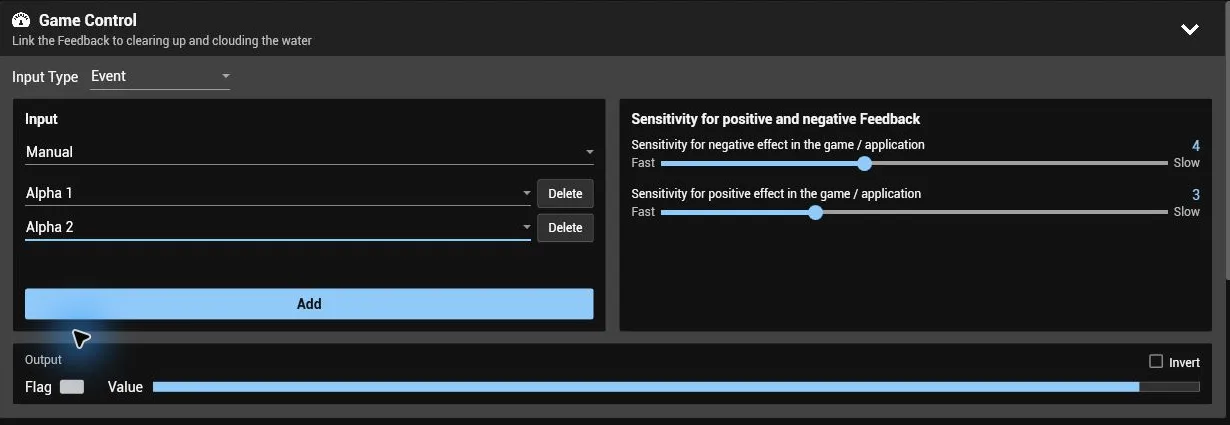
The Flag under Output lights up while the selected bars are all successful, and Value shows how far the effect in the game has built up. The Feedback line of the running application in the session shows the same, so you can check your choice while the client plays.
Set how quickly the game reacts
The game does not jump between good and bad: the effect builds up while the bars are successful and fades while they are not. The two sliders under Sensitivity for positive and negative Feedback set the pace in seconds, from Fast to Slow:
- Sensitivity for positive effect in the game / application: how long the bars have to stay successful until the full positive effect is reached.
- Sensitivity for negative effect in the game / application: how long it takes until the effect is gone again.
The difficulty buttons at the top (Easy to Extreme) set both sliders to the values that suit the game; in Ocean Dive a higher difficulty makes the positive effect build up more slowly. Choose the difficulty first and fine-tune the sliders afterwards.
Good to know
- Your bar selection stays when you change the difficulty or start the game again during the session. The sliders go back to the values of the difficulty each time.
- Some games have more than one entry with bars under Specific Control. Each has its own bar selection, so different bars can control different parts of the game.
- The Total Success in the session is a statistic for you. Ticking or unticking bars there does not change what the game reacts to; only the bar selection on this page does. In a session with neurofeedback and biofeedback bars, the Total Success counts only the neurofeedback bars by default, while the game also waits for the biofeedback bars; choose Manual to leave them out.
- A bar without a valid value (for example while a signal is missing) counts as not successful.